Installation with Internet access
This section builds on the initial installation steps described in the RPM install section. Please ensure that you have completed the steps in that section before proceeding.
Installation with Internet access
This type of installation is suitable for environments where the servers running the OpenIAM software will have internet access and can reach the OpenIAM website to download the software. You can validate internet connection by running the command below.
curl https://openiam.com/; echo $?
You should see 0 as a result. If you see non-zero result, its means that you CANNOT reach the OpenIAM web site from your deployment server. Please resolve the internet access or use the offline installation instructions. The RPM installation for OpenIAM 4.2.2 supports Enterprise Linux 9 (EL9). During the installation process, you will be prompted to install MariaDB RDBMS as the default database. Database recommendations
- MariaDB Usage: MariaDB is suitable for Demo, Proof-of-Concept (POC), or small-scale deployments. However, for production environments, we strongly recommend using a corporate-standard database that aligns with your organization’s IT policies and is fully supported operationally.
- MariaDB in Production: If you choose to use MariaDB in a production setting, ensure that:
- It is properly sized for your workload
- It is deployed in a high-availability (HA) configuration to enhance reliability.
Using an existing Database infrastructure
If you already have a database infrastructure you prefer to use, select
Nwhen prompted during the installation. This option allows you to integrate OpenIAM with your preferred database system. The following sections will guide you through the OpenIAM installation process step by step.
- Download the RPM installer using the following command.
For EL8:
For EL9:curl https://download.openiam.com/release/enterprise/4.2.2/rpm/openiam-4.2.2.noarch.x86_64.rpm --output /usr/src/openiam-4.2.2.noarch.x86_64.rpmcurl https://download.openiam.com/release/enterprise/4.2.2/rpm/openiam-4.2.2.noarch.x86_64.rpm --output /usr/src/openiam-4.2.2.noarch.x86_64.rpm - Once the download is complete, install OpenIAM using the following command. This step will also update the initial
ulimitsettings, which are required for the subsequent installation process
You should see the output like one given below.sudo rpm -i openiam-4.2.2.noarch.x86_64.rpm
openiam/openiam/vault/openiam/vault/openiam.cluster.policy.hclopeniam/vault/openiam.policy.hclopeniam/vault/secret.policy.hclopeniam/vault/consulopeniam/vault/medusaopeniam/vault/vaultopeniam/services/shutdown.shopeniam/services/start_auth.shopeniam/services/start_br.shopeniam/services/start_device.shopeniam/services/start_email.shopeniam/services/start_esb.shopeniam/services/start_groovy.shopeniam/services/start_idm.shopeniam/services/start_idp.shopeniam/services/start_recon.shopeniam/services/start_reportviewer.shopeniam/services/start_sas.shopeniam/services/start_selfservice.shopeniam/services/start_selfservice_ext.shopeniam/services/start_sync.shopeniam/services/start_ui_static.shopeniam/services/start_webconsole.shopeniam/services/start_workflow.shopeniam/OpenIAM-Base-Local.repoopeniam/env.conf
Your VM will reboot to apply changes to ulimit. After it reboots, reconnect to your VM by executing the following command and providing your credentials when prompted.
ssh [username]@[IP address of your VM]
In case you don't want the VM to reboot for no, you can use shutdown -c command to cancel the server from rebooting.
3. Start the initialization process which will download files required for installation from OpenIAM server. Please follow the instructions on the screen.
sudo openiam-cli init
You will be asked about Internet access on this box, as shown below.
[root@ip-172-16-0-181 ~]# openiam-cli initInitialize openiamDoes this box have Internet access ? [y/n]:
Type y and press Enter.
The system will download additional files, extract them locally, update your repository, and install essential base packages. You will see output similar to the snippet below.
Initialize openiamDoes this box have Internet access ? [y/n]:yIt is default configuration in env.confDownload file openiamrepo.tar.gz from OpenIAM websiteDownload file backend.tar.gz from OpenIAM websiteDownload file frontend.tar.gz from OpenIAM websiteopeniamrepo/openiamrepo/mariadb/openiamrepo/mariadb/perl-MIME-Base64-3.15-396.el8.x86_64.rpmopeniamrepo/mariadb/perl-Math-BigInt-1.9998.11-7.el8.noarch.rpmopeniamrepo/mariadb/perl-Pod-Usage-1.69-395.el8.noarch.rpmopeniamrepo/mariadb/mariadb-backup-10.3.39-1.module+el8.8.0+19673+72b0d35f.x86_64.rpmopeniamrepo/mariadb/perl-Net-SSLeay-1.88-2.module+el8.6.0+13392+f0897f98.x86_64.rpmopeniamrepo/mariadb/perl-IO-1.38-422.el8.x86_64.rpmopeniamrepo/mariadb/perl-DBD-MySQL-4.046-3.module+el8.1.0+2938+301254e2.x86_64.rpmopeniamrepo/mariadb/mariadb-errmsg-10.3.39-1.module+el8.8.0+19673+72b0d35f.x86_64.rpmopeniamrepo/mariadb/perl-interpreter-5.26.3-422.el8.x86_64.rpmopeniamrepo/mariadb/perl-Term-ANSIColor-4.06-396.el8.noarch.rpmopeniamrepo/mariadb/perl-Time-Local-1.280-1.el8.noarch.rpmopeniamrepo/mariadb/perl-Unicode-Normalize-1.25-396.el8.x86_64.rpmopeniamrepo/mariadb/perl-Scalar-List-Utils-1.49-2.el8.x86_64.rpmopeniamrepo/mariadb/perl-Mozilla-CA-20160104-7.module+el8.3.0+6498+9eecfe51.noarch.rpmopeniamrepo/mariadb/compat-openssl11-1.1.1k-4.el9.x86_64.rpmopeniamrepo/mariadb/mariadb-connector-c-3.1.11-2.el8_3.x86_64.rpmopeniamrepo/mariadb/perl-podlators-4.11-1.el8.noarch.rpmopeniamrepo/mariadb/perl-Exporter-5.72-396.el8.noarch.rpmopeniamrepo/mariadb/mariadb-server-utils-10.3.39-1.module+el8.8.0+19673+72b0d35f.x86_64.rpmopeniamrepo/mariadb/perl-Math-Complex-1.59-422.el8.noarch.rpmopeniamrepo/mariadb/perl-Text-ParseWords-3.30-395.el8.noarch.rpmopeniamrepo/mariadb/perl-Digest-MD5-2.55-396.el8.x86_64.rpmopeniamrepo/mariadb/libaio-0.3.112-1.el8.x86_64.rpmopeniamrepo/mariadb/perl-File-Path-2.15-2.el8.noarch.rpmopeniamrepo/mariadb/mariadb-server-10.3.39-1.module+el8.8.0+19673+72b0d35f.x86_64.rpmopeniamrepo/mariadb/perl-PathTools-3.74-1.el8.x86_64.rpmopeniamrepo/mariadb/perl-Pod-Escapes-1.07-395.el8.noarch.rpmopeniamrepo/mariadb/perl-libs-5.26.3-422.el8.x86_64.rpmopeniamrepo/mariadb/perl-Socket-2.027-3.el8.x86_64.rpmopeniamrepo/mariadb/perl-Carp-1.42-396.el8.noarch.rpmopeniamrepo/mariadb/perl-threads-shared-1.58-2.el8.x86_64.rpmopeniamrepo/mariadb/mariadb-10.3.39-1.module+el8.8.0+19673+72b0d35f.x86_64.rpmopeniamrepo/mariadb/perl-IO-Socket-IP-0.39-5.el8.noarch.rpm...================================================================================Package Architecture Version Repository Size================================================================================Installing:m4 x86_64 1.4.19-1.el9 appstream 294 ktelnet x86_64 1:0.17-85.el9 appstream 63 kTransaction Summary================================================================================Install 2 PackagesTotal download size: 357 kInstalled size: 703 kDownloading Packages:(1/2): telnet-0.17-85.el9.x86_64.rpm 327 kB/s | 63 kB 00:00(2/2): m4-1.4.19-1.el9.x86_64.rpm 1.0 MB/s | 294 kB 00:00--------------------------------------------------------------------------------Total 988 kB/s | 357 kB 00:00Running transaction checkTransaction check succeeded.Running transaction testTransaction test succeeded.Running transactionPreparing : 1/1Installing : m4-1.4.19-1.el9.x86_64 1/2Installing : telnet-1:0.17-85.el9.x86_64 2/2Running scriptlet: telnet-1:0.17-85.el9.x86_64 2/2Verifying : telnet-1:0.17-85.el9.x86_64 1/2Verifying : m4-1.4.19-1.el9.x86_64 2/2Installed:m4-1.4.19-1.el9.x86_64 telnet-1:0.17-85.el9.x86_64Complete!workflow.jarsynchronization.jarreconciliation.jaropeniam-esb.jaridm.jargroovy-manager.jaremail-manager.jardevice-manager.jarauth-manager.jarbusiness-rule-manager.jarsas-manager.jarsas-lib.zipidp.waropeniam-ui-static.warselfservice-ext.warselfservice.warwebconsole.warreportviewer.war
- You will be asked if you want to install MariaDB as the default database.
Would you like to install MariaDB RDBMS locally? [y/n]:
Please answer Y if you would like to use the local MariaDB RDBMS as a database server. To use another database, please enter N. This question enables the installation of MariaDB so that it can be used later in the installation process.
If you answered Y, the MariaDB installer will prepare the files needed to install and configure MariaDB. Once this process is complete, you will be asked the questions below. Answer them and proceed to the next step.
5. Enter current password for root (enter for none):
- Press Enter, as no password has been set yet.
- You will see the following confirmation message.
OK, successfully used password, moving on...Setting the root password ensures that nobody can log into the MariaDBroot user without the proper authorisation.
Set root password? [Y/n]> Pressybutton and after Enter. Typeyand press Enter to set a password for the MariaDB root user.New password:>- Enter a secure password for the MariaDB root user.
- Note: You will need this password later in the installation process.
- Type the same password as in the previous step and press Enter.
Re-enter new password:- Type the same password as in the previous step and press Enter.
Remove anonymous users? [Y/n]- Type
yand press Enter to remove anonymous database users. - This enhances security by ensuring only authenticated users can access MariaDB.
- Type
Disallow root login remotely? [Y/n]
- Type
yand press Enter to prevent remote root login. - This reduces the risk of unauthorized access.
Remove test database and access to it? [Y/n]
* Type `y` and press **Enter** to delete the default test database.* This prevents potential security risks from an unused database.
Reload privilege tables now? [Y/n]
* Type `y` and press **Enter** to apply the changes immediately.
The snippet below provides a view of what you can expect to see in this part of the installation. Note, that for successful installation it is required to set a password for the root user in MariaDB.
NOTE: RUNNING ALL PARTS OF THIS SCRIPT IS RECOMMENDED FOR ALL MariaDBSERVERS IN PRODUCTION USE! PLEASE READ EACH STEP CAREFULLY!In order to log into MariaDB to secure it, we'll need the currentpassword for the root user. If you've just installed MariaDB, andyou haven't set the root password yet, the password will be blank,so you should just press enter here.Enter current password for root (enter for none):OK, successfully used password, moving on...Setting the root password ensures that nobody can log into the MariaDBroot user without the proper authorisation.Set root password? [Y/n] openiamSet root password? [Y/n] YNew password:Re-enter new password:Password updated successfully!Reloading privilege tables..... Success!By default, a MariaDB installation has an anonymous user, allowing anyoneto log into MariaDB without having to have a user account created forthem. This is intended only for testing, and to make the installationgo a bit smoother. You should remove them before moving into aproduction environment.Remove anonymous users? [Y/n] y... Success!Normally, root should only be allowed to connect from 'localhost'. Thisensures that someone cannot guess at the root password from the network.Disallow root login remotely? [Y/n] y... Success!By default, MariaDB comes with a database named 'test' that anyone canaccess. This is also intended only for testing, and should be removedbefore moving into a production environment.Remove test database and access to it? [Y/n] y- Dropping test database...... Success!- Removing privileges on test database...... Success!Reloading the privilege tables will ensure that all changes made so farwill take effect immediately.Reload privilege tables now? [Y/n] y... Success!Cleaning up...All done! If you've completed all of the above steps, your MariaDBinstallation should now be secure.Thanks for using MariaDB!
After MariaDB has been installed, the installer will move forward to a variety of infrastructure services such as the Vault, Redis, RabbitMQ and Cassandra, which is the storage for the graph database used in OpenIAM. This process will take 4-5 min. The snippet below, which follow the installation of MariaDB, shows a certificate being generated and the vault being initialized.
Certificate request self-signature oksubject=C=US, ST=NY, L=NY, O=OPENIAM, OU=PRODUCTION, CN=localhostWarning: -clcerts option ignored with -exportwriting RSA keyWarning: use -cacerts option to access cacerts keystoreCertificate was added to keystore[Storing /usr/local/openiam/jdk/lib/security/cacerts]Starting consul...Starting vault...Command flags must be provided before positional arguments. The followingarguments will not be parsed as flags:
The installer will ask several questions during the initialization process. For most questions, a default value has been provided to simplify the effort for users new to OpenIAM. The sections which requires input from the installer are marked with the following message in the console:
=============== CRITICAL SECTION ===============Defining database and infrastructure components credentials
OpenIAM has three schemas which are created by default: openiam, activiti and groovy. The openiam schema is the primary schema used by the platform and it stores a variety of information ranging from policies to user profile information and more. activiti is used to store information about workflows and their execution. The first set of questions raised by the installer are related to the creation of database users for each schema. Each question and its intent are listed below. Groovy script metadata, including file details, versioning, and last modified timestamp, is managed in the database to support controlled updates and audit tracking.
| Question raised by the installer | Explanation |
|---|---|
Set OpenIAM username for schema openiam, default: idmuser | This is the DB username that will be used to manage the openiam OpenIAM schema. This is the primary schema in the solution data related to OpenIAM are stored. Users will be used by the OpenIAM application to communicate with the database. The default value is idmuser. |
Set OpenIAM password for schema openiam, default: idmuser | This is the password that will be used for the username which was provided in the previous step. The default value is: idmuser. |
Set OpenIAM username for schema activiti. For MySQL it will be the same as for openiam, default: activiti | This is the DB username that will be used to manage the activiti schema. Users will be used by OpenIAM application to communicate with the database. Default value is activiti. |
Set OpenIAM password for schema activiti. For MySQL it will be the same as for openiam, default: activiti | This is the password for the user associated with the activiti schema. The default value is activiti. |
Set OpenIAM username for schema groovy. For MySQL it will be the same as for openiam, default: groovy | This is the DB username that will be used to manage the groovy schema. Users will be used by OpenIAM application to communicate with the database. Default value is groovy. |
Set OpenIAM password for the groovy schema. For MySQL it will be the same as for openiam, default: groovy. | This is the password for the user associated with the groovy schema. The default value is groovy. |
DatabaseSet OpenIAM username for schema 'openiam' , default: idmuserSet OpenIAM password for schema 'openiam' , default: idmuserSet OpenIAM username for schema 'activiti'., default: activitiSet OpenIAM password for schema 'activiti'., default: activitiSet OpenIAM username for schema 'groovy'., default: groovySet OpenIAM password for schema 'groovy'., default: groovySet OpenIAM password for RabbitMQ message broker, default: passwd00Set OpenIAM password for Redis., default: passwd00Set OpenIAM password for REdis Sentinel., default: passwd00User to Access OpenSearch. If you don't change it on the OS server side, leave it as elastic, default: elasticPassword for elastic to access OpenSearch, default: VlyXHUBDuhgv6BTKjTz7TumtBZL8ZbmuPlease validate information below
Message broker password
OpenIAM uses RabbitMQ as a message broker. RabbitMQ is the primary transport service used within the OpenIAM application. Services are loosely coupled, and they communicate with each other through the message broker. Cross service communication is encrypted. The next question raised by the installer is to define a password for RabbitMQ. As seen in the above questions, a default password value is provided for simplicity. For production use, please use a strong password.
Set OpenIAM password for RabbitMQ message broker, default: passwd00
Memory cache password
Redis is an in-memory distributed cache that is used by OpenIAM to improve system performance. A variety of objects are temporarily stored in Redis including:
- End user web session.
- Database object cache.
- High level application cache. As with other components, access to the cache is secured and the next question asks for a password which should be used for Redis.
Set OpenIAM password for Redis., default: passwd00
If you want to use Redis with TLS select y, else - select n as default parameters and proceed with next steps
Do you want to enable TLS for Redis? (y/n): n
OpenSearch credentials
OpenSearch search is used by OpenIAM to enable fast searching of frequently used data. As with the components above, access to OpenSearch is secured through its own set set of credentials. You be prompted for this information as shown below.
OpenIAM Username to access Opensearch: elasticOpenIAM password for elastic user to access Opensearch: ilm5LjYPAeFWbfLE40dthmEOunN4Cnlz
The information requested above is critical for the installation process. Mistakes in these steps can disrupt the installation process. To minimize such issues, you will be asked to review the above answers. If you agree with the information, select
Y. If you need to fix some information, selectNand the installer will walk you through this process again.
Cassandra
After processing the above information, the installer will then install Cassandra. Cassandra is the storage engine for Janus Graph DB. You will see output like the example below during this step. There might be an error message at several lines in .java files. Ignore this error - since Cassandra takes a little while to start, an error occurs due to this delay. The installer will wait and then proceed with the installation.
Synchronizing state of cassandra.service with SysV service script with /usr/lib/systemd/systemd-sysv-install.Executing: /usr/lib/systemd/systemd-sysv-install enable cassandraCreated symlink /etc/systemd/system/default.target.wants/cassandra.service → /etc/systemd/system/cassandra.service.0error: No nodes present in the cluster. Has this node finished starting up?-- StackTrace --java.lang.RuntimeException: No nodes present in the cluster. Has this node finished starting up?...Waiting for cassandra1Datacenter: datacenter1=======================Status=Up/Down|/ State=Normal/Leaving/Joining/Moving-- Address Load Tokens Owns (effective) Host ID RackUN 127.0.0.1 73.52 KiB 256 100.0% 5a7c7a99-aeaf-4576-9863-f226a7867ef0 rack1Cassandra aliveCassandra is ready to use. Continue...
At this point the installer has enough information to complete the installation of: OpenSearch, Redis, and RabbitMQ.
Initialize Database Schema
| Question raised by the installer | Explanation |
|---|---|
Use default value if this is new installation. If you are doing an update, specify your current (before update) version here, like 4.1.11.0, default: 0.0.0.0 | If this install is an upgrade from an existing deployment, then the current version is important as it will determine which scripts need to be applied to upgrade the schema to the current version. If this is a new deployment, you can leave this blank. |
This is the name of the OpenIAM core database. If using MariaDB, this is most likely openiam, default: openiam | This question provides the option to choose the primary database schema. You should leave this blank and let it default to openiam. This value should only be changed if the scripts have been altered by the customer. |
This is the name of the OpenIAM Activiti database. If using MariaDB, this is most likely activiti, default: activiti | This question provides the option to choose the database schema used by the workflow engine. You should leave this blank and let it default to activiti. This value should only be changed if the scripts have been altered by the customer. |
Possible values: MySQL, Postgres, MSSQL, Oracle. Type of the database that you are going to use with OpenIAM. The RDBMS have to be already installed, default: MySQL | Select the type of database that you will be using as the OpenIAM product repository. You can leave this blank if you will be using either MariaDB or MySQL. If you are using PostgreSQL, Oracle, or Microsoft SQL Server, enter one of the following values based on your database type: postgres, oracle, mssql. |
This is the name of the OpenIAM Groovy database. If using MariaDB, this is most likely groovy, default: groovy | This question provides the option to choose the database schema used by OpenIAM. You should leave this blank and let it default to groovy. This value should only be changed if the scripts have been altered by the customer. |
This is the hostname of where the Groovy database is, default: localhost | Enter the host or DNS name of the server where the workflow database will be deployed. |
This is the port of where the Groovy database is. If using MariaDB, this is most likely 3306, default: 3306 | Enter the port number used by the database server hosting the workflow database. |
| Do you want to initialize OpenIAM schema and users? Select this if you have not created schema and users in RDBMS yet. Super user (root) password will be required [y/n] | If Y then the installer will create schemas in the database and corresponding RDBMS users as well. For Oracle/MSSQL it will generate an SQL script that must be performed manually. |
Enter username for super user (for MySQL this is root), default: root | The installer needs a super user account or equivalent which has the privileges to create new schemas, users, tables, etc. |
Enter password for super user (sa or root, depending on the DB type), default: | Enter the password for the account provided in the last step. |
Do you use AWS RDS MariaDB? If yes, make sure the RDS DB instance has the parameter log_bin_trust_function_creators = 1 [y/n] | Select N if AWS RDS MariaDB is not being used for this deployment. |
This is the hostname of where the OpenIAM core database is, default: localhost | Enter the host or DNS name of the server where the primary OpenIAM database will be deployed. |
This is the port of where the OpenIAM core database is. If using MariaDB, this is most likely 3306, default: 3306 | Enter the port number used by the database server hosting the primary OpenIAM database. |
This is the hostname of where the Activiti database is, default: localhost | Enter the host or DNS name of the server where the workflow database will be deployed. |
This is the port of where the Activiti database is. If using MariaDB, this is most likely 3306, default: 3306 | Enter the port number used by the database server hosting the workflow database. |
Once the questions have been answered, the installer will provide a summary of the questions and answers. Please review before proceeding. An example of this is shown below.
Please validate information below---------------------------------FLYWAY_BASELINE_VERSION=2.3.0.0FLYWAY_OPENIAM_DATABASE_NAME=openiamFLYWAY_ACTIVITI_DATABASE_NAME=activitiFLYWAY_OPENIAM_HOST=localhostFLYWAY_OPENIAM_PORT=3306FLYWAY_ACTIVITI_HOST=localhostFLYWAY_ACTIVITI_PORT=3306FLYWAY_GROOVY_HOST=localhostFLYWAY_GROOVY_PORT=3306FLYWAY_DATABASE_TYPE=mysqlDatabase will be initialized=YRoot (Db admin) user name=rootRoot (Db admin) user password=passwd00Please validate your input above, if your are OK with that enter 'y'. To repeat an information collecting procedure enter 'n' :y
If you need to correct any answer, please enter N.
Once you select Y, the installer will generate the database schema. Internally, this step is handled by a component called Flyway. Flyway is a database schema management and versioning utility. It's used to generate the schema as well as upgrade from one version to another.
Install reverse proxy
Next, the installer will ask you if you want to install the reverse proxy. The reverse proxy is an Apache web server plugin which has been purpose built for use with the OpenIAM stack and address specific use cases. In virtually all cases, you will want to install the rProxy. The exceptions can arise based on your deployment architecture. The rProxy can co-exist with other infrastructure components such as an F5. Enter y for the question below
Do you want to install OpenIAM reverse proxy module? [y/n]:
After, the system may ask whether you want to update httpd software. httpd is an Apache webserver used to host websites and applications, as well as process and provide response to requests. Enter y for the question below and proceed with installation.
Do you want to update httpd to 2.4.57 ? [y/n]:
The OpenIAM RPM installer will continue with initialization and apply the SQL scripts which are required for successful startup. The OpenIAM services will automatically run the application stack after successful initialization and will show you the current stack status. Usually, startup takes around 10-15 minutes. You can view the status of the system as it's coming up using the command line tools described below in OpenIAM components and Status.
Please, ignore the
HTTP request sent, awaiting response... 404 Not Found2023-11-09 21:04:58 ERROR 404: Not Found.
line. At this point the installation is completed.
Install Prometheus and Grafana stack for monitoring
For monitoring OpenIAM infrastructure components and application services select y to install in the Linux server.
Do you want to install Prometheus+Grafana stack for monitoring? [y/n]:y
In the last part of initiation script, nginx will be installed and nginx health check will wait for OpenIAM all services to come up.
Please use openiam-cli status monitor command for all services from other console.
Check the startup process
The containers may take 8 to 15 minutes (depending on your environment) to start up completely. You can watch the startup process using the command below. Note that the UI container will take some time and be among the last to start up as it has dependencies on other components being up first.
Monitor the startup process
To check if the services have started, you can use the openiam-cli utility as shown in the example below:
openiam-cli status
You will see output like the example below:
Openiam Status report[OK] - openiam-esb - Service working. Application status: [ UP ][OK] - workflow - Service working. Application status: [ UP ][OK] - groovy-manager - Service working. Application status: [ UP ][OK] - idm - Service working. Application status: [ UP ][OK] - reconciliation - Service working. Application status: [ UP ][OK] - email-manager - Service working. Application status: [ UP ][OK] - auth-manager - Service working. Application status: [ UP ][OK] - business-rule-manager - Service working. Application status: [ UP ][OK] - device-manager - Service working. Application status: [ UP ][OK] - synchronization - Service working. Application status: [ UP ][OK] - openiam-webconsole - Service working. Application status: [ UP ][OK] - openiam-idp - Service working. Application status: [ UP ][OK] - openiam-selfservice - Service working. Application status: [ UP ][OK] - openiam-ui-static - Service working. Application status: [ UP ][OK] - openiam-selfservice-ext - Service working. Application status: [ UP ][OK] - openiam-reportviewer - Service working. Application status: [ UP ]
Verify nginx services with the following command.
systemctl status nginx
For any issue in service restart check respective application logs and for infrastructure check journalctl logs.
The directory for OpenIAM logs is as follows.
cd /usr/local/openiam/logs and cd /usr/local/openiam/ui/logs/
For infrastructure logs
check in /var/logs or journalctl -u <service name>
Validate the startup
You can use the curl command below to validate whether the UI is up.
curl -k -I -L http://127.0.0.1/idp/login
You should see output like the example below
HTTP/1.1 200Date: Fri, 21 Feb 2025 21:49:04 GMTServer: Apache/2.4.61 (Red Hat Enterprise Linux) OpenSSL/3.2.2Report-To: { "group": "csp-endpoint", "max_age": 10886400, "endpoints": [ { "url": "http://127.0.0.1/selfservice/csp/report" } ] }Content-Security-Policy: default-src 'self' blob: data: 'unsafe-inline' 'unsafe-eval'; script-src 'self' 'unsafe-inline' 'unsafe-eval' apis.google.com; style-src 'self' 'unsafe-inline' 'unsafe-eval' *; form-action 'self' 'unsafe-inline' 'unsafe-eval' *; img-src 'self' data: https://chart.googleapis.com; font-src 'self' *; report-uri /selfservice/csp/report; report-to csp-endpointAccess-Control-Allow-Origin: *X-Frame-Options: sameoriginX-Content-Type-Options: nosniffX-XSS-Protection: 1; mode=blockCache-Control: no-cachePragma: no-cacheExpires: Wed, 31 Dec 1969 23:59:59 GMTX-UA-Compatible: IE=EmulateIE10x-openiam-force-auth: falsex-openiam-login-uri: /idp/loginContent-Type: text/html;charset=UTF-8Content-Language: en-USContent-Length: 4970Set-Cookie: SESSION=OWJiZDkwMTMtMDNmZC00NThmLWI5ZWEtYTljYzE4N2VhMTZh; Path=/; HttpOnly; SameSite=LaxVary: Accept-Encoding
The http 200 indicates that the application is up and running and you can login.
First time login
The final validation of our deployment is to be able to login to the OpenIAM web applications. To do this, you must first find the IP address of our VM.
Next open your browser (preferably Chrome or Firefox), and hit:
http://[ip address of your installation ]/webconsole
Use the following credentials for the first time login:
Username: sysadmin
Password: passwd00
Enter the username on the field shown below and click Next
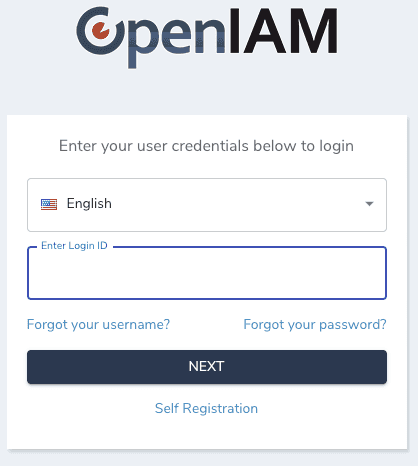 .
.
The authentication process is spread over two screens. You will be asked to enter the password on the screen below.
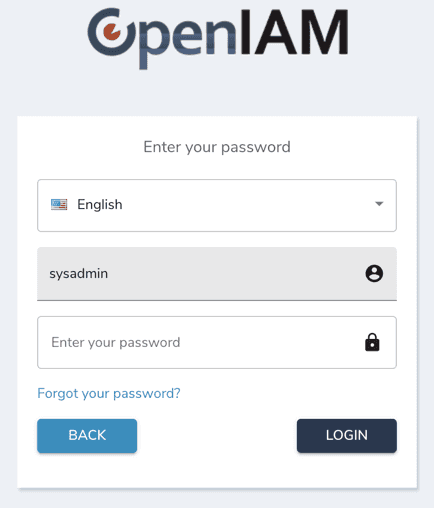
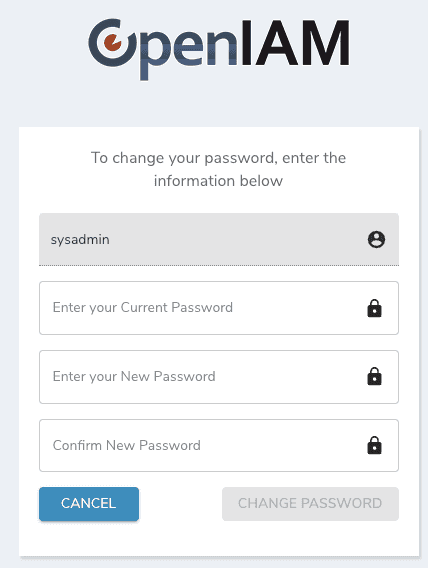
The next screen will force you to change the default password. As you enter your new password, you will see the password policy on the side. Your password must align with this policy. You will be able to change both the password and the policy later.
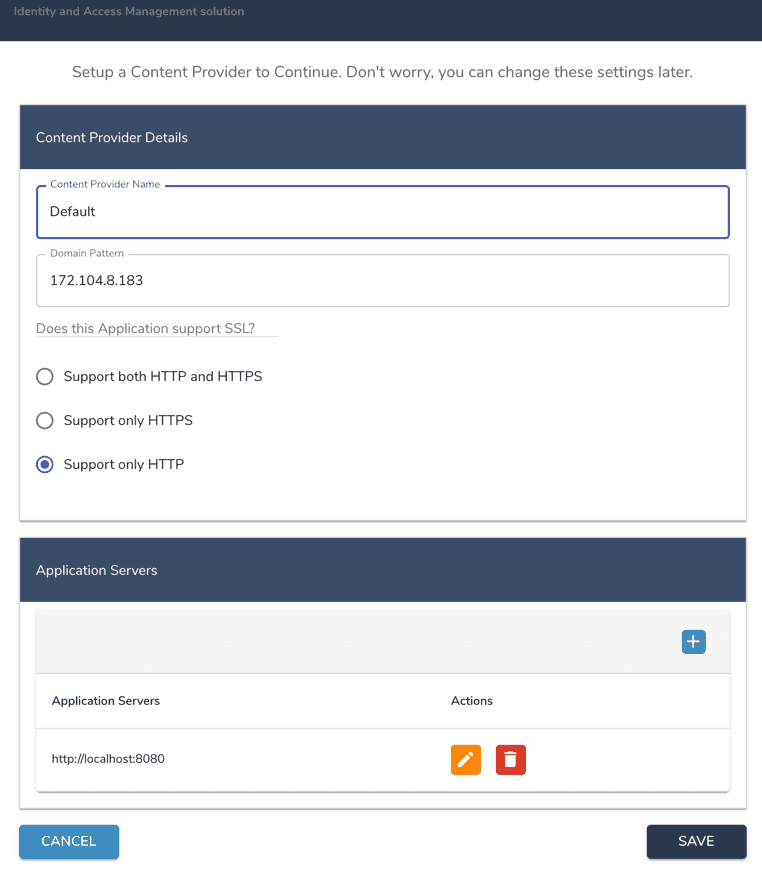
The next step is to define a content provider using the screen shown below. A Content provider is an alias which represents a domain. Associated with the content provider can be UI themes, authentication policies, etc. You can read more on Content Provider in this document. The table below describes the fields on this screen.
| Name | Description |
|---|---|
| Content Provider Name | You can think of a content provider as an “alias” which represents a domain. This is described in more detail in the OpenIAM documentation. For this setup, please enter a value such as : Default CP |
| Domain Pattern | This value is defaulted in. It should be the IP address or host DNS name of the instance where OpenIAM has been installed |
| Application supports SSL? | This configuration determines if the OpenIAM application will be accessed over HTTP or HTTPS. Unless you have already configured the certificate, select Support on HTTP. You will be able to update this configuration later. |
| Application servers | This is the location of the OpenIAM service layer which the UI and rProxy need to communicate with. In most cases, the default value will be correct since each of these components will be deployed on the same host. However, this configuration provides flexibility to have the UI and service layer on separate hosts. |
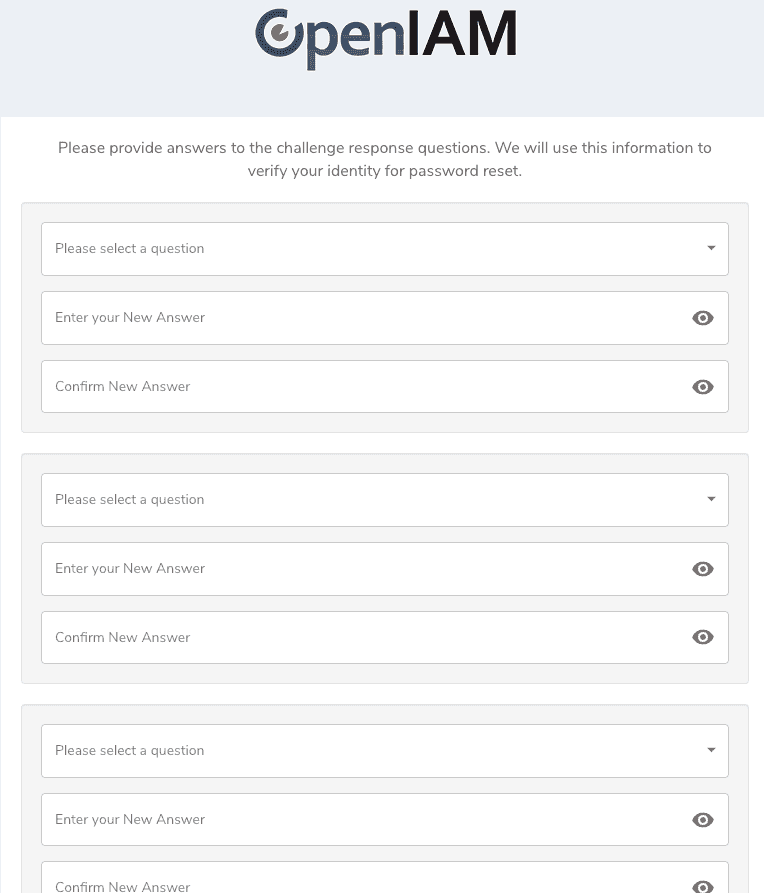
 After setting up the content provider, you will be taken to the challenge questions page. These questions will be used to reset your admin account in case you have locked yourself out. Please make a note of your answers.
After completing the above steps, you will be taken to the admin console landing page shown below. Give the system about 5 min to refresh the internal cache and then you can proceed to configure your solution.
Grafana and Prometheus access
Verify if the following ports are open inside server, if using firewall locally or allow all below ports in external firewall/security group.
firewall-cmd --add-port=3000/tcp --add-port=9090/tcp --add-port=9100/tcp --permanentfirewall-cmd --reloadss -tulnp | grep grafanass -tulnp | grep prometheus
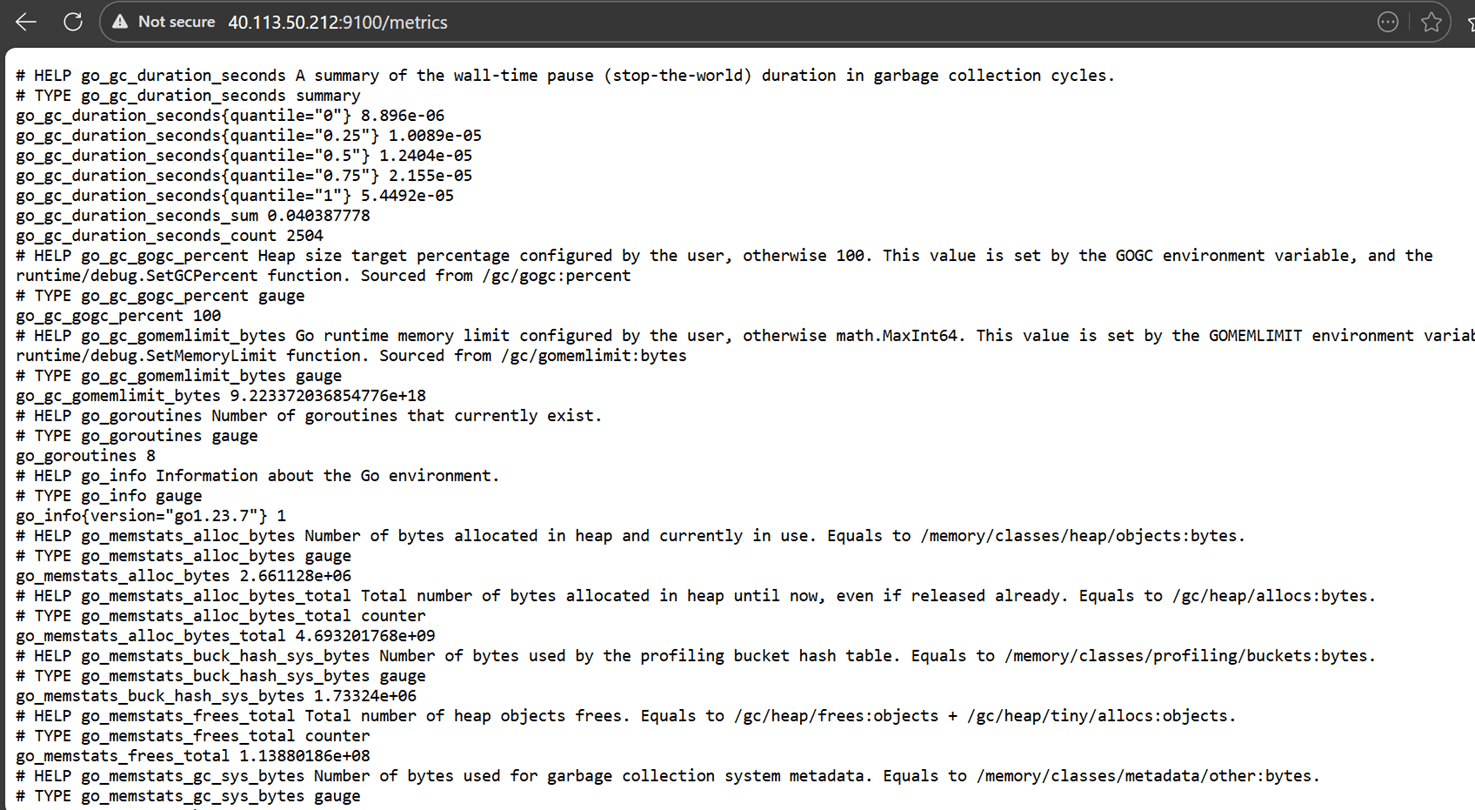
Verify node-exporter metrics with the following command.
curl http://localhost:9100/metrics
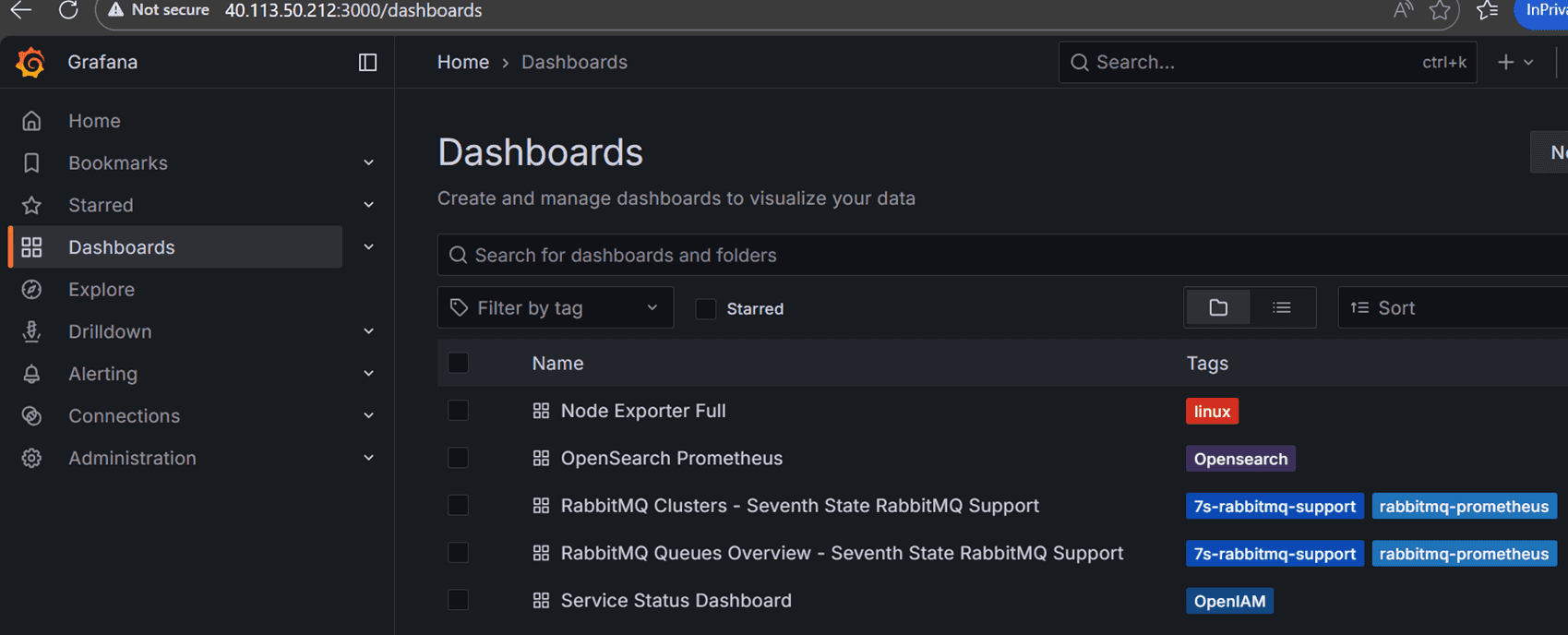
For Grafana access from outside using public IP
For Grafana access, default user will be admin and password will be admin.
http://<Ip of VM>:3000
For external Prometheus access
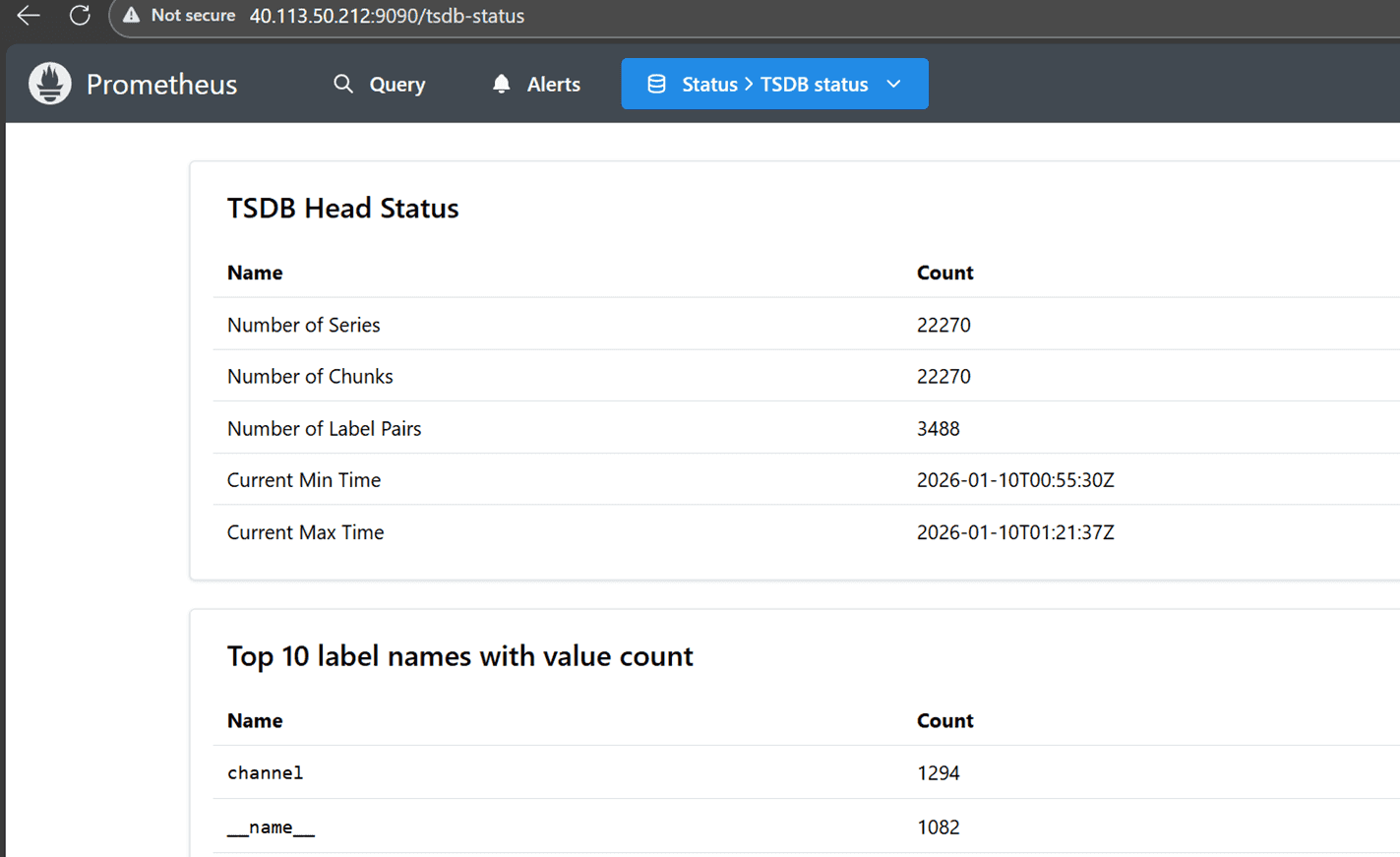
Change web.listen-address from 127.0.0.1 to 0.0.0.0 in below service file.
vi /etc/systemd/system/prometheus.service
Now, reload and restart Prometheus using the commands bellow.
systemctl daemon-reexecsystemctl daemon-reloadsystemctl restart Prometheus
Try to access using the http://<Ip of VM>:9090 URL.
For node exporter metrics access
Use the http://<Ip of VM>:9100/metrics URL for the access.
Post installation information
Using the OpenIAM command line utility
OpenIAM provides a command line utility to help you view the status of all components as well as perform common operations such as view logs, start, stop, etc. The command is openiam-cli.
Just running the command by itself, as shown below, will display the list of all options.
openiam-cli
Output
Usage: /usr/bin/openiam-cli {start|stop|status|init|log|log <service_name>|list-connectors|list-source-adapters}
Check status
To check the status of the components or to confirm that the system is up, please use the following command:
openiam-cli status
Check service logs
To check current logs of any service you can use the following command. You can get the services using the following command: openiam-cli log <service_name>.
For example, to check the logs of the openiam-esb module use the following command.
openiam-cli log openiam-esb
Start and stop
You can start and stop OpenIAM using the command line as well. To stop OpenIAM using the following command:
openiam-cli stop
You can check that the services have stopped by using the status command shown above. You can start the application using the following command.
openiam-cli start
Checking the health of the application
Health checks can be used by your monitoring systems to verify the status of OpenIAM. Use the following URL to validate ESB.
curl http://localhost:9080/openiam-esb/actuator/health
Use the following URL to validate the UI.
curl -k http://localhost:9080/idp/actuator/health
Core services and Default Memory configuration
| Name | Description | Default Memory (RAM) |
|---|---|---|
| openiam-esb | The service that provides Web Service API and to the bigger part of functionality | 2048m |
| workflow | The service that provides Business Workflow functionality | 768m |
| groovy-manager | The service that provides Groovy extension functionality | 256m |
| idm | The service that provides provisioning to target systems functionality | 512m |
| reconciliation | The service that provides reconciliation against target systems functionality | 512m |
| email-manager | The service that provides Sending and Receiving email functionality | 256m |
| auth-manager | The service that provides Authorization functionality | 1024m |
| device-manager | The service that provides Device management functionality (IOS and Android) | 256m |
| business-rule-manager | The service that provides Business Rules functionality | 512m |
| openiam-ui | This provides the OpenIAM UI running on an Apache Tomcat server | 2048m |
Troubleshooting
It is possible to receive a timeout error during the installation of OpenSearch during initialization. This issue can be rectified by setting the SELinux mode to Permissive. Please refer to Red Hat's documentation for Changing SELinux states and modes.
In case there is a need for VM reboot or restarting an application, make sure to shut down OpenIAM with openiam-cli stop command, as shown above. Otherwise, the vault may seal, and the application may fail to start.