Password tab
Password tab allows configuring change/forgot password is a section in system configurations, where settings related to password management are configured.
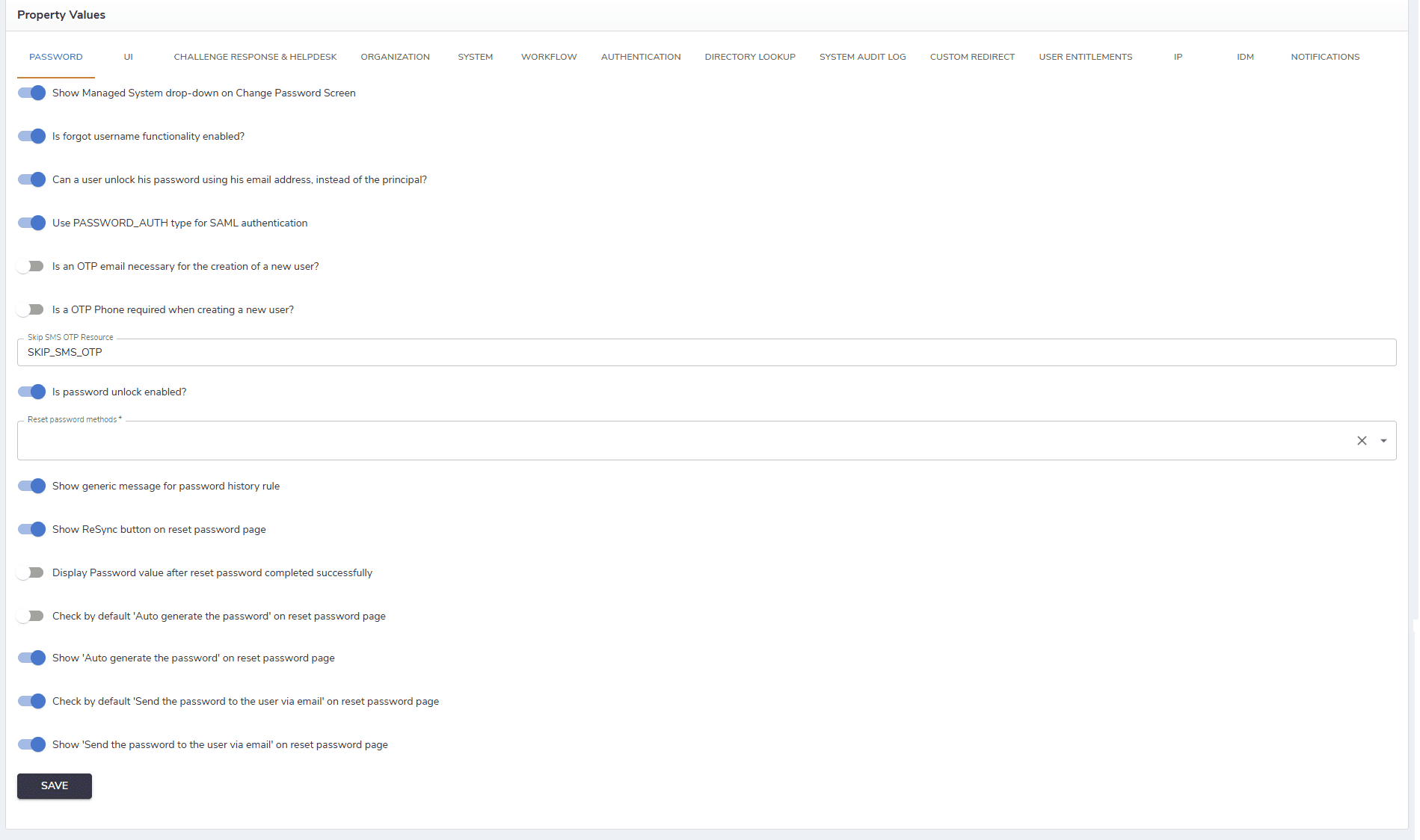
The description of fields in this tab is provided in the table below.
| Field | Description |
|---|---|
| Show Managed System drop-down on Change Password Screen | This checkbox controls whether a dropdown menu with a list of managed systems is displayed on the "Change Password" screen. Users need to select the specific managed system for which they want to change their password. |
| Is forgot username functionality enabled? | Enabling this checkbox indicates that there is a functionality in place that allows users who have forgotten their username to recover or retrieve it. |
| Can a user unlock his password using his email address, instead of the principal? | This checkbox allows turning on a feature allowing users to unlock their accounts by using their email address rather than the principal identifier (which could be a username or another unique identifier). This is a part of an account recovery or password reset process. |
Use PASSWORD_AUTH type for SAML authentication | Allows using password authentication for SAML authentication type. |
| Is a OTP Email required when creating a new user? | This checkbox indicates whether a new user must provide and confirm their identity through a one-time password (OTP) sent to their email during the user creation process. |
| Is a OTP Phone required when creating a new user? | Similar to the previous checkbox, this indicates whether a new user must use a one-time password (OTP) sent to their phone for identity confirmation during the user creation process. |
| Skip SMS OTP Resource | This checkbox suggests an option to skip using SMS as a resource for OTP delivery during the user creation or authentication process. Users entitled to this resource will not need to enter SMS or email tokens when required for a specific pattern they attempt to access. |
| Is password unlock enabled? | This checkbox controls whether users have the ability to unlock their accounts through a password recovery or account unlock process. The possible options |
| Reset password methods | This section pertains to the methods available for users to reset their passwords. |
| Show generic message for password history rule | This might control whether a generic message is displayed to users when they fail to meet the password history rule (e.g., reusing old passwords). |
| Show ReSync button on reset password page | This refers to displaying a button on the password reset page that allows users to manually trigger a resynchronization process. |
| Display Password value after reset password completed successfully | Displays the generated or updated password on the screen after the password reset is completed successfully. |
| Check by default 'Auto generate the password' on reset password page | Automatically selects the Auto generate the password option when the reset password page is opened. |
| Show 'Auto generate the password' on reset password page | Controls whether the Auto generate the password option is visible on the reset password page. |
| Check by default 'Send the password to the user via email' on reset password page | Automatically selects the option to send the password to the user via email when the reset password page is opened. |
| Show 'Send the password to the user via email' on reset password page | Controls whether the option to send the password to the user via email is displayed on the reset password page. |
After configuring all properties, click Save to save the changes.