Expiration policy
Starting from version 4.2.2 of OpenIAM, access review campaigns can be set to expire.
This means that after the escalation period ends, if the expiration option is enabled, the campaign will automatically expire.
The escalation period here is the sum of days allotted to all reviewers.
To use this feature, users must configure an expiration policy, which defines the sequence of actions that occur when a campaign expires.
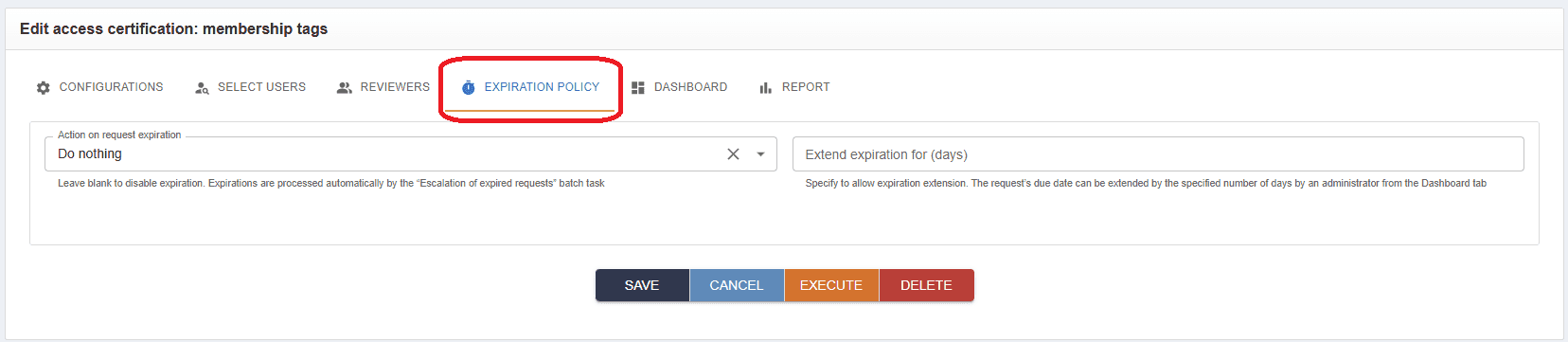
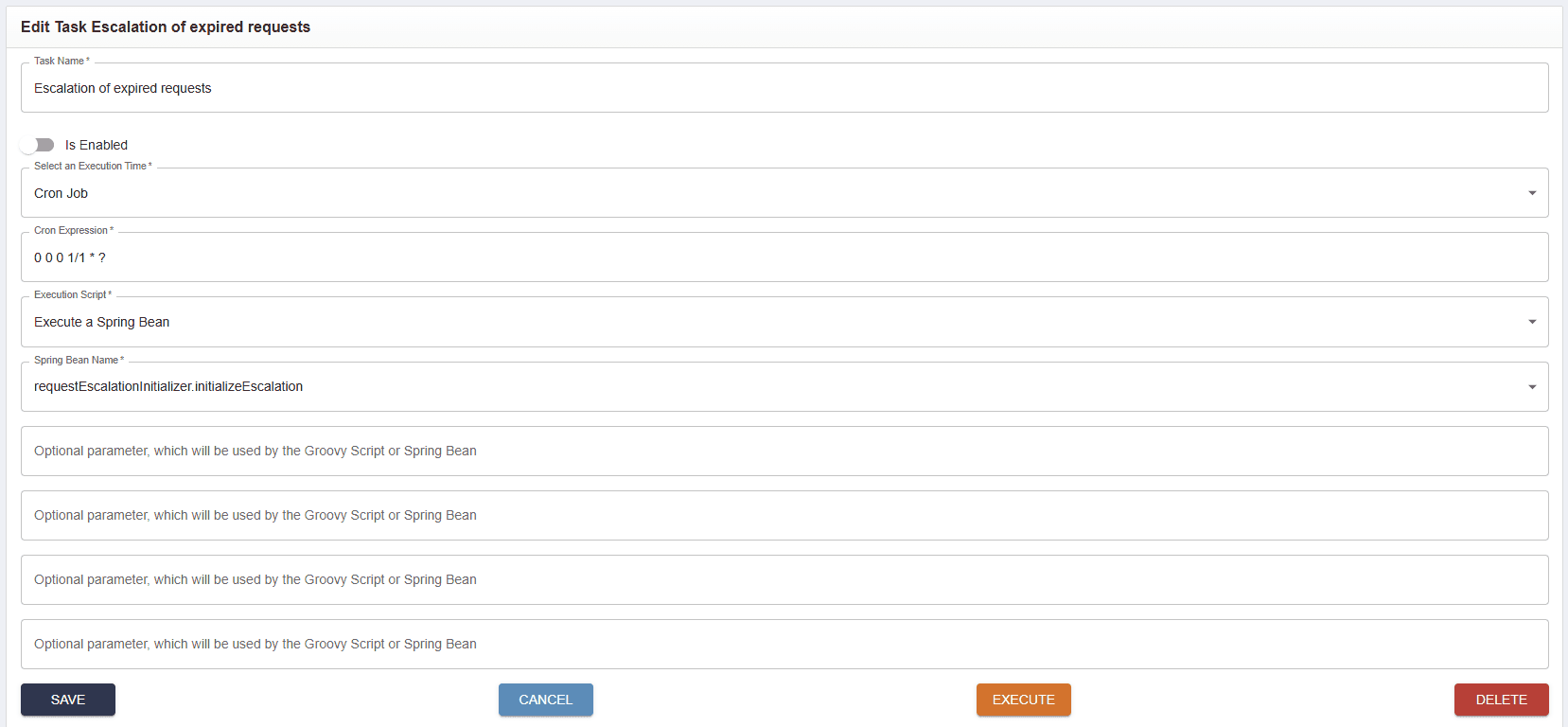
Expiration is initiated by the batch task called Escalation of expired requests. By default, this task is disabled, so the first step in configuring the expiration policy is enabling it.
Log in to the webconsole and go to Administration > Batch tasks.
Find the batch task (Escalation of expired requests) and click the edit icon. You will be taken to the screen below.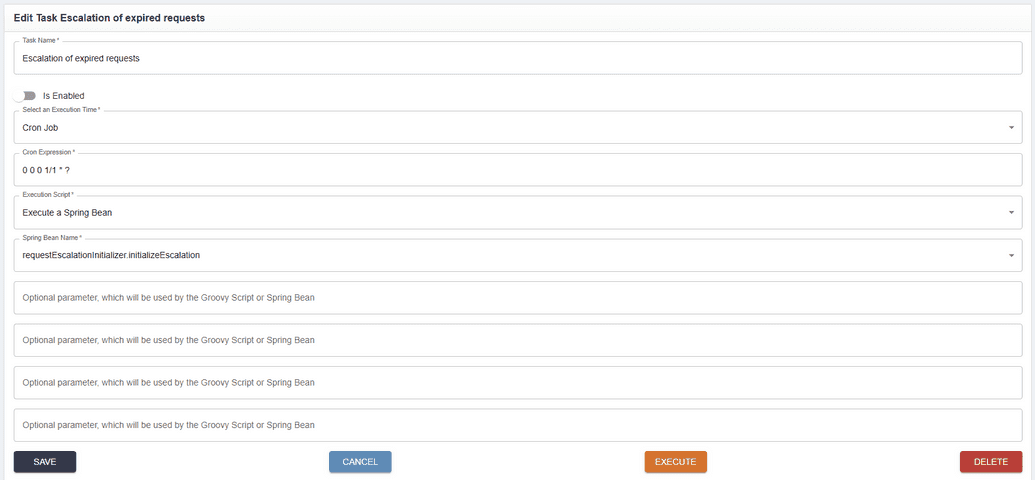
This is a default out-of-the-box batch task that is disabled, so move the slider to the enabled position.
The task will locate requests with due dates in the past and handle their expiration. It applies not only to access certification requests but also to all requests with an assigned due date (termination, create access, etc.).
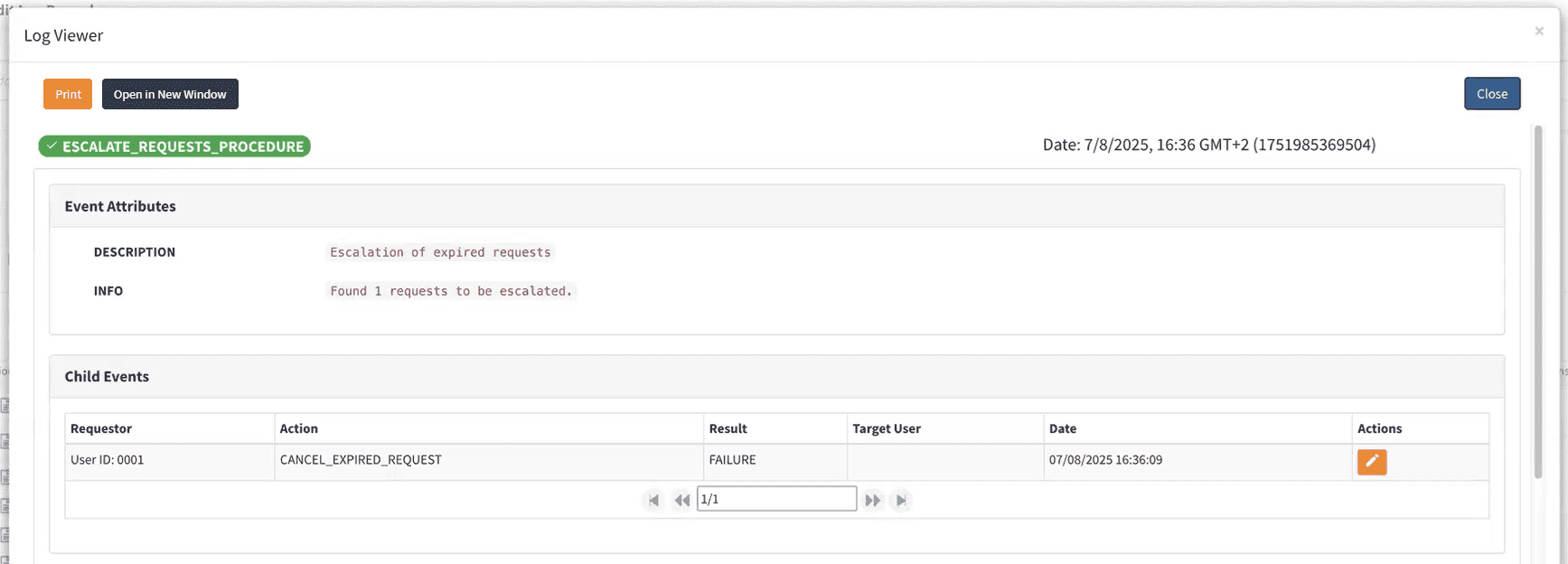
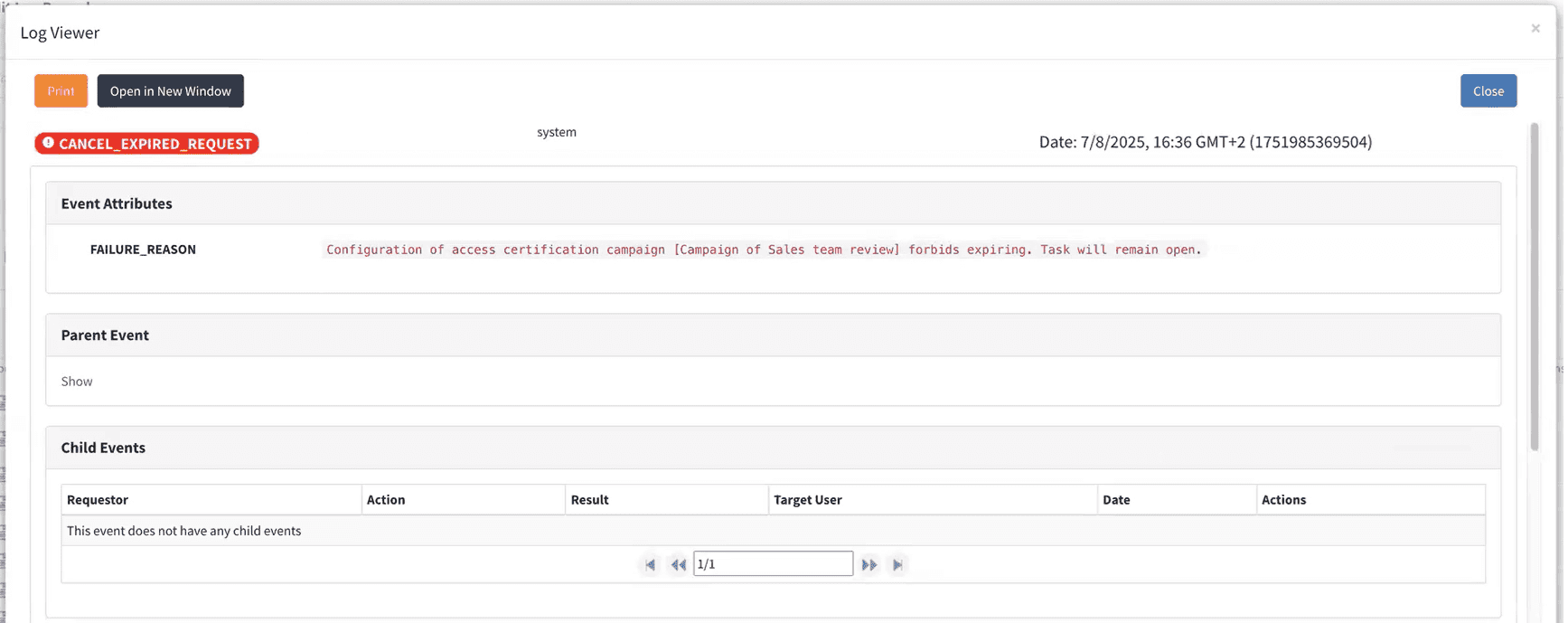
When run, the task processes access certification requests and applies expiration logic.By default, expiration is not allowed. In this case, the log entry for an expired request looks as follows:
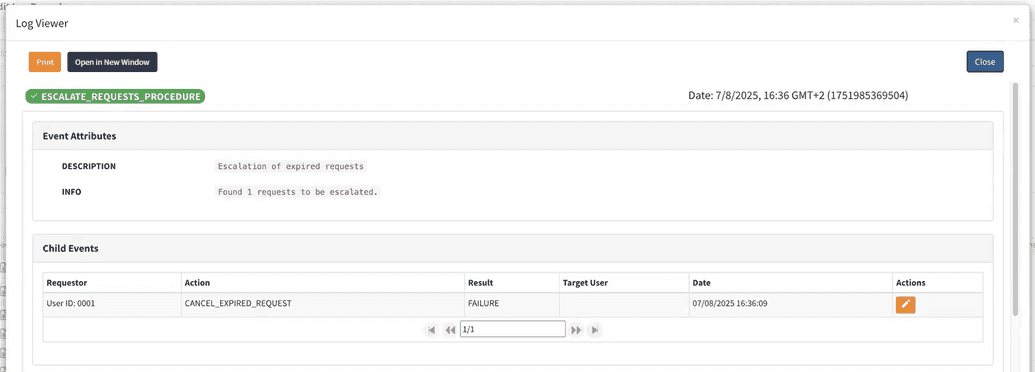
There is an event
CANCEL_EXPIRED_REQUEST, but it fails. Clicking the Details icon shows that expiration is forbidden by the campaign configuration, and the task remains open.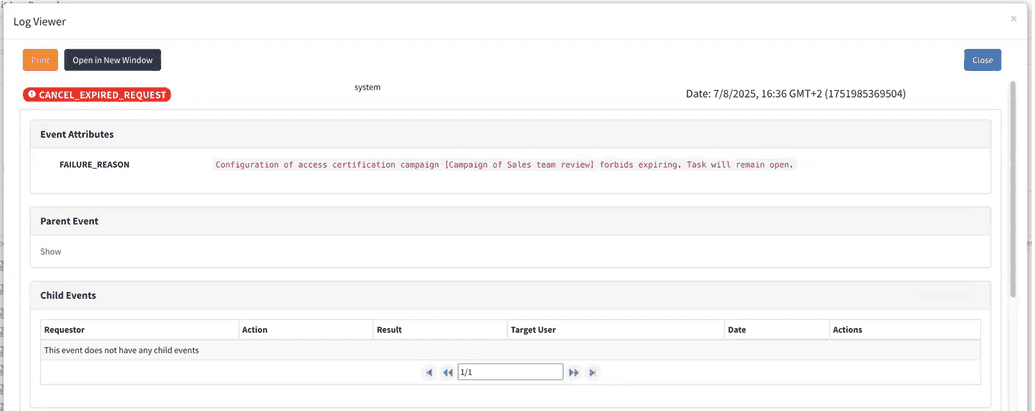
When the expiration option is enabled, users are presented with the options below:
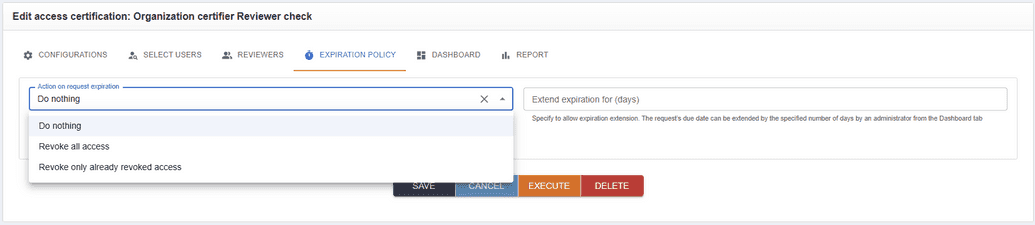
Here, users must specify what happens to an expired request. If no option is selected, the default is
DO_NOTHING.
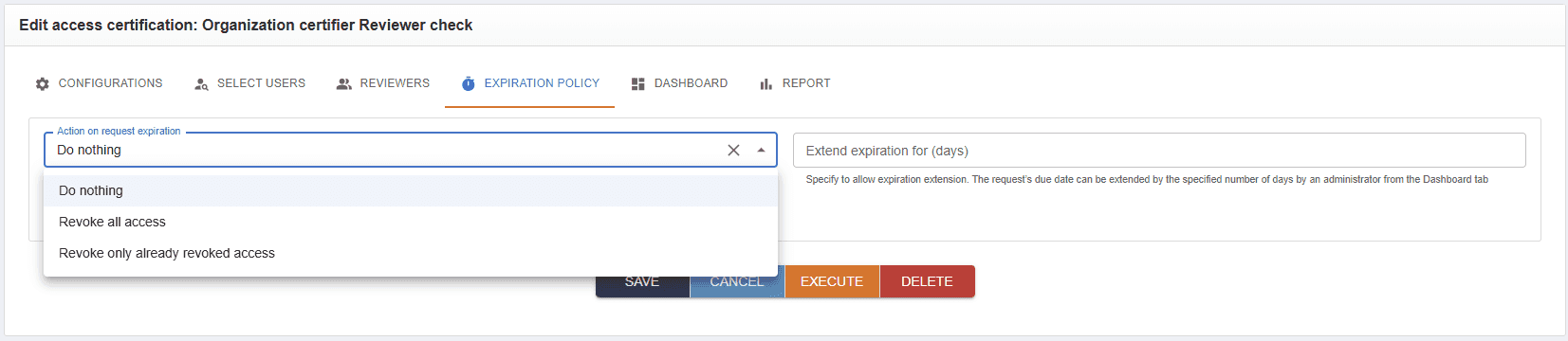
Do Nothing
When the Do nothing policy is applied, then:
- All access items that were reviewed before expiration (either Accepted or Revoked) remain unchanged.
- All unreviewed (incomplete) access items are automatically marked as Accepted after the campaign expires.
- If any access was revoked manually, the corresponding end date is updated in the user's entitlements.
- Entitlements from auto-accepted items remain active and are visible in SelfService, but only when accessed via the manager’s login. For example, a campaign is created with 8 access items, 2 reviewers, a 4-day expiration period, and the Do Nothing expiration policy was applied. Before the campaign expires, reviewers complete 4 access reviews:
- 2 accepted;
- 2 Revoked > End date is updated in user entitlements.
The remaining 4 unreviewed items are automatically marked as Accepted after expiration and the campaign status changes to Expired.
Revoke all access
When the Revoke All Access policy is applied, then
- Upon expiration, all access items included in the campaign — regardless of review status — are revoked. This includes items that were accepted, revoked, or unreviewed during the review period.
- The end dates are updated for all entitlements to reflect revocation.
For example, a campaign has 8 access items:
- 3 items were accepted;
- 4 items were revoked;
- 1 item was not reviewed. After the campaign expires all 8 access items are revoked, and end dates are updated in user entitlements.
Revoke only already revoked access
It is a flexible option. If one reviewer revoked some entitlements but later reviewers ignored the request, only those revoked entitlements are removed. When the Revoke Already Revoked Access policy is applied, then
- Only access items that were explicitly revoked by the reviewer are affected after expiration and these revoked items have their end date updated in user entitlements.
- Any items that were left unreviewed are changed to accepted after expiration.
For example, there can be several scenarios, such as
- Scenario 1: 6 access items revoked, 2 accepted. After expiration only the 6 revoked items have end dates updated in user entitlements.
- Scenario 2: 4 access items revoked, 4 unreviewed (automatically marked as accepted). After expiration only the 4 revoked items are processed have end dates updated in user entitlements and others remain as accepted.
- Scenario 3: 4 access items revoked, 3 accepted, 1 unreviewed. After expiration only the 4 revoked items are updated have end dates updated in user entitlements, 3 accepted remain, 1 unreviewed also accepted
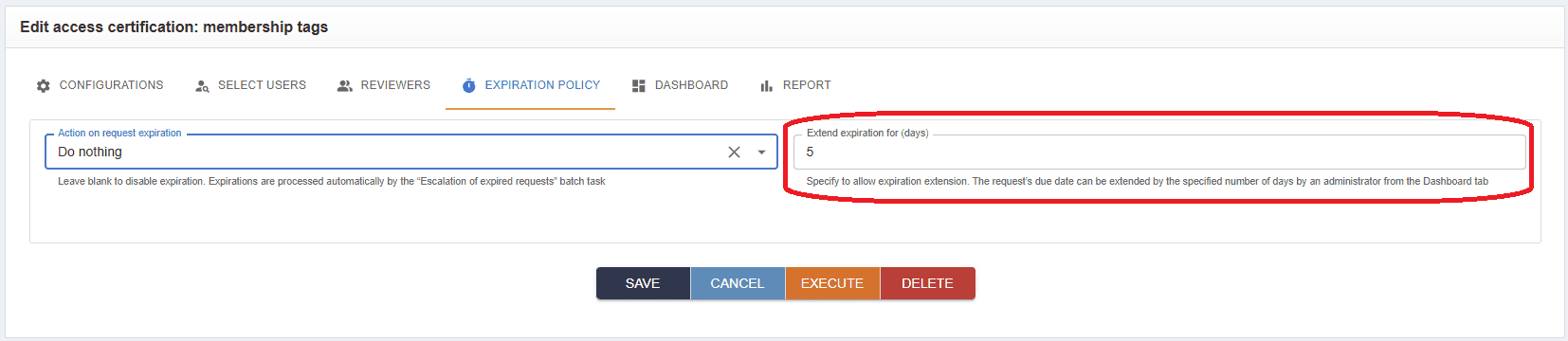
The Extend expiration for (days) option enables extending the deadline if reviewers cannot finish within the original period.
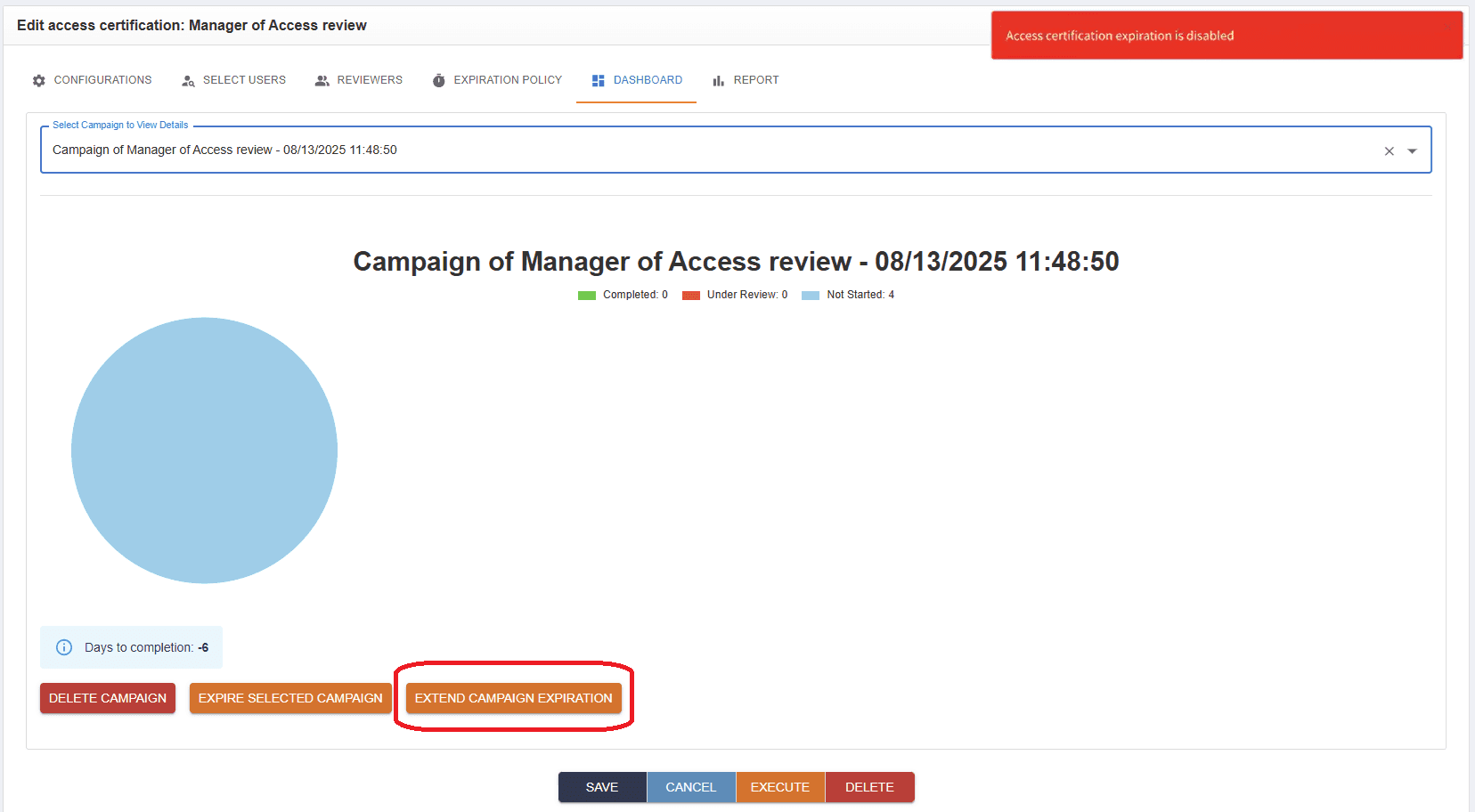
If disabled, attempts to extend the campaign by
xdays from the Dashboard will result in an error.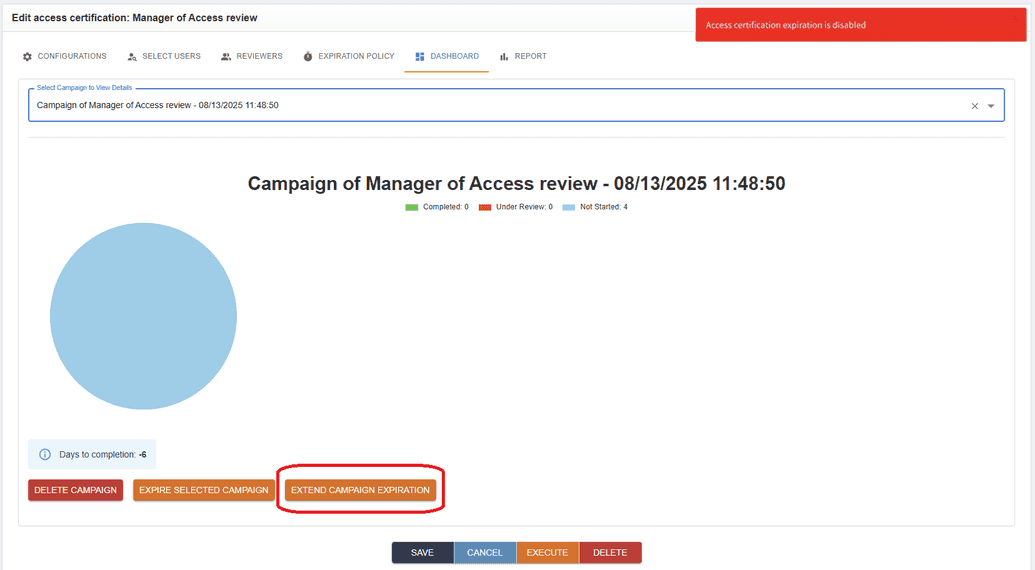
When enabled, users can specify the maximum number of days allowed for extension (in the example below it is 5 days).
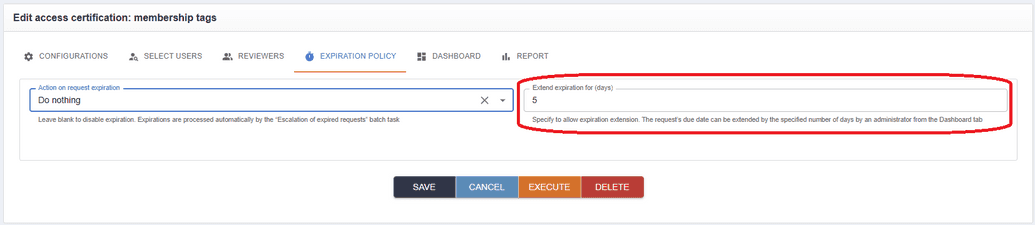 Note: The configuration of the expiration policy is captured at the moment the Execute now button is clicked. Any changes made after the campaign has already started will not affect the running campaign. For example, if expiration extension was disabled at the time of execution, enabling it later and trying to extend will still result in an error. This applies to all campaign changes after execution—they will not be applied.
Configure all extension-related fields and click Execute now.
In the Dashboard tab you will see the campaign executed, and you may extend it for the required number of days.
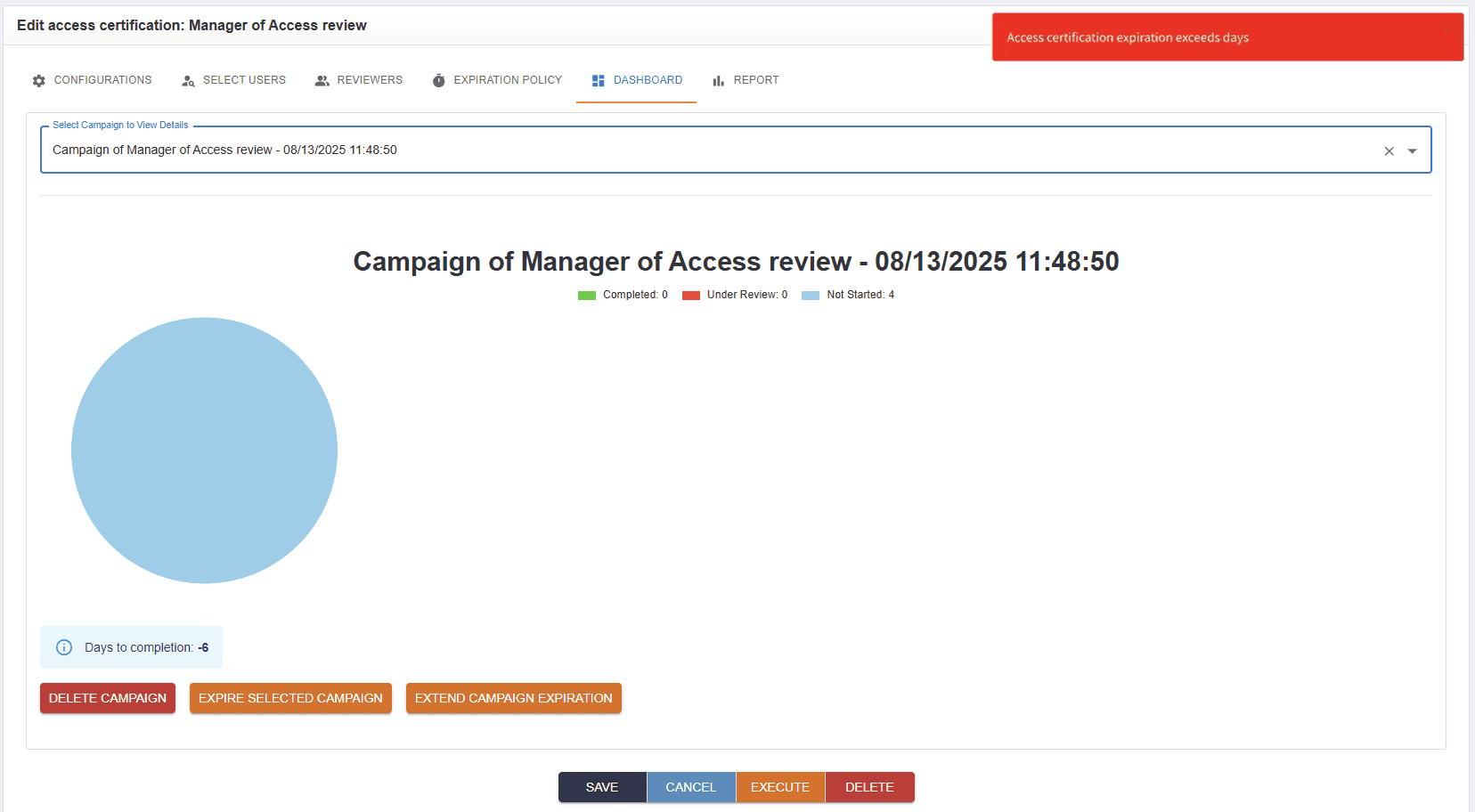
However, if the requested extension exceeds the number specified in the Allow expiration extension field, the following error appears: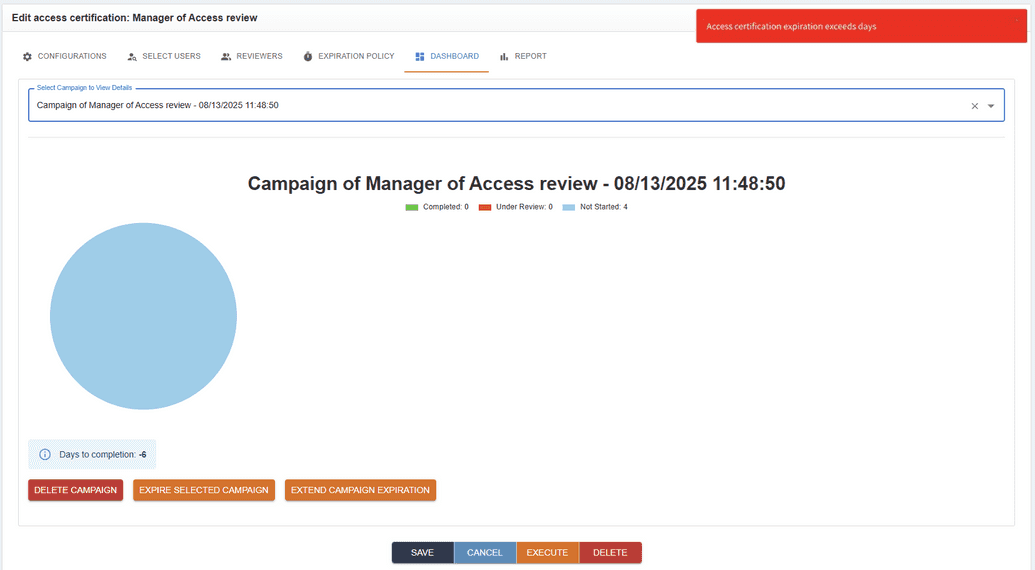
All extension actions are written into the audit log. Users can review details of successful actions (e.g., the number of days extended) as well as any errors when an action failed.