Microsoft Modern authentication
Microsoft's Modern authentication is an identity management approach that provides enhanced security for user authentication and authorization. Modern authentication refers to a set of methods for managing both authentication and authorization between a client and a server. It also incorporates security measures based on access policies you may already be familiar with. As Microsoft has already phased out basic authentication in many products, referring to it as an obsolete industry standard due to associated risks, you may need to use the modern authentication method instead to authenticate in OpenIAM.
This article includes the steps to integrate Microsoft modern authentication for Simple Mail Transfer Protocol (SMTP) with OpenIAM. By using modern authentication, you can securely connect to Microsoft Exchange Online using OAuth 2.0, enabling token-based authentication that enhances security.
Entra ID is previously known as Azure AD.
Configuring the Microsoft part
For detailed instructions on the Microsoft configuration, please refer to the official documentation using the links provided.
Register an application using Quickstart: Register an app.
Important note: You must register an Enterprise Application (EA) because only EA identifiers can be used for Service Principal registration in Exchange.Add credentials following the Configure client secret instructions.
Add permissions as described in
Add permissions for IMAP, POP, or SMTP.
Add-MailboxPermission -Identity "john.smith@contoso.com" -User <SERVICE_PRINCIPAL_ID> -AccessRights FullAccess, ReadPermission
Configuring SMTP in OpenIAM
The common steps for configuring SMTP in OpenIAM are provided in
this document. The instructions below describe the changes required for modern authentication.
Navigate to the mailbox configuration menu:
Webconsole > Administration > Mailbox Configuration > Create Mailbox Configuration.Go to the Mailbox configuration option and click Create mailbox configuration.
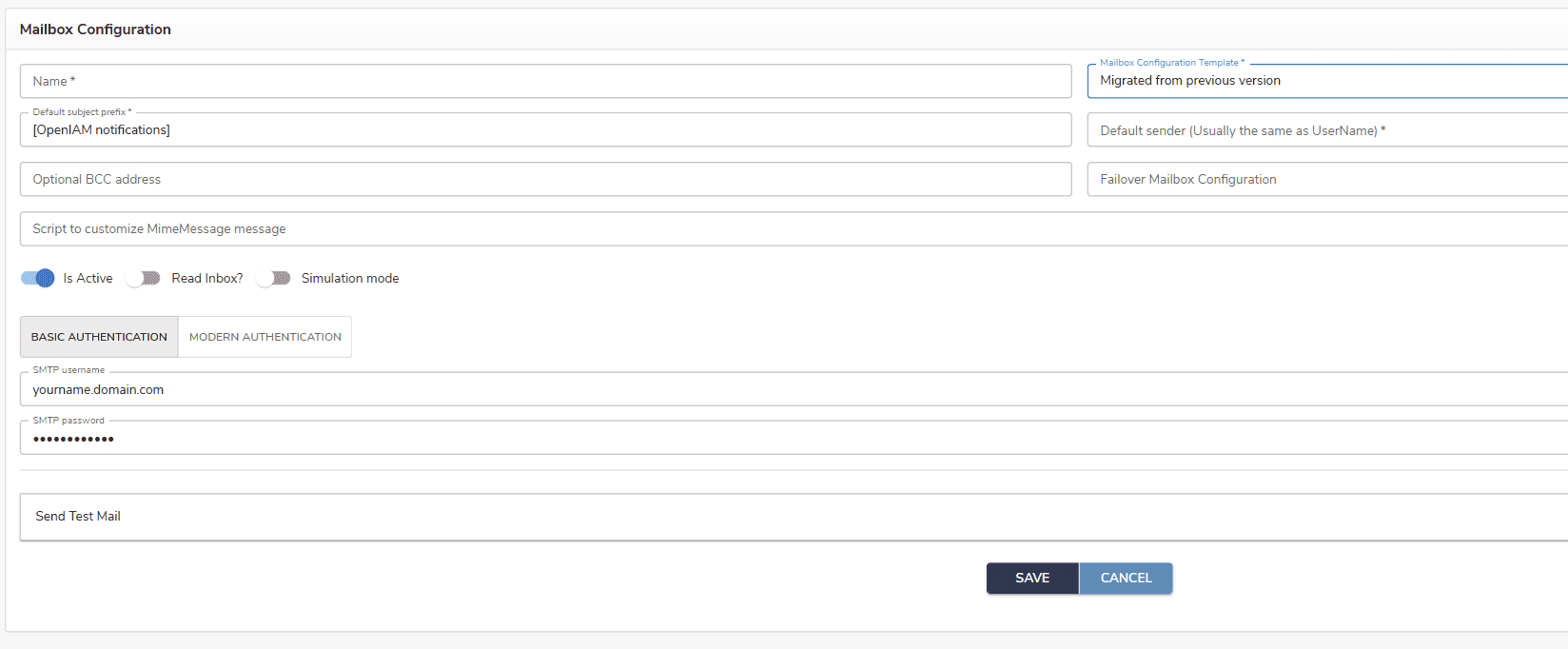
If you want to send emails using the old authentication flow, fill in the details and do not select MODERN AUTHENTICATION yet, as shown below.
For sending emails via modern authentication, choose MODERN AUTHENTICATION and fill the following fields: Client ID, Tenant ID, Client Secret, Authority, and Scope, as shown below.
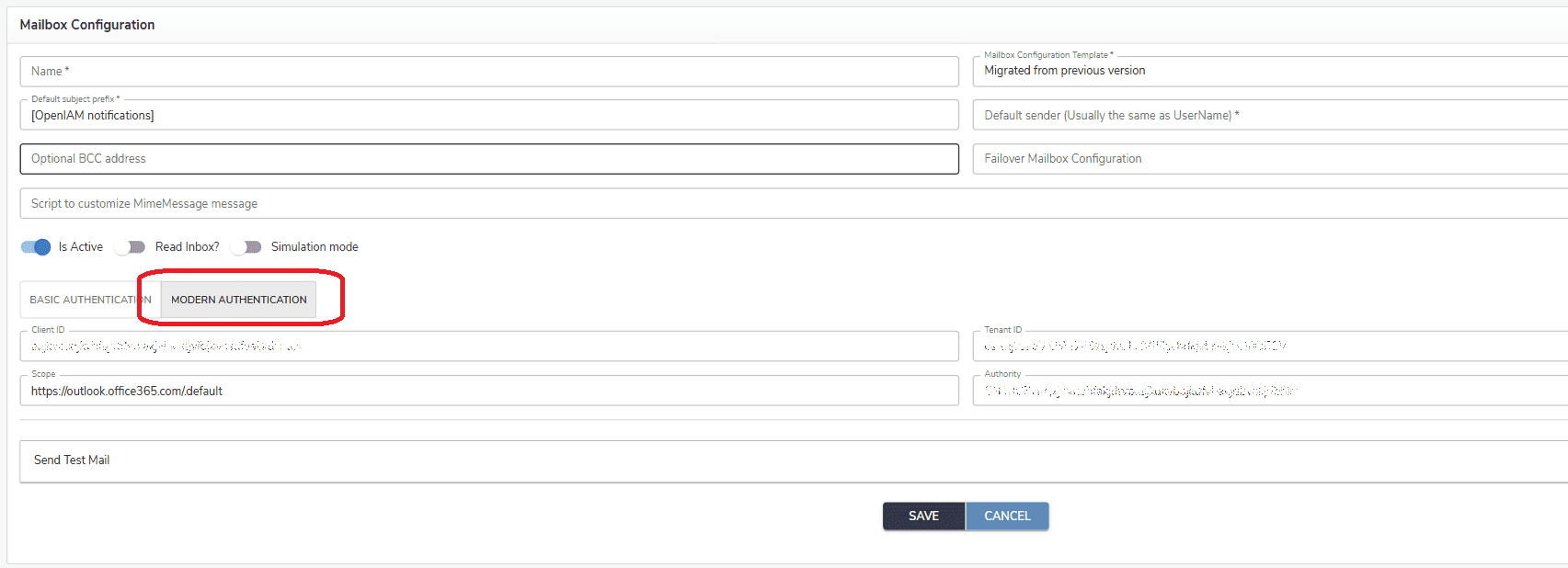
The field descriptions and possible values are listed in the table below.
| Field | Description |
|---|---|
| Authority | The Authority URL refers to the endpoint responsible for issuing OAuth2 tokens. This URL is typically part of the Entra ID authentication flow, and it specifies the location where the application will send authentication requests to obtain access tokens (OAuth2 tokens). For example, https://login.microsoftonline.com/{tenant-id}/oauth2/v2.0/token, where
|
| Scope | The scope defines the specific permissions that your application is requesting access to when acquiring an OAuth2 token. It specifies what operations the token will allow the application to perform on behalf of the user or service. When using OAuth2 to authenticate with the Microsoft SMTP server (e.g., to send emails via Office 365/Exchange Online), the scope tells Entra ID what kind of access is needed. The most common scope for sending emails via Microsoft’s SMTP server is related to sending emails. For example, https://outlook.office365.com/.default, where:
|
| Client ID | The Client ID is a unique identifier for your application that is registered in Entra ID. It's also known as the Application ID. It tells Entra ID which app is requesting access when a token is requested for API calls. Example, 12345678-1234-1234-1234-123456789abc. |
| Tenant ID | The Tenant ID is a unique identifier for an Entra ID instance or organization. Each Entra ID tenant represents a separate directory, and the Tenant ID identifies which directory the app or user belongs to. Example, 72f988bf-86f1-41af-91ab-2d7cd011db47. |
| Client Secret | The Client Secret is a confidential password or key associated with your application in Entra ID. It is used along with the Client ID to authenticate the application itself, typically in non-interactive authentication flows (like the client credentials flow). Example, E8C679F2-2C94-4E0A-A45E-123456789abc. |
Once all fields are completed and saved, you can send emails via SMTP using modern authentication, which relies on access tokens instead of usernames and passwords.
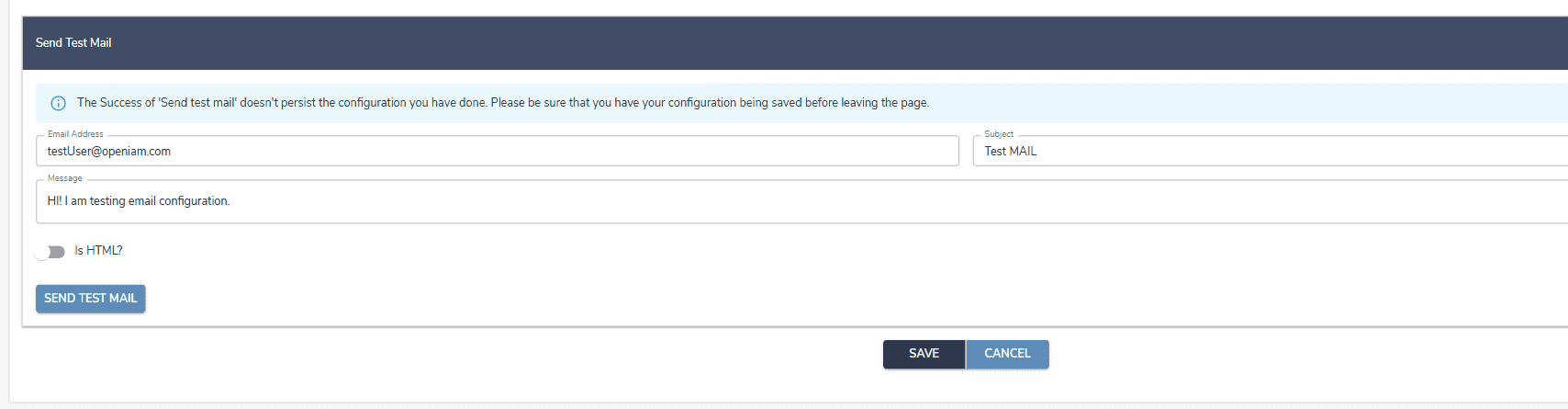
To test this, create a test email form and click the Send test mail button, as shown below.