User based review
If you have already imported data from the applications that need to be part of your review, then you are ready to configure the UAR. To configure a User Access-focused review, follow the steps below.
Creating a new certification
- Log in to the webconsole and go to Access control > Access certification.
- Click on New Access Certification in the side menu and it will render the screen below.
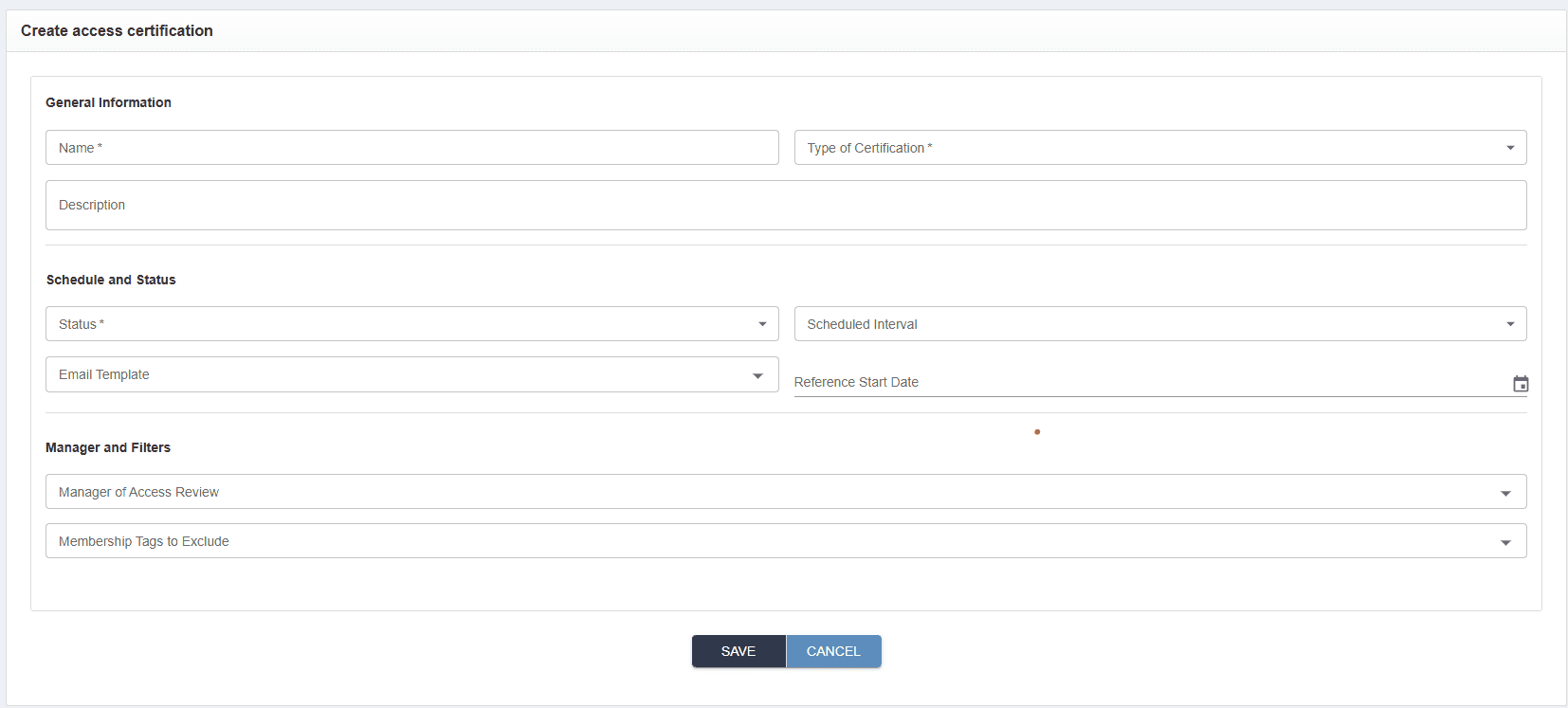
Complete the rendered form using the information from the table below.
| Field name | Required? | Description |
|---|---|---|
| Access Certification name | Y | Provide a descriptive name to uniquely identify your campaign. |
| Type of certification | Y | Determines if this is a user or application + entitlement-based review. In this case, select User. |
| Description | N | Summary describing the goals of this campaign. |
| Status | Y | Indicates if the campaign is active or not. Active/inactive status impacts only the automatic schedule. It doesn’t impact the ability to launch campaign manually. |
| Scheduled interval | N | Allows you to automatically run the campaign at regular intervals such as annually, semi-annually, and quarterly. |
| Reference start date | N | If the campaign is to be run at regular intervals, then the reference start date is used to determine when the next iteration should be. Reference Start Date is the date to set the schedule for automatic run, it is not related to manual certification execution. |
| Email template | N | Email template that should be used for notifications. |
| Manager of access review | N | Manager of access review, or the UAR manager, is a person who will be overseeing the execution of the campaign. This person will have access to the UAR campaign dashboard and reports, as well as the ability to delegate requests. The UAR manager is different from a manager who is participating as a reviewer in a campaign. |
| membership tags to exclude | N | Include any membership tags that you want to exclude to filter out irrelevant types of access assignments. More on membership tags can be found in this section. |
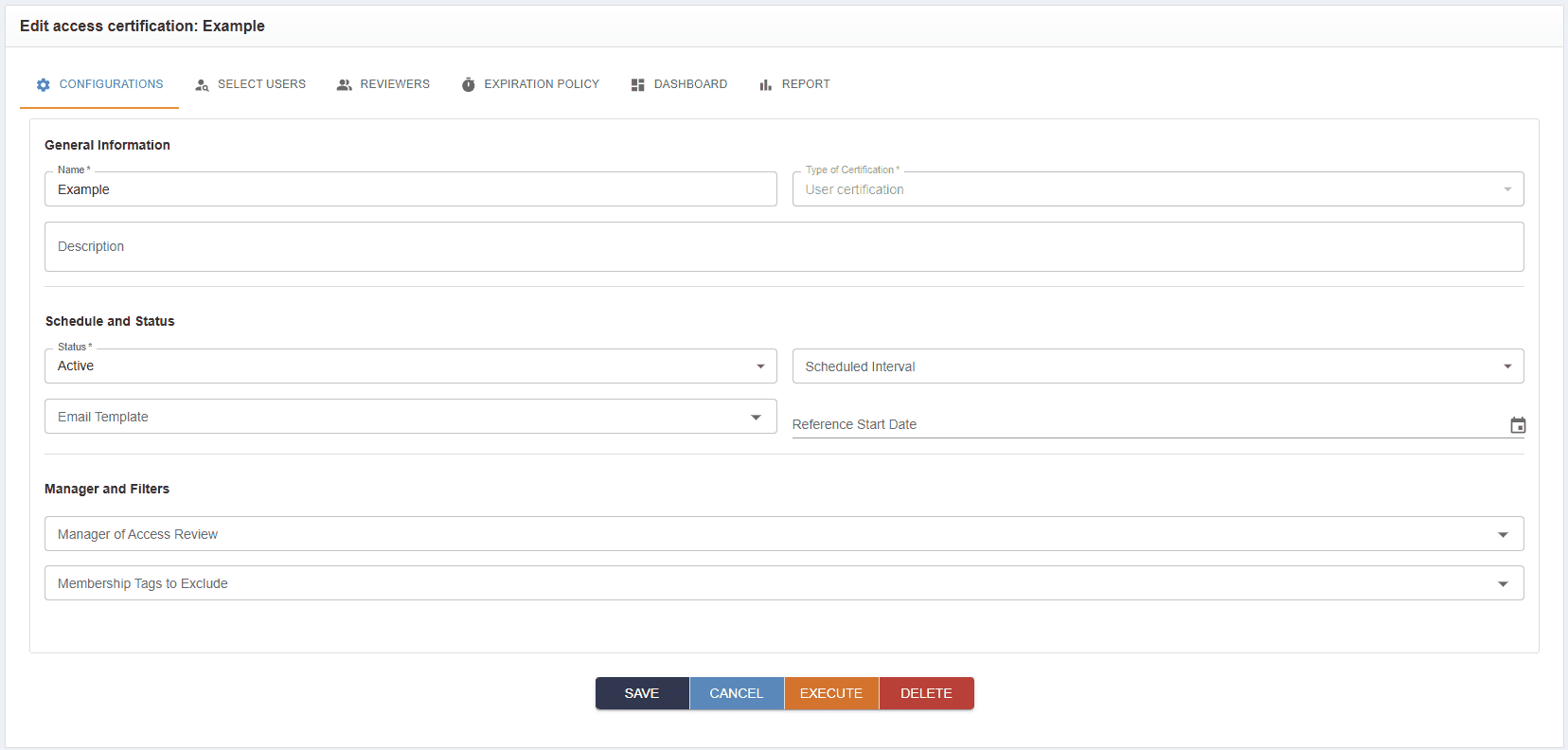
Click Save after completing the form as shown in the example below. This will save the UAR configuration and provide an access to the additional tabs to configure the review.
Types of reviewers
There are several types of reviewers that can be configured for a campaign. You can have only 1 manager in the review; however, if needed, you can add other types of reviewers. The types of reviewers are defined below.
- User manager is a supervisor of any type.
- Organization certifier. If the target user is a member of an organization and that organization has a specified certifier (user). The Organization certifier may assigned by going to Access Control > Organization > Clicking Edit > Organization Certifier field > Entering the User > clicking Save.
- Select reviewer allows choosing a particular user for the review.
- Group. A group of users can be reviewers.
- User reviews their own access allows a target user to review their own access, meaning to do a self-review via the Self-Service Portal, the option is selected in the Reviewer tab during campaign setup.
- Service account owner. If the target user is a related account, then the review will be done by the primary user. See more in the Related Accounts section.
- Supervisor. The access review is assigned to the user's direct supervisor. If a supervisor is not assigned, the review will be routed to the Sysadmin account.
- Application Admin / Owner. This type of reviewer is valid for Application Certification campaigns. Here:
- The campaign creator selects the Applications to be reviewed.
- Each Application has an assigned Admin/Owner who receives the access review tasks.
- If no Application Admin/Owner or a reviewer’s manager is assigned, the review is sent to Sysadmin account. To select a user as an application admin, navigate to Access Control > Resources > Edit (Selected Application) > Application Admin/Owner → Search and Select User → Click Save.
- Entitlement Admin / Owner. Is used for campaigns involving Entitlements (e.g., Roles or Groups). Here, the review is sent to the Admin/Owner of the selected entitlement (Role/Group). And if no Role/Group Owner/Admin or a reviewer’s manager is assigned, the review is sent to Sysadmin account. To select a user as an entitlement admin, navigate to Access Control > Role/Group > Edit (selected Role/Group) > Role/Group Admin/Owner > Search and Select User > Click Save.
User selection
When configuring user selection, you can simplify the process (for example, certify only contractors or only service accounts) by using the User type selection checkbox.
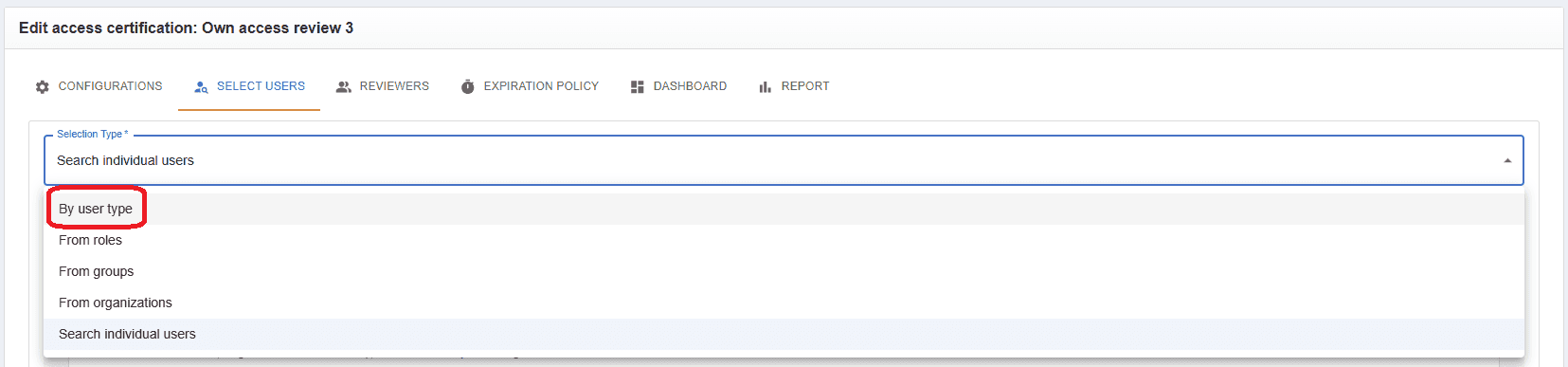
In the User selection tab of an access review campaign, select User type in the Selection type dropdown, as shown below.
In the next dropdown, select a type of users you want to review.
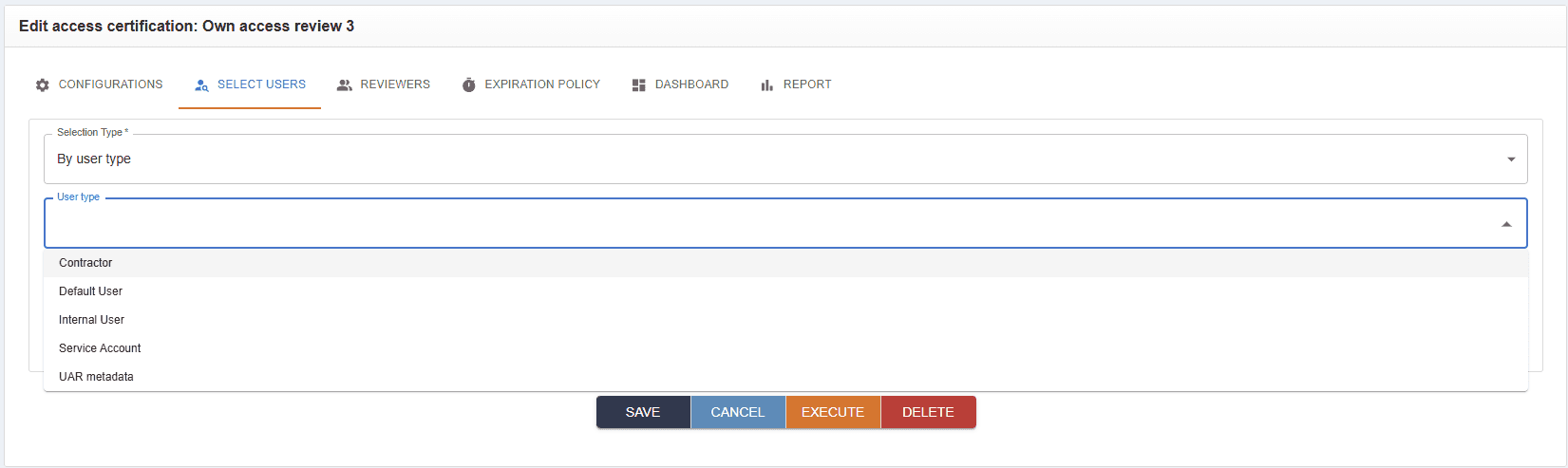
After selecting a user type, you can click Preview Users to display the existing users of the chosen type.
Once you click Save and launch the campaign, it will run only for the users specified in this field.