Facebook Social Login
This section describes how to configure Facebook social login for OpenIAM. Follow the steps below.
OpenIAM must be configured to use HTTPS prior to proceeding.
Creating and Configuring a Facebook Application
To use Facebook social login:
- Register on Facebook for Developers.
- Create a new app at Facebook Apps:
- Select App type: Consumer.
- Enter a Display Name and App Contact Email.
- Click Create App ID and complete the security check.
The new application will initially be in Development mode. In Development mode, your app can only request data from users with an app role. To access end-user data, your app must have Advanced Access permissions and be set to Live mode. OpenIAM supports both Live and Development modes.
- On your application page:
- Click Products → Facebook Login → Web.
- Enter your site URL (e.g.,
https://your_openiam_domain). - Complete the quick-start wizard following Facebook's instructions.
- Go to the Settings tab → Valid OAuth Redirect URIs and add: https://[your_openiam_domain]/idp/social/facebook/callback
- Save the changes.
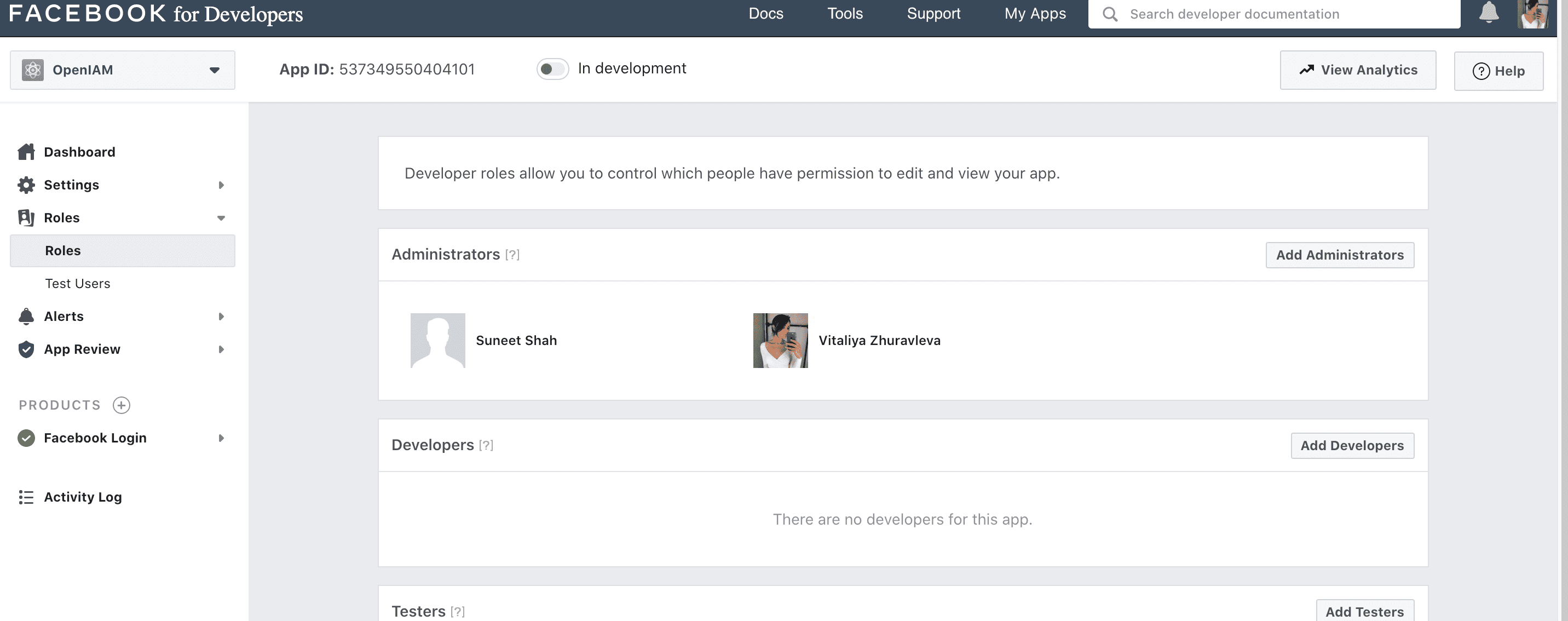
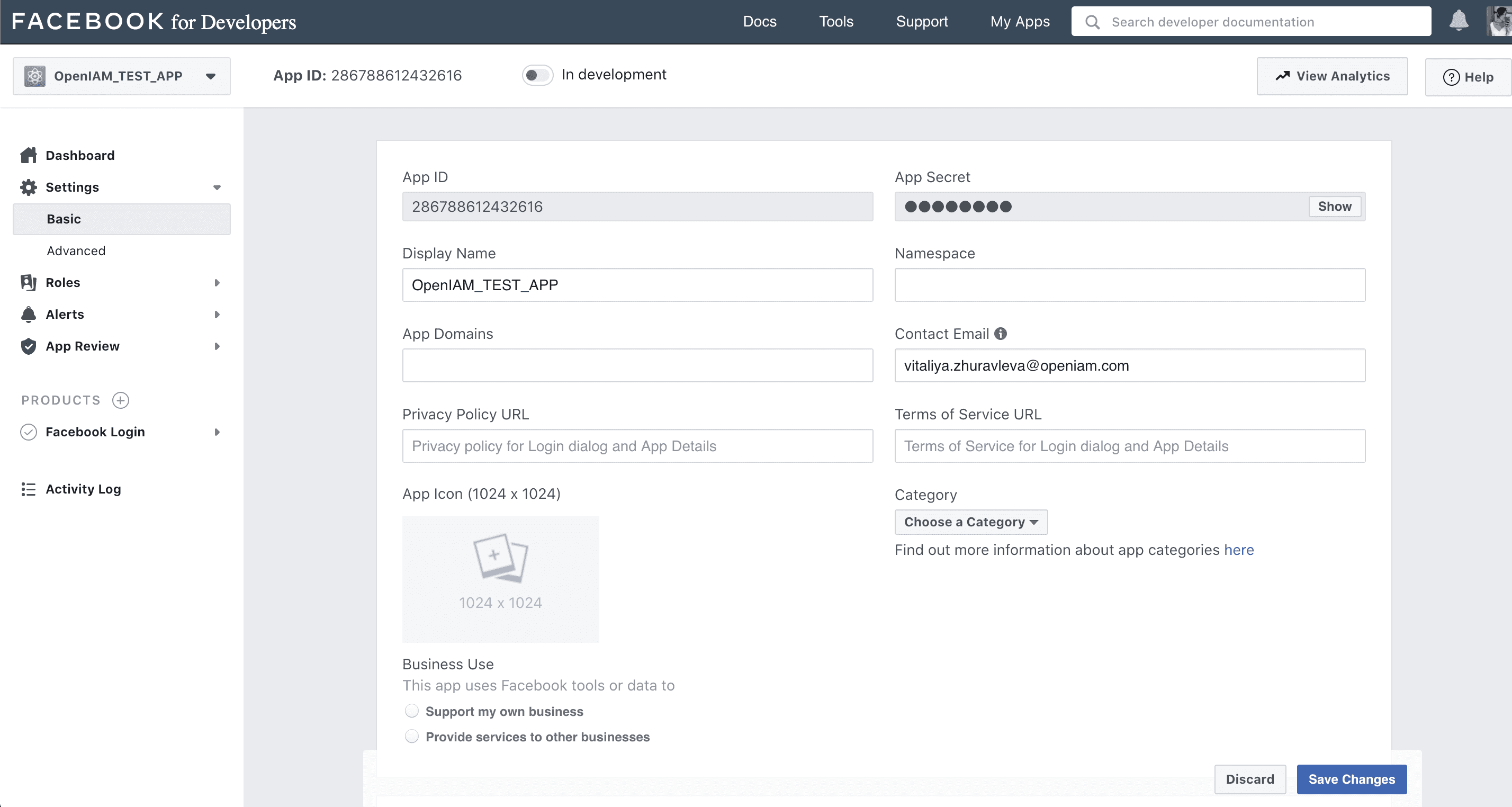
- Go to Settings > Basic on your Facebook application to confirm you can see the App ID and App Secret.
Configuring OpenIAM
Creating an Authentication Provider
- In the Webconsole, go to Access Control > Authentication Providers > Create New Provider.
- Select Facebook from the dropdown.
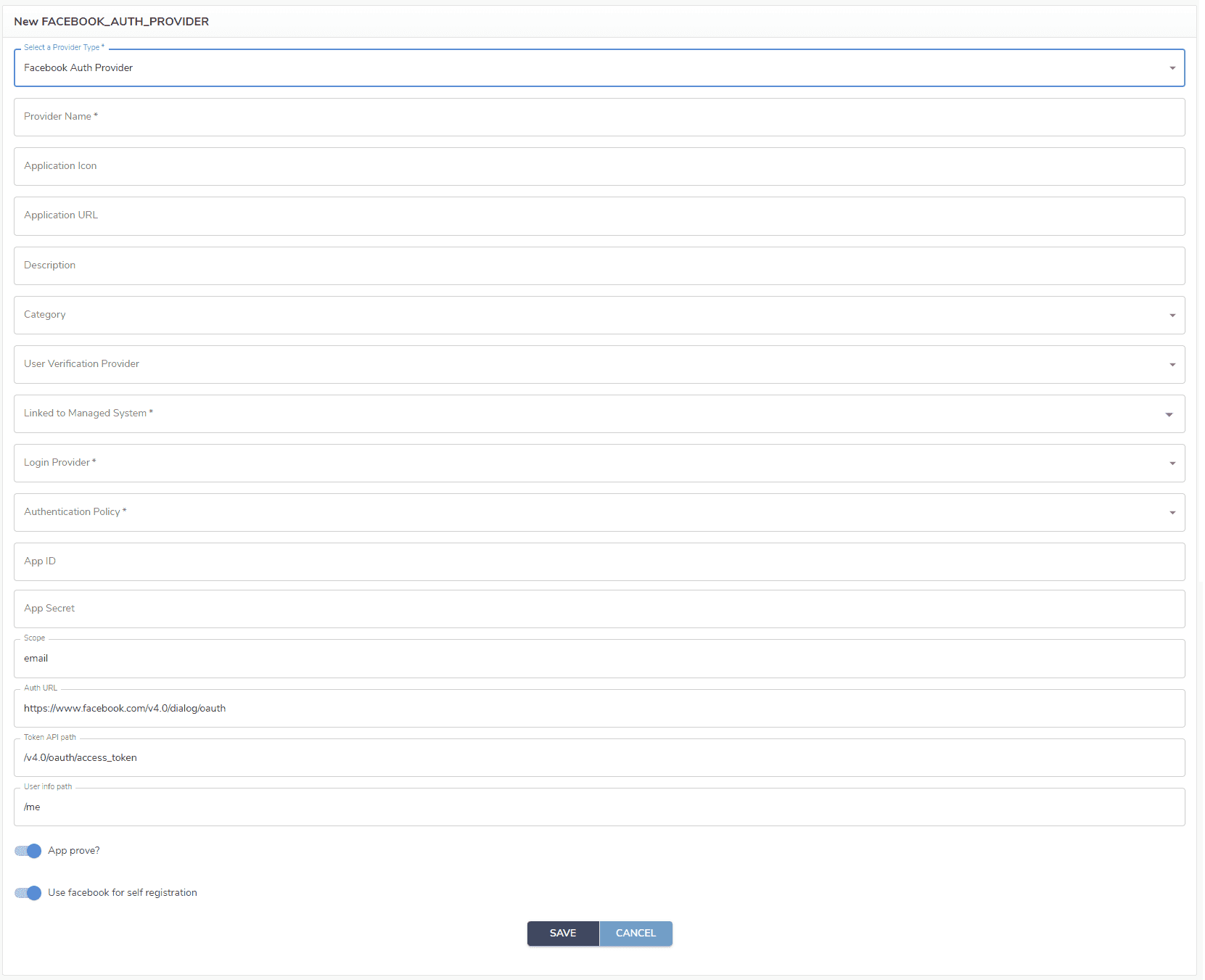
- On the Authentication Provider screen:
- Copy and paste the App ID and App Secret from Facebook.
- Fill in the required fields and save.
- Update the appropriate Content Provider with the following URL patterns:
/idp/social/facebook/callback- Authorization: Disabled
- Authentication Rule: None
/idp/social/facebook/login- Authorization: Disabled
- Authentication Rule: None
- Supported HTTP Methods: POST
Preparing Users
Each user who may log in via Facebook must have an identity in the managed system selected on the Auth Provider page (in this example, the Facebook Managed System).

Testing the Feature
- Navigate to the OpenIAM login page.
- Click the Facebook login button.
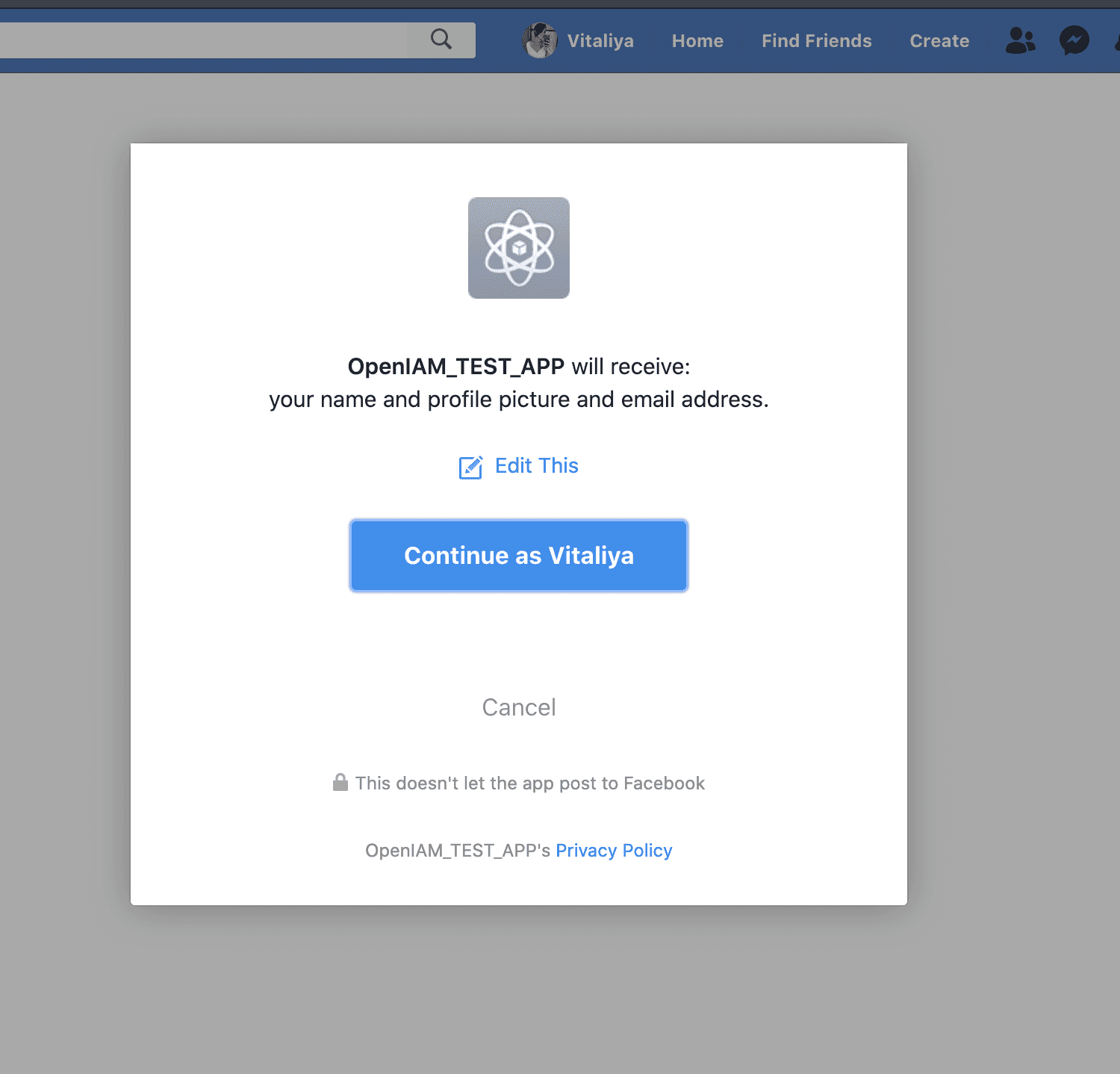
- A Facebook pop-up will appear asking the user to share information with the app.