AppleID Social Login
Configuring authentication using AppleID
Creating an Identifier
- Sign in to the Apple Developer Portal and select Certificates, Identifiers & Profiles from the menu.
- From the sidebar, select Identifiers, then click the blue + icon.
- Select App IDs → App, then click Continue.
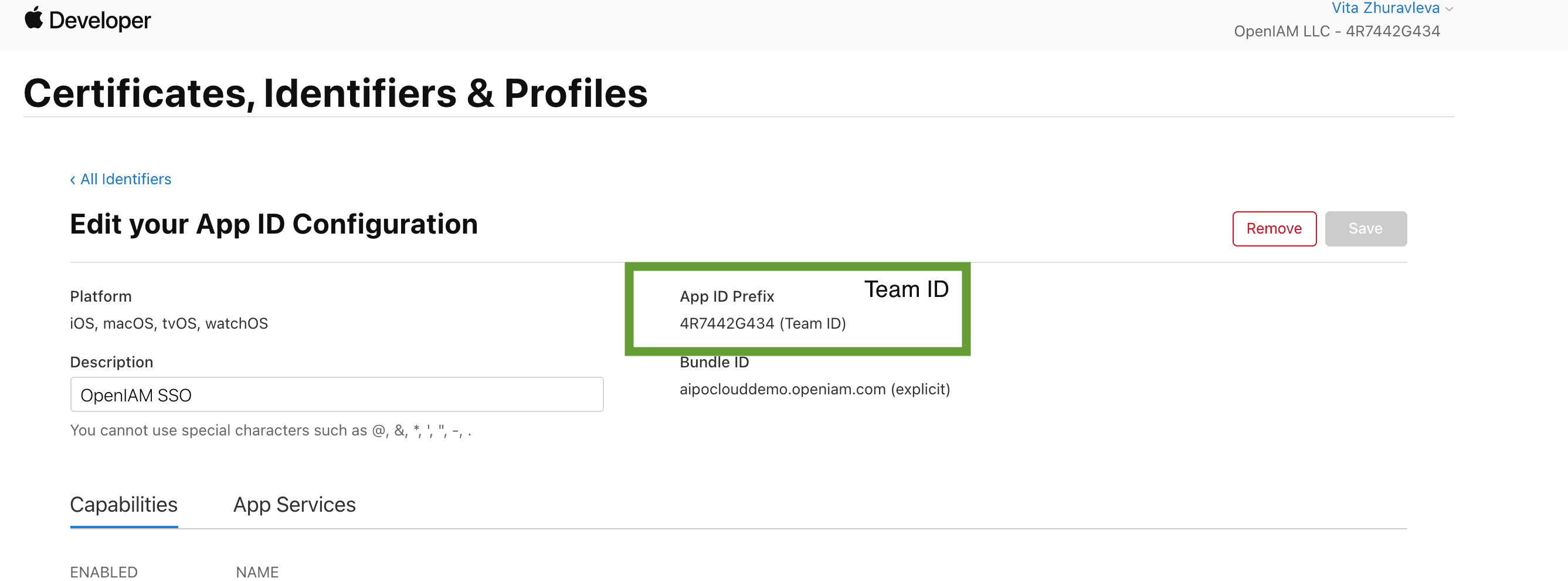
- Fill in the required fields: Description and Bundle ID.
- In the list of capabilities, check Sign In with Apple.
- Click Continue and then Register.
Creating a Services ID
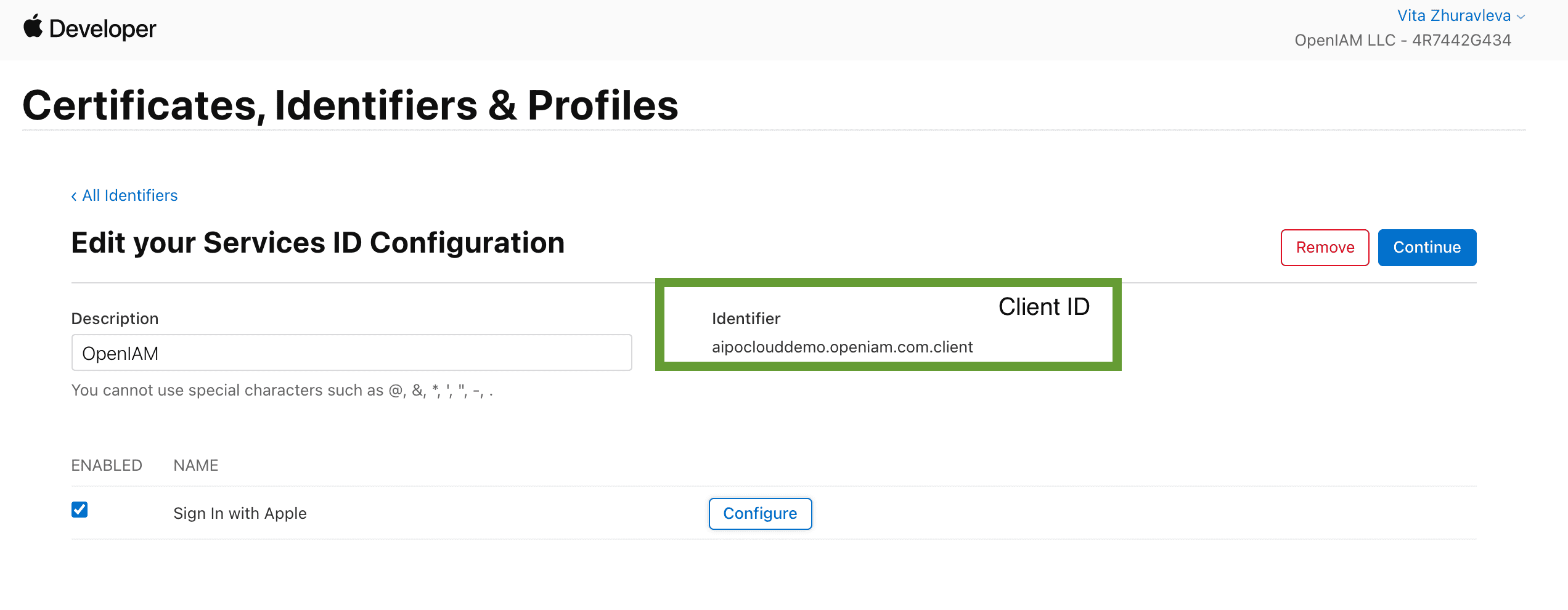
The Services ID acts as the OAuth client_id for your application.
- Enter the Description (the name displayed to the user) and the Identifier (this becomes the OAuth client_id).
- Check the Sign In with Apple box.
- Click Configure next to Sign In with Apple.
- Define your domain and the redirect URLs for OAuth flow, e.g.:
Domain: dev.openiam.com Redirect: https://dev.openiam.com/idp/social/appleid/callback
Ensure the server uses an SSL connection.
- Make sure the associated App ID is selected as the Primary App ID.
- Click Save, then Continue and Register.
You now have an App ID container and a Services ID for OAuth login.
Creating a Private Key for Client Authentication
Apple uses a public/private key pair, where the client secret is a signed JWT.
- Go to Certificates, Identifiers & Profiles > Keys.
- Click the blue + icon to register a new key.
- Provide a name for the key and check Sign In with Apple.
- Click Configure and select your primary App ID.
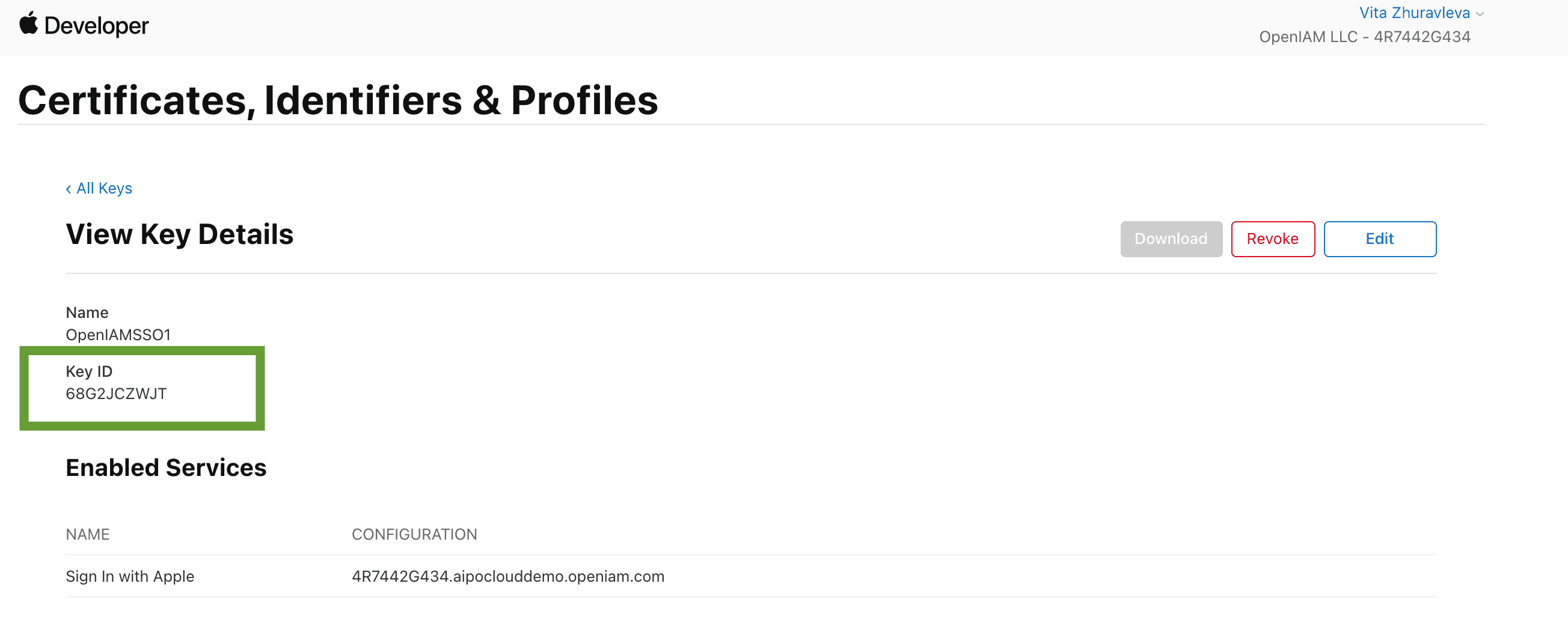
- Apple will generate a private key, which you can download only once.
- Keep this key safe; it will be uploaded in OpenIAM.
Configuring OpenIAM
- Create a new Authentication Provider of type AppleID.
- Fill in the following fields: TeamID, KeyID, ClientID, and other required fields (Managed System, Login Module, Password Policy).
- Other fields have default Apple values; do not modify them.
- Save the configuration.
- After the page reloads, upload the private key. It is stored securely in the Vault.
After a few minutes, the Sign in with Apple button will appear. Users must have an identity in OpenIAM that matches their Apple email address.
Testing the Feature
- On the login page, click Sign in with Apple.
- Apple will prompt the user to share information with the app.
- If credentials are valid and the email matches an IAM identity that is not locked or disabled, the user will be logged in.
Example of a correct redirection URL after clicking Sign in with Apple: