LinkedIn Social Login
This section explains how to configure LinkedIn OAuth 2.0 login for OpenIAM.
Creating a LinkedIn project
- Go to LinkedIn Developers – My Apps and sign in.
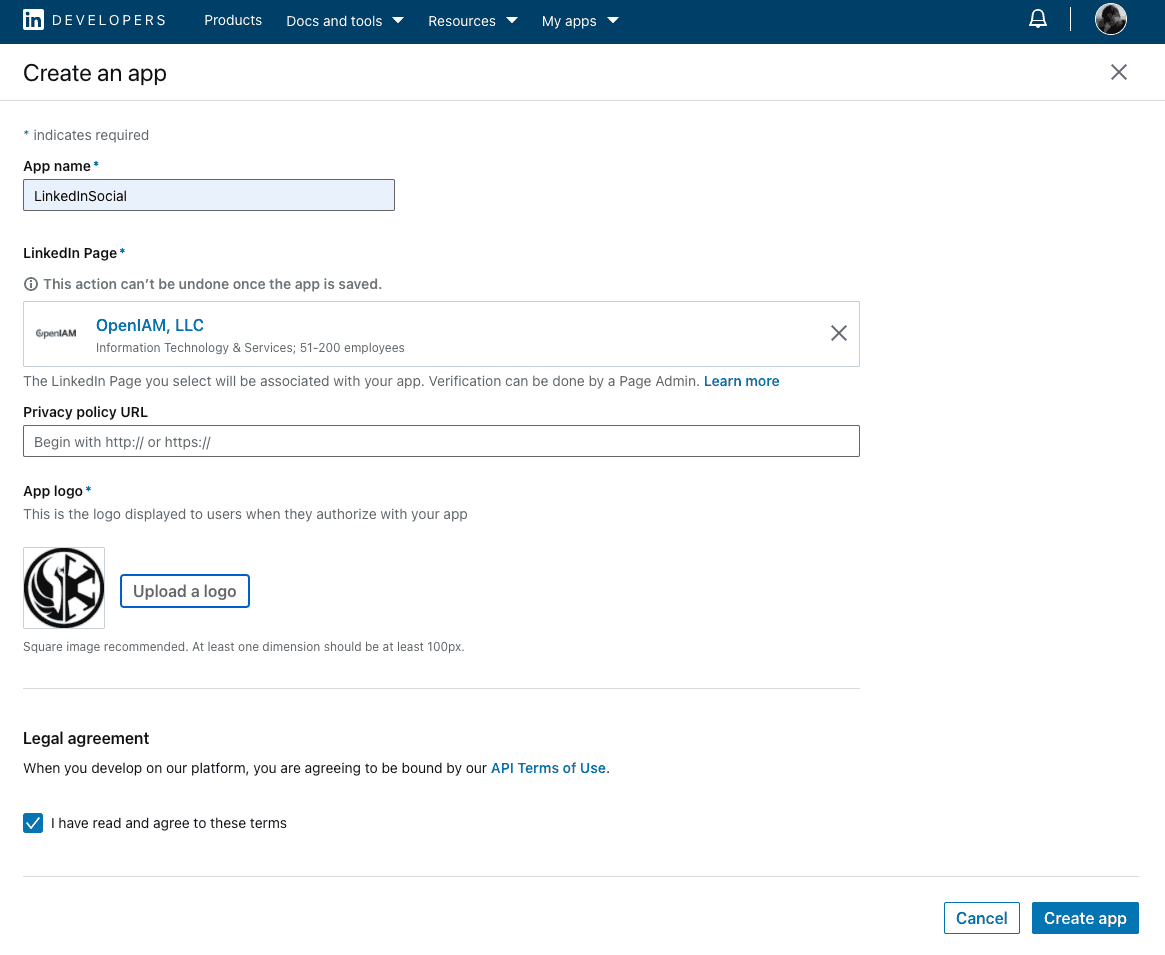
- Click Create App to create a new application.
- Provide an application name (e.g.,
LinkedInSocial) and click Create.
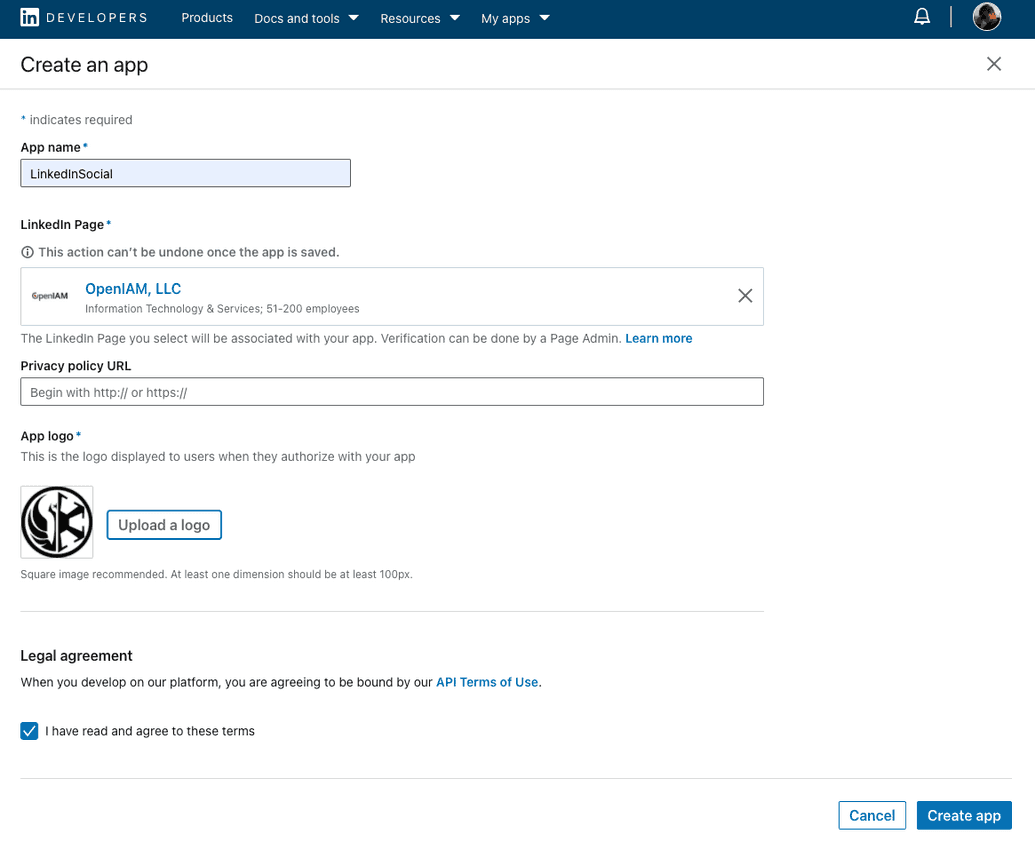
- Provide an application name (e.g.,
- Complete the application details as needed.
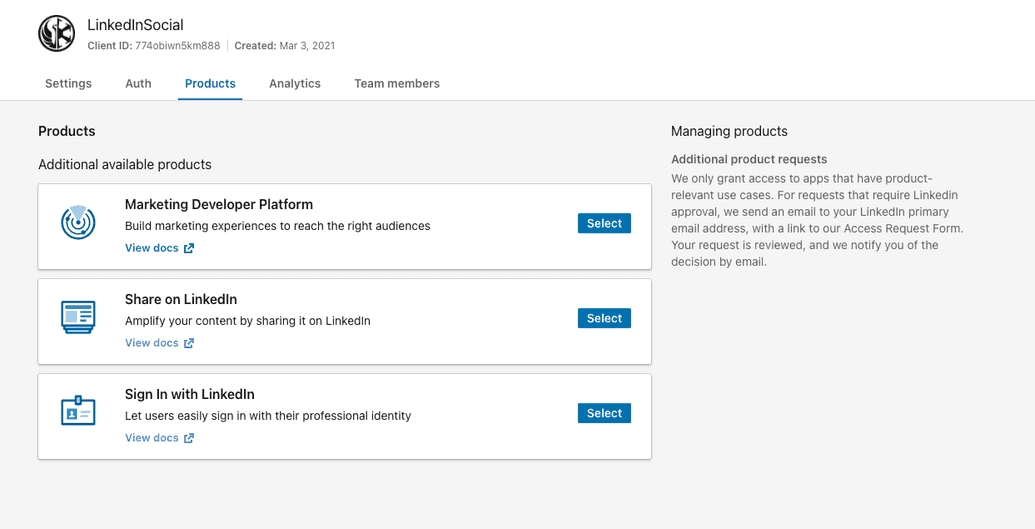
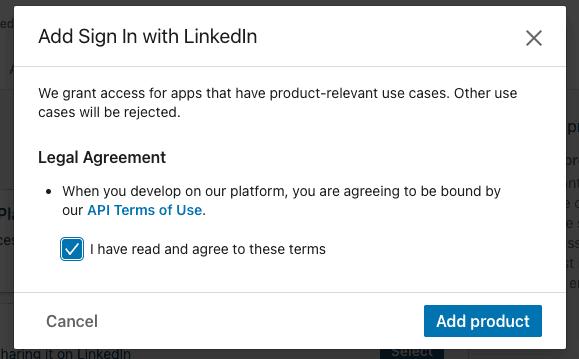
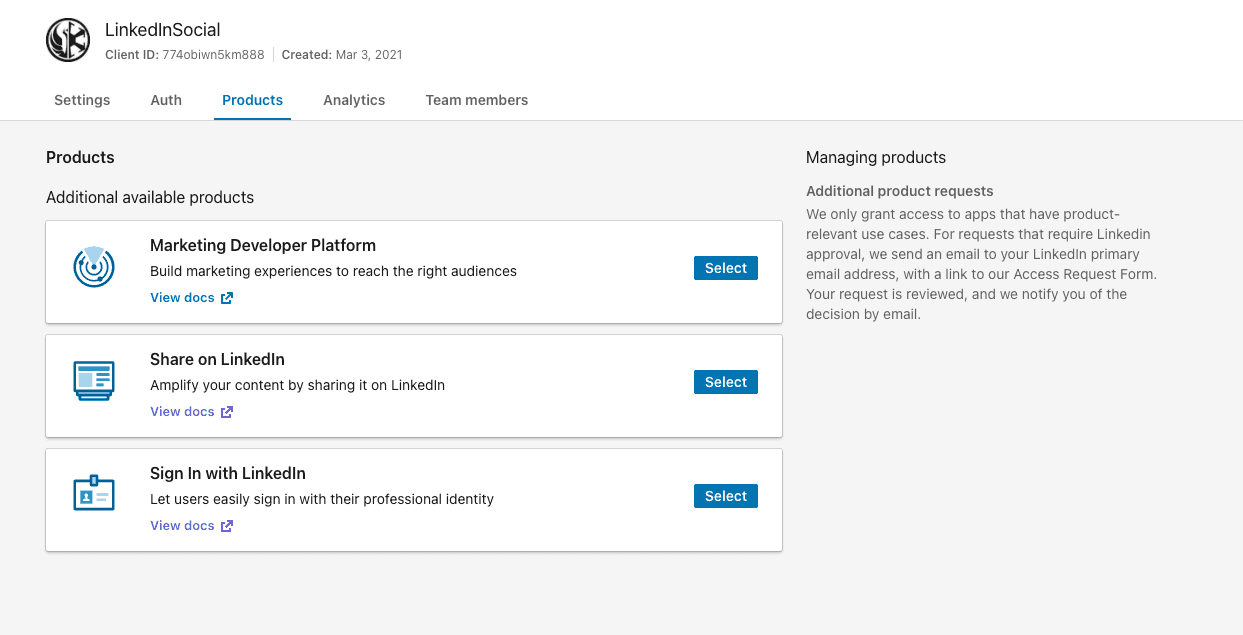
- Open the Products tab and enable Sign in with LinkedIn.
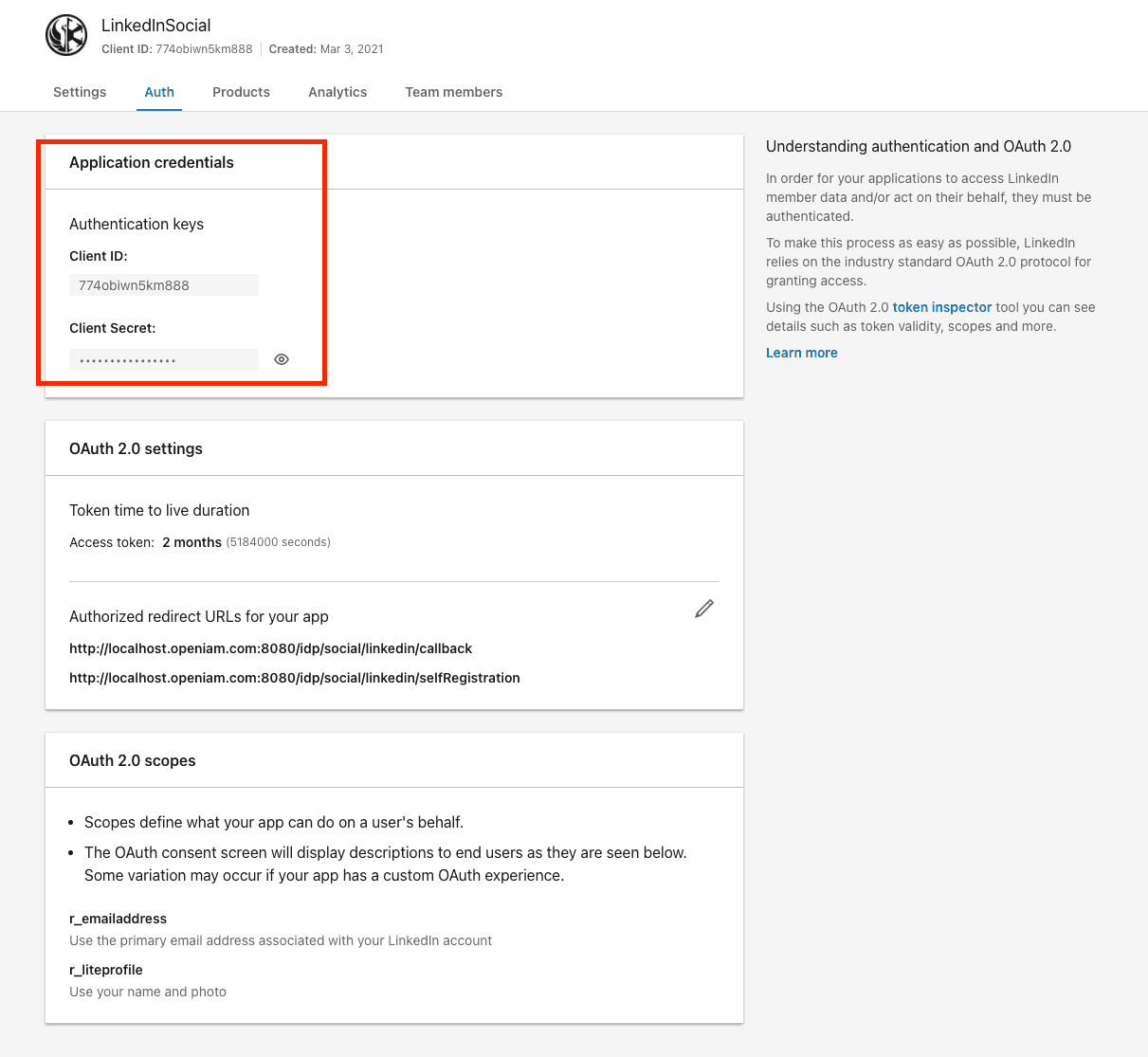
- Configure Authorized redirect URLs for your app:
{appUrl}/idp/social/linkedin/callback{appUrl}/idp/social/linkedin/selfRegistration
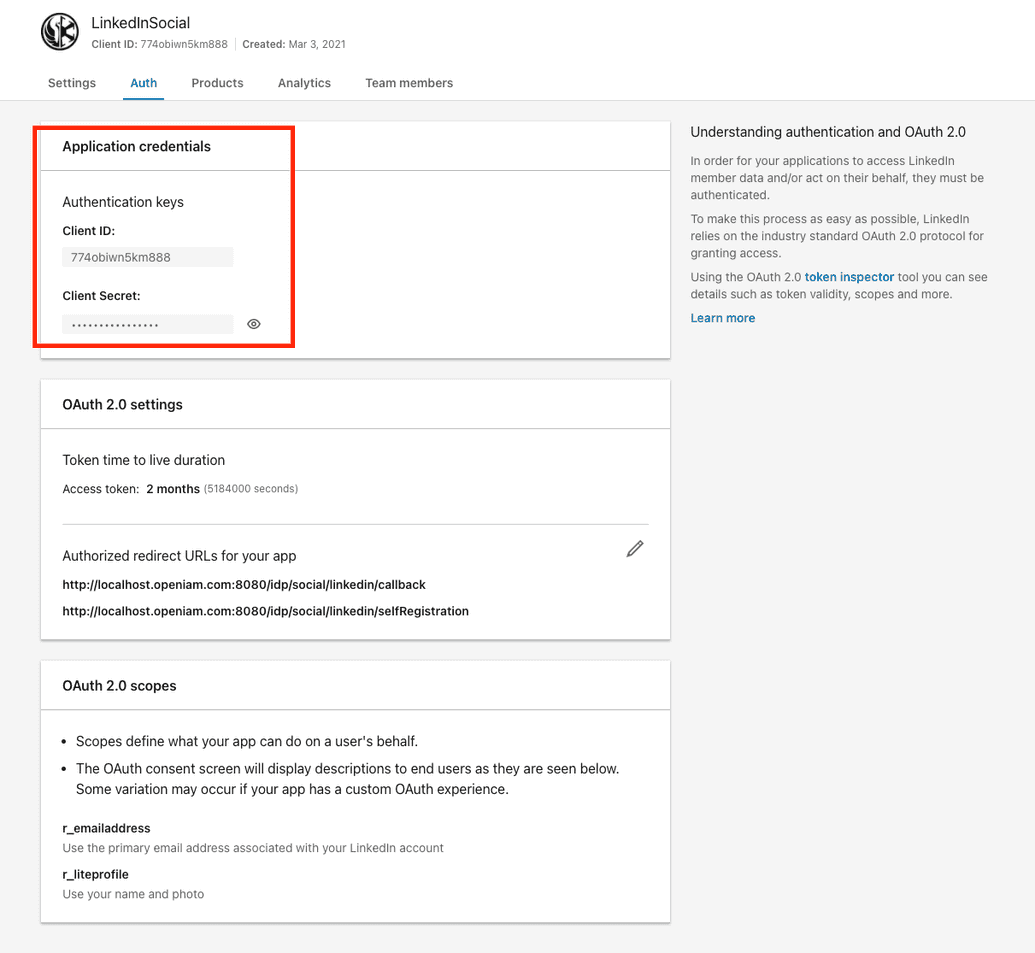
- Save the Client ID and Client Secret.
Configuring OpenIAM
Creating an Authentication Provider
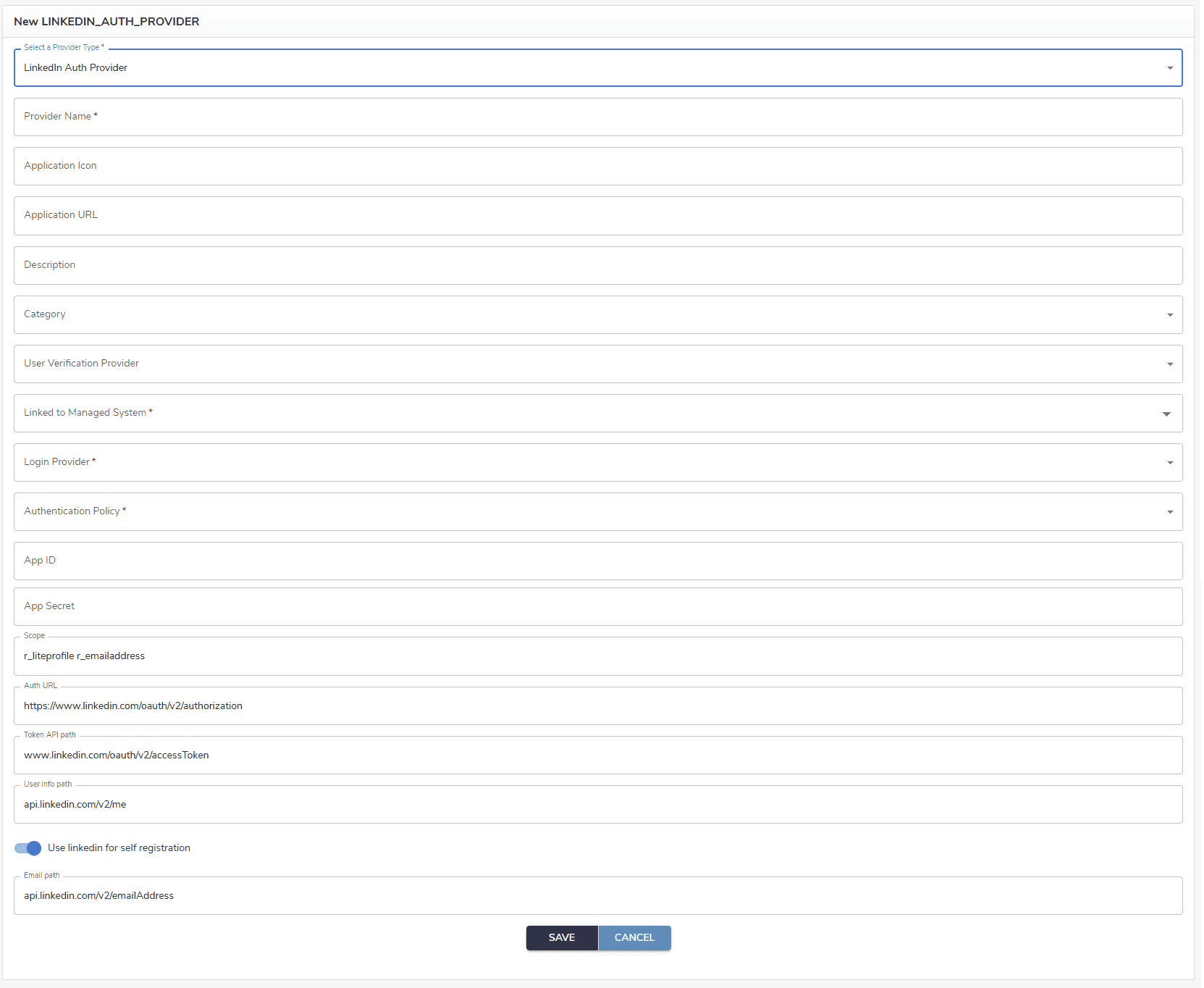
- In the OpenIAM Web Console, go to Access Control → Authentication Provider → Create new provider.
- Select LinkedIn as the provider type.
- Paste the Client ID and Client Secret from the LinkedIn console, fill in required fields, and Save.
Ensure the corresponding Content Provider has these URL patterns (authorization disabled):
/idp/social/linkedin/callback→ Authentication Rule: None/idp/social/linkedin/login→ Authentication Rule: None, Supported HTTP Methods: POST
Preparing users
Each user who logs in via LinkedIn must have an identity in the Managed System selected in the Authentication Provider (for example, OpenIAM Managed System).
Self-Registration
Configuring OpenIAM
- In the LinkedIn Authentication Provider, enable Use LinkedIn for self registration.
- Add
'r_emailaddress'and'r_liteprofile'to the Scope:
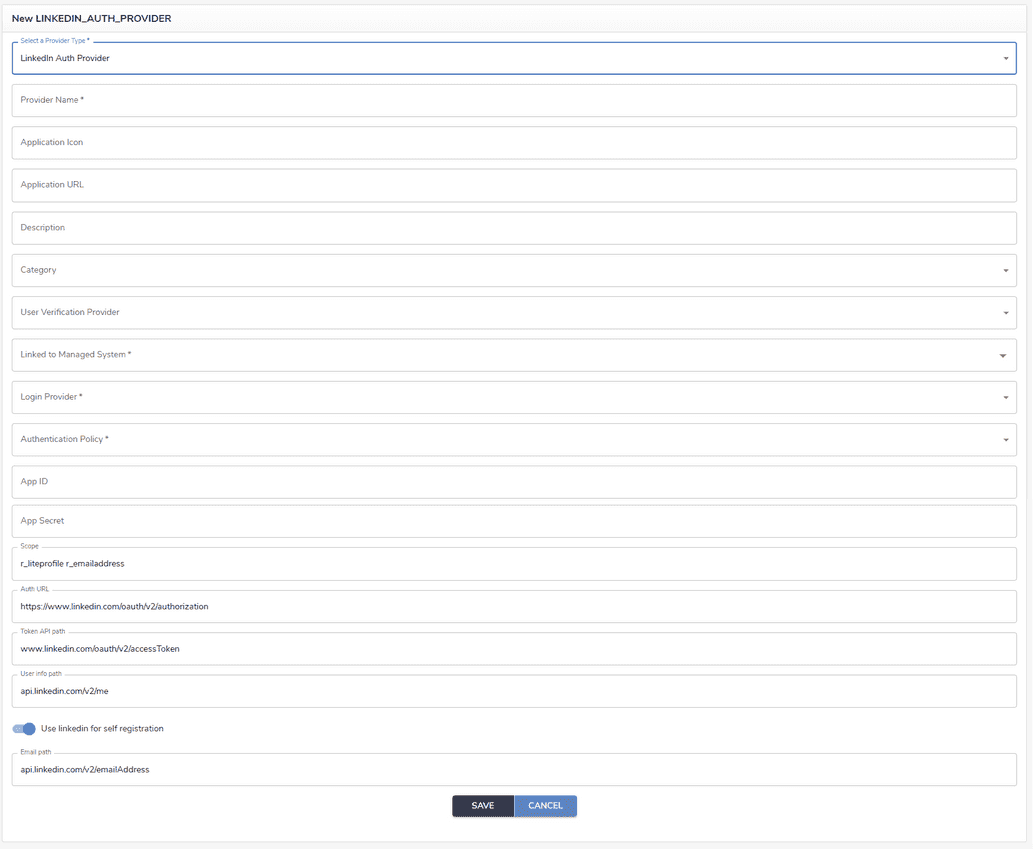
- Save the provider.
- Ensure the Content Provider includes this URL pattern (authorization disabled):
/idp/social/linkedin/selfRegistration→ Authentication Rule: None, Supported HTTP Methods: GET
Testing the feature
On the login page, you will now see:
- Sign in with LinkedIn — logs in users whose LinkedIn credentials match an existing IAM identity (not locked or disabled).
- Create Account by LinkedIn — available when self-registration is enabled; pre-fills the registration form with data from the LinkedIn account.