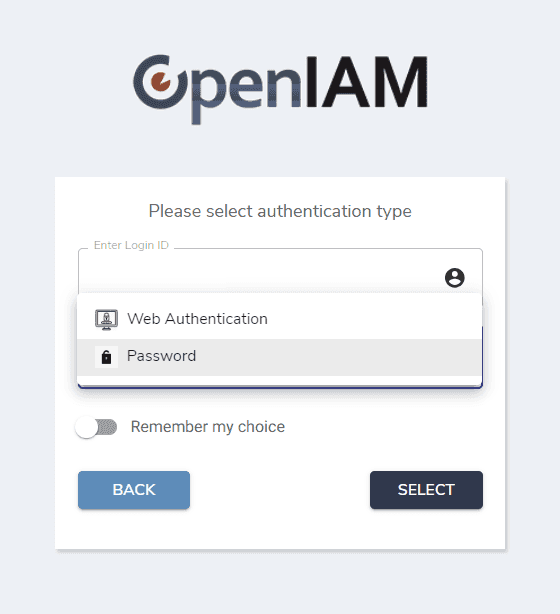
External/multiselect authentication
External or multiselect authentication offers an added layer of protection by allowing users to choose from multiple authentication methods, improving both security and user experience. This document provides a step-by-step guide to configuring external/multiselect authentication.
Create a new authentication level grouping (external authentication type)
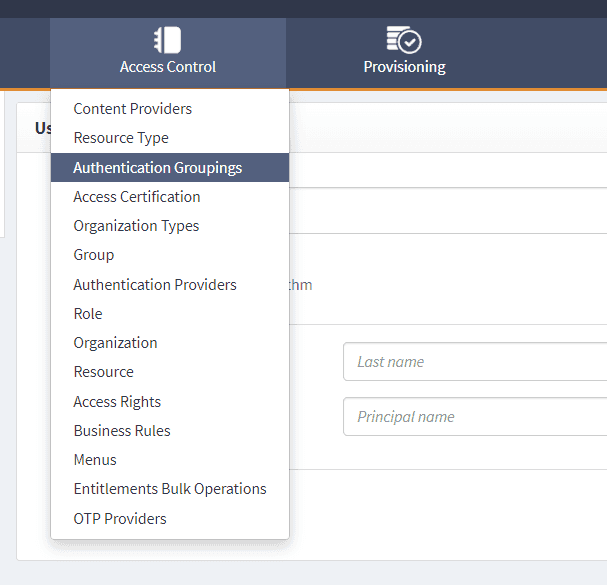
- Go to webconsole > Access control > Authentication groupings > Create new grouping.
- Enter a name for the authentication level grouping with external authentication.
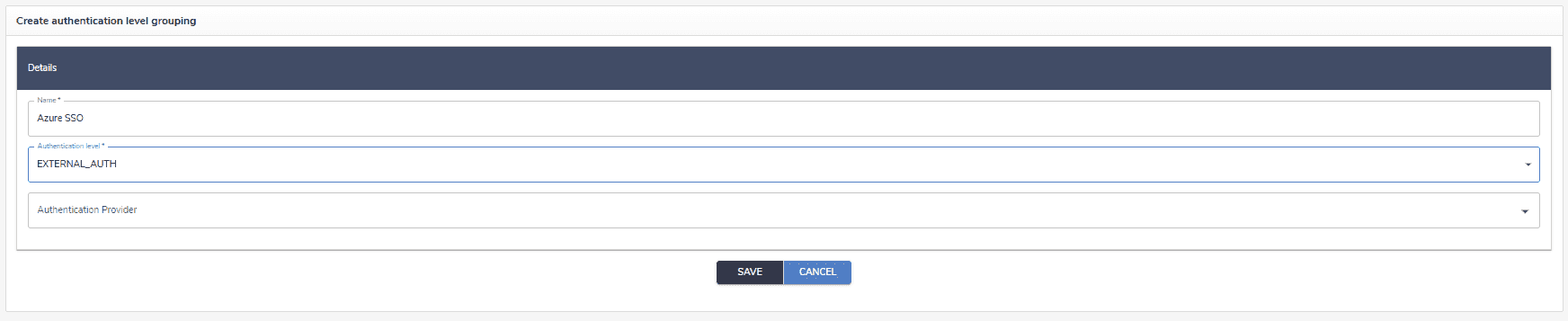
Additionally, you can select an authentication provider. It will supply the logo for the authentication grouping. The icon image property from the authentication provider will be used for the authentication level grouping.
- Once the authentication level grouping is created, add an attribute by clicking the
+icon.
Provide a name for the attribute, set Redirect type as type, and specify a URL as value. This URL will be used as the redirect link when the newly created authentication grouping is selected.
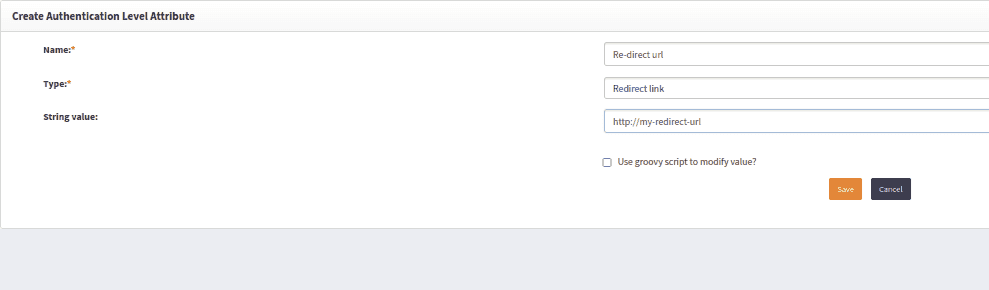
Alternatively, a Groovy script can be provided instead of a string value. This script can be used to handle specific use cases. An example Groovy script can be found at /AM/TestAbstractRedirectURLGroovyProcessor.groovy.
Add the authentication level grouping to an authentication rule
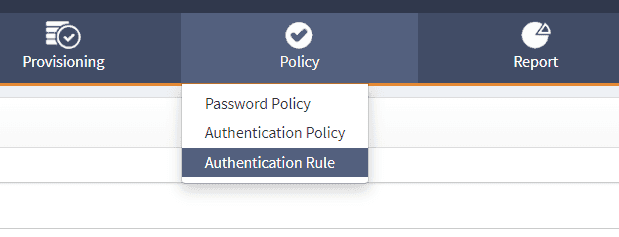
- Go to webconsole > Policy > Authentication rule > Create/edit authentication rule.
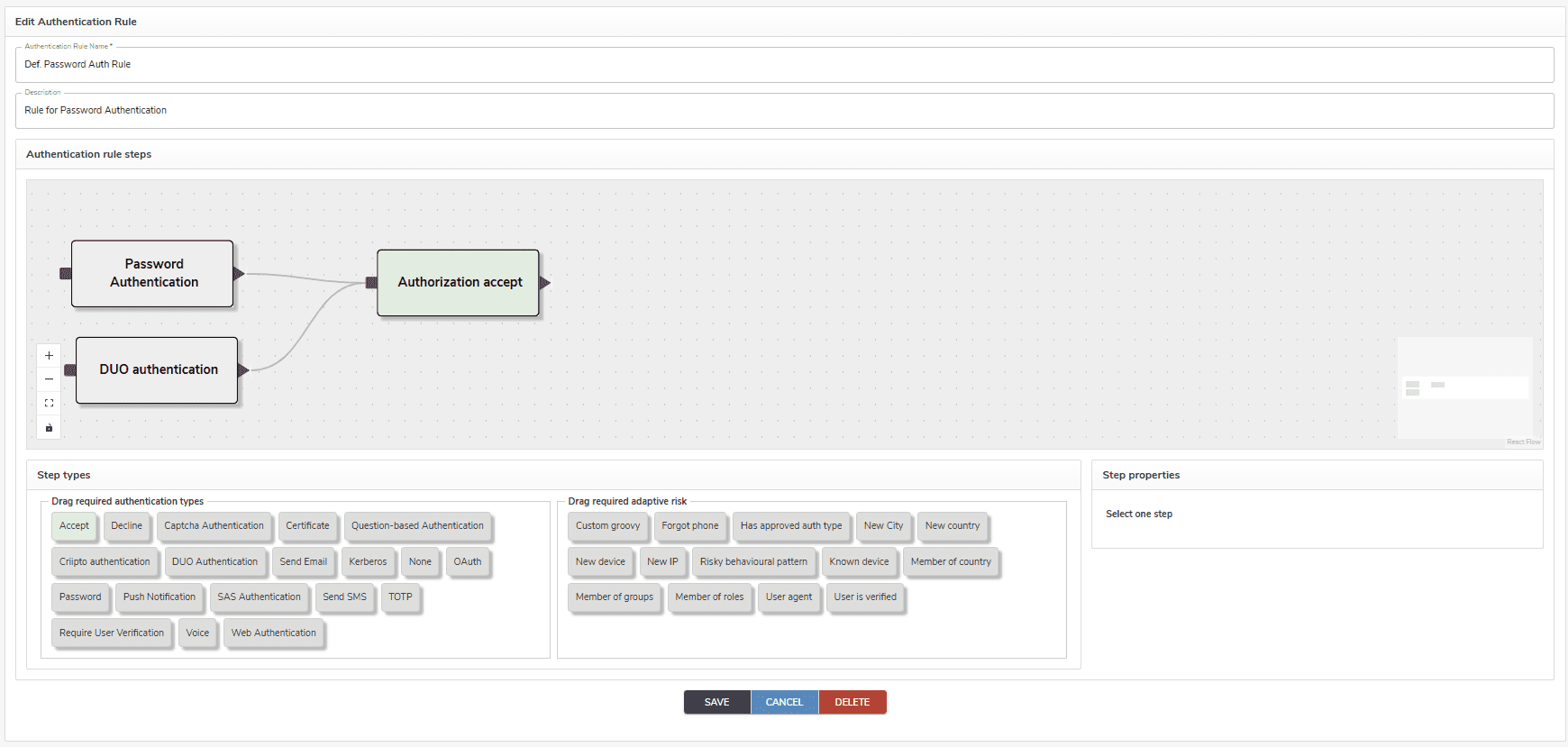
- When creating or editing the authentication rule, add the newly created authentication level grouping. You can do this by finding the grouping in the Step type box and dragging it to Authentication rule steps. You can also add the required adaptive risk to the policy by dragging it into the steps.
Once the authentication level is applied to the rule, the user must select the desired authentication type from the available options on the login screen. Users can also select Remember my choice to automatically use that option for future logins.