Microsoft Teams connector
The Teams connector provides integration between OpenIAM and the Microsoft Teams application. Currently, the Teams connector supports only synchronization operations.
Prerequisites
To install and use the Teams connector properly, ensure that the following prerequisites are met:
- Windows Server 2016 or a newer version of the Windows Server OS.
.NET Framework 4.8or any newer version from the Classic .NET family.- The MicrosoftTeams PowerShell module must be installed (see the Preparing the environment section for more details).
- Connector machines must have an internet connection enabled to connect to the Azure tenant via the MicrosoftTeams PowerShell module.
Preparing the environment
In this scenario, it is assumed that the installation is performed on a clean instance of Windows Server 2016 (the minimum required version of Windows Server to run the connector). Follow the steps below to prepare the environment.
As mentioned earlier, Windows Server 2016 is used in this installation scenario, so .NET Framework 4.8 is not available out of the box. To install it, go to the official Microsoft download page and download the .NET Framework 4.8 Runtime installation package, then install it.
Installing the MicrosoftTeams PowerShell module
Before installing the module, check whether it is already installed. Open a PowerShell console and run the following command:
Get-Module MicrosoftTeams -ListAvailable
If you receive an empty result as shown below, the module is not installed.
PS C:\user\system32> Get-Module MicrosoftTeams -ListAvailablePS C:\user\system32>PS C:\user\system32>
If the output is different and displays details about the module, it means the module is already installed. In this case, you can skip the installation step.
To install the MicrosoftTeams module, run the following command:
Install-Module -Name MicrosoftTeams -Scope AllUsers
Once the module is installed, you can verify the installation using the command shown earlier. The output should look similar to the example below (versions may vary).
PS C:\user\system32> Get-Module MicrosoftTeams -ListAvailableDirectory: C:\Program Files\WindowsPowerShell\ModulesModuleType Version Name ExportedCommandsScript 7.6.0 MicrosoftTeams {Add-TeamChannelUser, Add-TeamUser, Connect-MicrosoftTeams...}PS C:\user\system32>
Additional information is available on the Microsoft website.
Registering the connector application
The Teams connector authorizes on the Entra ID (Azure) side using a certificate. This step requires two actions:
- Generating a self-signed certificate
- Creating an application in Entra ID (Azure) and configuring it
Generating the application certificate
Use the following commands to generate the application certificate for Entra ID.
$certname = "Teams_connector"New-SelfSignedCertificate -Subject "CN=$certname" -CertStoreLocation "Cert:\LocalMachine\My" -KeyExportPolicy Exportable -KeySpec Signature -KeyLength 2048 -KeyAlgorithm RSA -HashAlgorithm SHA256 -NotAfter (Get-Date).AddYears(10)
Creating an application in Entra ID (Azure)
This step requires the following actions. After completing them, you will be able to use Entra ID for your Teams connector.
- Go to the Entra ID (Azure) portal and select App registrations.
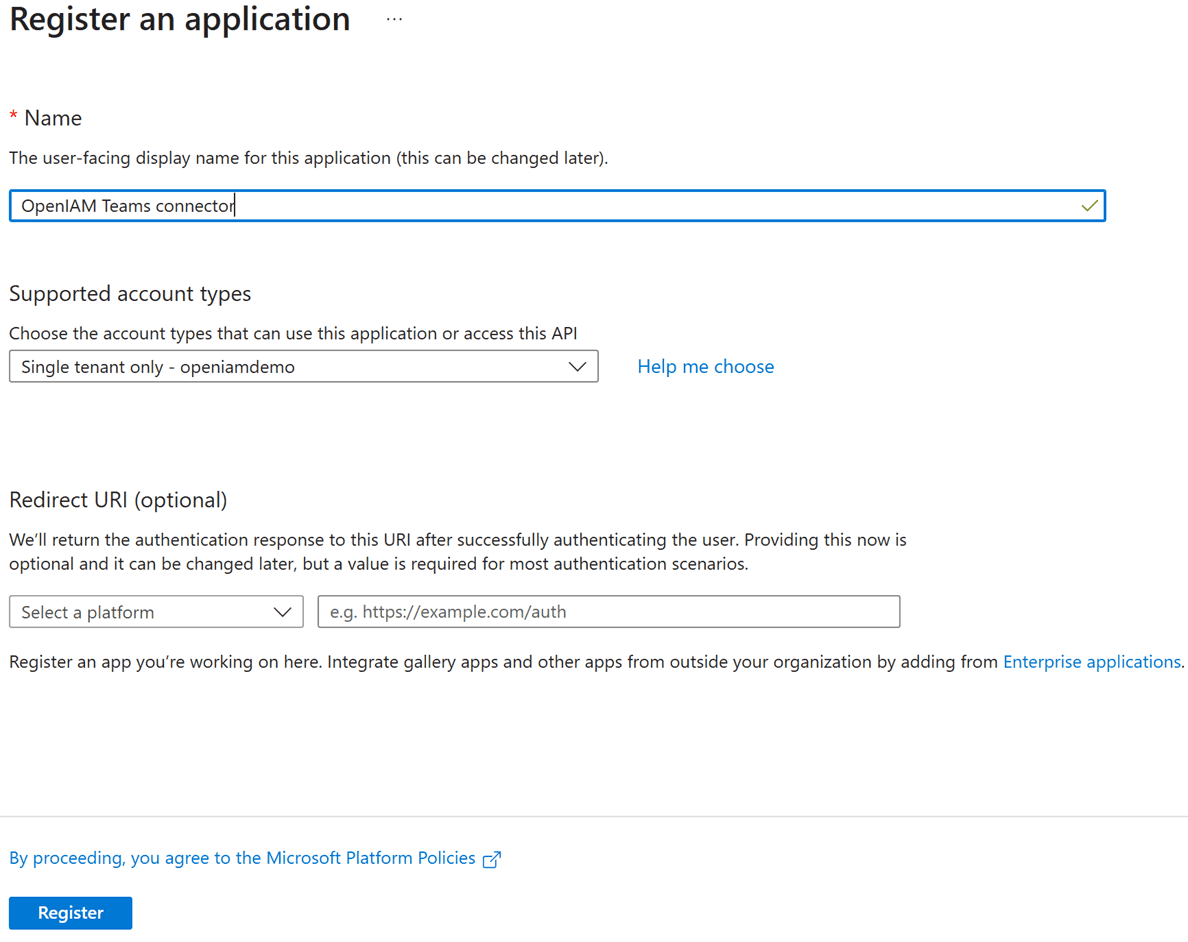
- Select New registration.

- Enter a name for the application and click Register.
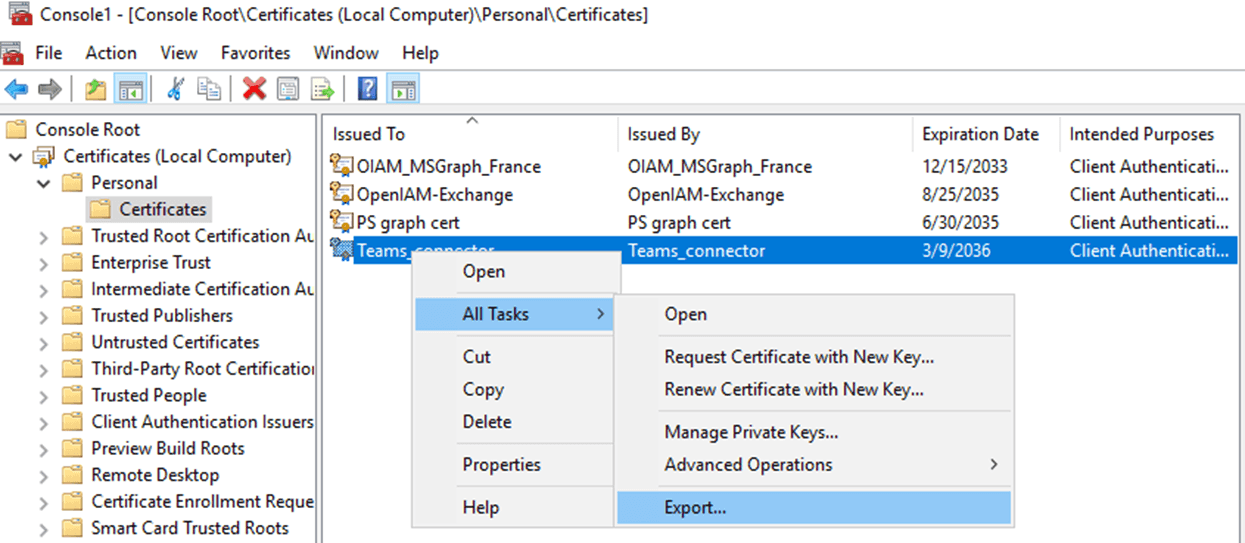
- Export the generated certificate without the private key from the certificate store using the MMC console.
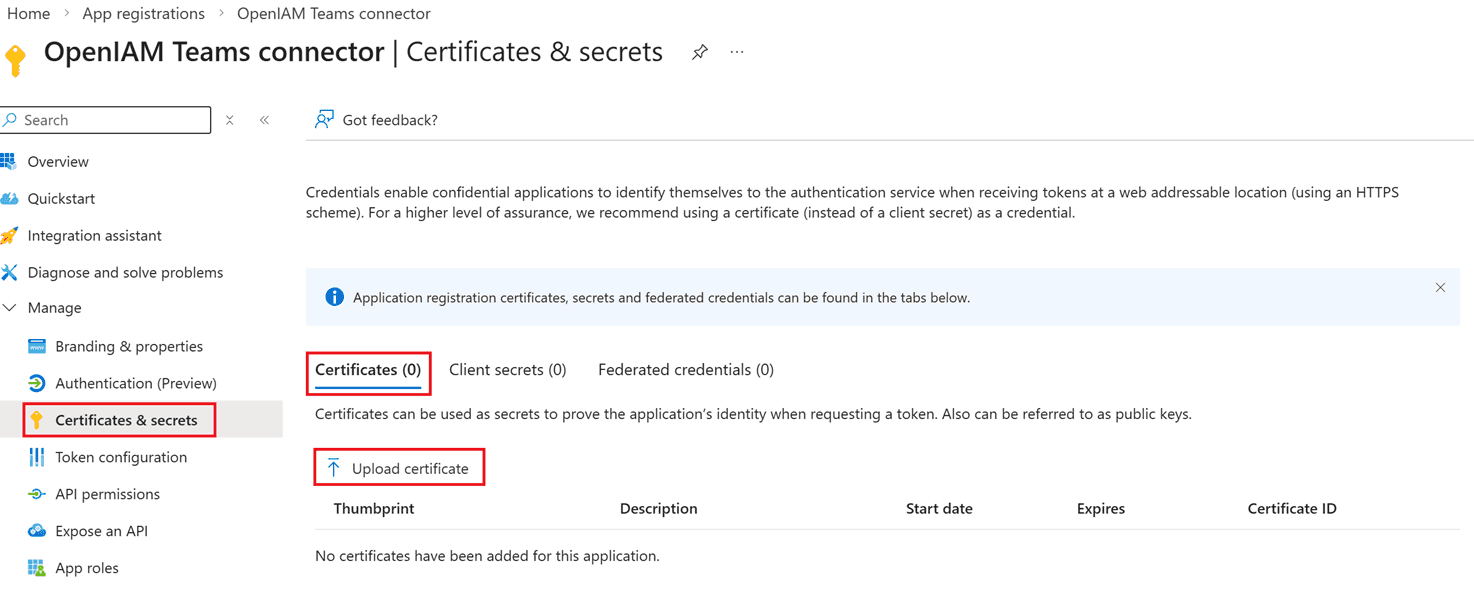
- Return to the created application in the Entra ID (Azure) portal and select Certificates & Secrets.
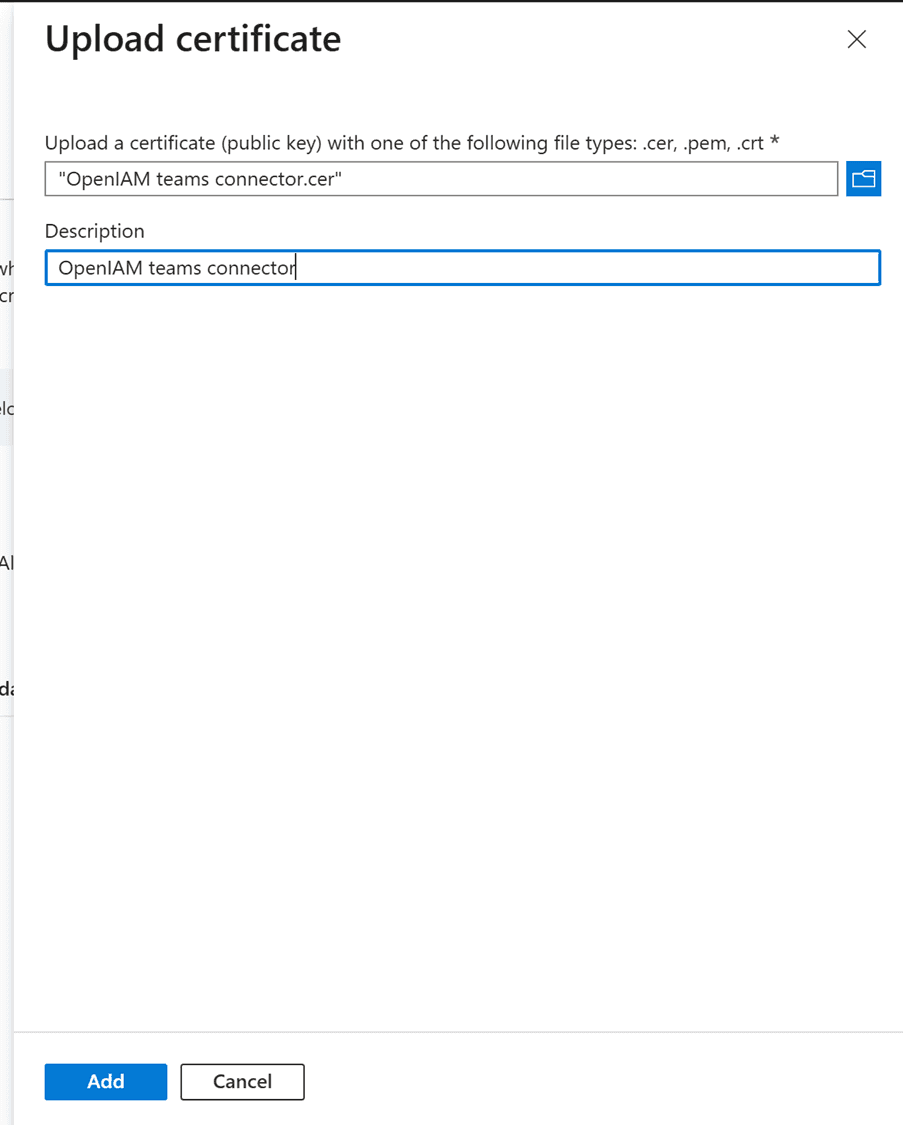
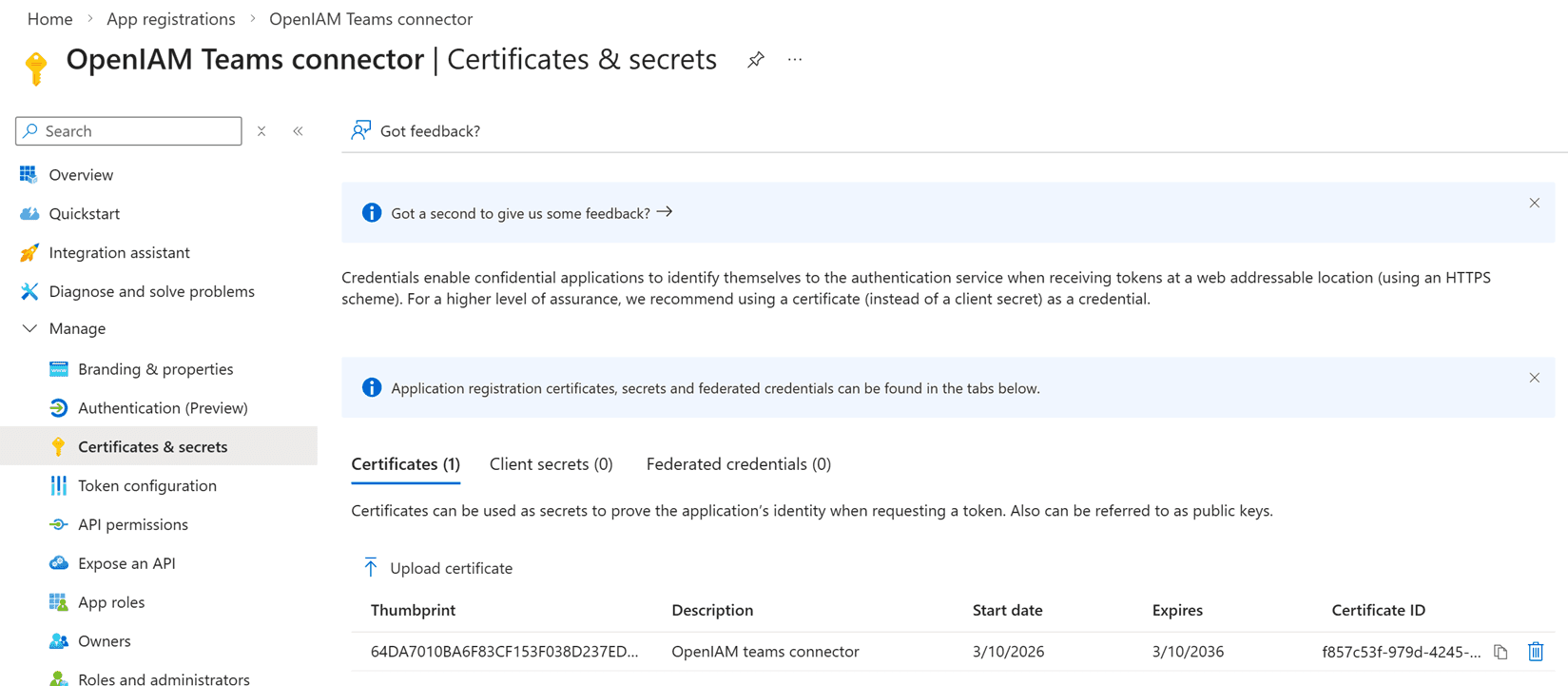
Open the Certificates tab and click Upload certificate. Choose the exported certificate from MMC and upload it.
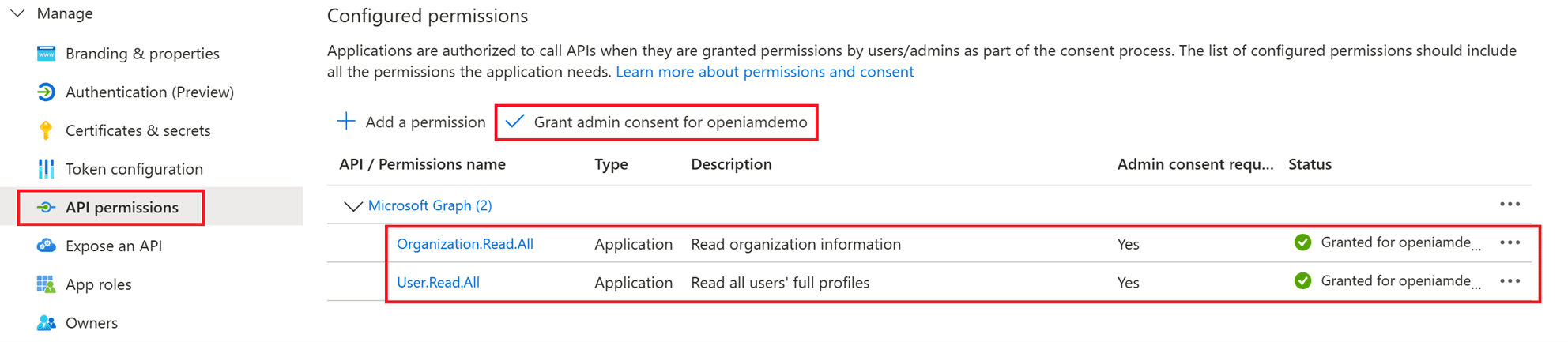
- Go to the API permissions section. Add the
Organization.Read.AllandUser.Read.AllApplication permissions from the Microsoft Graph API, then click Grant admin consent.
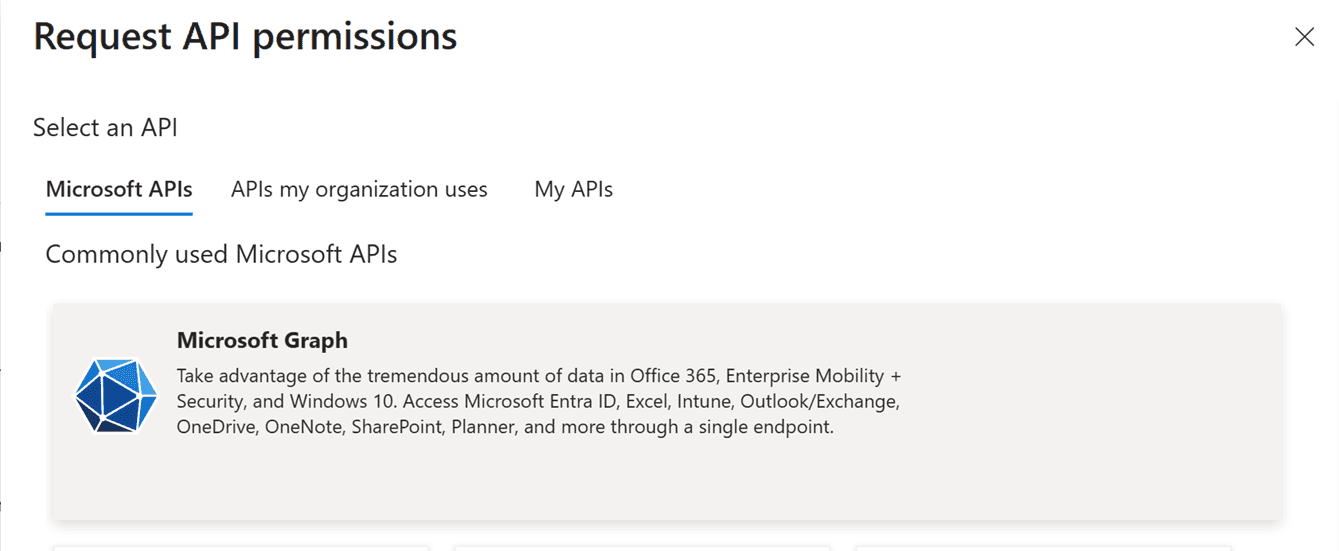
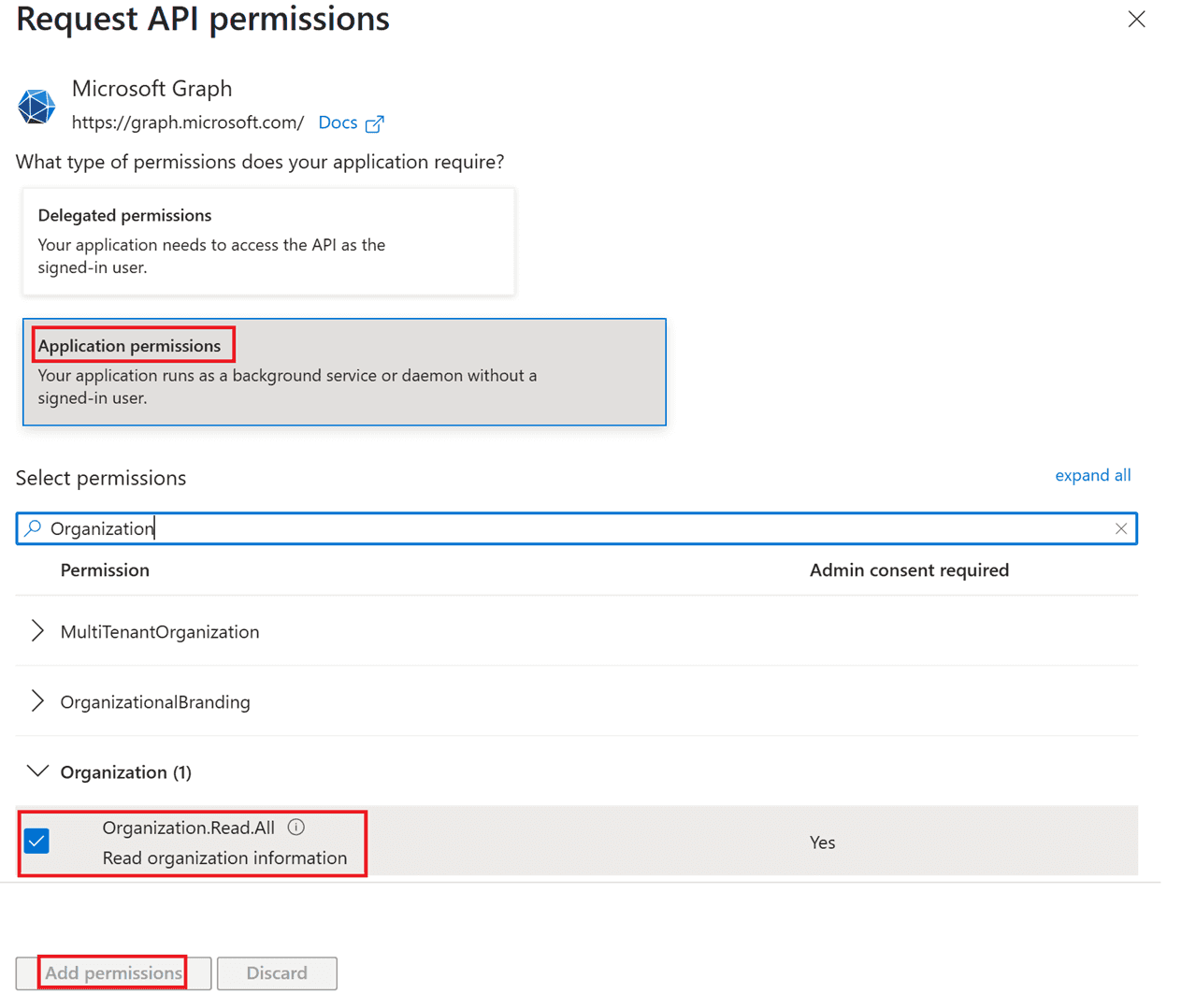

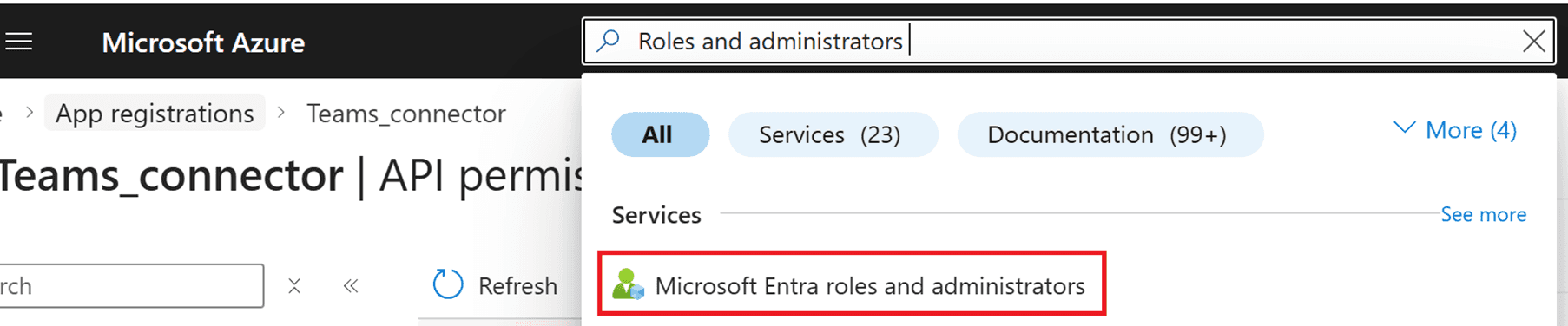
- In the Entra ID (Azure) search panel, type Roles and administrators and select Microsoft Entra roles and administrators.
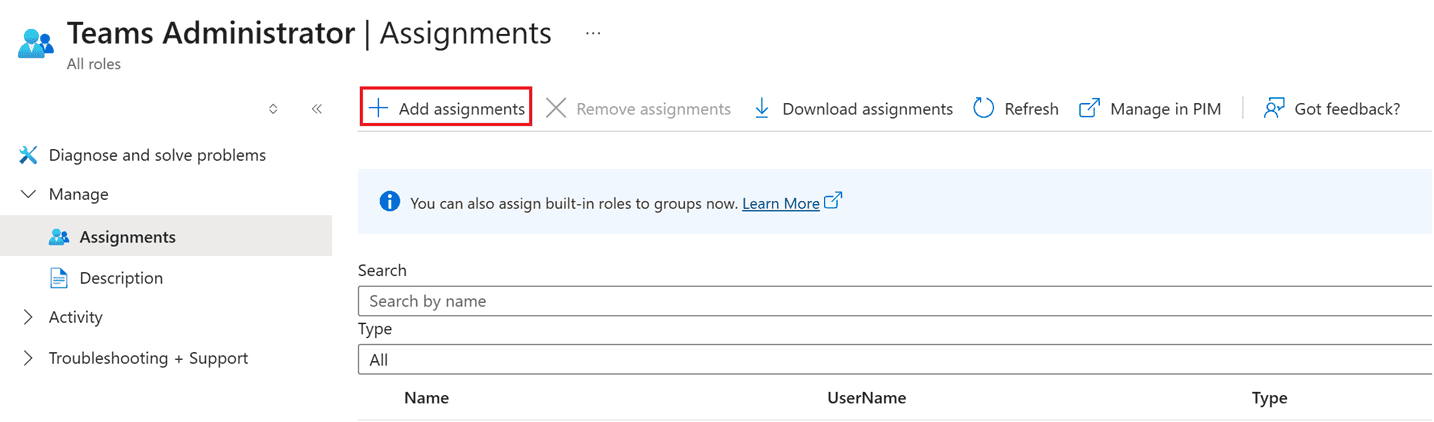
- In the search field, type Teams Administrator and select the Teams Administrator role.
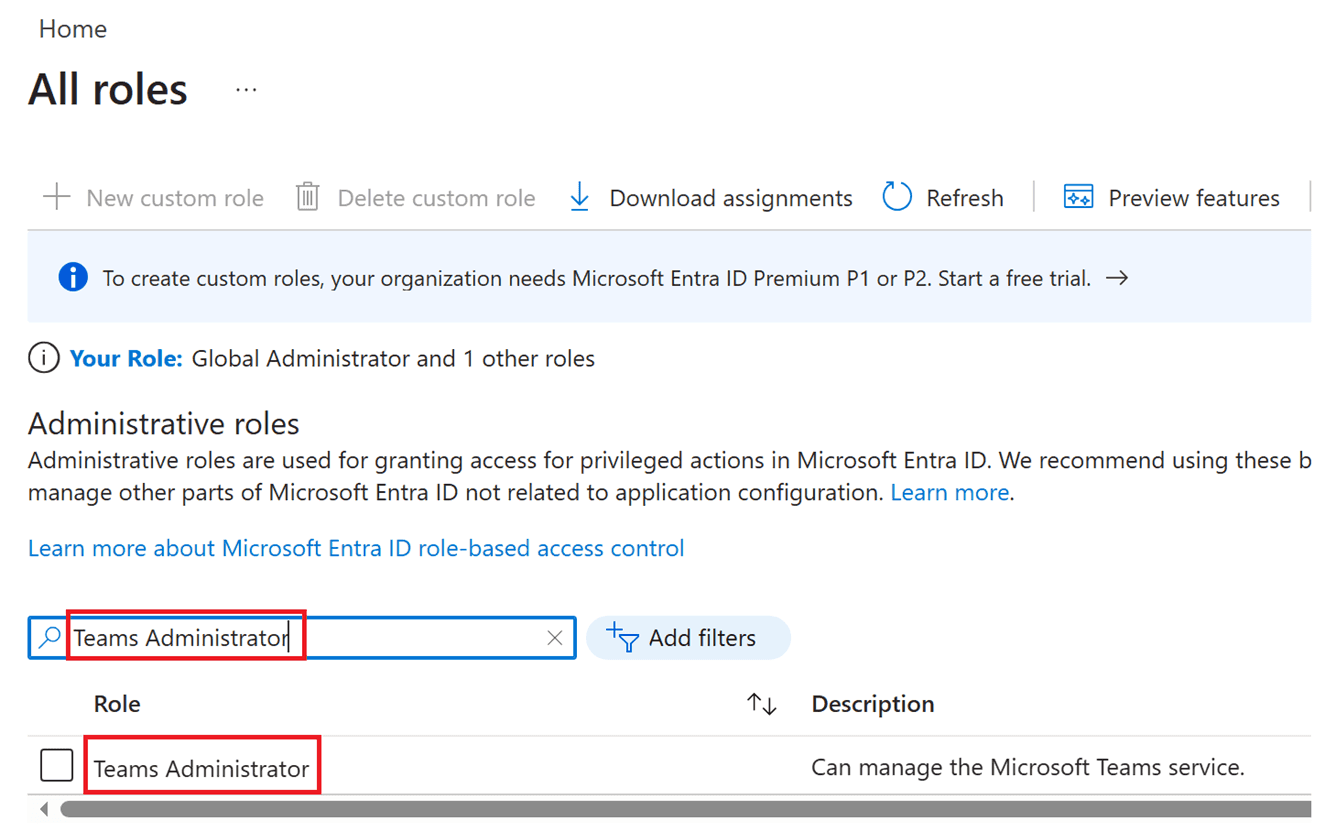
- Click Add assignments.
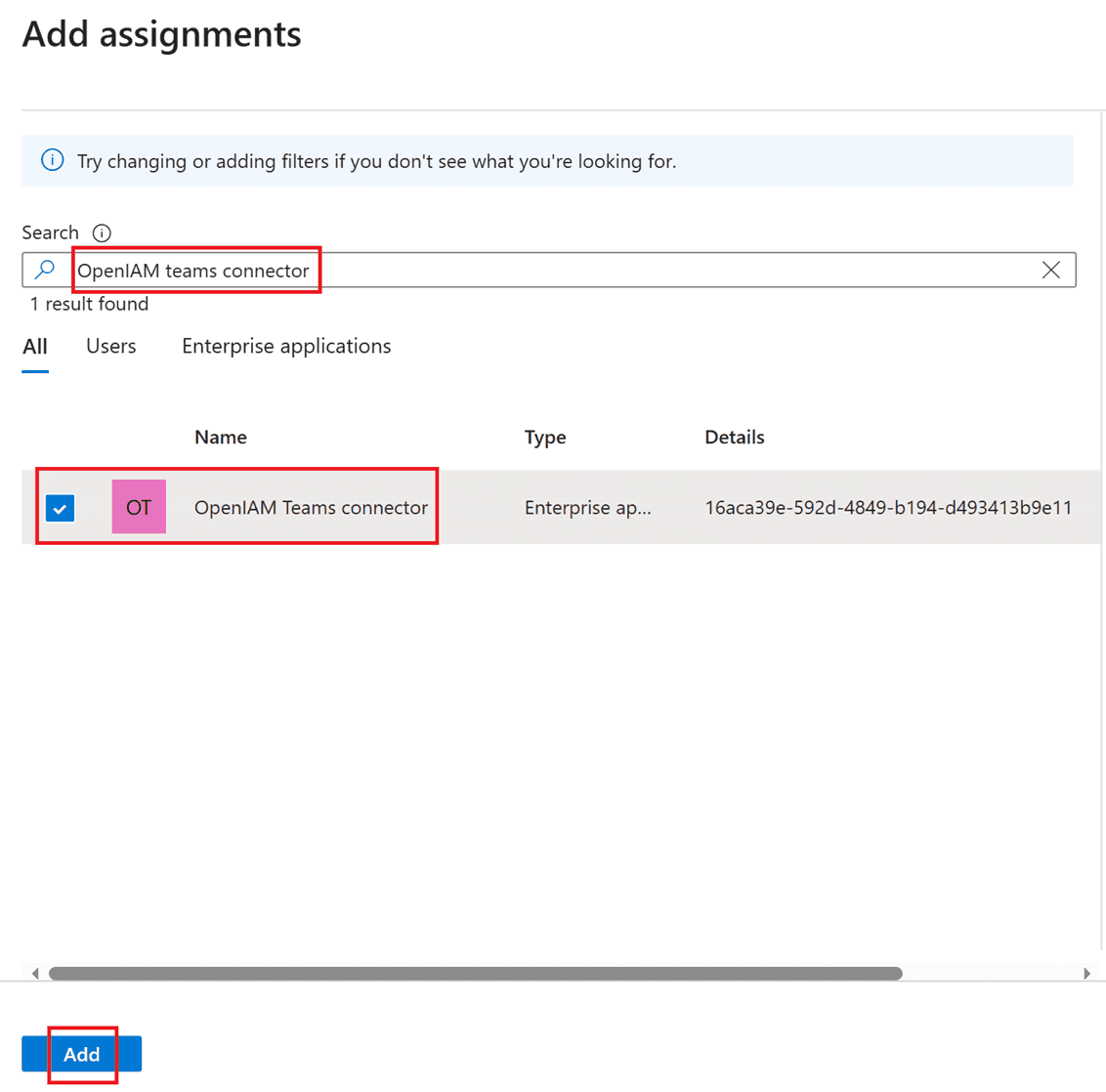
- In the search field, type the name of your created application, select it, and click Add.
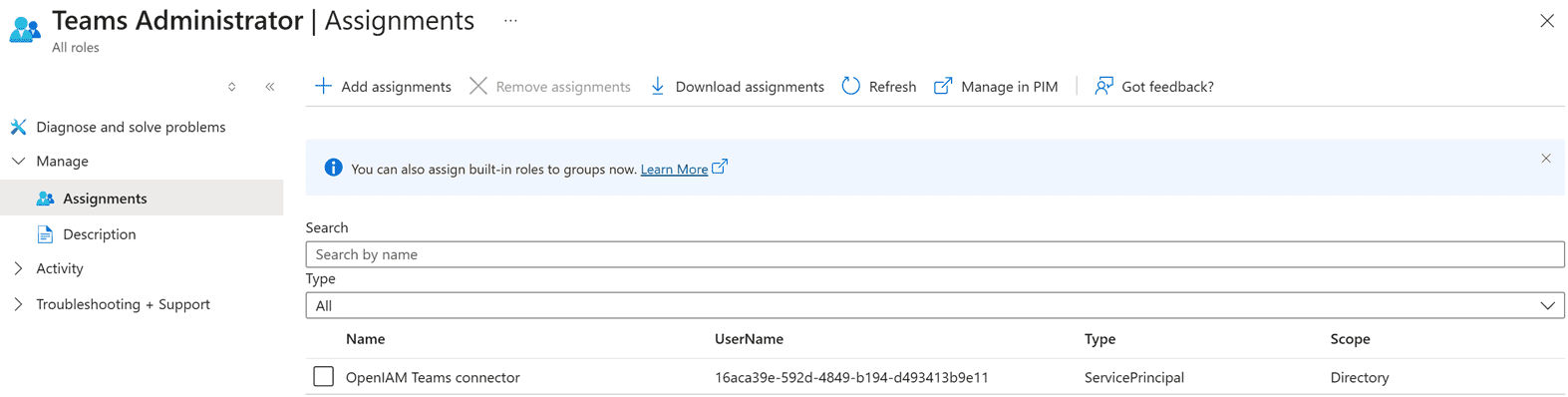
Your application is now ready to use. Additional information is available on the Microsoft website.
Configuring the OpenIAM managed system
When configuring the managed system on the OpenIAM side, follow the standard steps described in this document. Use the following values for the Teams managed system:
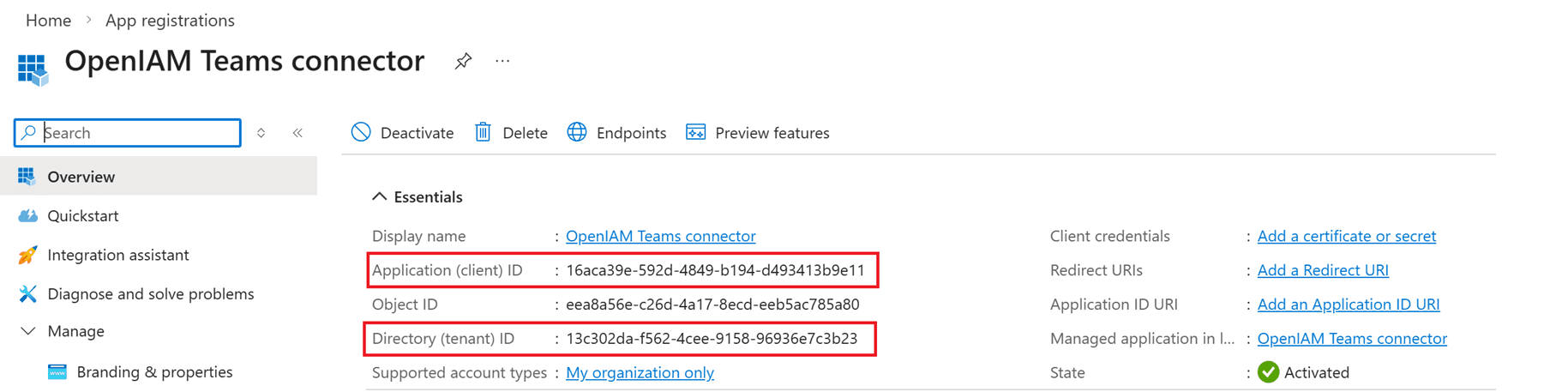
- URL – Tenant ID
- Login – Application ID
- Password – Thumbprint of the generated certificate