Enabling a virtual tenant by organization
The Virtual Tenant Organization feature is used to restrict user access to resources, organizations, users, and roles based on their assigned organization and virtual tenant role.
There are several types of virtual tenant roles:
- Super Security Admin – has no access restrictions and can view all organizations, roles, groups, and resources.
- Organization Admin – can view only the resources, users, roles, and organizations that belong to the same organization as the user.
- End User – can view only the resources that belong to the same organization as the user.
Prerequisites
- Before using this functionality, it must be enabled. To do so, navigate to Administration > System Configuration > System tab and enable Virtual Tenant by Organization.
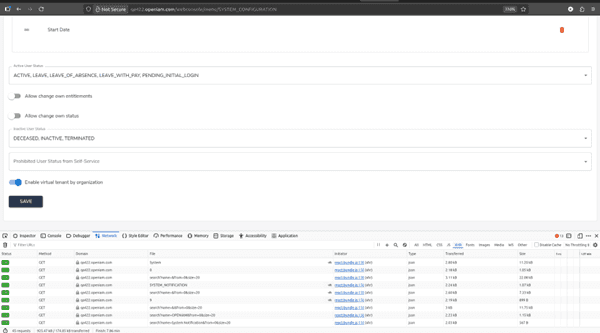
- To apply virtual tenant restrictions to a role, select a Virtual Tenant Role when creating or updating a role.
Operation overview
When a user is linked to an organization and logs in, they will only see the users, roles, resources, and organizations associated with that organization and permitted by their virtual tenant role.
If a user is not linked to any organization, or if the selected role does not have a virtual tenant role assigned, and Enable Virtual Tenant by Organization is enabled, the user will not be able to view any resources, roles, organizations, or other users after logging in.
Example scenario
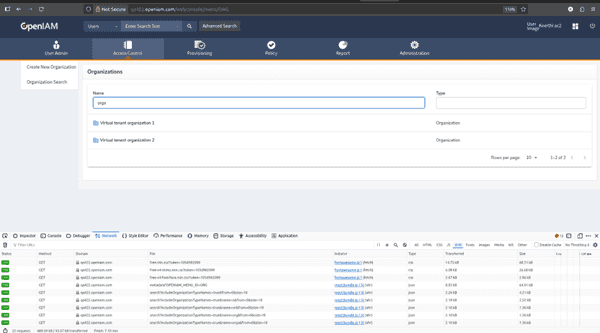
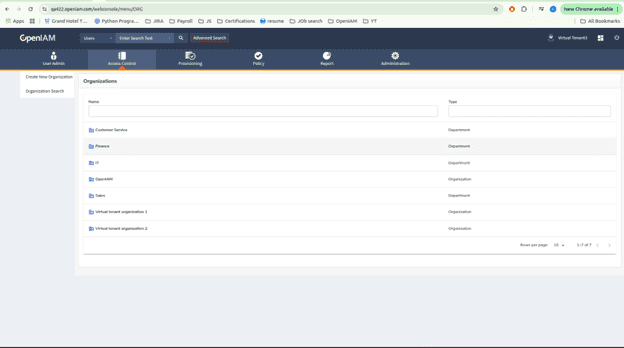
- Two organizations are created: Virtual Tenant Organization 1 and Virtual Tenant Organization 2.
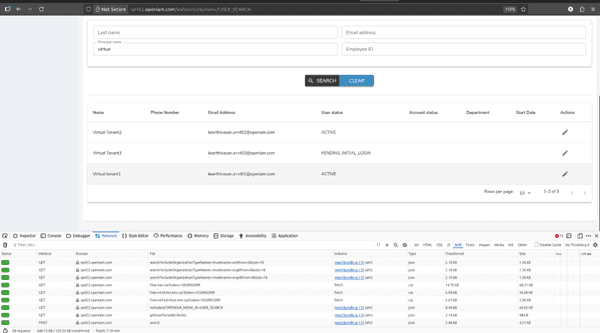
- Three users are created:
Virtual.tenant1,Virtual.tenant2, andVirtual.tenant3.
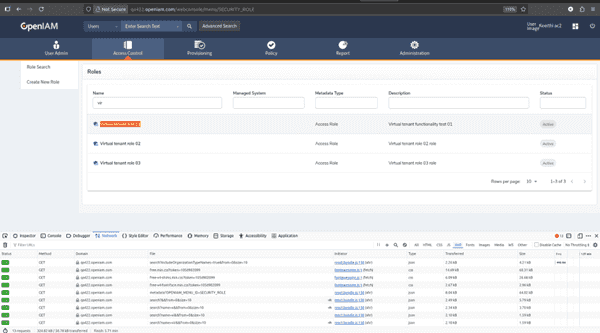
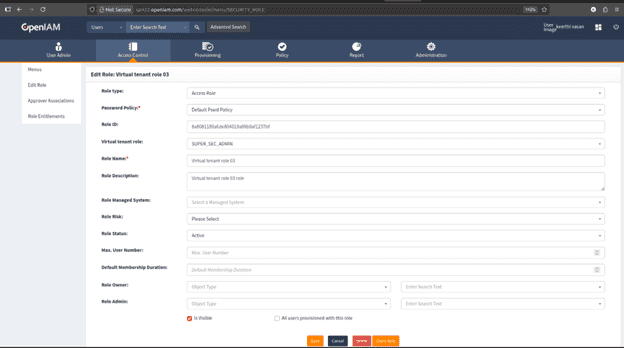
- Three roles are created: Virtual tenant role 01, Virtual tenant role 02, and Virtual tenant role 03, each assigned a virtual tenant role type.
In Virtual Tenant Organization 1, several existing resources are linked, along with user Virtual.tenant3 and Virtual tenant role 03 (End User).
When Virtual.tenant3 logs in:
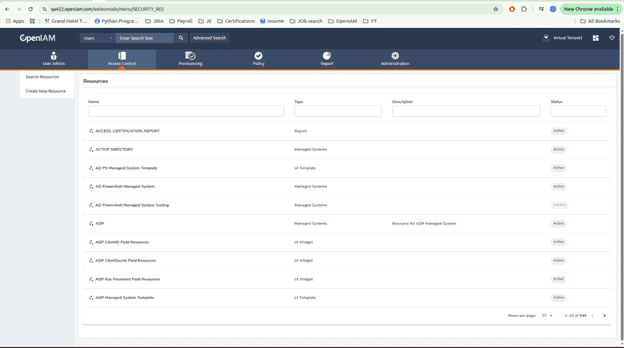
- They can see only the resources and Virtual tenant role 03 associated with Organization 1.
- They cannot see any other organizations, users, roles, or resources.
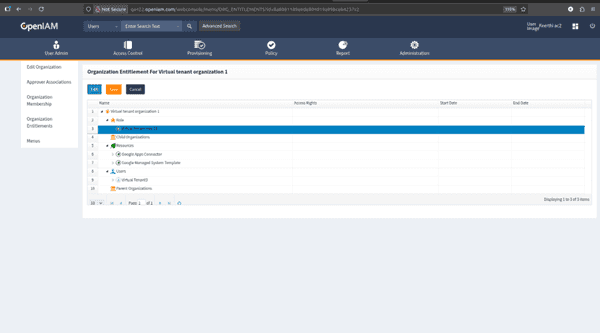
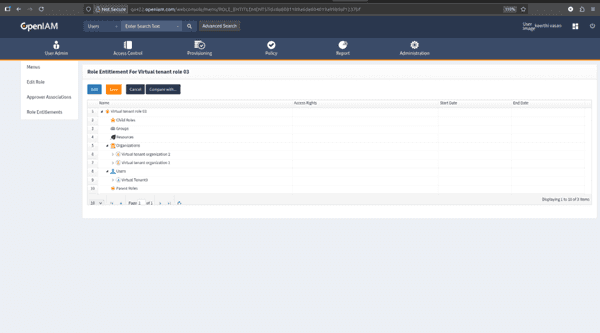
- Logging in as
Virtual.tenant3.
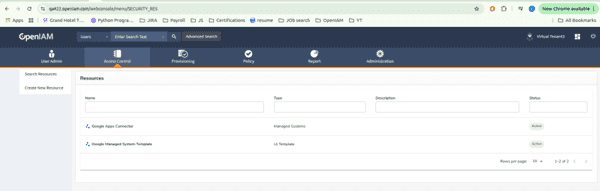
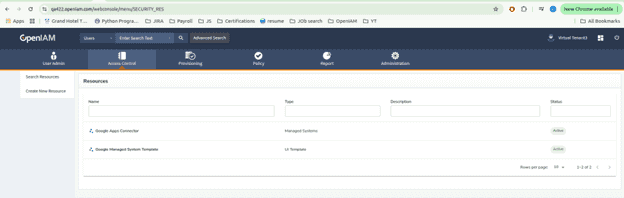
- Updating users, resources, and roles for Virtual Tenant Organization 1.
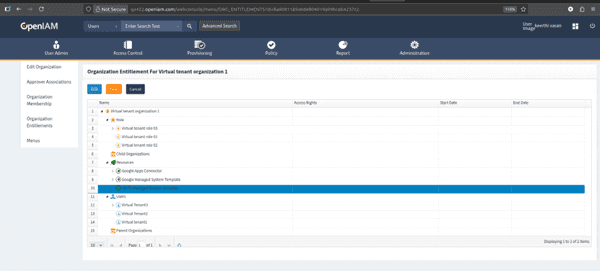
- Logging in again as
Virtual.tenant3.
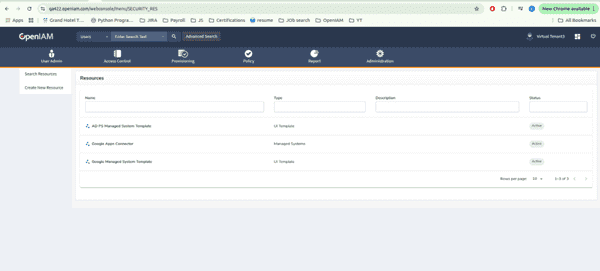
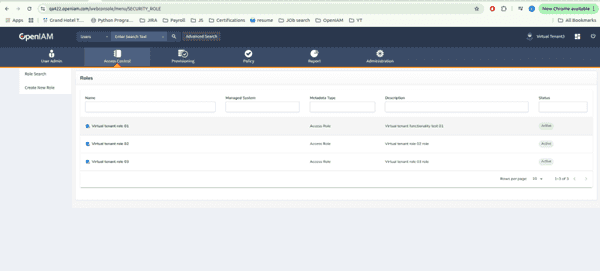
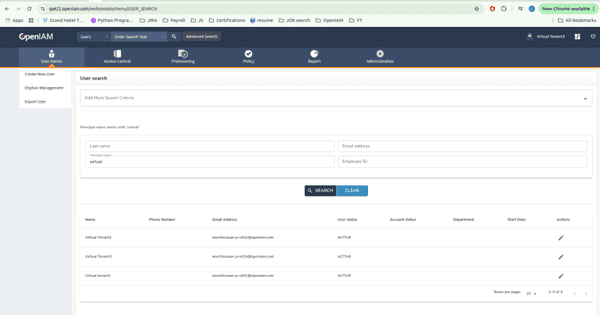
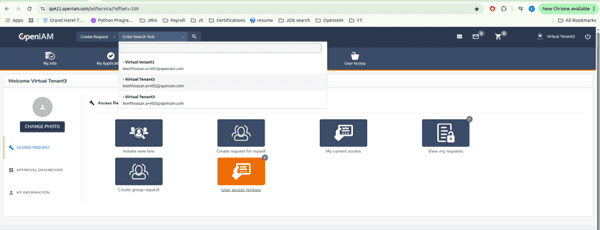
Update: Changing Virtual tenant role 03 from End User to Super Security Admin updates visibility accordingly.
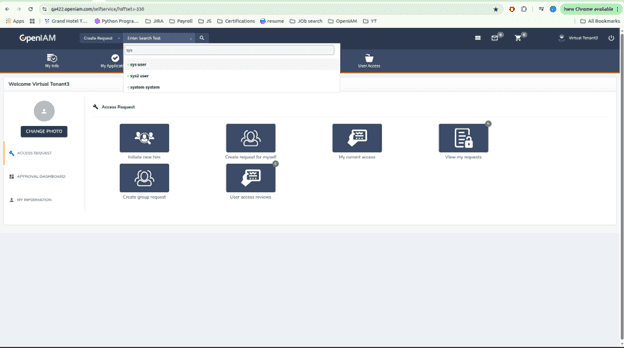
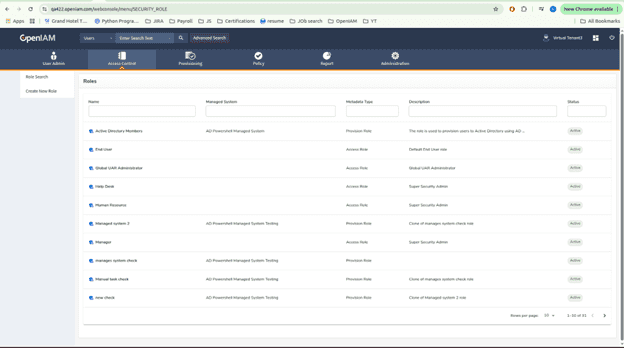
- If a user is linked to multiple organizations and their role has a virtual tenant role type, they will see users, roles, and resources associated with all those organizations.
- If a user belongs to multiple virtual tenant roles, the following priority applies: Super Security Admin → Organization Admin → End User.
- To enforce virtual tenant restrictions, the user must be assigned a role with a virtual tenant role type. Being part of an organization alone does not apply the restrictions.
- If a user has an Organization Admin or End User role but is not linked to any organization, they will see no users, resources, or organizations.
- If a user is assigned a Super Security Admin role, they have full access even without belonging to any organization.
Troubleshooting limited visibility
If a user sees only limited users, roles, or organizations:
- Verify that the user is linked to the correct organization(s).
- Verify that the user is assigned a role with the appropriate virtual tenant role type (Super Security Admin, Organization Admin, or End User).