Duo authentication
If you need to use Duo multi-factor authentication (MFA), single sign-on (SSO), or the Duo authenticator app for authentication in OpenIAM, follow the steps below to configure it.
Configuring the Duo account
- Sign up for a Duo account at https://signup.duo.com.
- Log in to the Duo Admin Panel and navigate to Applications (https://admin.duosecurity.com/).
- Click Protect an Application and locate the 2FA-only entry for Web SDK.
- Click Protect to configure the application and obtain your Client ID, Client Secret, and API Hostname. You will need this information to complete the setup. See Protecting Applications on the Duo website for additional details.
- Activate Universal Prompt for your Web SDK 2FA entry.
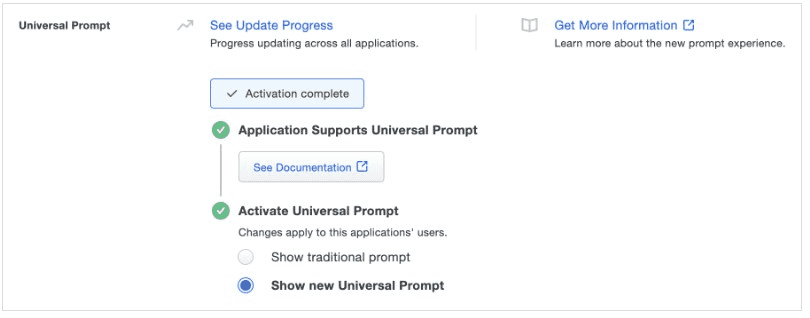
More instructions are available in Duo’s documentation: https://duo.com/docs/oauthapi#first-steps.
Configuring OpenIAM
- Create a new authentication provider using the DUO authentication provider type, and fill in the required fields.
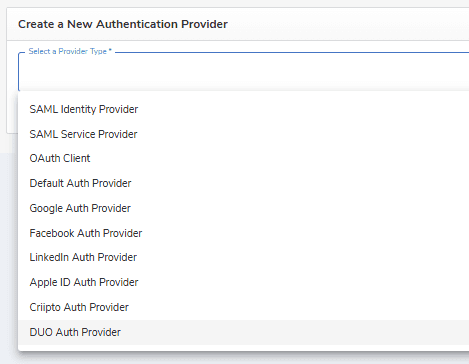
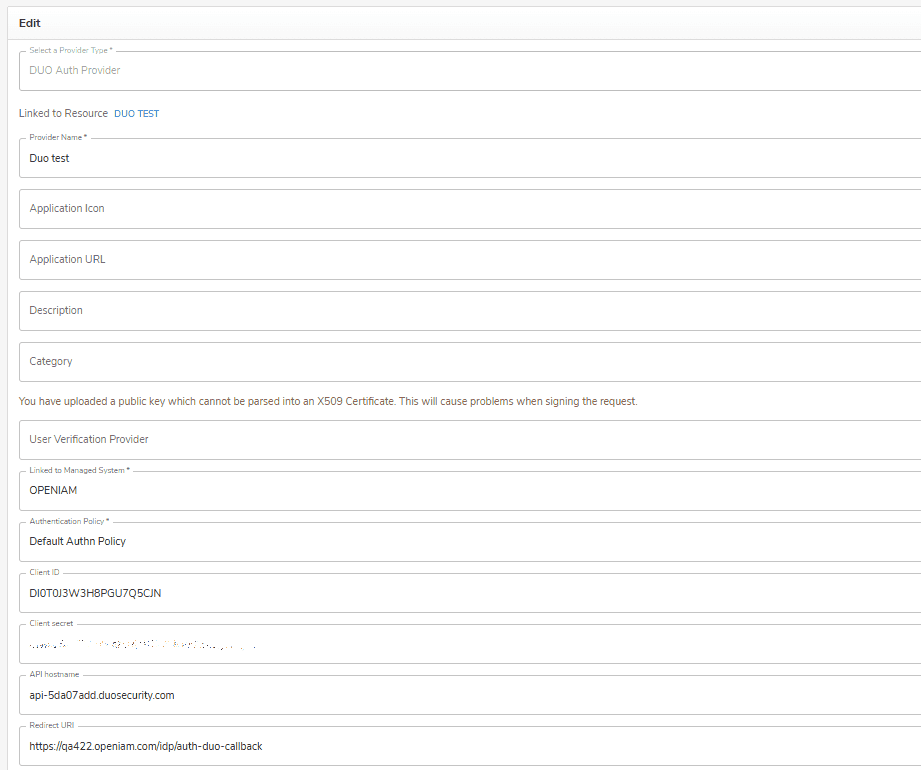
- Set Duo authentication as the default authentication provider.
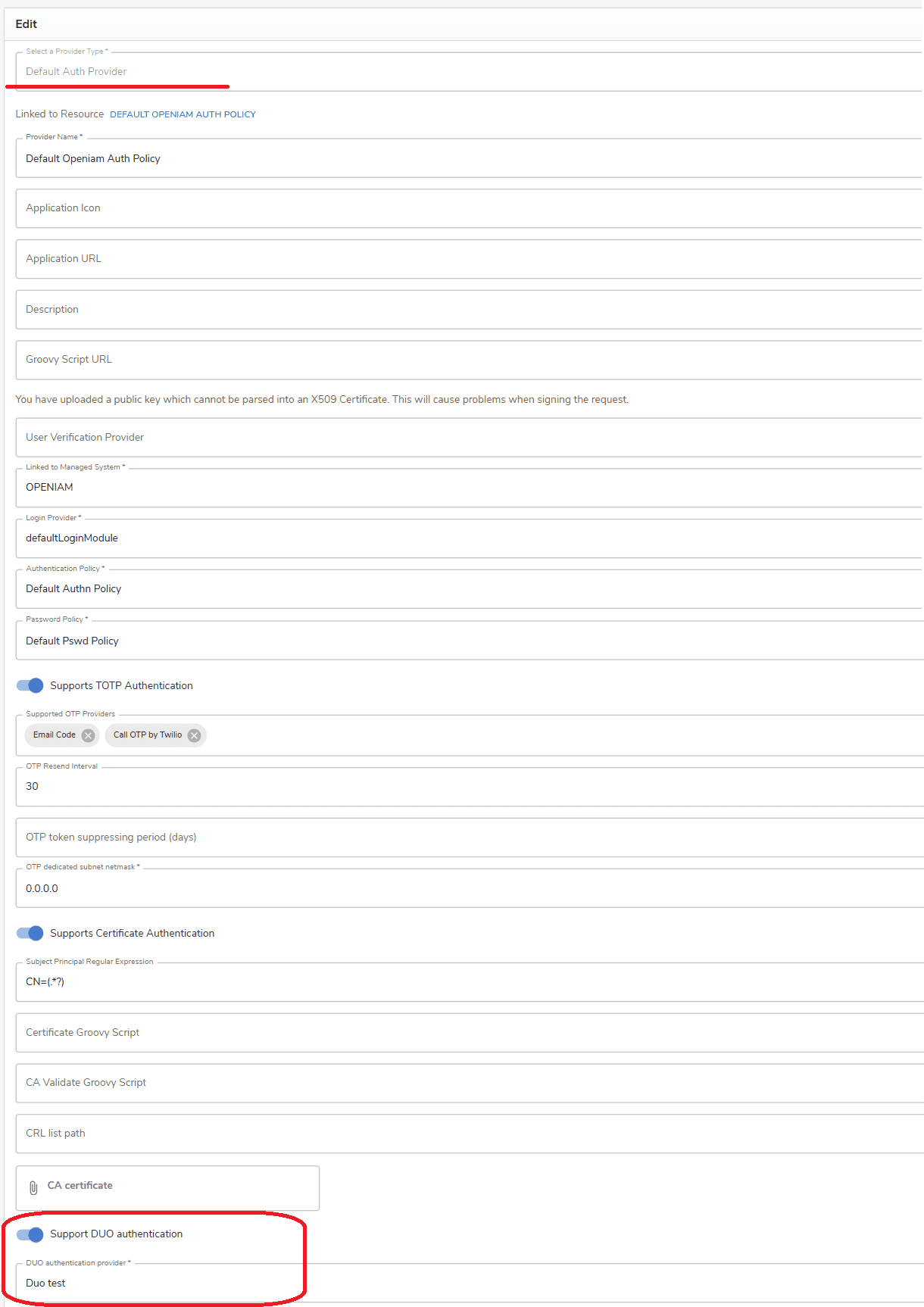
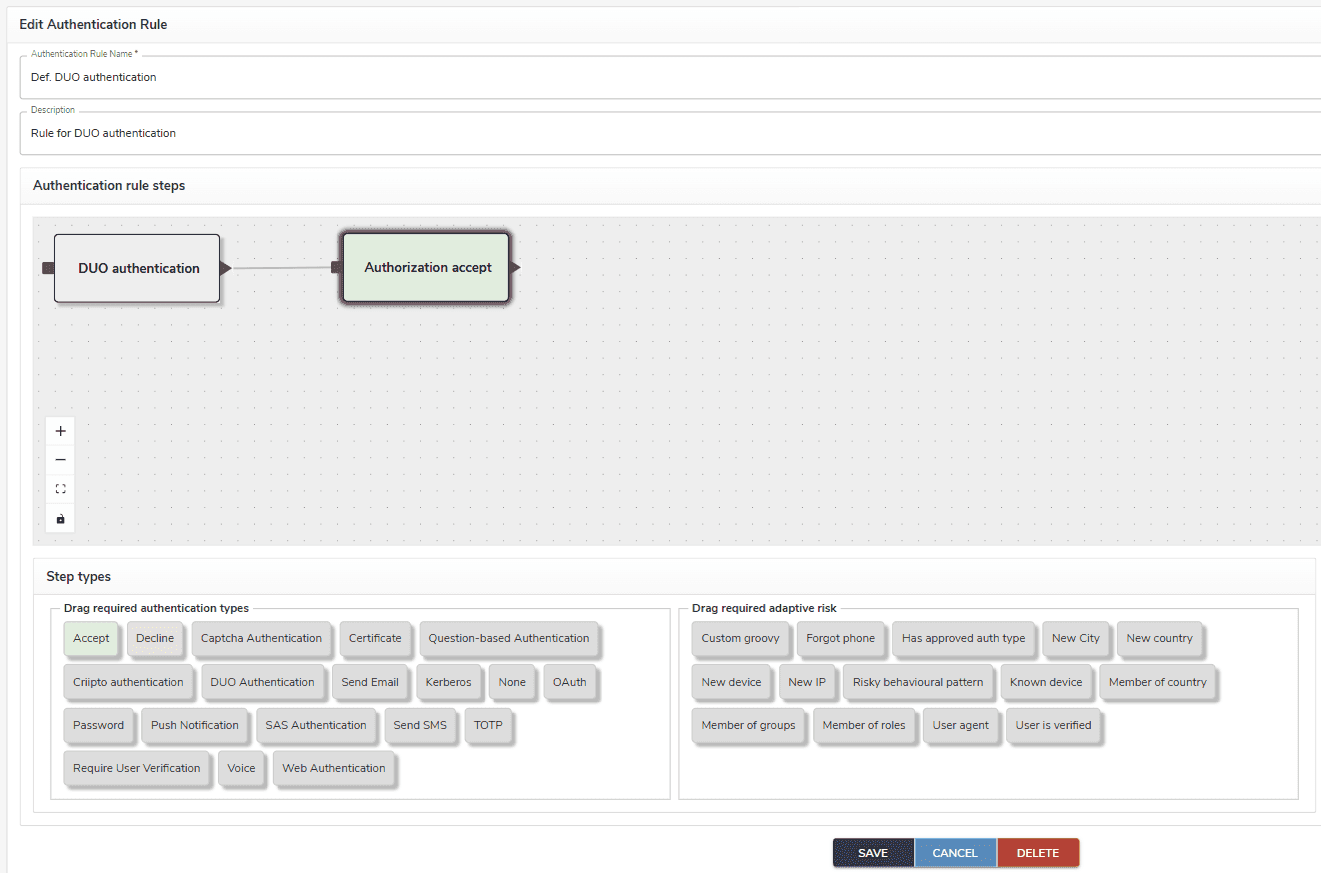
- Use the default Duo authentication rule or create a new rule that includes the required authentication types.
Example
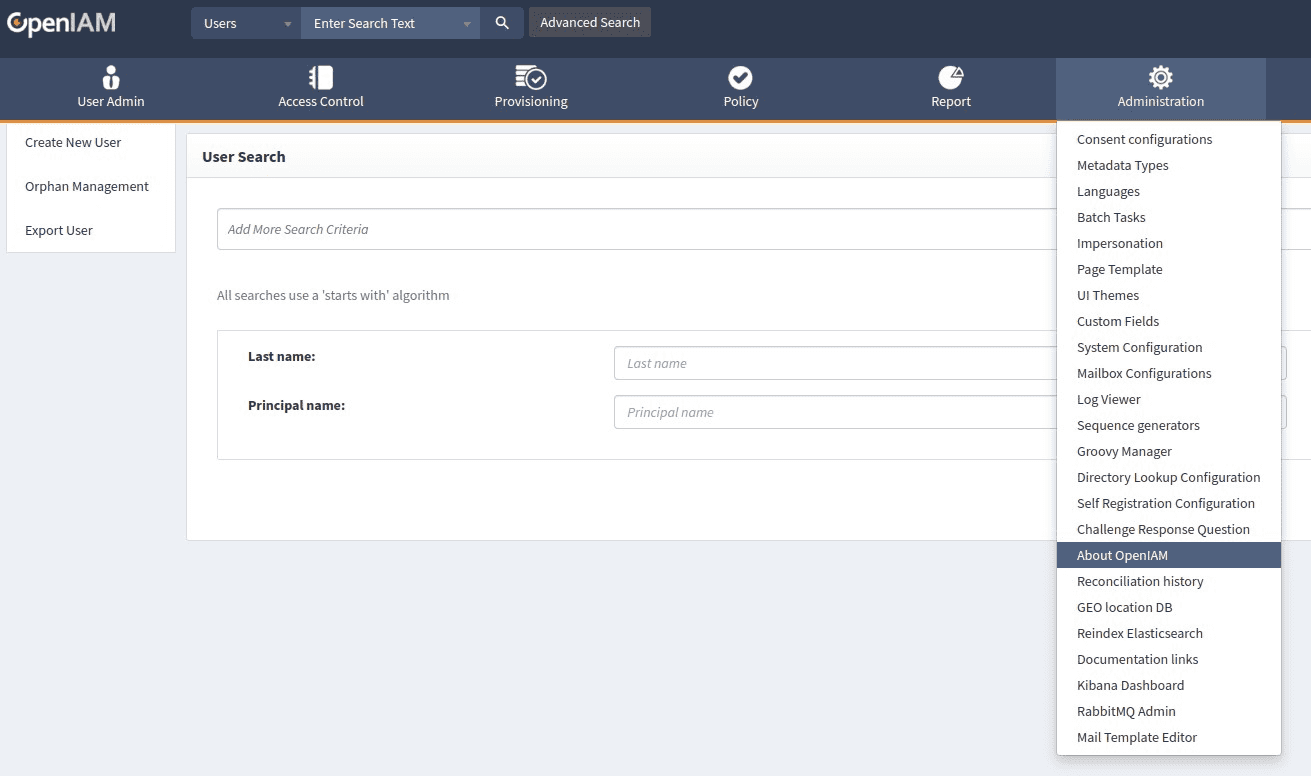
The example below shows how the About page is selected for Duo authentication.
- Select the desired item in the menu.
- Redirect to the Duo server using the API Hostname value.
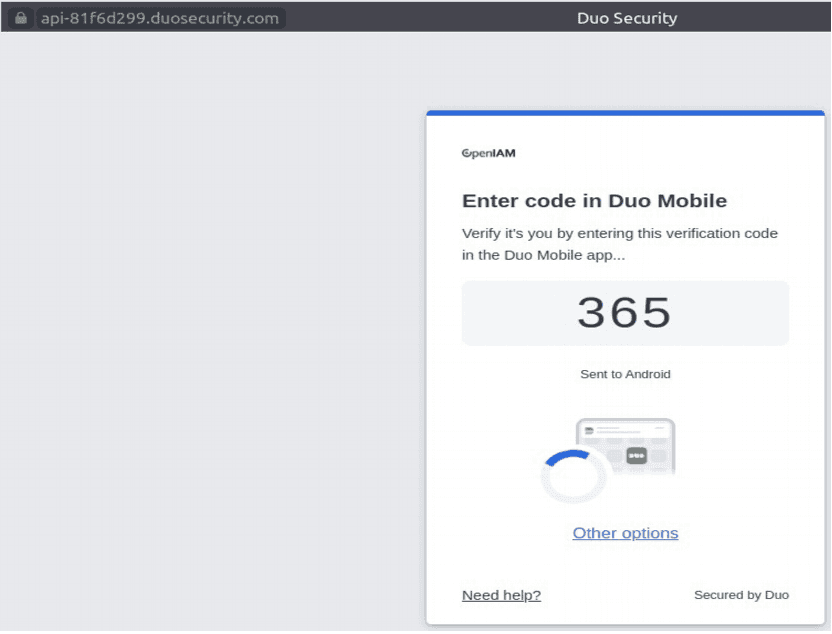
- Enter the code received on your phone.
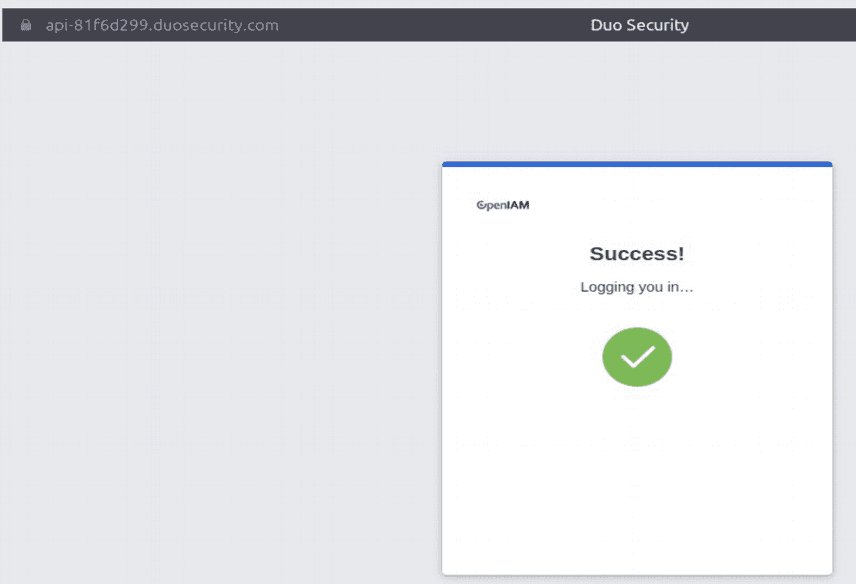
- After successful authentication, you are redirected back to OpenIAM using the Redirect URI configured on the authentication provider page.