Configuring certificate-based authentication
TThis section provides instructions on how to configure certificate-based authentication in OpenIAM.
Begin by creating a Certificate Authority (CA) that will issue and sign the certificates used for authentication.
You can create the CA using a Linux command prompt with commands such as the following:
openssl genrsa -out ca.key 2048openssl req -new -x509 -days 3650 -key ca.key -out ca.crtecho -n "00" > file.srl
Enter CA password (not less than 4 symbols) and CA info. For example:
Country Name (2 letter code) [AU]:USState or Province Name (full name) [Some-State]:NYLocality Name (eg, city) []:NewYorkOrganization Name (e.g., company) [Internet Widgits Pty Ltd]:OpenIAMOrganizational Unit Name (e.g., section) []:developmentCommon Name (e.g. server FQDN or YOUR name) []:*.openiamdemo.comEmail Address []:admin@openiamdemo.com
ca.keyis the private key and must be stored securely. It is used to sign client certificates.ca.crtis the certificate that should be installed both in Apache and in the client’s browser.file.srlstores the current serial number and must be incremented each time a new client certificate is signed.
Creating client certificate
First, create sign request (CSR):
openssl genrsa -out user1.key 2048openssl req -new -key user1.key -out user1.csr
You will be prompted for key password and Certificate info. For example:
Country Name (2-digit code) [AU]:USState or Province Name (full name) [Some-State]:NYLocality Name (e.g. city) []:NewYorkOrganization Name (e.g. company) [Internet Widgits Pty Ltd]:OpenIAMOrganizational Unit Name (e.g. section) []:developmentCommon Name (e.g. server FQDN or YOUR name) []:user1Email Address []:user1@openiamdemo.com
Sign CSR using CA.
openssl x509 -req -days 365 -in user1.csr -CA ca.crt -CAkey ca.key -CAserial file.srl -out user1.crt
Afterwards, use the PEM certificate in curl or from applications. To do so, you must create a PEM file that contains both the certificate and the key. If you want to use it without user interaction, you must also remove the PEM passphrase from the key.
To remove the PEM passphrase from the key (if it exists) and combine user1.crt with the key that no longer has a passphrase, use the following:
openssl rsa -in user1.key -out user1.no_pass.keycat user1.crt > user1.pemcat user1.no_pass.key >> user1.pem
Now it is possible to usr user1.pem in curl requests (in --cert parameter):
curl -k —cert user1.pem https://lnx1.openiamdemo.com/webconsole/
Convert client certificate to pksc12 format that can be used for import into browser.
This only needed if you want to use client certificate from browser.
openssl pkcs12 -export -clcerts -in user1.crt -inkey user1.key -out user1.p12
You will be prompted for Export Password.
Enter Export Password:Verifying - Enter Export Password:
Generate and use your new Export Password here. You will need it to add your .p12 certificate into the browser.
The user1.p12 and ca.crt files must be copied to the client’s computer and installed in the browser. Users will also need the Export Password to import user1.p12 into the browser.
Configuring Apache
This step is only needed if you want to use client certificates from the browser. HTTPS should already be configured on Apache. To enable client certificate authentication, follow the steps below:
- Configure the CA bundle on the Linux machine with Apache installed. Do not overwrite
/etc/pki/tls/certs/ca-bundle.crt. Create a backup and use>>to append data instead of overwriting.
openssl x509 -in ca.crt -text >> /etc/pki/tls/certs/ca-bundle.crt
- Add or check that this line is already added in Apache
sslconfigurations.
SSLCACertificateFile /etc/pki/tls/certs/ca-bundle.crt
- Add the following configuration to your Apache Virtual Host file. This will instruct the client's browser to send the client certificate with requests.
SSLVerifyClient optional
- Restart Apache.
service httpd restart
Configuring Authentication Provider
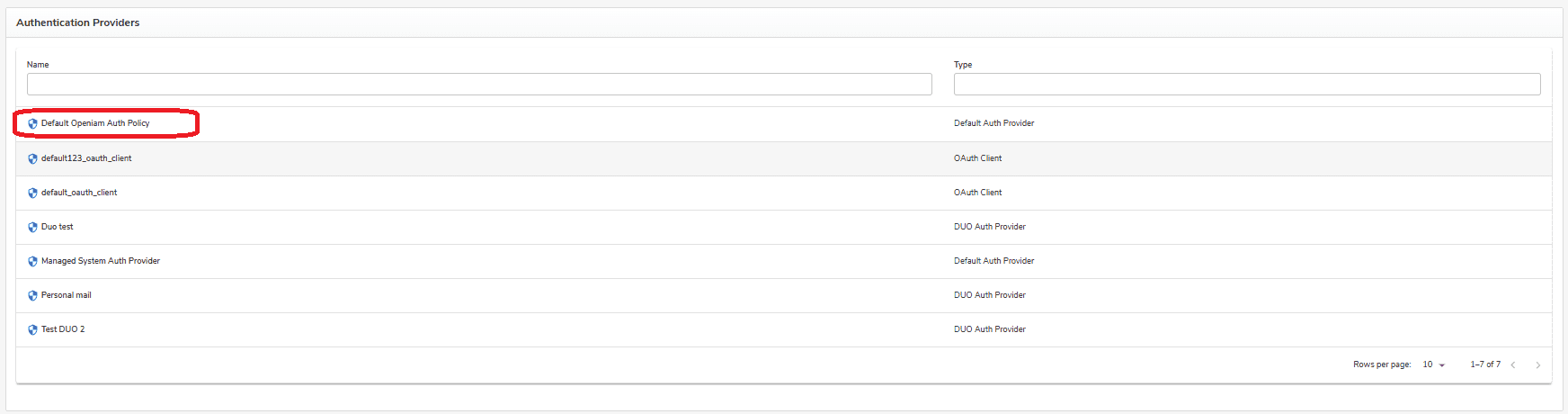
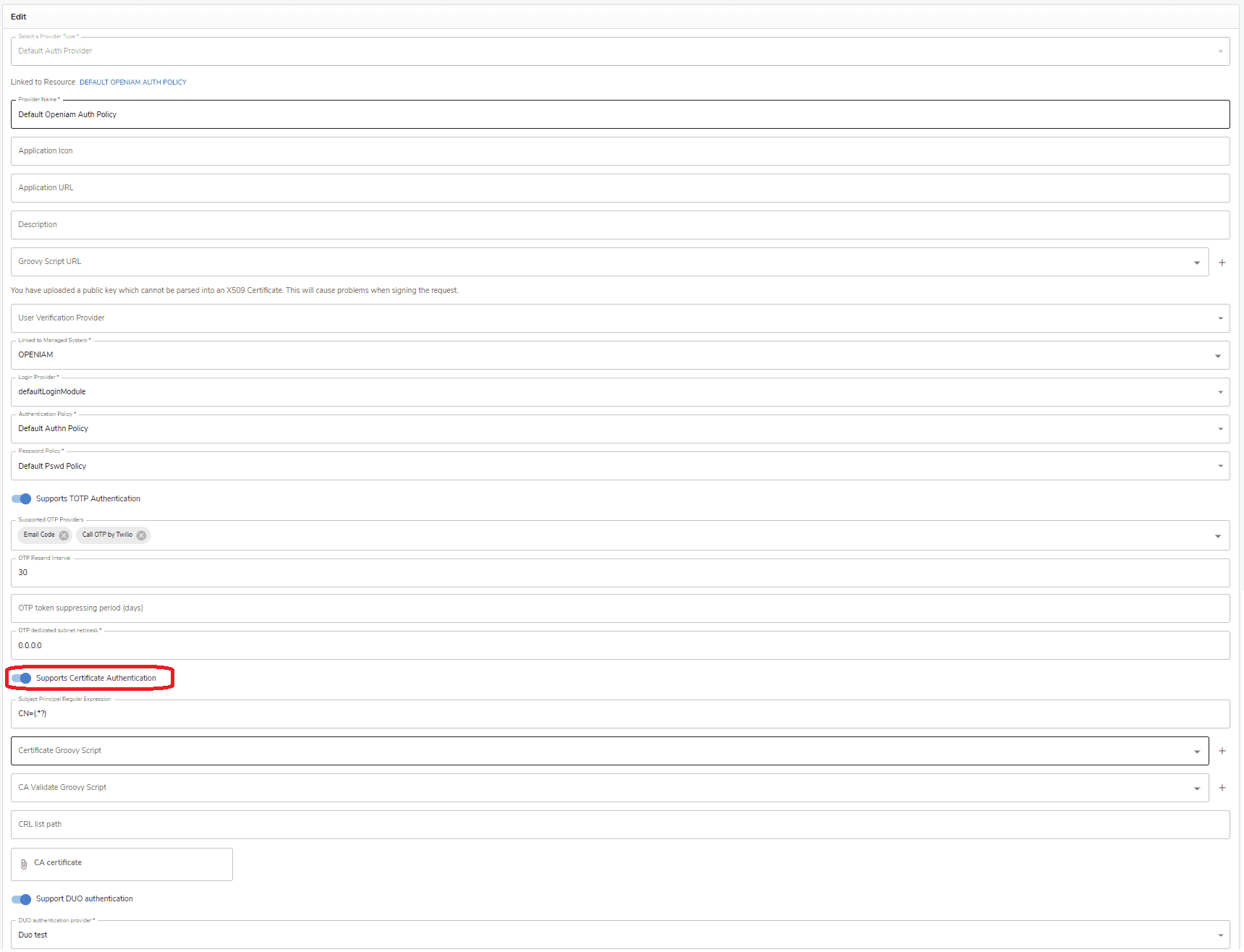
Navigate to the current Authentication Provider in Access Control > Authentication Providers, and enable Certificate-Based Authentication, as shown in the figures below.
Now, there are two options for mapping the certificate to a user principal:
- Add a Regular Expression to the Certificate: This will extract the principal from the matching group in the Regex.
Example:CN=(.*?) - Define a Custom Groovy Script: Use a script with custom logic to parse the certificate and determine the principal.
Optional Step: Configuring CA Validation Script
An example Groovy script for CA validation is ExampleDefaultCACertCheck.groovy.
import org.openiam.am.cert.groovy.DefaultCACertCheck;import org.openiam.exception.BasicDataServiceException;import org.openiam.idm.srvc.auth.dto.Login;import org.apache.commons.lang.StringUtils;import org.openiam.base.ws.ResponseCode;import java.io.File; import java.nio.file.Files;import javax.security.cert.X509Certificate;class ExampleCACertCheck extends DefaultCACertCheck {public ExampleCACertCheck() { super(); }public Boolean resolve() throws BasicDataServiceException {try {clientCert.checkValidity();} catch (Exception ex) {throw new BasicDataServiceException(ResponseCode.CERT_CLIENT_INVALID, ex.getMessage());}if (caCert != null) {try {caCert.checkValidity();} catch (Exception ex) {throw new BasicDataServiceException(ResponseCode.CERT_CA_INVALID, ex.getMessage());}try {clientCert.verify(caCert.getPublicKey())} catch (Exception ex) {throw new BasicDataServiceException(ResponseCode.CERT_INVALID_VERIFY_WITH_CA, ex.getMessage()); }} else {throw new BasicDataServiceException(ResponseCode.CERT_CA_INVALID, ex.getMessage()); } return true; }}
Configuring Content Provider
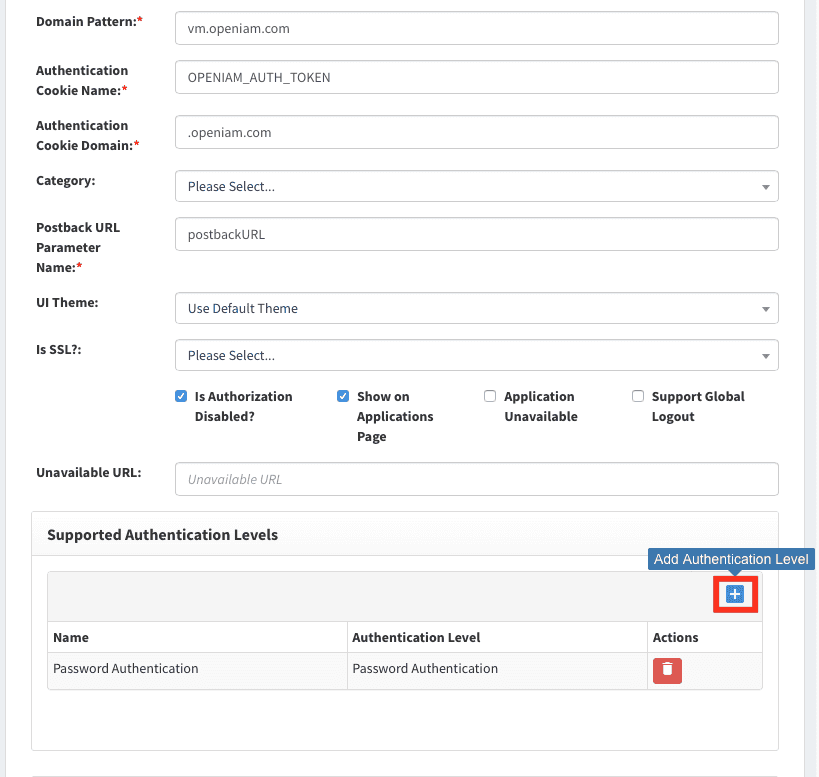
You can configure this in the Content Provider screen: Access Control > Content Providers. Navigate to Authentication Levels and add Certificate Authentication, as shown below.
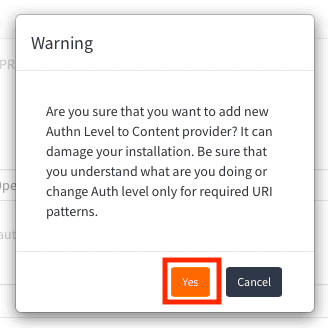
If a warning appears about modifying default settings, click Yes.
Add Certificate Authentication with the steps described below.
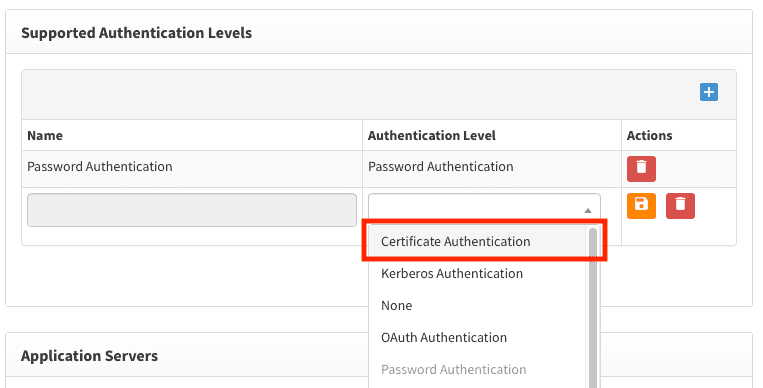
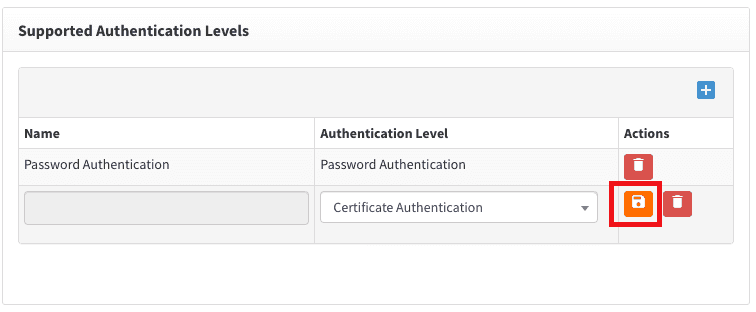
Enabling Certificate-Based Authentication for a specific URI pattern can be done in the URI Pattern screen.
Configuring Client's browser
Users need to copy user1.p12 and ca.crt files to their local computer and install them in the browser. The browser checks user1.p12 using ca.crt before sending it in requests.
Installing ca.crt in browser
Go to the certificates configuration as shown below.
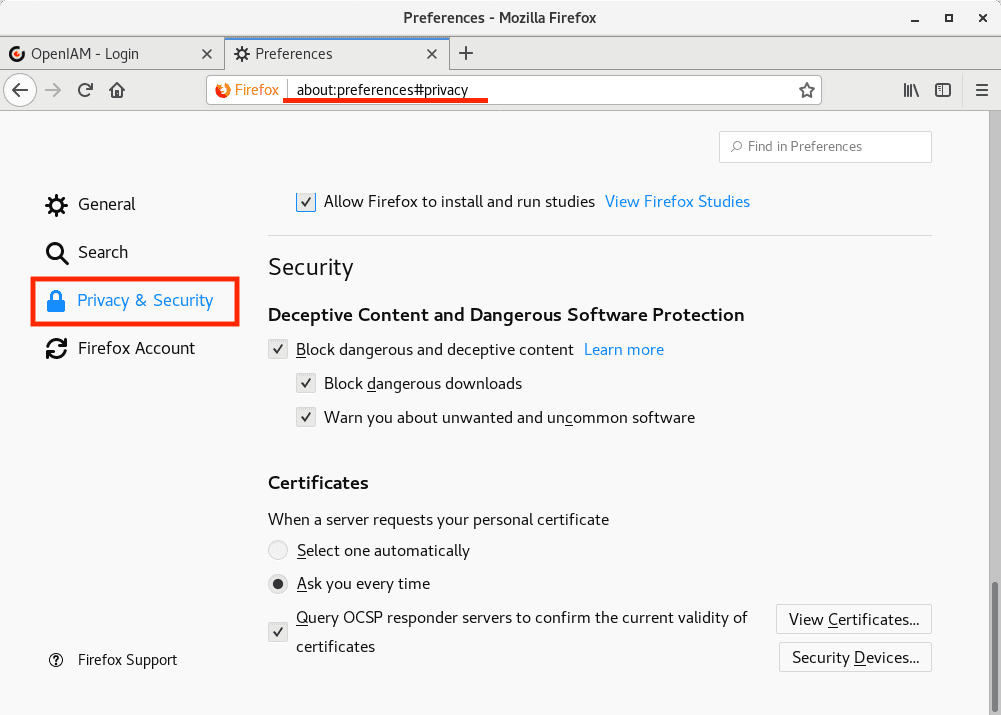
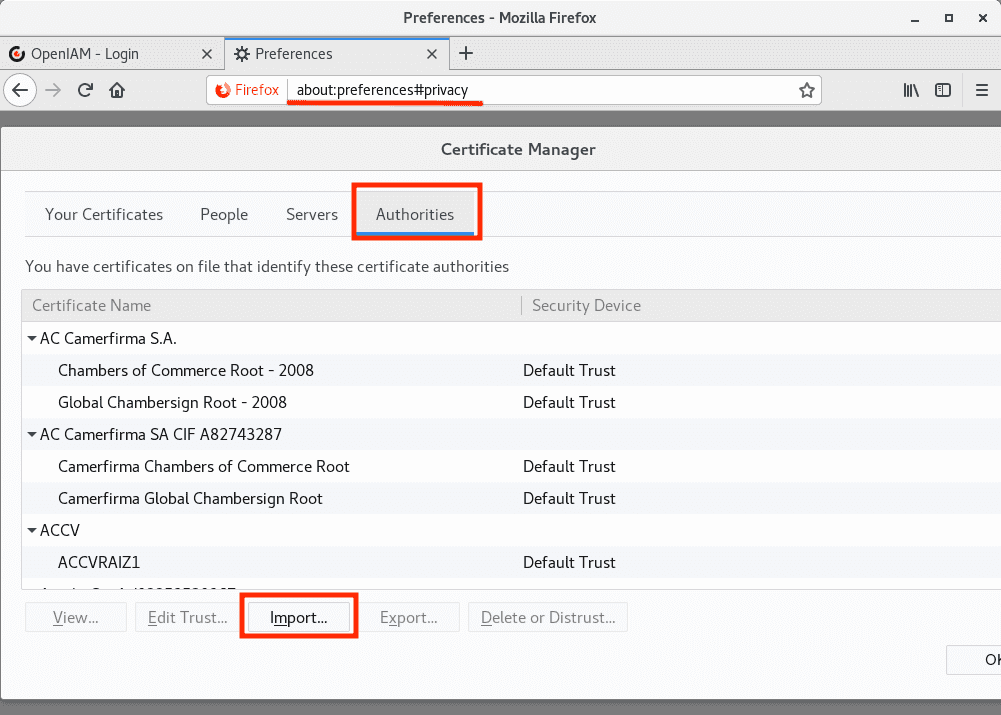
Import ca.crt into Authorities.
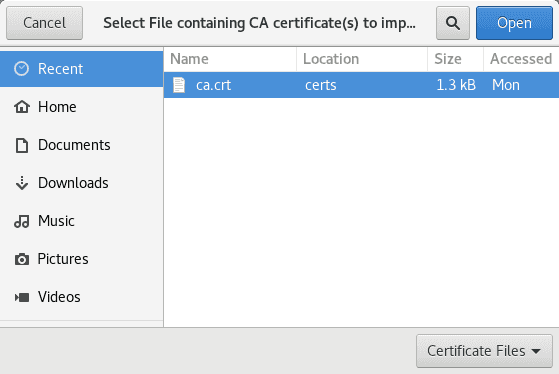
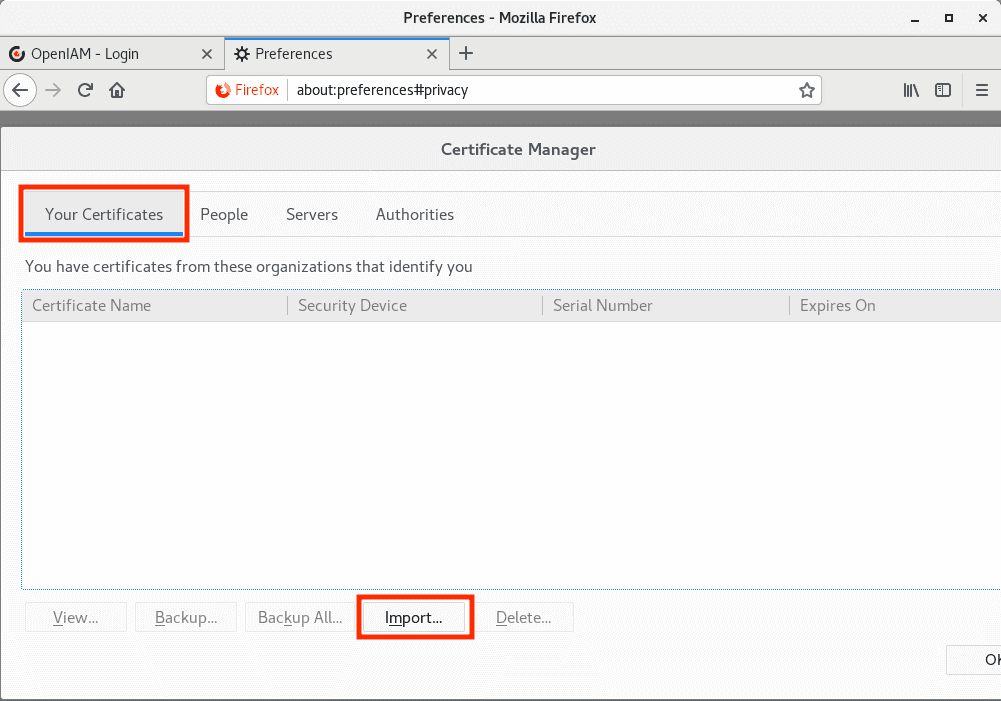
Install user1.p12 into Your Certificates.
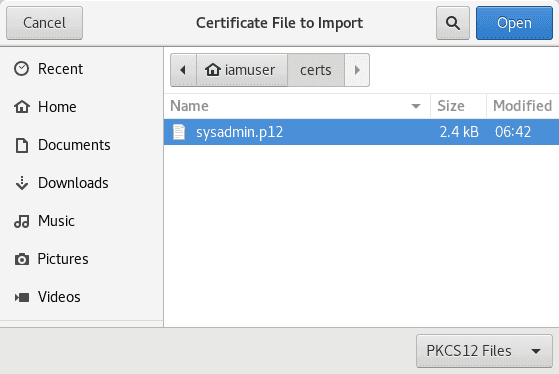
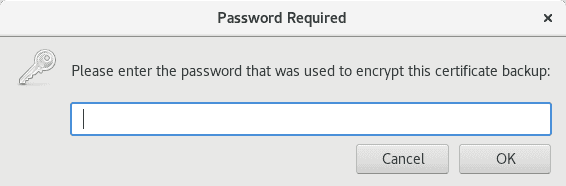
You will also need the Export Password that you used when creating the .p12 file.
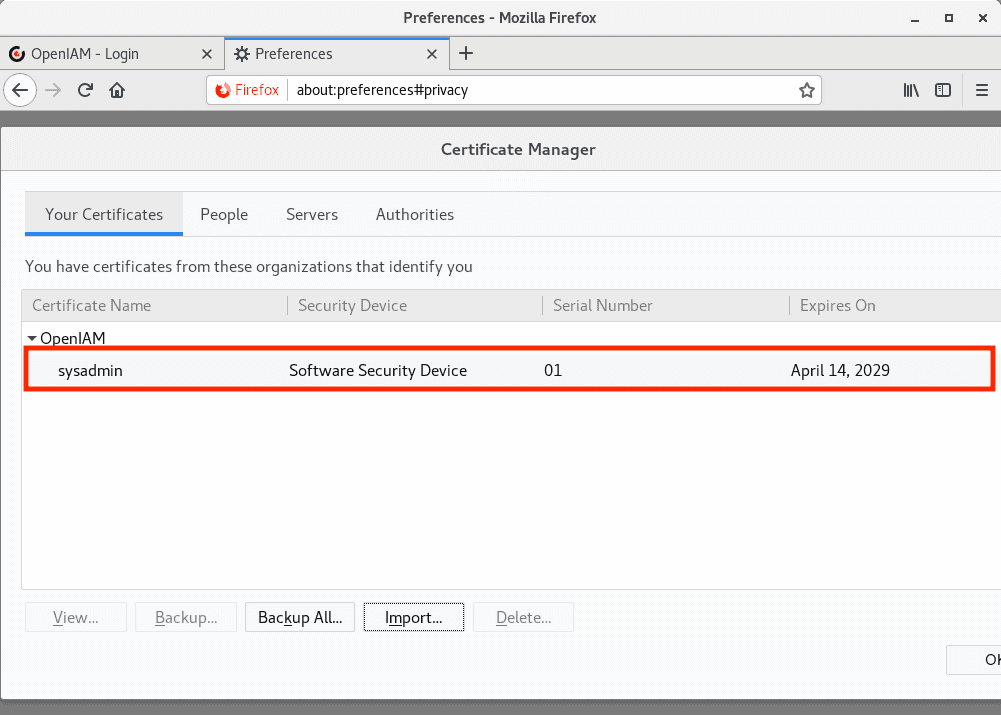
Check that the user certificate was successfully added.
Finishing Steps
Restart the browser, then navigate to a URL configured for Certificate Authentication. The client certificate will be sent to the server.
Click OK when prompted to send your certificate to the server.