Credential provider
OpenIAM is an IDM solution that allows users to maintain a single identity within the organization.
Typically, users do not store their passwords locally. Instead, they open a browser, navigate to the OpenIAM unlock or password-reset page, enter their username, and follow the standard procedure defined by the organization.
However, users may sometimes be unable to log in to a Windows or macOS machine because they do not remember their password. Since they cannot sign in, they also cannot open a browser to reset it.
To address this, OpenIAM provides a Credential Provider (CP), which allows users to access the OpenIAM reset-password page before logging into the operating system.
The product is available for both Windows and macOS.
Windows
To use the CP on Windows, run the installer on the desired machine. It can also be deployed using centralized rules defined by system administrators.
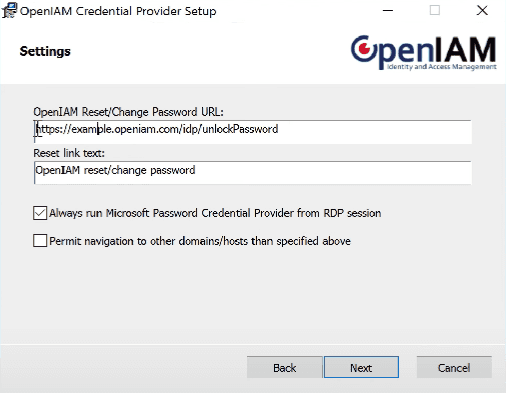
The URL field contains a predefined pattern. Replace the domain name with the required value.
Below the URL field, there are settings for the text displayed on the login screen; enter any text needed.
After that, there are two options:
- Always run the Microsoft Credential Provider for RDP sessions.
- Permit navigation to other domains.
The first option ensures that the CP login screen does not appear during RDP logins.
The second option restricts navigation to domains other than the one specified.
When a user forgets their password and cannot log in to the machine, the CP allows them to access the same OpenIAM reset-password page normally accessed through a browser, but directly from the login screen.
When accessed through the CP, OpenIAM automatically resets the password in Active Directory, enabling the user to log in with the new password.
macOS
The functionality and design of the macOS CP is identical to the Windows version.
The only difference is that macOS must be connected to Active Directory for the CP to work properly.
For the installation process, follow the same steps as described in the Windows section above.