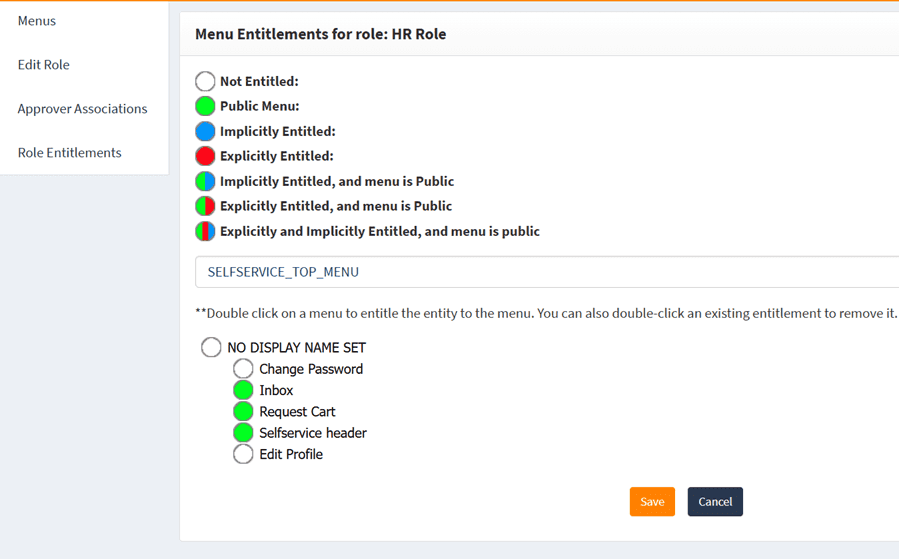
Removing menu items from top navigation bar
Removing menu items from the top navigation bar may be necessary when implementing a custom layout or simplifying the user interface for specific use cases. By following the instructions below, you can safely remove or hide the Edit profile and Change password items from the top navigation bar in the OpenIAM SelfService portal.
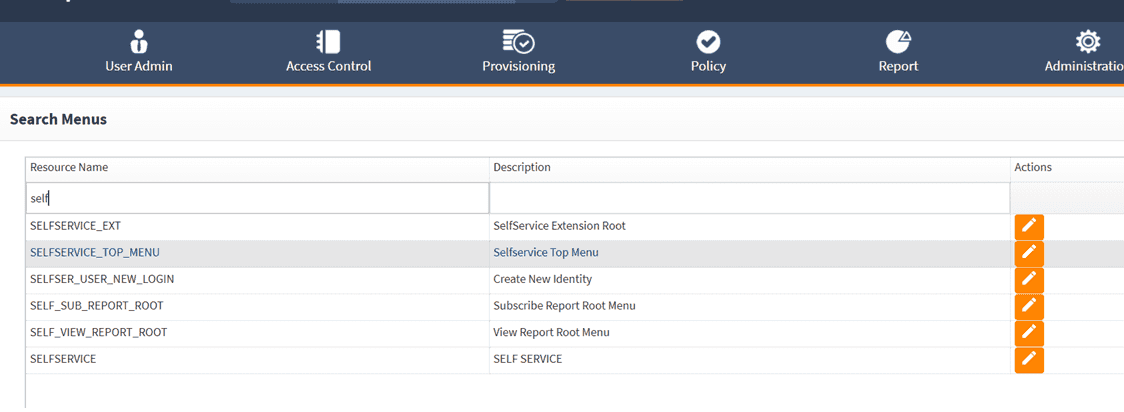
- Log in to the webconsole and navigate to Access Control > Menus.
- Select
SELFSERVICE_TOP_MENU.
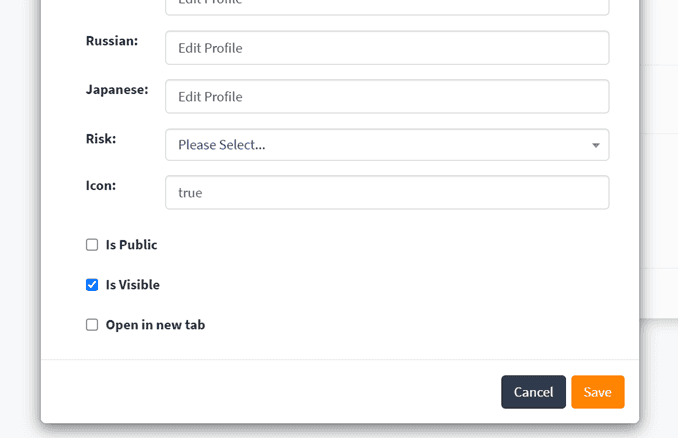
- Right-click on Edit profile > select Edit > clear the Is public checkbox > click Save.
- Click Save this menu tree.
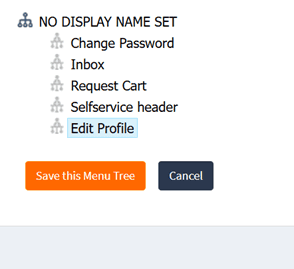
- Repeat the same steps for the Change password item.
- Ensure you click the Save this menu tree button again.
- Select the role assigned to users who should not have permission to edit their profile or change passwords.
Navigate to that role’s menu settings and verify thatSELFSERVICE_TOP_MENUremains disabled.