Client credentials flow with a defined scope in Postman
Let's imagine there are the following examples for the system: it must perform only predefined, permitted actions using client-credentials grant type authentication flow. No user login or user interaction is allowed; all actions are executed autonomously by the system.
The following steps explain how to configure this behavior.
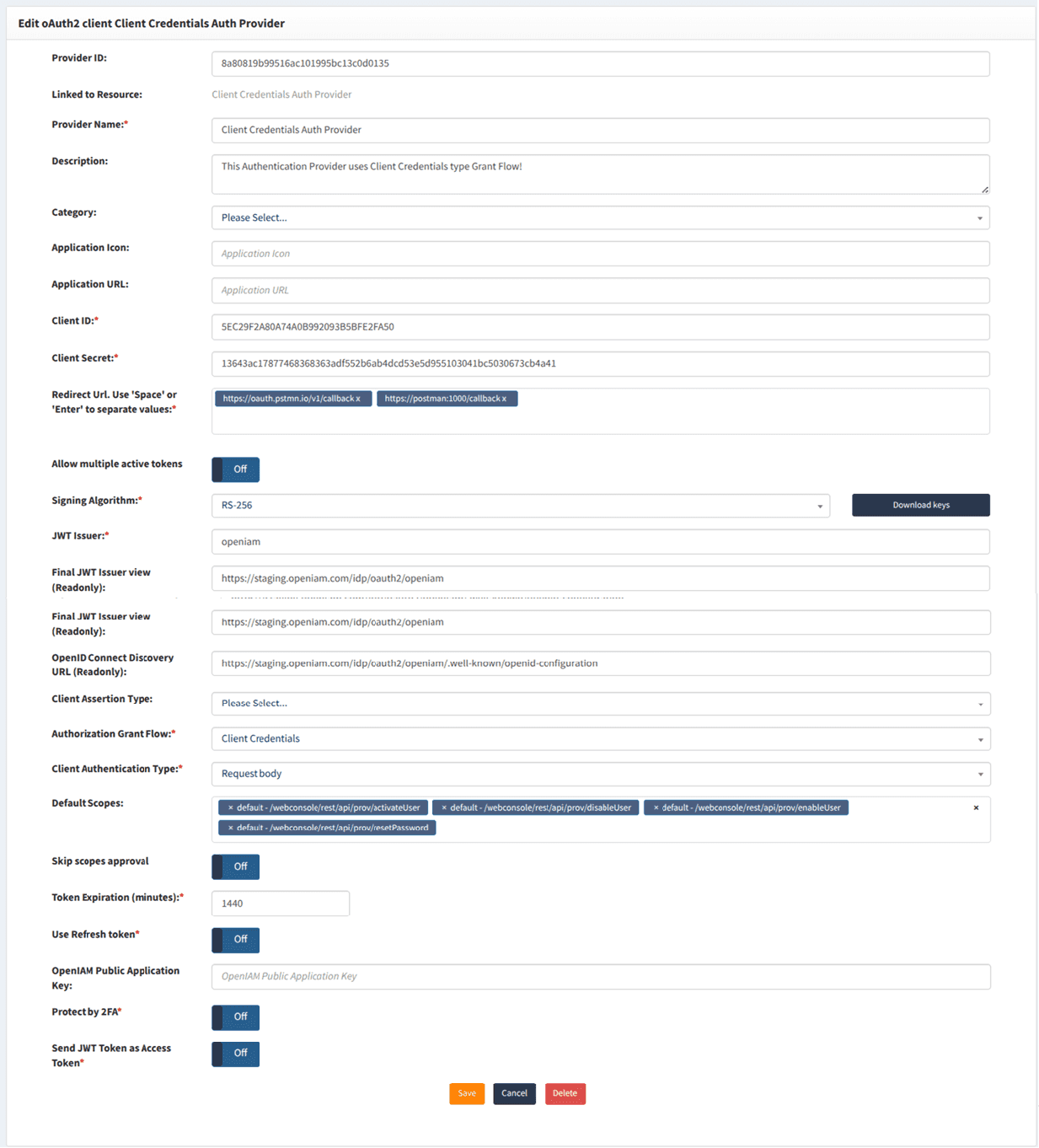
Create an authentication provider
- Log in to the webconsole and navigate to Access Control > Authentication Providers > Create new authentication provider.
- Create a new authentication provider and ensure that the Client Credentials authentication grant type is enabled.
Create URI patterns for permitted actions
Since only specific actions should be allowed, you must create a URI pattern for each permitted action.
- Navigate to Access Control > Content Provider.
- Edit the current content provider.
- Scroll to the URI Pattern section.
- Create a new URI pattern if the required one does not already exist.
For example, to allow the Disable User admin action, create a corresponding URI pattern.
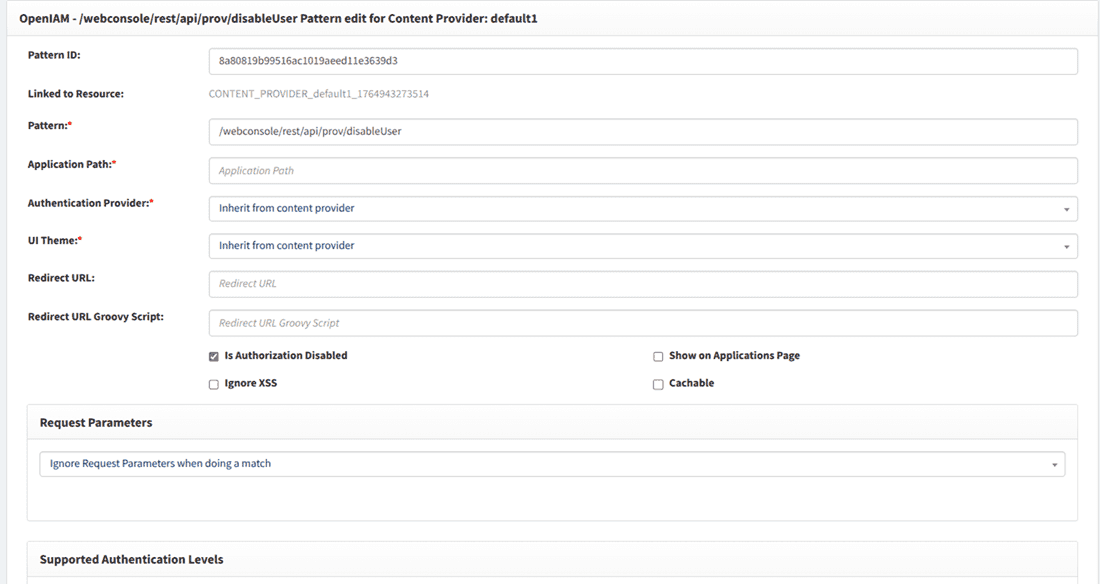
Ensure that:
- The URI is not public.
- The resource associated with the URI is not set to public.
Configure the default scope
To restrict which actions can be performed, add the created URI patterns to the Default Scope section of the authentication provider.

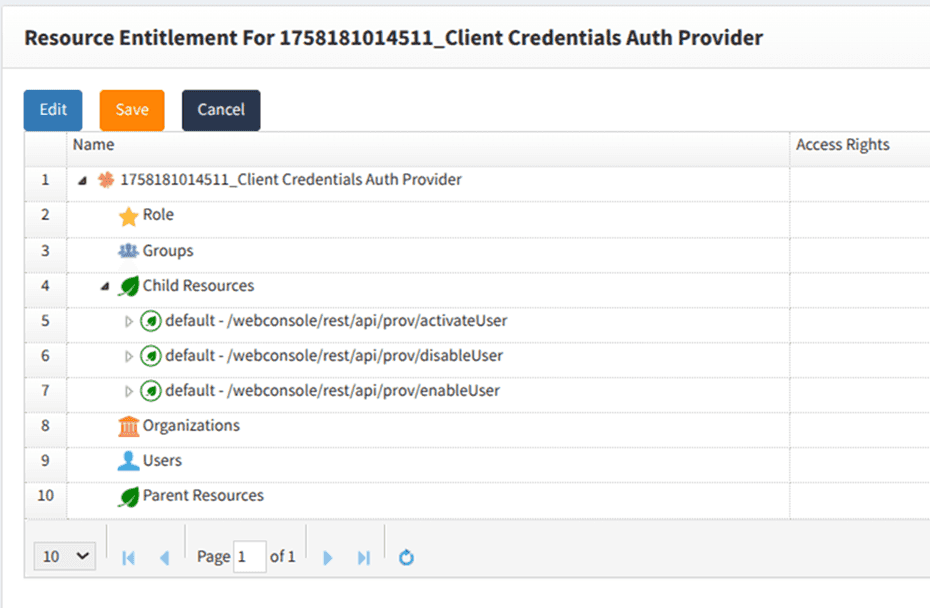
Link URI patterns to the authentication provider resource
Link the URI Pattern resources as child resources of the Authentication Provider resource.
Postman configuration for token generation
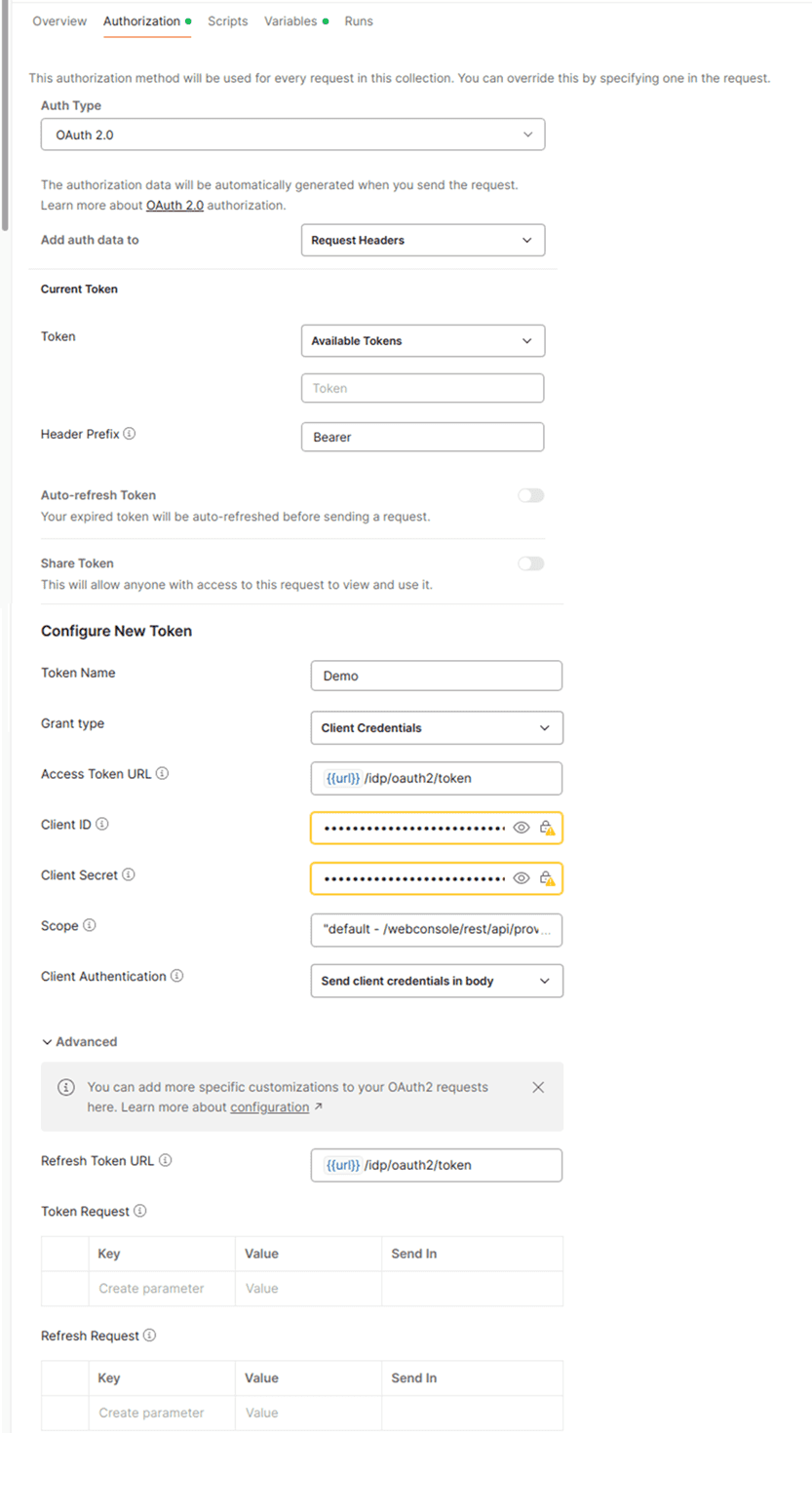
The screenshots below show how to configure Postman to generate an access token using the client credentials grant type.
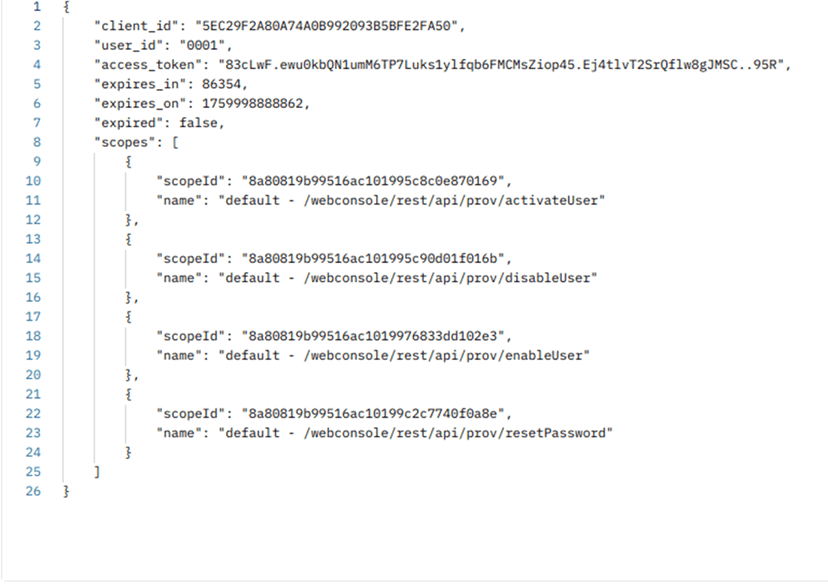
To verify the default scope configured in the authentication provider, use the following endpoint n/idp/oauth2/token/info?token=<access_token>.
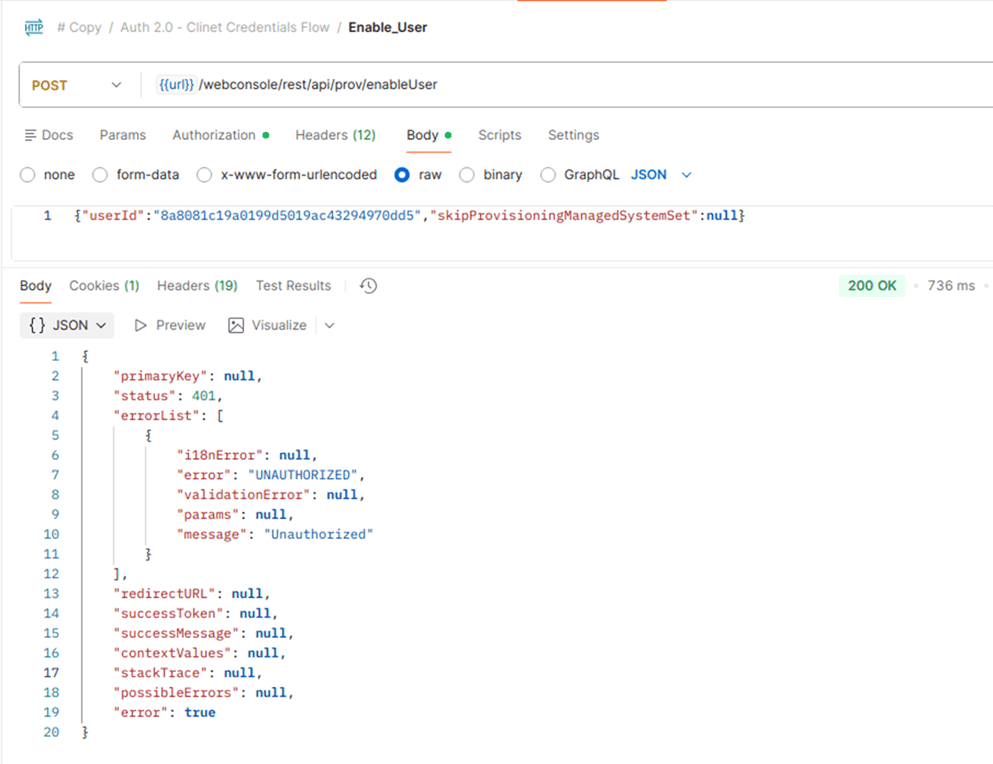
Troubleshooting unauthorized errors
If you encounter an UNAUTHORIZED error while executing an admin action, follow the steps below.
Resolution steps
- Log in to the webconsole as an admin user.
- Navigate to User Admin > User Search.
- Search for the system user by using
systemas the principal search value.
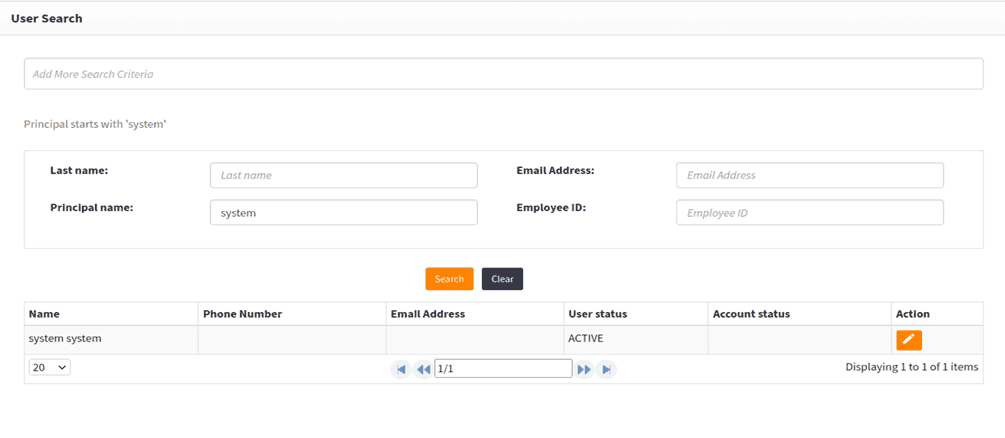
- Edit the system user.
- Click the Menus tile in the left panel.
- Search for the
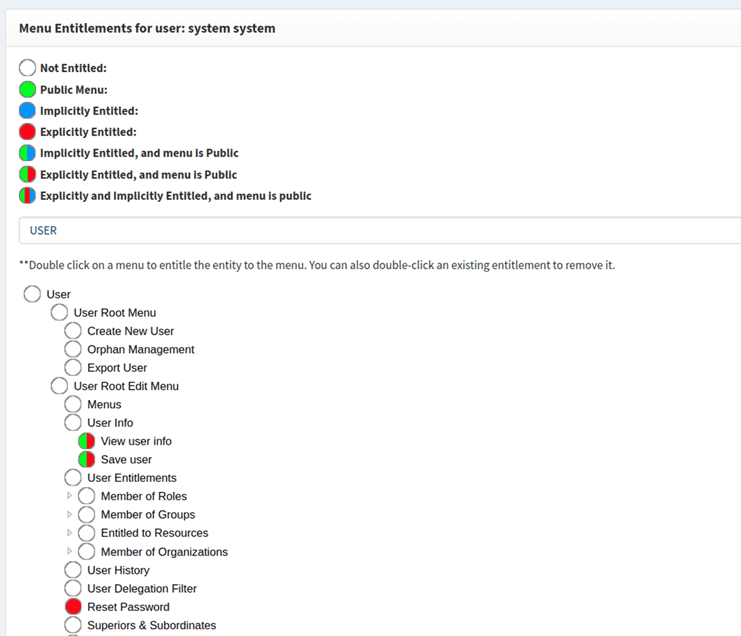
USER_INFO_PAGEmenu tree. - Provide explicit entitlements for the Enable and Disable menu options
(double-click the circle next to each menu item to assign the entitlement).
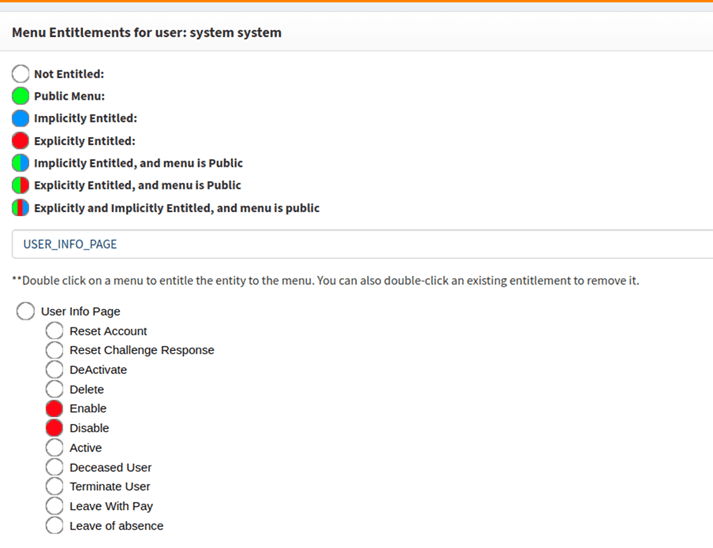
- Search for
USERin the selected menu tree. - Provide explicit entitlement for Reset Password.
- Under the same menu tree, provide explicit entitlements for
- View User Info
- Save User