Aerospike connector
Aerospike is a NoSQL, key-value, and document-oriented database, not a relational one — so it lacks traditional RDBMS concepts like roles, privileges, or users (as in PostgreSQL or Oracle). However, the Enterprise Edition provides Access Control and Security features that enable admin, user, and role-level access.
For more information, visit the Aerospike blog portal.
Connecting
To configure an Aerospike connection in OpenIAM, go to Aerospike Managed System, enter the host URL, port, and credentials, and click Save.
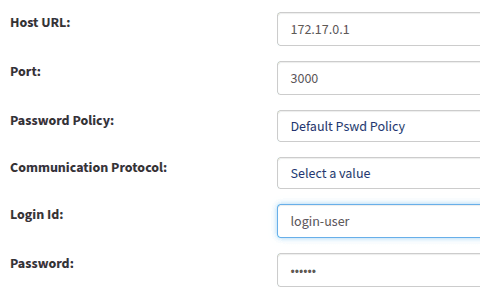
Ensure the connection status turns green, indicating success.

Creating users
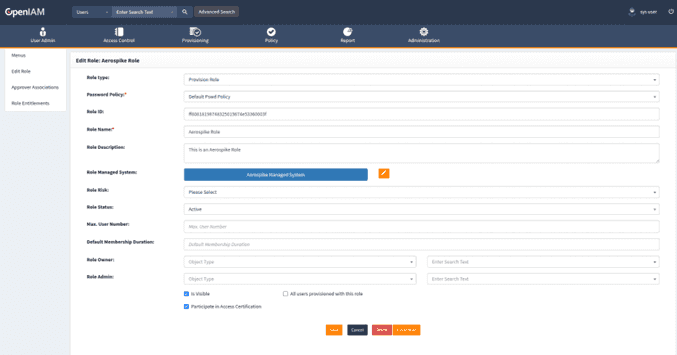
To create a role assigned to Aerospike:
- Log in to the webconsole and go to Access Control > Role > Create a new role.
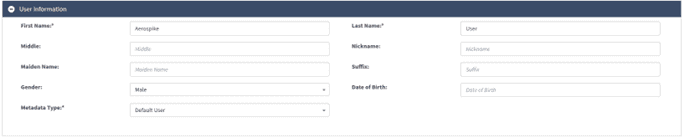
- Fill in user details such as First Name, Last Name, Type, and Email.
The username will be created as<firstname-lastname>(case-sensitive).

- Assign the role to the user and click Save.


The connector supports password reset and user deletion.
Searching users
To search for users:
- Go to Synchronization > Aerospike User Example.
- Use one of the following queries:
- All users:
show usersor*. - Single user: show role
<rolename>
- All users:
No other queries are supported.
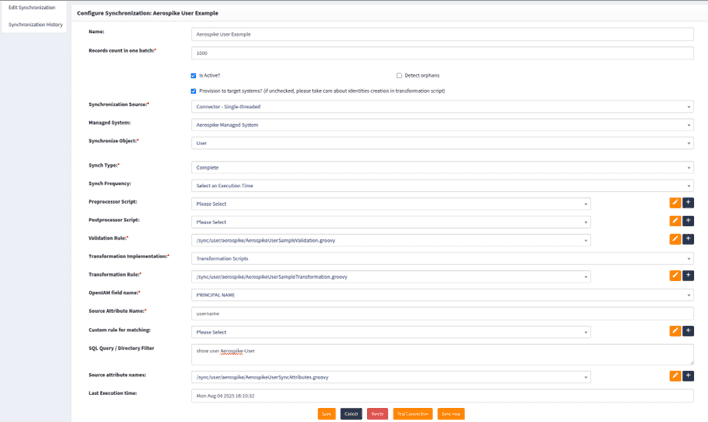
Use Test connection to validate, then Save. Synchronization will run in the background, and results will appear in Synchronization History.

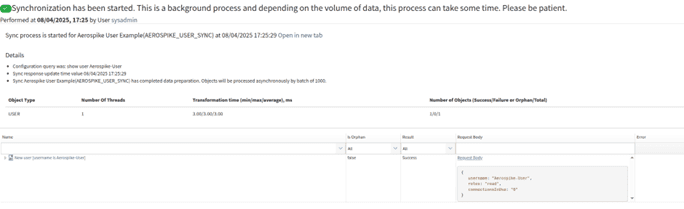
Searching groups
Groups in the Aerospike connector correspond to roles in the Aerospike database.
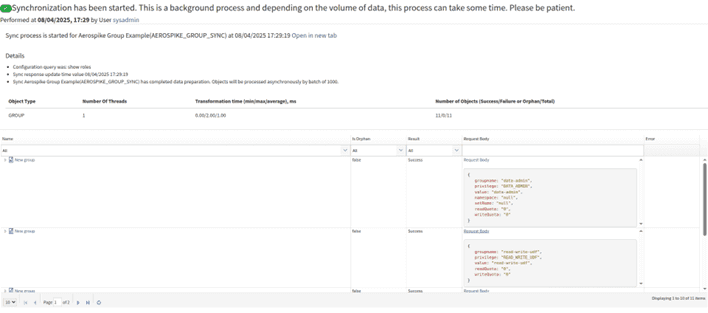
To search for roles, go to Aerospike Group Example and use:
- All roles:
show rolesor* - Single role: show role
<rolename>
Unsupported queries will result in an error.
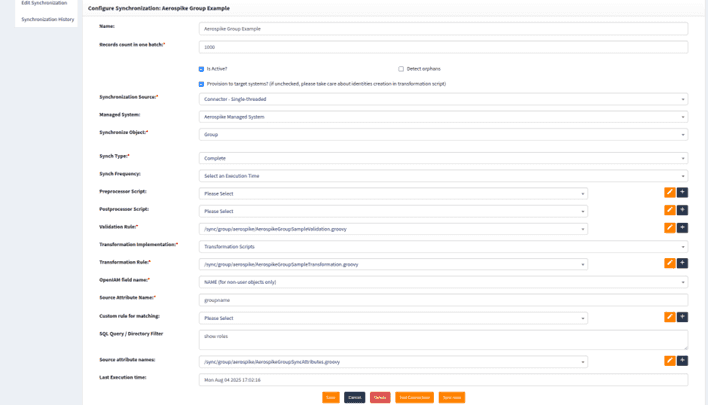
Use Test connection, then Save. Synchronization results appear in Synchronization History.