Installing PowerShell connectors
All PowerShell connectors that are used for OpenIAM version 4.x support the following operating systems.
- Windows Server 2016.
- Windows Server 2019.
- Windows Server 2022.
- Windows Server 2025.
While older operating systems are supported, OpenIAM recommends using newer versions. Older operating systems will require the installation of additional dependencies. Please make sure that the following minimum dependencies have been met.
Basic requirements
Basic requirements should be checked before starting the PowerShell connector installation as they refer to basic OS components and hardware.
Hardware requirements
For demo/test scenarios the following minimum hardware requirements are recommended:
- 2 (v)CPU.
- 8 GB RAM.
- 60 GB disk space.
For production scenarios the following minimum hardware requirements must be met:
- 4 (v)CPU.
- 16 GB RAM.
- 100 GB disk space.
Disk space is mostly used for storing logs when running in debug mode. If this mode is on, you should monitor disk usage. Running out of disk space will negatively impact the connector. During installation you will be asked whether the connector should remove old logs during rotation. Enabling this option reduces the risk of logs consuming excessive disk space. If disabled, please delete or move old logs manually.
Please make sure that the OS has enough space for normal operation and updates.
Software requirements
- .NET Framework 4.8.
- PowerShell 5.1.
.NET Framework
If you are running Windows Server older than 2016 and are not sure which .NET Framework version you have, you can refer to the Microsoft guide: How to: Determine which .NET Framework versions are installed. Alternatively, you can install the latest .NET Framework 4.x.
PowerShell
If you run Windows Server 2016 or later, PowerShell 5.1 is included by default and you don't need to check this dependency.
If you are running Windows Server older than 2016, you can check the PowerShell version by running the following command in a PowerShell console:
$PSVersionTable
Additional dependencies
PowerShell connectors use an SQL CE 4.0 database to manage log records. You can read more about it at the Microsoft® SQL Server® Compact 4.0 SP1 download page.
During installation, the connector installer checks whether the SQL CE 4.0 runtime is installed. If no runtime is detected, the connector will install SQL CE 4.0 SP1 automatically, so no additional steps are required.
Multiple connectors installation
It is possible to host multiple OpenIAM PowerShell connectors on the same connector server. For example, you can run the AD and Office 365 connectors on the same machine at the same time.
Load balancing
For load balancing you can install two or more connectors of the same type on different servers. Each of them should use the same configuration settings. During runtime, requests will be distributed across all installed connectors.
Getting connection parameters from OpenIAM
Before starting the installation process you should know the following parameters.
- Hostname or IP address of the RabbitMQ server instance — make sure it can be reached from the connector server. This is usually the same as the OpenIAM address.
- Queue name.
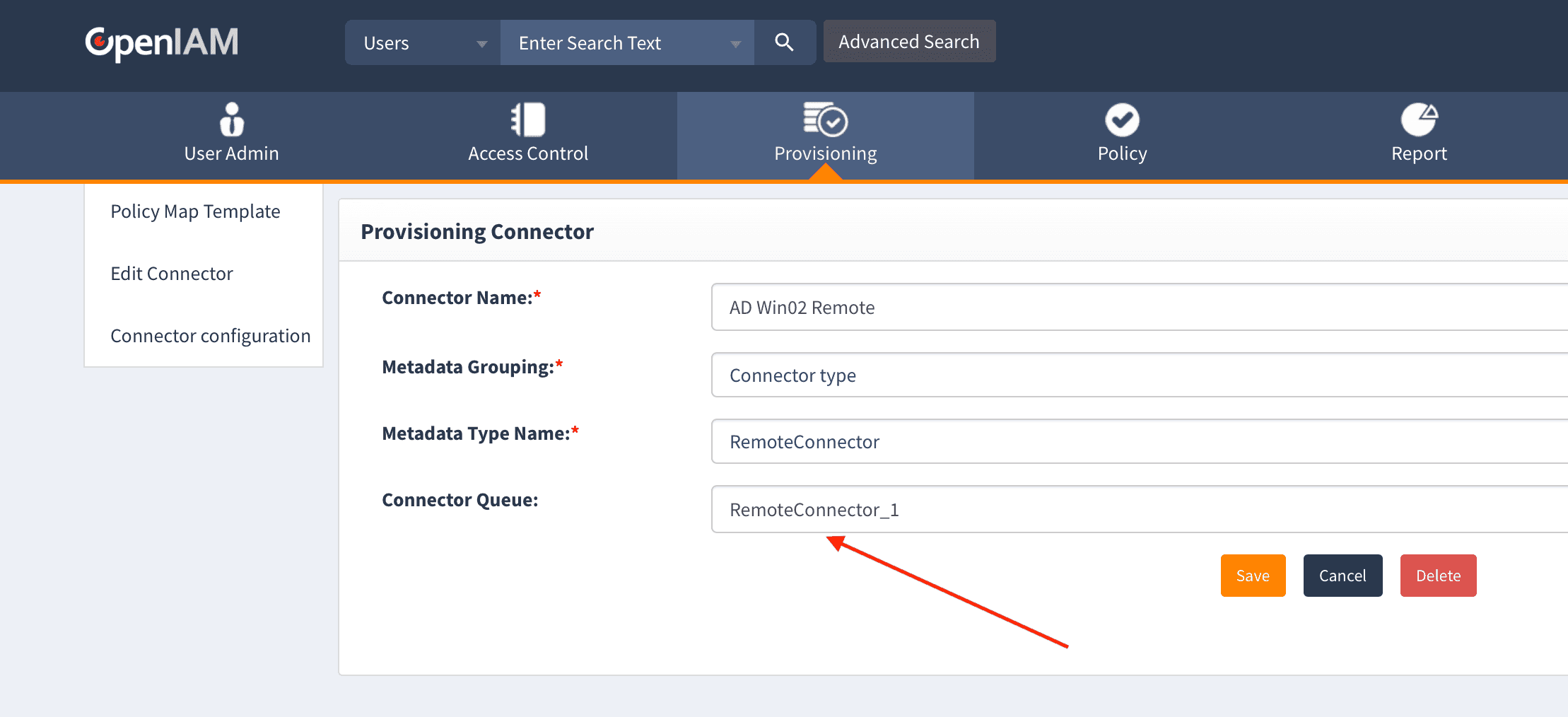
To get the queue name to use during installation, log in to your OpenIAM webconsole > Provisioning > Connectors > Select your connector > copy the Connector queue parameter from this page, as shown in the image below.
Installation process
All connectors share a generic installation process, so the information below applies to all OpenIAM PowerShell connectors. The AD connector is used here as an example.
The screenshot below shows the initial connector installation window.
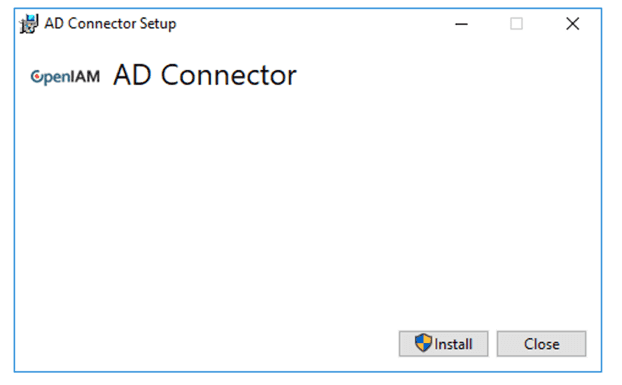
When you press Install, the installer will check for the SQL CE 4.0 SP1 dependency. If the dependency is not found, the installer will install SQL CE 4.0 SP1 automatically. If it is already present, this step is skipped and installation proceeds.
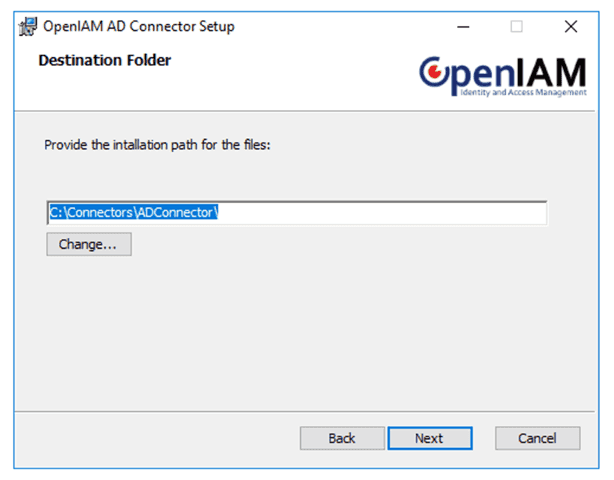
During the step above, you will be asked to provide the connector installation location. By default, it is C:\Connectors\ConnectorName. You may override this path. You can also optionally enable an end-to-end connection test to the managed system, as shown below.
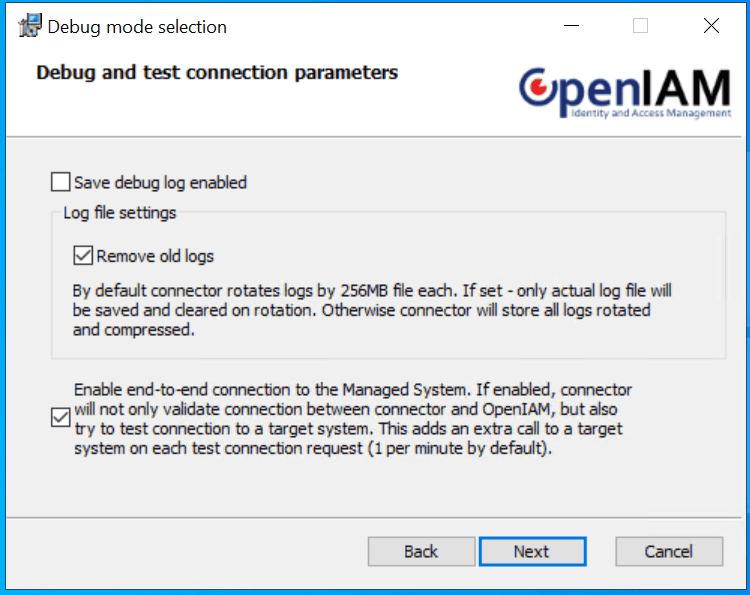
You will be asked to configure log settings. If you are installing the connector for the first time, you may want to enable debug mode to track what the connector does with each request step by step.
If debug mode is disabled, only information and error messages will appear in logs — normally just one record per request. When not in debug mode, the connector consumes very little disk space. In debug mode, however, the log record count grows significantly.
If you select the Remove old logs option, the connector will automatically delete rotated log records.
After clicking Next you will be asked to configure the RabbitMQ connection to your OpenIAM instance.
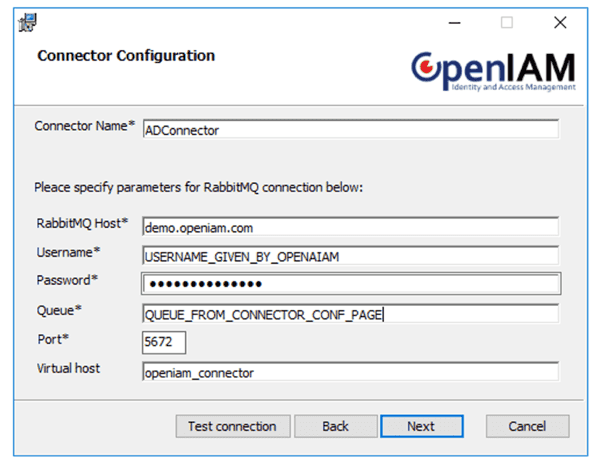
- Connector name: used to distinguish this connector from other connector types installed on the same machine. It is a human-readable label that should be meaningful to you. It must not contain spaces, as this name is used in process names.
- RabbitMQ host: usually the hostname or IP address of your OpenIAM instance, though this may vary in different deployment scenarios.
- Username: RabbitMQ connection username. By default:
openiam. - Password: RabbitMQ connection password. By default:
Password#51, though this is usually changed after initial configuration. - Queue: this parameter should be taken from the connector configuration page inside OpenIAM, as described above.
- Port: by default 5672 (plain) or 5671 (TLS). This can be overridden by your configuration. Make sure the port is open on the OpenIAM instance and on the RabbitMQ service. For Docker installations, ensure the port is accessible within Docker as well.
- Virtual host: by default
openiam_connector.
To verify that the RabbitMQ settings are correct, press the Test connection button.
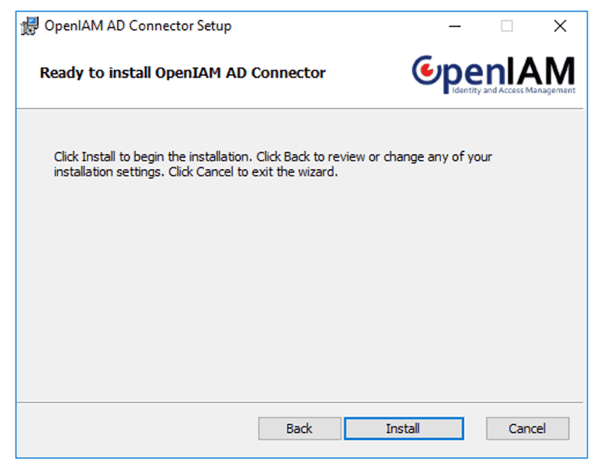
After completing the above, confirm your installation by pressing Install. This will finalize the connector installation.
Removing a connector
OpenIAM PowerShell connectors are removed like any other Windows software: go to Control Panel > Uninstall a program > select your connector > right-click > Uninstall.
When the connector is uninstalled, all logs, configs, and other files created during runtime are left in place. If you do not need this data, you can manually delete the connector folder after uninstalling.
Updating a connector
PowerShell connectors are updated by reinstalling. The following steps apply to connectors without customizations:
- Back up your connector folder (compress and/or copy it to a safe location).
- Uninstall the current connector.
- Remove the connector folder.
- Install the new connector using the same connection parameters as before.
If you have customizations, check the connector version before updating. If the major version (first two numbers) is the same, you can most likely use the same script files as before.
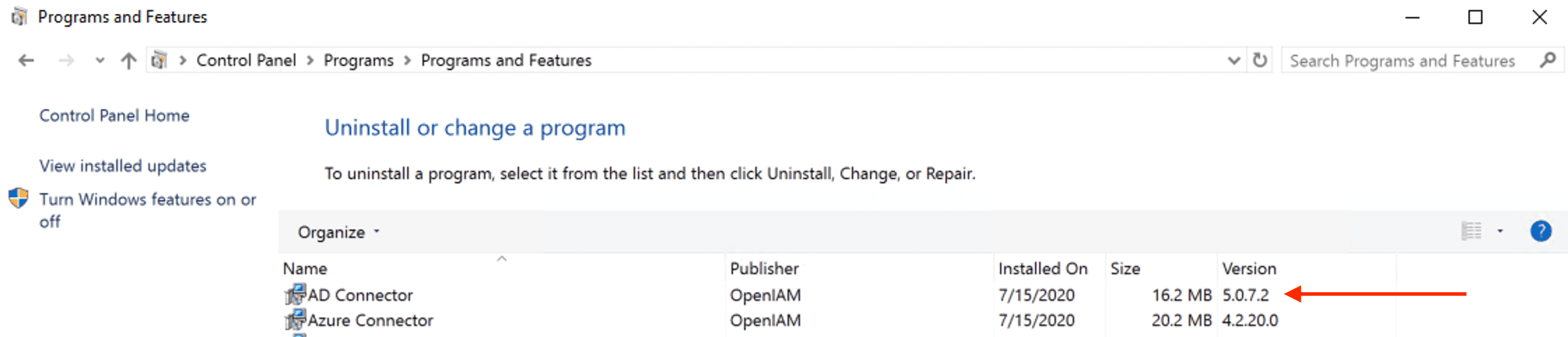
To check the connector version, go to Control Panel > Uninstall a program. The version is shown next to the connector name, as shown in the image below.
If you have customizations, you can extract the PowerShell files from the new connector installer (using a test VM if needed) and compare them with your customized versions. If the OpenIAM team made the customizations for you, contact OpenIAM support if you are unsure.
RabbitMQ QueueType
Starting from version 4.2.1.9, OpenIAM uses the quorum QueueType for RabbitMQ communication with connectors.
.NET/PS connectors use this value by default starting from version 5.31.0.0. However, this parameter is configurable on the connector side for backward compatibility. If you need to use a .NET/PS connector version 5.31.0.0 or higher with an OpenIAM version below 4.2.1.9, open Connector.config inside the connector folder and change the QueueType parameter from quorum to classic.
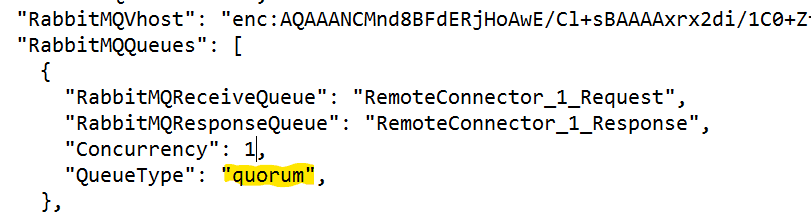
Troubleshooting: verify that the QueueType parameter in Connector.config matches the queue type configured on the RabbitMQ side.