Using PowerShell connectors
This page covers common use cases applicable to all OpenIAM PowerShell connectors.
Working with the connector configuration
Sometimes there is a need to change the connector configuration. These changes can include connection parameters, enabling debug mode, and so on. Starting with v5 of the OpenIAM .NET connectors, the configuration file is stored inside the connector folder.
If you are using v4 of the connectors, the configuration file can be found in %programdata%\OpenIAM\, where the config file name is based on the connector name given during installation.
The config file, Connector.config, is stored in JSON format. The file is monitored by the connector service, which detects changes automatically. No connector restart is required when you change the config file — changes are applied on the fly.
Connector configuration format
This is a sample configuration file:
{"ConnectorName": "MsPSGraphConnector","LogLevel": 0,"IsSaveRequestEnabled": true,"IsRabbitMQEnabled": true,"IsStatusLogEnabled": false,"RabbitMQHost": "aipoclouddemo.openiam.com","RabbitMQUsername": "enc:AQAAANCMnd8BFdERjHoAwE/Cl+sBAAAAaauU57pNqUql2K8z7cfMEAQAAAACAAAAAAAQZgAAAAEAACAAAAD9Vt21IK2wvWTNM47GAyXaTQ2epJvUyzFWJj0SHYwGoQAAAAAOgAAAAAIAACAAAAAzFAXpoqQi6bT8qlkQhJduv3yIOJCH8q6gshY7jvIyTxAAAABmxTNXwdqiRgIk8CfFsEVkQAAAAAFcf6YJhkhN+in+t0kiNqQMK24bSF7fdTv+GCCBQ+c1gBEuoS2cIFMVpNcOtB5jkXpAGuN8/ernPSga2ZXx1Xs=","RabbitMQPassword": "enc:AQAAANCMnd8BFdERjHoAwE/Cl+sBAAAAaauU57pNqUql2K8z7cfMEAQAAAACAAAAAAAQZgAAAAEAACAAAAANvSMNp7vGCEve7PUlcR3A7XtlHeeXi+xhUWuo0CDLcQAAAAAOgAAAAAIAACAAAADaM2r+2bJVtxmdtaXd1aMQDOvto/TBM4ZtTvpCLOekPiAAAACCtZ5Hfs6s5OMRBbGkadX9H998RMTrB92Nhpjoq3lHsEAAAAB6fGgR/4YnW92Mv0svbT4F1Q/QZDBNokFq9BDN47nvtedK4jko8uZ9eSofLcUA2VCvuuscYi+TSvxPVMGn1xYa","RabbitMQPort": 5672,"RabbitMQVhost": "enc:AQAAANCMnd8BFdERjHoAwE/Cl+sBAAAAaauU57pNqUql2K8z7cfMEAQAAAACAAAAAAAQZgAAAAEAACAAAACKXn/U4uKm5rBVRww7sZF0HuOzChLwx+h8GVHd/+DbKwAAAAAOgAAAAAIAACAAAAAcz3RieV3WnaVq1FdZ45XGsbpRKzDIkg2rk1b32Yk/6zAAAAAhxXUSv2Wvq1QU41EYXlrwdzcZFMD+mvgG/guXIM9vnCgdnwHs1Ztp33pOXHRxOzJAAAAATTnhbX/FFQWIkXFexqwfW+EKiENLofI2EEb3tS6R1T1NwMoOuqEWcU8ILiLwHiAE4PVLRNrdBCrnpJIU8aCNmg==","RabbitMQQueues": [{"RabbitMQReceiveQueue": "RemoteConnector_ 402_Request","RabbitMQResponseQueue": "RemoteConnector_ 402_Response","Concurrency": 1,"QueueType": "quorum"}],"ExecutionTimeoutMin": 60,"IsTLSEnabled": false,"LogSize": 256,"RequestRunnerPath": \\Runners\\PSClassic\\ConnectorRequestRunner.exe,"SearchResponseBatchSize": 1000000,"LogSearchResponses": false,"IsCleanupTaskActive": false,"FlushTimer": 3,"LogDBType": "SQLite","LogDBConnectionString": "Data Source=C:\\Connectors\\MsPSGraphConnector\\Log.db","DisableManSysHealthcheckRequests": false}
The table below describes each configuration option.
| Parameter name | Description |
|---|---|
| ConnectorName | Name given to this connector during installation. This name appears in the log database and the Windows System Event Viewer. It can be used to identify which connector originated a log record when multiple connector types are installed on the same server. |
| LogLevel | When set to 0, the connector logs all possible records (Debug mode). This is useful for tracing what the connector does with each request step by step, but it is verbose and may consume significant disk space over time. Adjust the log level according to your needs. |
| IsSaveRequestEnabled | Enables or disables saving request data to the simulation folder. Simulation mode is described in detail later in this document. |
| IsRabbitMQEnabled | Setting this to false disconnects the connector from the OpenIAM service bus. It is equivalent to pausing the connector without stopping it as a service. |
| RabbitMQHost | The hostname or IP address where the RabbitMQ message bus is located. This is usually the same as the IP address or hostname of the OpenIAM service. |
| RabbitMQUsername | Username for connecting to RabbitMQ. By default, this value is encrypted. It can also be stored unencrypted. Changing this setting in encrypted format is described later in this document. |
| RabbitMQPassword | Password for connecting to RabbitMQ. By default, this value is encrypted. It can also be stored unencrypted. Changing this setting in encrypted format is described later in this document. |
| RabbitMQPort | Port for connecting to RabbitMQ. 5672 is used by default. |
| RabbitMQVhost | Virtual host for connecting to RabbitMQ. Encrypted by default. Changing this setting is described later in this document. |
| RabbitMQQueues | The connector can connect to multiple queues. Each queue entry can have the following fields: RabbitMQReceiveQueue — used by the connector to receive requests from OpenIAM (taken from the OpenIAM connector configuration page > Request); RabbitMQResponseQueue — used to send responses back to OpenIAM (taken from the OpenIAM connector configuration page > Response); Concurrency — the number of requests that can be processed simultaneously, each handled by a separate worker process; QueueType — either quorum (default from OpenIAM 4.2.1.9) or classic (used for OpenIAM 4.2.1.9 and below). |
| ExecutionTimeoutMin | Maximum time in minutes allowed for a worker process. If this limit is reached while a request is still being processed, the worker process will be terminated. |
| IsTLSEnabled | Specifies whether the connection from the connector to RabbitMQ should be secured with TLS. Default is false. If enabled, the RabbitMQ (OpenIAM) side must also be configured for TLS. See this document for more information. |
| LogSize | Size of the Log.db file in megabytes before the connector service rotates it. Default value is 256. |
| RequestRunnerPath | The connector supports two types of runners: classic PowerShell and PowerShell Core. Runners are located in the Runners folder of the connector. Switch to a different runner if you need PowerShell Core features. |
| SearchResponseBatchSize | When synchronizing large sets of identities, the connector can split response batches to reduce load on itself and on OpenIAM. Note that not all OpenIAM versions support this feature, so this parameter defaults to 1,000,000 for compatibility. |
| LogSearchResponses | In Debug mode, the connector logs all requests and responses. However, search responses can be very large (hundreds of megabytes). This setting is disabled by default and should only be enabled for short-term debugging. |
| IsCleanupTaskActive | If enabled, the connector removes all content from the simulation folder and rotated Log.db files once per day. |
| FlushTimer | How often (in seconds) the connector log service saves logs to the destination. Default is every 3 seconds. |
| LogDBType | Supported values: SQLite and JSONFile. |
| LogDBConnectionString | When SQLite is used, this should contain the connection string to the SQLite database (as in the sample configuration). When JSONFile is used, this should contain the full path to the JSON file (be mindful of escape characters to keep the JSON format valid). |
| IsStatusLogEnabled | When set to true, the connector periodically writes status and health information to the log. Useful for monitoring connector health over time. |
| SecureStringAttributes | A list of attribute names that the connector should handle as secure strings in memory (values are not written to logs in plain text). Supports prefixes to scope the protection: [mansys]., [mansys.attributes]., [testconnection]., [login].. |
| DisableManSysHealthcheckRequests | If false, the connector validates the end-to-end connection between OpenIAM and the target managed system by running test requests once per minute. If true, the connector only validates connectivity between OpenIAM and the connector itself. Not all connectors support end-to-end validation. |
Working with encrypted parameters
The OpenIAM connector server should be well-secured and access should be restricted to a limited number of users. To ensure security, sensitive configuration parameters in the config file are encrypted using the machine key. This means the encrypted string can only be decrypted on the same connector machine.
When the OpenIAM connector installer runs, it encrypts sensitive data such as username, password, and VHost by default. To generate a new encrypted value to replace an existing one, open a PowerShell console on the connector machine and run the following commands:
Set-Location 'Your connector folder address'Import-Module .\CryptCmdlet.dllConvertTo-EncryptedString -StringToEncrypt 'SomeValue' | clip
These commands encrypt the SomeValue string and copy the result to your clipboard (remove | clip if you want the output displayed instead). Replace SomeValue with the actual value you want to encrypt, then paste the result into the connector configuration file. Make sure to preserve the JSON format — starting and closing quotes (") must be in the correct positions.
Working with logs
Each request sent from OpenIAM contains a parentAuditLogId parameter that allows OpenIAM to track the request result and display it in the OpenIAM audit logs. All errors returned from connectors are visible in OpenIAM audit logs.
Sensitive values such as passwords are never written to the connector log in plain text — they are masked or encrypted. Use SecureStringAttributes in the connector configuration to extend this protection to additional attributes.
However, there may be situations where viewing audit logs is not possible — for example, when the connector loses connection with OpenIAM. In such cases, the local connector logs are very useful for troubleshooting.
Log format
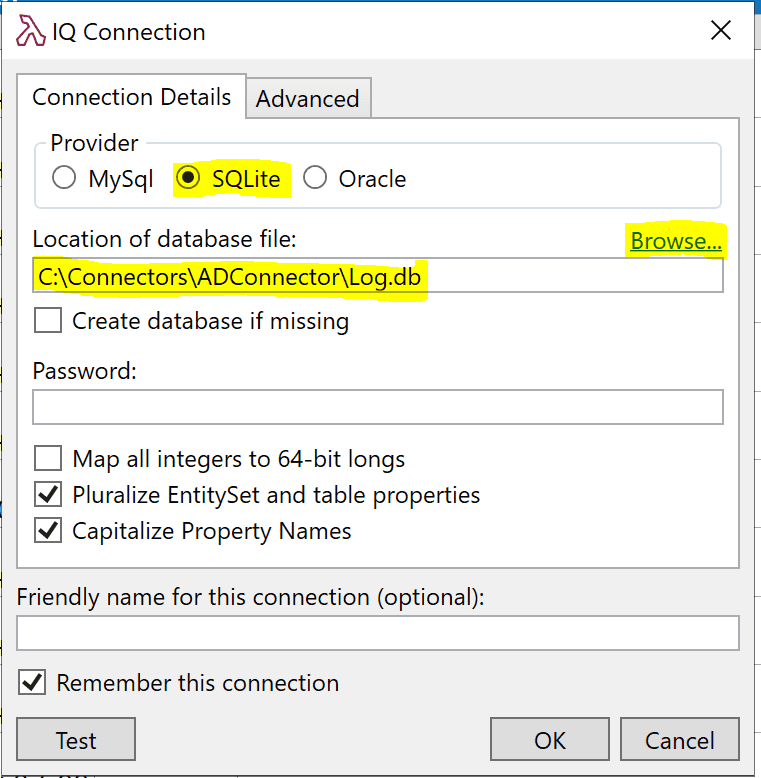
The connector log file is located inside the connector folder and is called Log.db.
- PowerShell connectors version 4.x use SQL CE 3.5 database log format.
- PowerShell connectors version 5.0.0.0–5.31.0.0 use SQL CE 4.0 format.
- PowerShell connectors version 5.32.0.0 and later use SQLite log database by default.
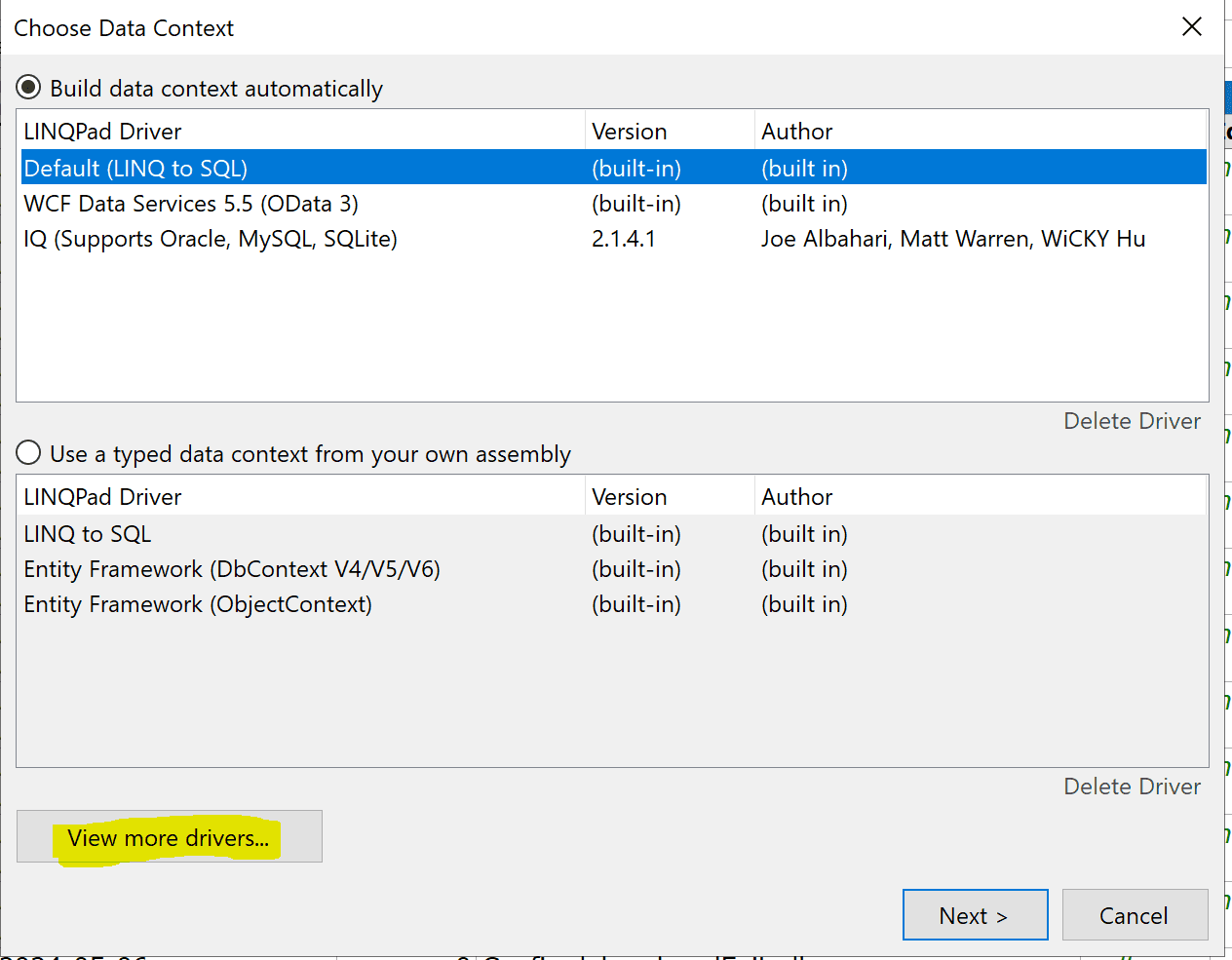
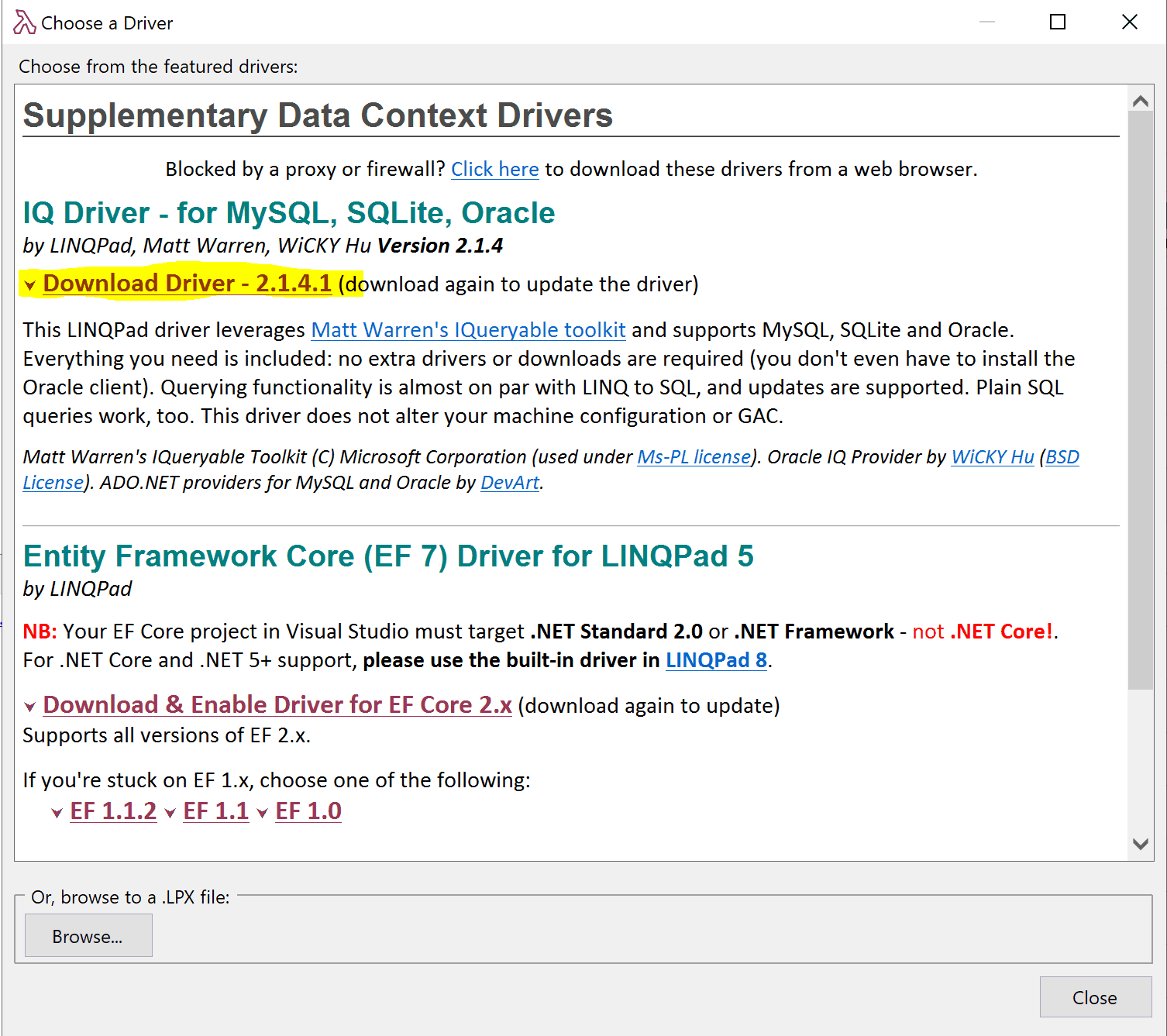
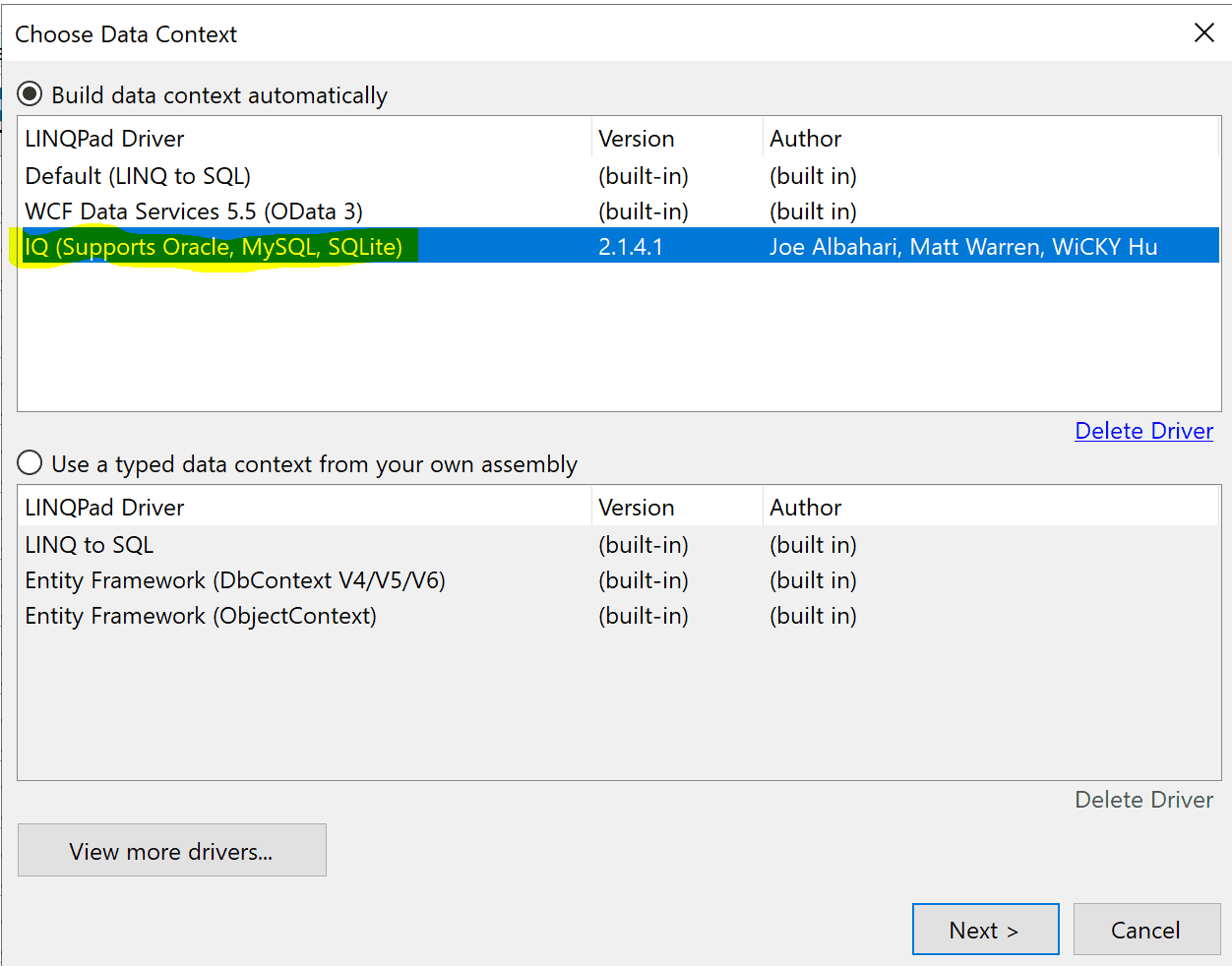
It's important to use a compatible database viewer.
Viewing the log database
By default, all .NET/PowerShell connectors save logs in an SQLite database, so any compatible viewer can be used. An example using one such viewer is shown in the section above. Below are a few example queries for finding and viewing logs:
- Query logs for provisioning a specific user:
SELECT *FROM LogsWHERE IdentityValue = 'SomeUserIdentity'ORDER BY ID DESC
- Query logs for a specific request ID:
SELECT *FROM LogsWHERE RequestID = '5583cf9a-abdd-42cb-aa50-b433458c4cfb'ORDER BY ID DESC
Windows Event Viewer
Important messages may also be sent by the connector to the Windows Event Viewer. This includes situations such as problems starting the service itself — in which case Log.db may not be useful because the service did not start normally. Messages can be found under Windows Logs > Application, filtered by source OpenIAM Connector Service and the ConnectorName provided during installation. Below is an example of how a connector restart appears in the Windows Event Viewer.

Simulation mode
PowerShell connectors support a Simulation mode, which is a powerful tool for troubleshooting and replaying certain requests.
When debug mode is on and IsSaveRequestEnabled is enabled, the connector creates a JSON file for each request received from OpenIAM. This file contains all request parameters. You can then trigger the connector to reprocess the request from the file, without waiting for a new request from OpenIAM.
. To re-run the request, you must manually edit the file and replace the masked values with the actual passwords.*
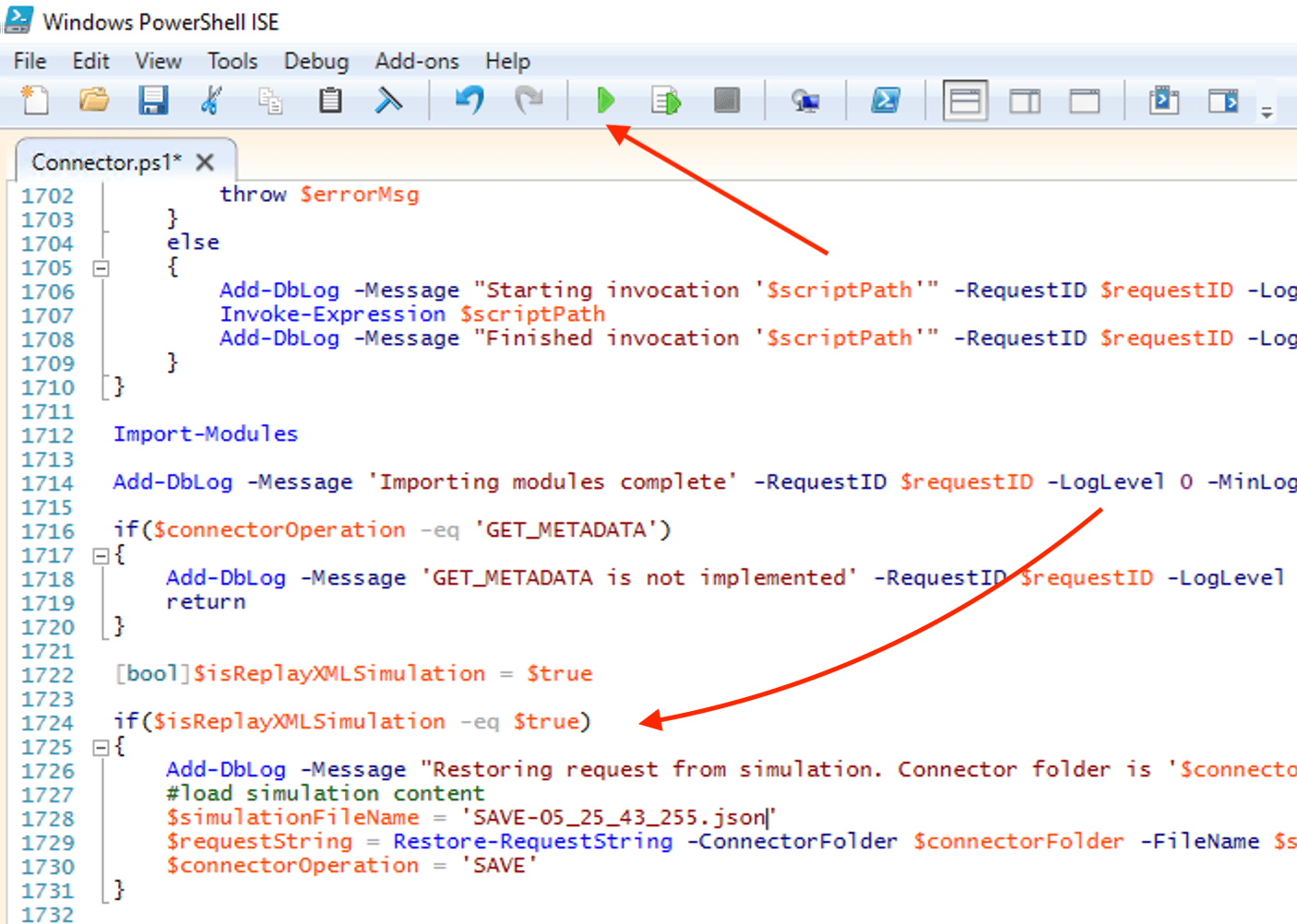
To trigger a replay, open Connector.ps1 in the connector folder and edit the lines below. We recommend using PowerShell ISE for editing PowerShell files.
The initial code snippet to modify:
[bool]$isReplayXMLSimulation = $falseif($isReplayXMLSimulation -eq $true){Add-DbLog -Message "Restoring request from simulation. Connector folder is '$connectorFolder'" -RequestID $requestID -LogLevel 0 -MinLogLevel $minLogLevel#load simulation content$simulationFileName = 'filename.json'$requestString = Restore-RequestString -ConnectorFolder $connectorFolder -FileName $simulationFileName$connectorOperation = 'SAVE'}
- Change
$isReplayXMLSimulationto$true. - Set
simulationFileNameto the name of your file inside the Simulation folder (filename only, not the full path). - Set
connectorOperationto the appropriate operation type. Valid options:SAVE,SEARCH,DELETE,RESET_PASSWORD,LOGIN,SUSPEND,RESUME,TEST.
The modified version might look like:
[bool]$isReplayXMLSimulation = $trueif($isReplayXMLSimulation -eq $true){Add-DbLog -Message "Restoring request from simulation. Connector folder is '$connectorFolder'" -RequestID $requestID -LogLevel 0 -MinLogLevel $minLogLevel#load simulation content$simulationFileName = 'SAVE-05_25_43_255.json'$requestString = Restore-RequestString -ConnectorFolder $connectorFolder -FileName $simulationFileName$connectorOperation = 'SAVE'}
When you apply your changes, you can run and debug the PowerShell script using PowerShell ISE or any appropriate tool.
Checking the connector version
It is recommended to use the latest version of the connector. All .NET/PS connectors are backwards compatible, so there will be no issues using the latest connector version with OpenIAM 4.2.0.
To check your current .NET/PS connector version:
If the connector is not installed:
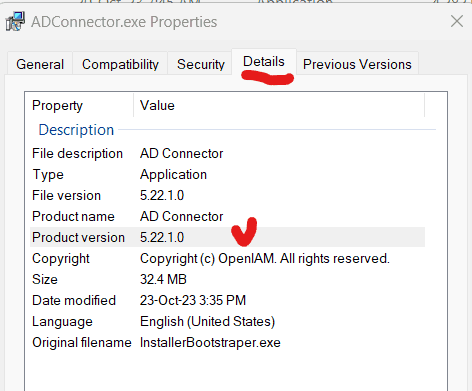
- Right-click the installer file and select Properties.
- In the window that opens, find the Details section, as shown below.
If the connector is installed:
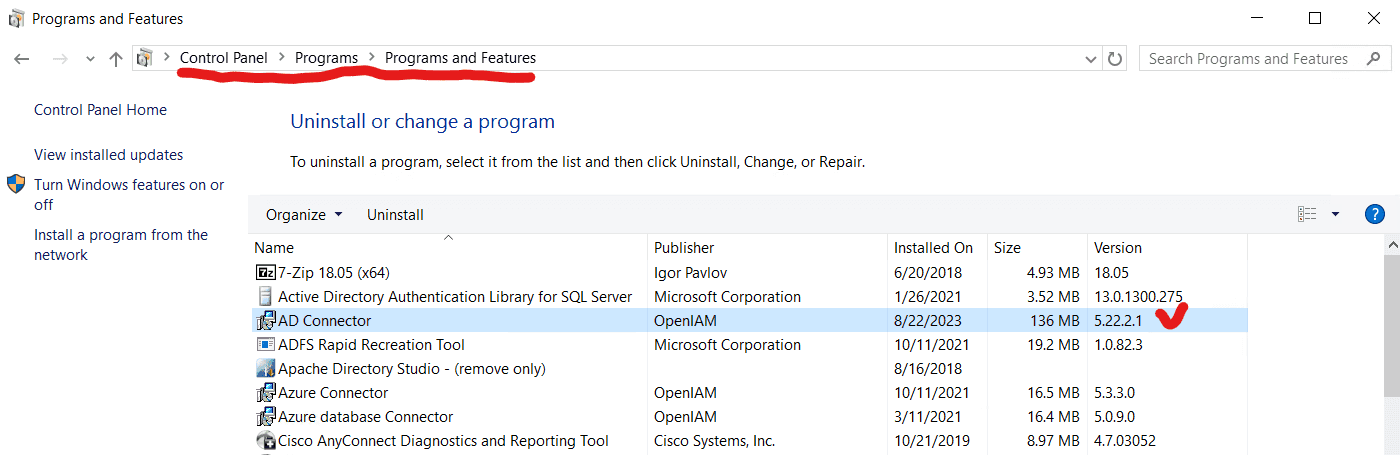
- Go to Control Panel > Programs > Programs and Features.
- Find the connector in the list — the version is shown on the same line, as shown below.
Utilities tool
The connector ships with a Utilities GUI application located in the connector folder. It provides common administration and troubleshooting tasks without requiring manual script or config-file edits:
- Test connection — verifies connectivity and credentials for the managed system.
- Encrypt string — encrypts a value using the machine key so it can be safely pasted into
Connector.config(equivalent to running theConvertTo-EncryptedStringcmdlet manually — see Working with encrypted parameters above). - RabbitMQ settings — view and update the RabbitMQ connection parameters stored in the configuration file.
TLS connection to RabbitMQ
If you want to establish a TLS connection to a RabbitMQ instance configured with a self-signed certificate, the certificate must be added to the Trusted People store on the connector host.
The connector requires a trusted certificate to establish a TLS connection to RabbitMQ. TLS is optional, but if you enable it, the certificate must be trusted. Self-signed certificates need to be imported into the Trusted People store at the operating system level. The video below demonstrates how to do this.
It is also worth noting that when establishing a TLS connection to any host, you must use the DNS name listed in the certificate — not the IP address. Using an IP address instead of the hostname will result in a "Certificate is invalid" error. When verifying the certificate, check the hostname it was issued to.