Installing OpenIAM with a remote MSSQL database in RPM environment
This guide walks you through the process of installing OpenIAM in an RPM-based environment using a remote Microsoft SQL Server (MSSQL) database. It outlines the necessary prerequisites, configuration steps, and important considerations to ensure a successful deployment. By following this guide, you will be able to integrate OpenIAM with an external MSSQL database, supporting improved scalability, centralized database management, and flexible infrastructure design.
Preparation
To install OpenIAM with a remote Oracle DB, prepare the DB first. Start with creating a VM in Azure.
Type Red hat in a search engine and select Red Hat Enterprise Linux (RHEL) RAW for Microsoft Azure > Red Hat Enterprise Linux 9.7 RAW with cloud-init or Rocky Linux and select Rocky Linux for x86_64 (AMD64) official > Rocky Linux 9.
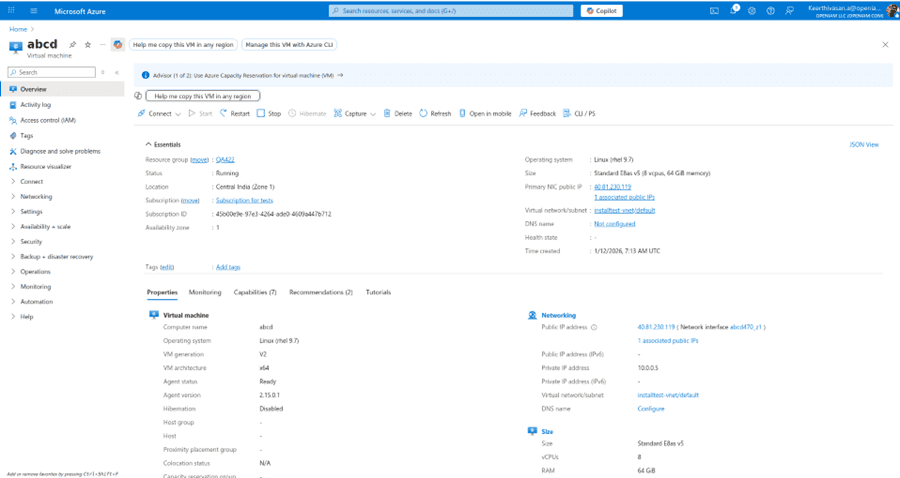
- Login into VM with terminal using IP.
Ssh qa422@20.40.45.24
When OpenIAM installation or Flyway runs, it can easily take more than 5–10 minutes, and if your SSH session drops, the install will hang or terminate. That’s why screen (or tmux) is REQUIRED, not optional.
- Proceed with installing
tmux.
sudo yum install tmux -y
Verify installation with
tmux –V
Expected output is as follows
Screen version 4.x.x
- Start a new screen session.
tmux new -s openiam-install
You are now inside screen Everything you run here will continue even if SSH disconnects.
- Detach from session. Press Ctrl + b, then d. You will go back to your normal terminal but the session keeps running. To list the existing sessions use
tmux ls
And to reattach to a session use
tmux attach -t mysession
Installing OpenIAM
The following sections will guide you through the OpenIAM installation process step by step. Start with downloading the RPM installer using the following command.
curl https://download.openiam.com/prerelease/enterprise/4.2.2/rpm/openiam-4.2.2.noarch.x86_64.rpm --output openiam-4.2.2.noarch.x86_64.rpm
To check correct file is downloaded use the below command.
file openiam-4.2.2.noarch.x86_64.rpm
Once the download is complete, install OpenIAM using the following command. This step will also update the initial ulimit settings, which are required for the subsequent installation process.
sudo rpm -i openiam-4.2.2.noarch.x86_64.rpm
After connection is closed, you need to check whether file is installed properly or not. Use the following command.
rpm -q openiam
If it is not installed properly it will display the OpenIAM is not installed. It means failed mid-install, and you will need to run it again.
Check whether the swap is enabled and if enabled we need to disable it by below commands after checking it.
sudo swapon --show (Check whether the swap is enabled)sudo swapoff -a (Disable swap)sudo swapon –show (It should be empty)
Editing database
As the default database value is MySQL, you will need to edit the below conf file. You need to change the port from 3306 to 1433 and export FLYWAY_DATABASE_TYPE=”mssql”.
FLYWAY_DATABASE_TYPE=”mssql”.export OPENIAM_ENV= prerelease //if it is prerelease by default, it will be releasesudo vi /usr/local/openiam/env.conf
Proceed with the initialization process which will download files required for installation from OpenIAM server. Please follow the instructions on the screen.
sudo openiam-cli init
You will be asked about Internet access on this box, as shown below. Type y and press Enter. If you are facing any issues in initialization, then we need to check below file and comment the configuration.
sudo vi /usr/local/openiam/utils/init.sh
During the OpenIAM RPM installation process, you will be prompted to answer several configuration questions. Follow the guidance below to correctly configure the system for use with Microsoft SQL Server.
Do you want to enable TLS for Redis? (y/n):
Enternunless TLS is explicitly required in your environment.You will be asked if you want to install MariaDB as the default database.
- Enter
Yif you want to use a local MariaDB instance. - Enter
Nif you plan to use an external database such as MSSQL.
Since this setup uses Microsoft SQL Server, enter
N.- Enter
During database configuration, the system will display auto-populated values (default is typically mysql).
You must explicitly specify the database type - Enter mssql in addition to or instead of the default value.
Press Enter to confirm.
Do you want to initialize OpenIAM Schema and Users? (y/n):
Enter y if the database schema and users have not yet been created.
This step requires database administrator (superuser) credentials.
- Provide the credentials for the MSSQL administrative user:
Enter username for superuser (default: root):
sa
Enter password for superuser:
Mssql@1234
Ensure that the credentials match your MSSQL server configuration.
Confirm Configuration Review all entered details carefully. Enter y to confirm and proceed with the installation.
MSSQL setup coordination
At a certain point, the installer may pause and prompt you to continue database setup.
When prompted:
- Open a new terminal tab or session.
- Complete any required MSSQL installation or configuration steps.
- Once finished, return to the original installation session.
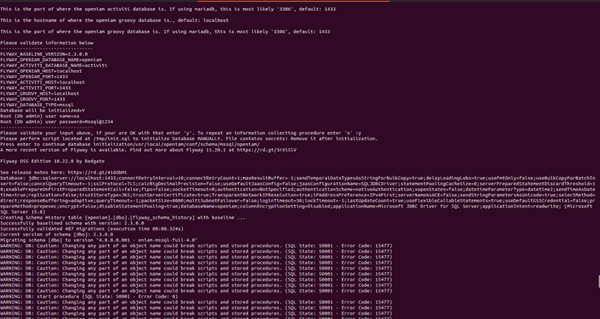
Do you want to install the OpenIAM reverse proxy module? (y/n):
YDo you want to install Prometheus + Grafana stack for monitoring? (y/n):
If this is a test, development, or POC environment, or if you do not need monitoring at this time, chooseN. OpenIAM can function without Prometheus and Grafana.
Monitor the startup process using the following command:
sudo openiam-cli status
Then, try logging in to the OpenIAM Webconsole:
- Open a browser and navigate to: http://40.81.230.119/webconsole.
- Enter the username and password: sysadmin / passwd00.
- On the next screen, create a new password and click Apply.
- Enter the IAM content provider name as default and select HTTP only.
- Answer the security questions.
- Verify that the user is able to log in successfully.
- Validate OpenIAM by creating users and other records.