Configurable left-hand menu in SelfService 'My Info' page
The My Info page in SelfService supports a configurable left-hand menu. Administrators can control which entries appear, their order, visibility, public/non-public status, and which users, groups, or roles are entitled to see each menu item — all from the Webconsole, without code changes or redeployment.
The menu tree is rooted at SS_MY_INFO_LEFT_MENU and renders the items shown in the left rail of the My Info page (My Information, Access Request, Approval Dashboard, plus any items added by administrators).
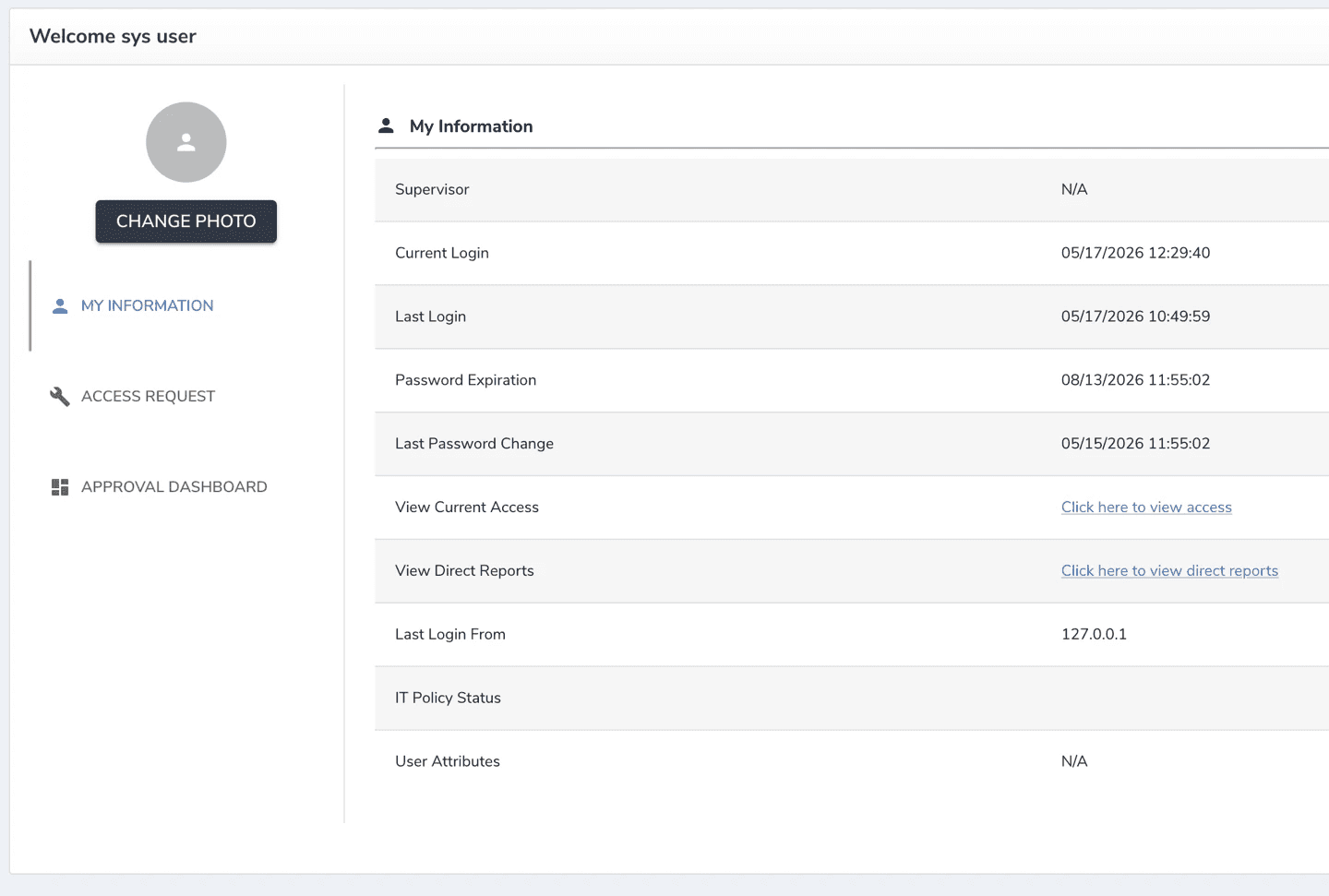
The menu is configured the same way as other menus — from the respective entry in the Access Control drop-down. Log in to the Webconsole and navigate to Access Control > Menus.
In the Menus search screen, locate the My Info menu tree by searching for its root ID or name:
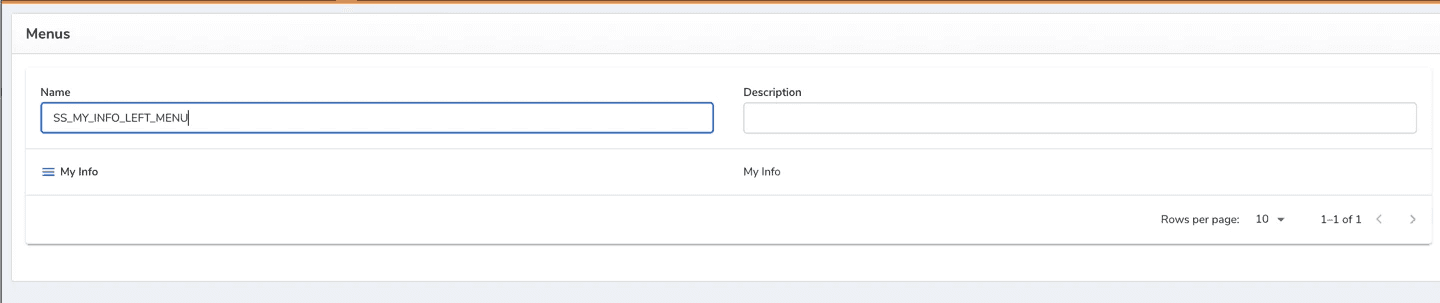
- Root menu ID:
SS_MY_INFO_LEFT_MENU - Tree name: My Info
Selecting it opens the Menu Tree My Info editor.
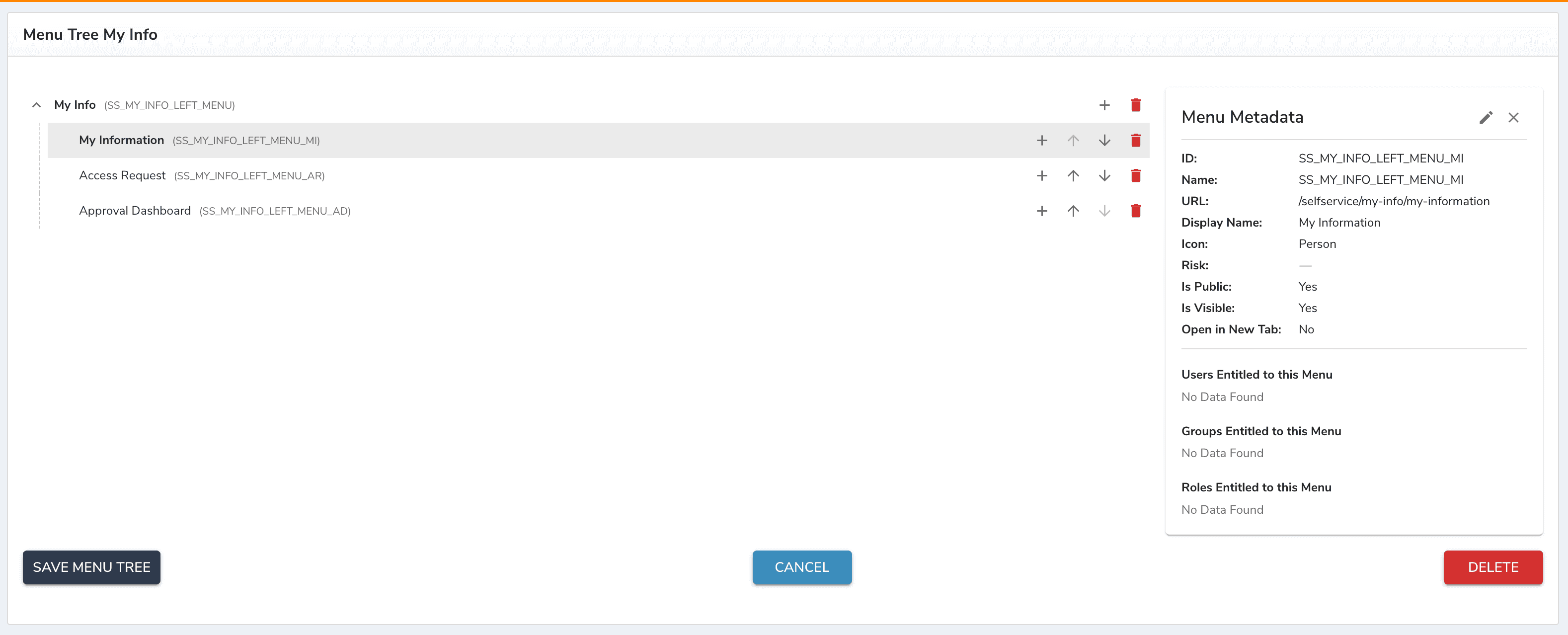
Menu tree structure
The tree has one root (My Info) with child entries that render in the left rail. The following out-of-the-box parameters are included:
| Display Name | Menu ID | URL |
|---|---|---|
| My Information | SS_MY_INFO_LEFT_MENU_MI | /selfservice/my-info/my-information |
| Access Request | SS_MY_INFO_LEFT_MENU_AR | (configured per entry) |
| Approval Dashboard | SS_MY_INFO_LEFT_MENU_AD | (configured per entry) |
Editing a menu item
Click a menu entry in the tree to open the Menu Metadata panel on the right. Click the pencil icon to edit. Each entry exposes the following fields:
| Field | Purpose |
|---|---|
| ID | Stable identifier for the menu item (referenced by the UI). |
| Name | Internal name. |
| URL | Target route the menu item navigates to (e.g. /selfservice/my-info/my-information). |
| Display Name | Label shown to the end user in the left rail. |
| Icon | Icon shown next to the label (e.g. Person, Wrench, etc.). |
| Risk | Optional risk classification. |
| Is Public | If Yes, the menu is visible to all authenticated users regardless of entitlements. |
| Is Visible | Master visibility toggle. If No, the item is hidden even from entitled users. |
| Open in New Tab | If Yes, the link opens in a new browser tab. |
Actions with menu items
Ordering menu items
Use the ↑ / ↓ arrows next to each entry to change its position. The order in the tree defines the order rendered to the end user. Click Save Menu Tree to persist changes.
Adding a new menu item
- Click the + icon on the parent (
My Info) row to add a child. - Fill in ID, Name, Display Name, URL, Icon, and visibility flags.
- Use ↑/↓ to position the item.
- Click Save Menu Tree.
Removing a menu item
Click the trash icon next to the entry, then click Save Menu Tree. Alternatively, open the entry and click Delete.
Entitlements
The Menu Metadata panel shows who is entitled to see each menu item:
- Users entitled to this menu.
- Groups entitled to this menu.
- Roles entitled to this menu.
If Is Public = Yes, entitlements are bypassed and the item is visible to all authenticated users. Otherwise, only users matching one of the entitlements (directly, via group, or via role) will see the item.
To grant entitlement, edit the menu and add the required users, groups, or roles in the corresponding section.
Saving changes
- Save Menu Tree — persists all tree changes (ordering, additions, deletions).
- Cancel — discards unsaved changes.
- Delete (metadata panel) — removes the selected menu item.
Changes take effect for end users on their next page load of the My Info page.
End-user result
The configured tree is rendered as the left-hand navigation rail on the My Info page (SelfService → My Info). Each visible and entitled child appears as a clickable entry with its icon and display name; clicking it loads the configured URL in the main content area.
Common tasks
| Task | Steps |
|---|---|
| Hide a menu item from everyone | Set Is Visible = No, save. |
| Restrict a menu item to a specific role | Set Is Public = No, add the role under Roles Entitled to this Menu, save. |
| Reorder entries | Use ↑/↓ arrows in the tree, save Menu Tree . |
| Add a new entry | Click + on My Info, fill metadata, save Menu Tree. |
| Change a label | Edit the entry, update Display Name, save. |
| Point an entry to a different page | Edit the entry, update URL, save. |