Validation regular expressions
OpenIAM validates user input for email addresses, login names, first names, and last names using configurable regular expressions, ensuring that all identity data entering the system is clean, consistent, and compliant with organizational policies. These patterns are set globally and applied across the entire system — in the Webconsole, SelfService portal, and provisioning flows.
The feature can be configured by navigating to Webconsole > Administration > System Configuration > System tab.
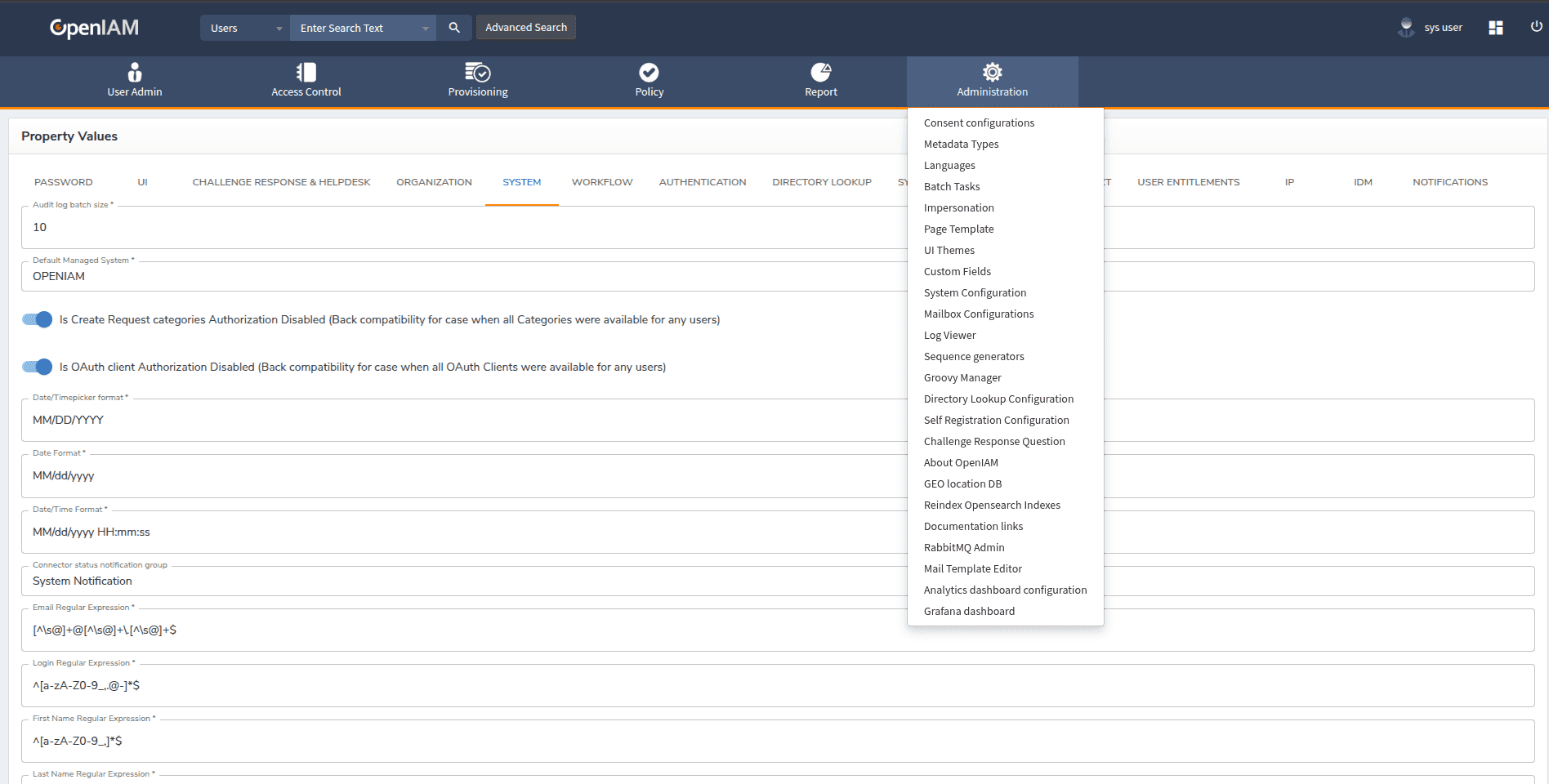
Scroll down to find the four regular expression (regex) fields.
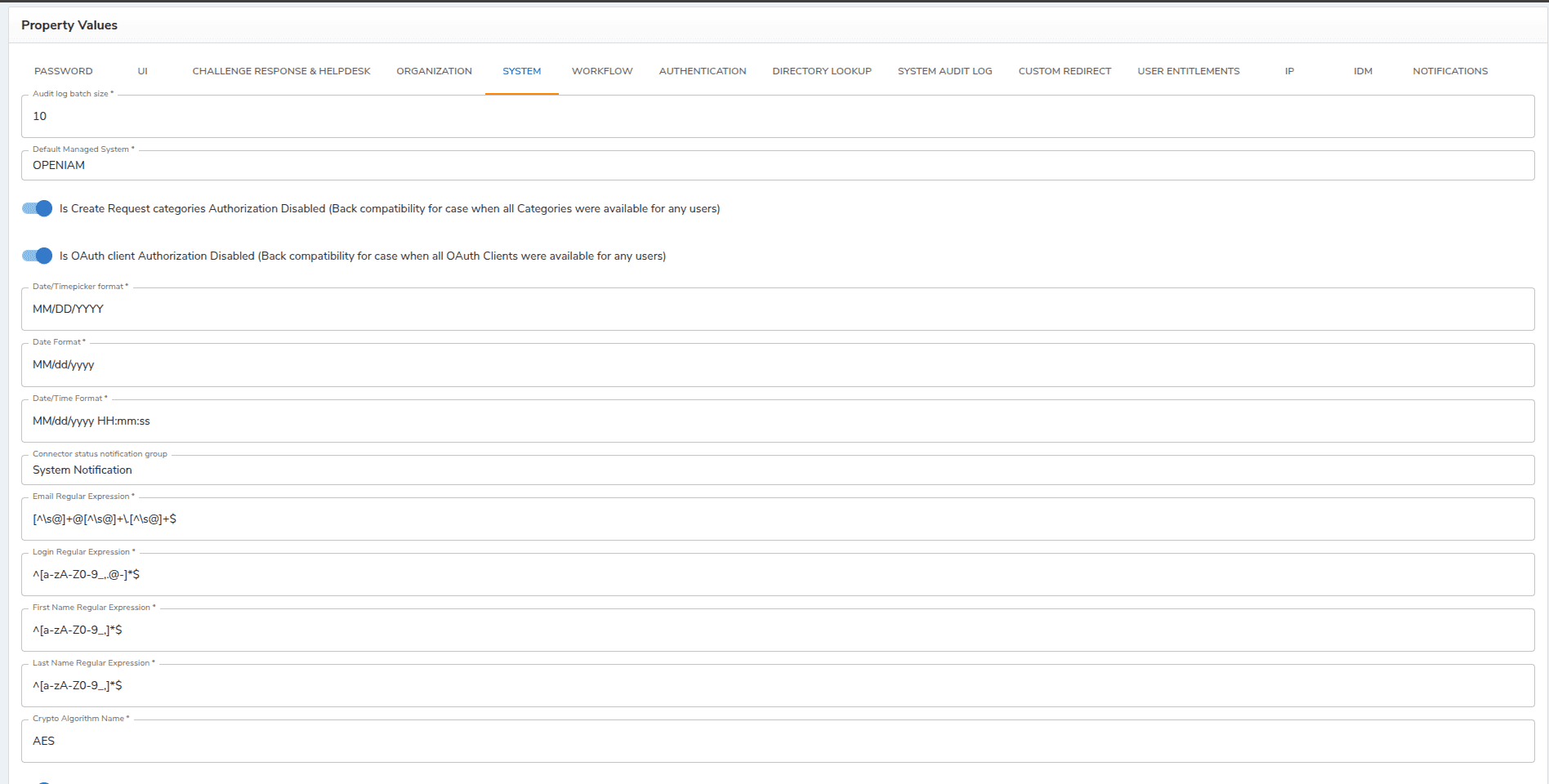
Fields
Email Regular Expression
The field controls what is considered a valid email address throughout OpenIAM.
| Value | |
|---|---|
| Default | [^\s@]+@[^\s@]+\.[^\s@]+$ |
| Recommended | ^[a-zA-Z0-9._%+-]+@[a-zA-Z0-9.-]+\.[a-zA-Z]{2,}$ |
The default value accepts any string that has no whitespace or @ before the @, followed by a domain containing a dot. Simple and permissive, but missing the ^ anchor — a multiline input could bypass it.
The recommended checks the following matches.
| Segment | Matches |
|---|---|
^[a-zA-Z0-9._%+-]+ | Local part: letters, digits, . _ % + - — at least one char |
@ | Literal @ |
[a-zA-Z0-9.-]+ | Domain name: letters, digits, . - |
\.[a-zA-Z]{2,}$ | TLD: dot followed by at least 2 letters |
Examples:
| Input | Default | Recommended |
|---|---|---|
user@example.com | ✓ | ✓ |
user.name+tag@sub.domain.org | ✓ | ✓ |
user@state.mn.us | ✓ | ✓ |
user@domain (no TLD) | ✓ (false positive) | ✗ |
user @example.com (space) | ✗ | ✗ |
user@@example.com | ✗ | ✗ |
@example.com | ✗ | ✗ |
Login regular expression
This expression controls what characters are allowed in a user's login (username).
| Value | |
|---|---|
| Default | ^[a-zA-Z0-9_,.@-]*$ |
| Recommended | ^[a-zA-Z0-9_,.@-]+$ |
The key difference here is * vs +. The default uses * (zero or more), which means an empty string passes validation. Change to + (one or more) to require at least one character.
Allowed characters (both patterns):
| Character(s) | Reason |
|---|---|
a-zA-Z0-9 | Standard alphanumeric |
_ | Common in usernames (e.g., john_doe) |
. | Common separator (e.g., john.doe) |
, | Some directory systems use this |
@ | Email-style logins (e.g., user@domain.com) |
- | Hyphenated names |
Examples:
| Input | Valid |
|---|---|
jsmith | ✓ |
john.doe | ✓ |
user@domain.com | ✓ |
john_doe-01 | ✓ |
john doe (space) | ✗ |
user#name | ✗ |
| (empty) | ✗ with recommended; ✓ with default |
First name regular expression
These control what characters are allowed in a user's first name.
| Value | |
|---|---|
| Default | ^[a-zA-Z0-9_,]*$ |
| Recommended | ^[a-zA-Z\s'\-]+$ |
In the default patterns, digits (0-9) and underscore (_) are unusual in personal names. More importantly, it uses * so an empty first name passes. The pattern also does not allow spaces, hyphens, or apostrophes — which are common in real names (Mary-Jane, O'Brien).
The recommended pattern covers the following.
| Character(s) | Example |
|---|---|
a-zA-Z | Standard letters |
\s | Space — for compound first names (Mary Jane) |
' | Apostrophe — for names like O'Brien |
\- | Hyphen — for hyphenated names like Mary-Jane |
+ | Requires at least one character |
Examples:
| Input | Default | Recommended |
|---|---|---|
John | ✓ | ✓ |
Mary Jane | ✗ | ✓ |
O'Brien | ✗ | ✓ |
Mary-Jane | ✗ | ✓ |
John2 | ✓ | ✗ |
| (empty) | ✓ | ✗ |
Last name regular expression
The last name field controls what characters are allowed in a user's last name. Same considerations as for the First Name apply.
| Value | |
|---|---|
| Default | ^[a-zA-Z0-9_,]*$ |
| Recommended | ^[a-zA-Z\s'\-]+$ |
The same recommended pattern as first name applies here. Last names share the same real-world formatting needs: hyphens (Smith-Jones), apostrophes (O'Connor), and spaces (Van Der Berg).
Updating the regex fields
In the event the regex fields need to be updated, follow the steps below.
- Navigate to Webconsole > Administration > System Configuration > System tab.
- Locate the regex field you want to update.
- Clear the existing value and paste the new regular expression.
- Click Save.
- Test immediately by creating or editing a user with sample inputs — see the testing section below.
Testing regex fields
Before applying any regex field expression, make sure to test their work to prevent unintended side effects and ensure the rules behave exactly as expected. Use one of the following methods to validate a regex pattern before saving it in OpenIAM.
Online tester
Go to regex101.com, select Java flavour (as OpenIAM backend uses Java), paste your pattern, and test it against sample inputs.
Groovy one-liner
Groovy matches OpenIAM's engine and hence can be used for testing in this regard.
def pattern = /^[a-zA-Z0-9._%+-]+@[a-zA-Z0-9.-]+\.[a-zA-Z]{2,}$/def testInputs = ["user@example.com","user@state.mn.us","bad input","@nodomain.com","user@domain"]testInputs.each { input ->println "${input.padRight(30)} -> ${input.matches(pattern) ? 'VALID' : 'INVALID'}"}
Quick bash test
Use the following bash option to quickly test your regex pattern against sample input, ensuring it matches expected values and rejects invalid ones before applying it system-wide.
echo "user@example.com" | grep -P '^[a-zA-Z0-9._%+-]+@[a-zA-Z0-9.-]+\.[a-zA-Z]{2,}$'
Quick reference
You can also use the following table for a quick reference across regex fields in OpenIAM.
| Field | Default | Recommended | Key improvement |
|---|---|---|---|
[^\s@]+@[^\s@]+\.[^\s@]+$ | ^[a-zA-Z0-9._%+-]+@[a-zA-Z0-9.-]+\.[a-zA-Z]{2,}$ | Adds ^ anchor, enforces 2-char TLD | |
| Login | ^[a-zA-Z0-9_,.@-]*$ | ^[a-zA-Z0-9_,.@-]+$ | + prevents empty login |
| First Name | ^[a-zA-Z0-9_,]*$ | ^[a-zA-Z\s'\-]+$ | Allows spaces, hyphens, apostrophes; removes digits |
| Last Name | ^[a-zA-Z0-9_,]*$ | ^[a-zA-Z\s'\-]+$ | Same as first name |