Installing OpenIAM with a remote Oracle database in RPM environment
This document provides step-by-step instructions for installing OpenIAM using a remote Oracle database. It is intended for system administrators and engineers who need to configure the application to connect to an externally hosted database environment. Oracle Database (Oracle DB) is a widely used enterprise relational database management system (RDBMS) known for its scalability, reliability, and advanced data management capabilities. By following this guide, you will learn how to prepare your environment, configure the necessary connection parameters, and complete the installation process with a remote Oracle database backend.
Preparation
To install OpenIAM with a remote Oracle DB, prepare the DB first. Start with creating a VM in Azure.
Type Red hat in a search engine and select Red Hat Enterprise Linux (RHEL) RAW for Microsoft Azure > Red Hat Enterprise Linux 9.7 RAW with cloud-init or Rocky Linux and select Rocky Linux for x86_64 (AMD64) official > Rocky Linux 9.
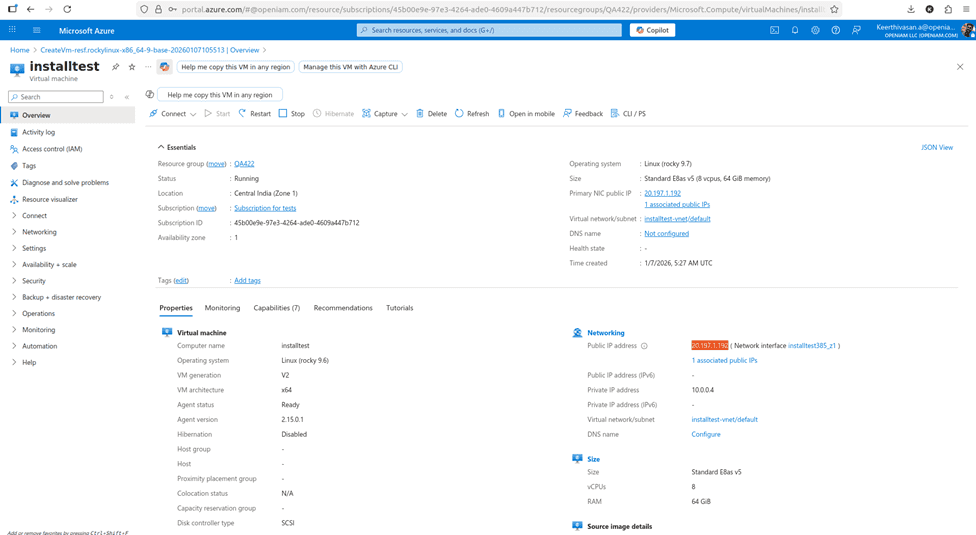
- Login into VM with terminal using IP.
Ssh qa422@20.40.45.24
When OpenIAM installation or Flyway runs, it can easily take more than 5–10 minutes, and if your SSH session drops, the install will hang or terminate. That’s why screen (or tmux) is REQUIRED, not optional.
- Proceed with installing screen.
sudo dnf install -y screen
Verify installation.
screen --version
Expected output of the command above is
Screen version 4.x.x
- Start a new screen session.
screen -S openiam-install
You are now inside screen. Everything you run here will continue even if SSH disconnects.
- Run long installation commands inside screen
sudo openiam-cli init//or./install.sh
- Detach from screen (safe exit). Press Ctrl + A, then D. You will see
[detached from openiam-install]. Your install is still running in background ✅. - Reattach to screen (resume session)
screen -r openiam-install
If only one screen exists use:
screen -r
- Listing all screen sessions.
screen -ls
Example output of the command above is
There is a screen on:12345.openiam-install (Detached)1 Socket in /run/screen/S-qa422.10. STEP 7 — Exit screen when installation is completeInside screen:ExitCtrl + D
Installing OpenIAM
The following sections will guide you through the OpenIAM installation process step by step. Start with downloading the RPM installer using the following command.
curl https://download.openiam.com/prerelease/enterprise/4.2.2/rpm/openiam-4.2.2.noarch.x86_64.rpm --output openiam-4.2.2.noarch.x86_64.rpm
To check correct file is downloaded use the below command.
file openiam-4.2.2.noarch.x86_64.rpm
Once the download is complete, install OpenIAM using the following command. This step will also update the initial ulimit settings, which are required for the subsequent installation process.
sudo rpm -i openiam-4.2.2.noarch.x86_64.rpm
After connection is closed, you need to check whether file is installed properly or not. Use the following command.
rpm -q openiam
If it is not installed properly it will display the OpenIAM is not installed. It means failed mid-install, and you will need to run it again.
Check whether the swap is enabled and if enabled we need to disable it by below commands after checking it.
sudo swapon --show (Check whether the swap is enabled)sudo swapoff -a (Disable swap)sudo swapon –show (It should be empty)
Editing database
As the default database value is MySQL, you will need to edit the below conf file. You need to change the port from 3306 to 1521 and export FLYWAY_DATABASE_TYPE=”oracle”.
export OPENIAM_ENV= prerelease (if it is prerelease by default, it will be release)export FLYWAY_ORACLE_SID=ORCL1#export FLYWAY_ORACLE_SERVICE_NAME=sudo vi /usr/local/openiam/env.conf
Then, validate Vault users and Oracle DB created users so that it won’t prevent database validation. To validate Oracle DB users use
sudo docker exec -it oracle-19c bashsqlplus / as sysdbaSELECT username, account_statusFROM dba_usersWHERE username IN ('IDMUSER','ACTIVITI','GROOVY');
It MUST show all 3 users = OPEN.
After, validate Oracle passwords with the following.
sqlplus idmuser/idmuserexitsqlplus activiti/activitiexitsqlplus groovy/groovyexit
All must connect successfully
Finally, check Vault values.
cd /usr/local/openiam/utils/vault./vault.fetch.property.sh vault.secret.jdbc.username./vault.fetch.property.sh vault.secret.jdbc.passwordExpected:idmuseridmuser./vault.fetch.property.sh vault.secret.activiti.jdbc.username./vault.fetch.property.sh vault.secret.activiti.jdbc.passwordExpected:activitiactiviti./vault.fetch.property.sh vault.secret.groovy.jdbc.username./vault.fetch.property.sh vault.secret.groovy.jdbc.passwordExpected:groovygroovy
Final rule and the MOST IMPORTANT one is that Oracle user + password = Vault user + password.
Proceed with the initialization process which will download files required for installation from OpenIAM server. Please follow the instructions on the screen.
sudo openiam-cli init
You will be asked about Internet access on this box, as shown below. Type y and press Enter. If you are facing any issues in initialization, then we need to check below file and comment the configuration.
sudo vi /usr/local/openiam/utils/init.sh
You will be prompted to enter the Oracle SID. Provide the appropriate value.
You will then be asked for the Oracle service name. Press Enter to skip this field (either SID or service name must be provided; since you have specified the SID, you can leave this empty).
Review all entered details and typeYto confirm.Do you want to install the OpenIAM reverse proxy module? (y/n):
YDo you want to install Prometheus + Grafana stack for monitoring? (y/n):
If this is a test, development, or POC environment, or if you do not need monitoring at this time, chooseN. OpenIAM can function without Prometheus and Grafana.
Monitor the startup process using the following command:
sudo openiam-cli status
Then, try logging in to the OpenIAM Webconsole:
- Open a browser and navigate to: http://20.40.45.24/webconsole.
- Enter the username and password: sysadmin / passwd00.
- On the next screen, create a new password and click Apply.
- Enter the IAM content provider name as default and select HTTP only.
- Answer the security questions.
- Verify that the user is able to log in successfully.
- Validate OpenIAM by creating users and other records.