Creating custom CSS
Creating a custom CSS file allows you to tailor the appearance and behavior of an application beyond the default styling provided out of the box by OpenIAM. This can help align the user interface with your corporate branding requirements, improve usability and accessibility, or adapt the layout to your specific business needs and workflows.
In case this is what you need, OpenIAM provides a possibility to customize the look and field of your application using CSS file, as described below.
Docker environment
- Create a folder on server and add all permissions to it.
root@OpenIAM:/# cd /usr/local/openiam/root@OpenIAM:/usr/local/openiam# sudo mkdir static_dataroot@OpenIAM:/usr/local/openiam# sudo chmod -R 777 static_data/
And add CSS file in the specified folder. Some examples of CSS files' structure can be found here.
root@OpenIAM:/usr/local/openiam# cd static_dataroot@OpenIAM:/usr/local/openiam/static_data# lscustom.cssroot@OpenIAM:/usr/local/openiam/static_data#
- Navigate to the UI service compose file.
root@OpenIAM:/usr/local/openiam/static_data# cd ..root@OpenIAM:/usr/local/openiam# cd conf/starter/servicesroot@OpenIAM:/usr/local/openiam/conf/starter/services# lsui.yamlroot@OpenIAM:/usr/local/openiam/conf/starter/services# sudo nano ui.yaml
Add the following line: /usr/local/openiam/static_data/custom.css:/usr/local/tomcat/webapps/static/custom.css
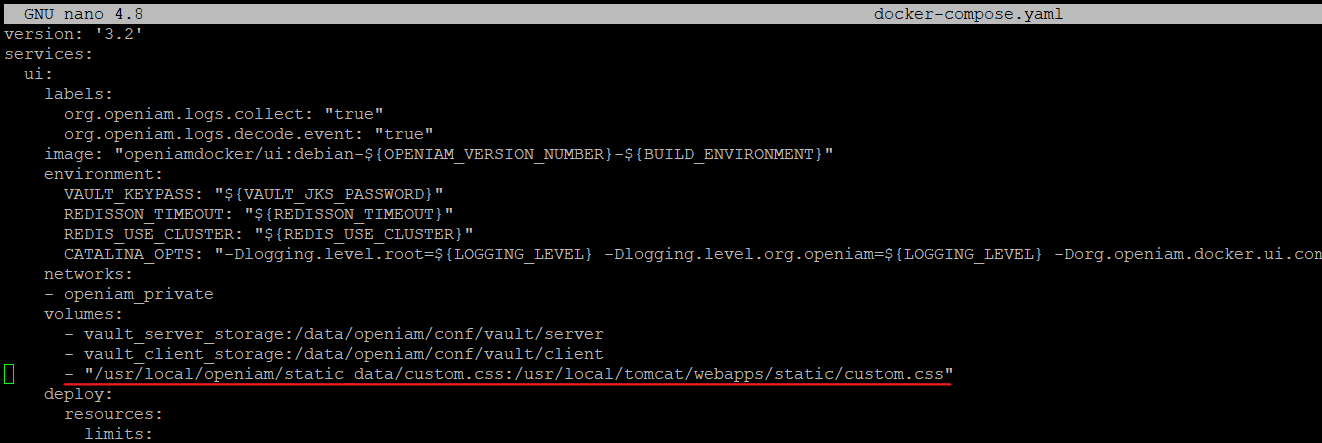
- After changing the
.yamlfile, redeploy the UI stack.
root@OpenIAM:/usr/local/openiam/conf/starter# docker stack deploy --compose-file services/ui.yaml openiam
root@OpenIAM:/usr/local/openiam/conf/starter# docker ps | grep uidffe7a02ddad openiam/ui:latest ...root@OpenIAM:/usr/local/openiam/conf/starter# docker exec -it dffe7a02ddad bashbash-5.1$ cd /usr/local/tomcat/webapps/static/bash-5.1$ lscustom.cssbash-5.1$
Once UI container is up and running go to Access Control > Content Provider in Application and select the content provider in use.
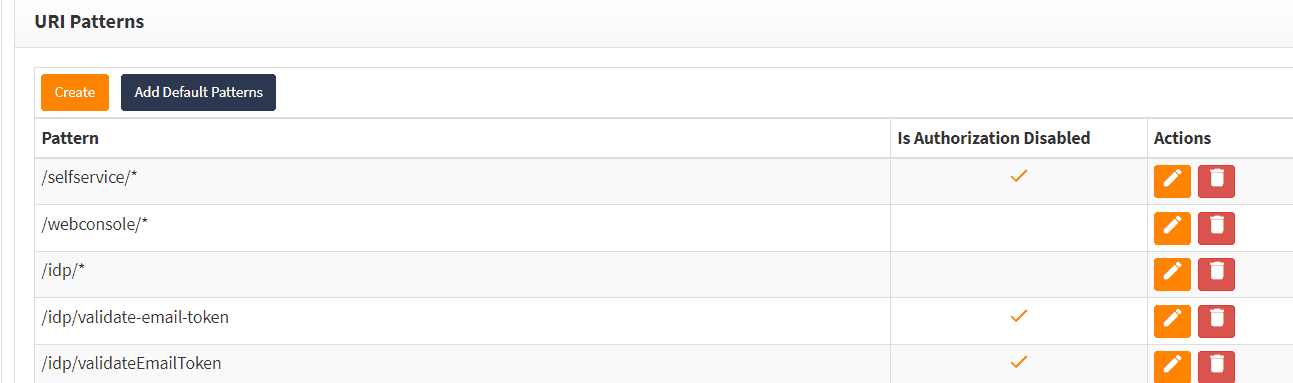
Go to URI patterns.
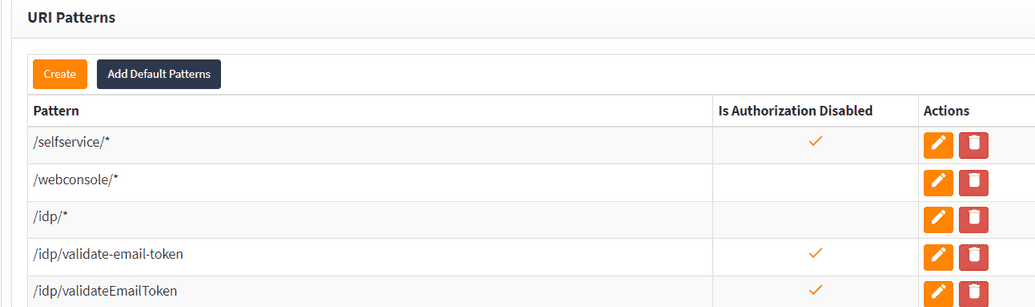
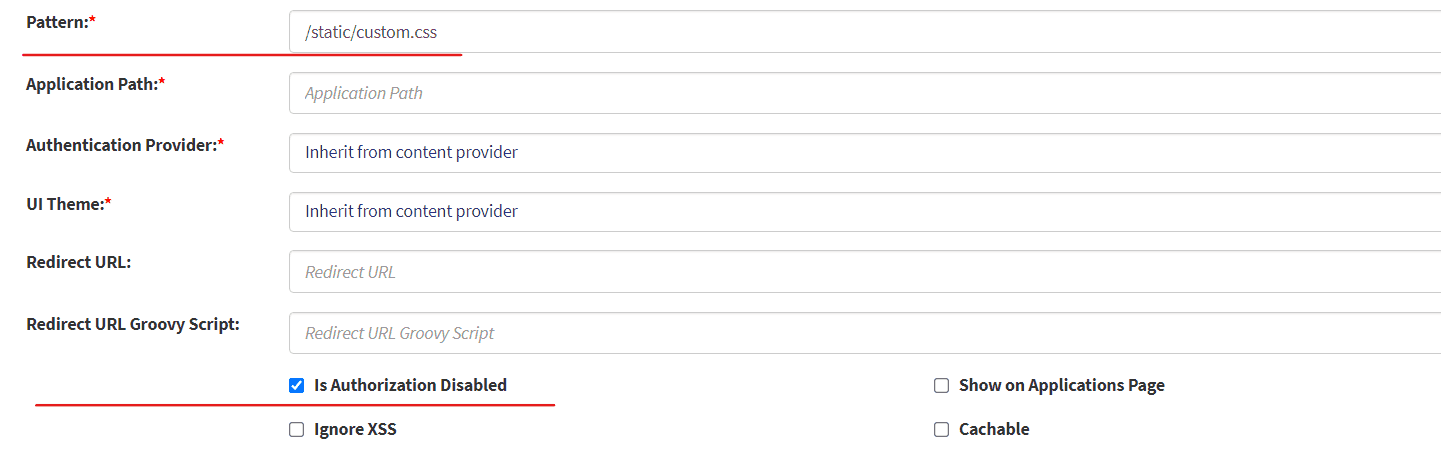
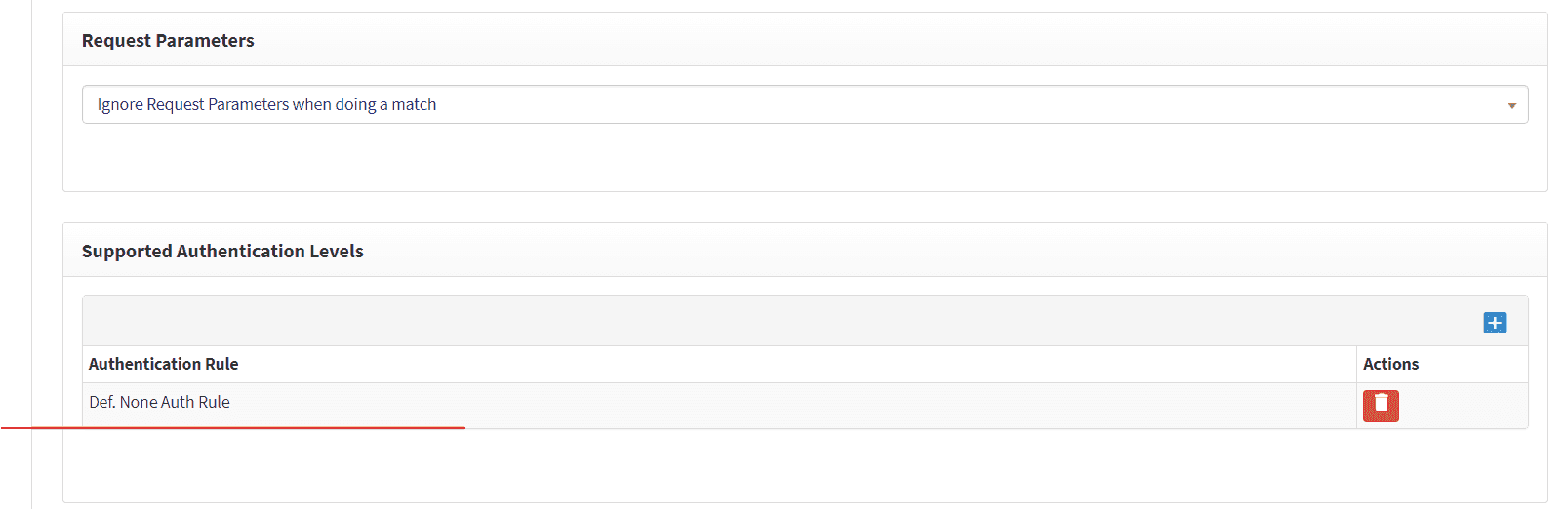
Click Create and create a new pattern in similar way as depicted below.
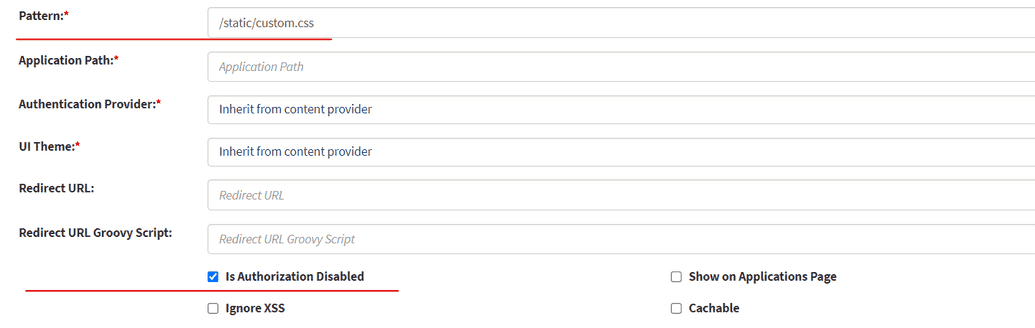
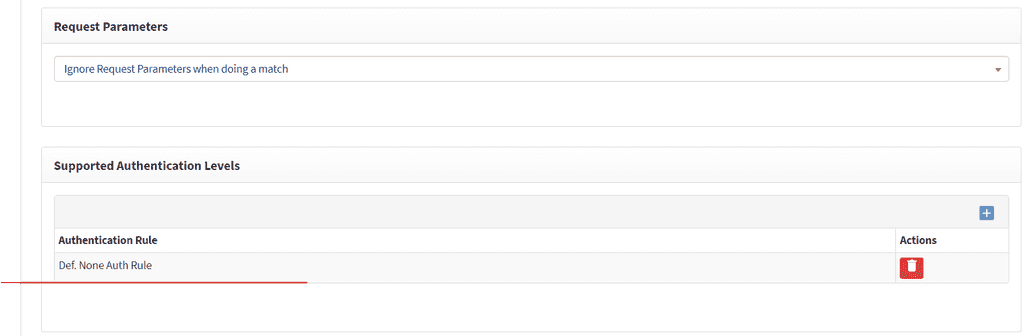
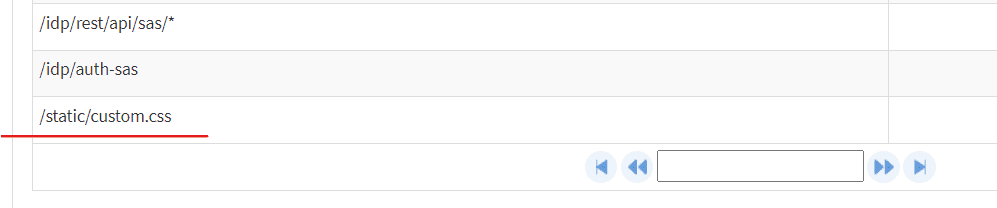
Save and check if the pattern was added.
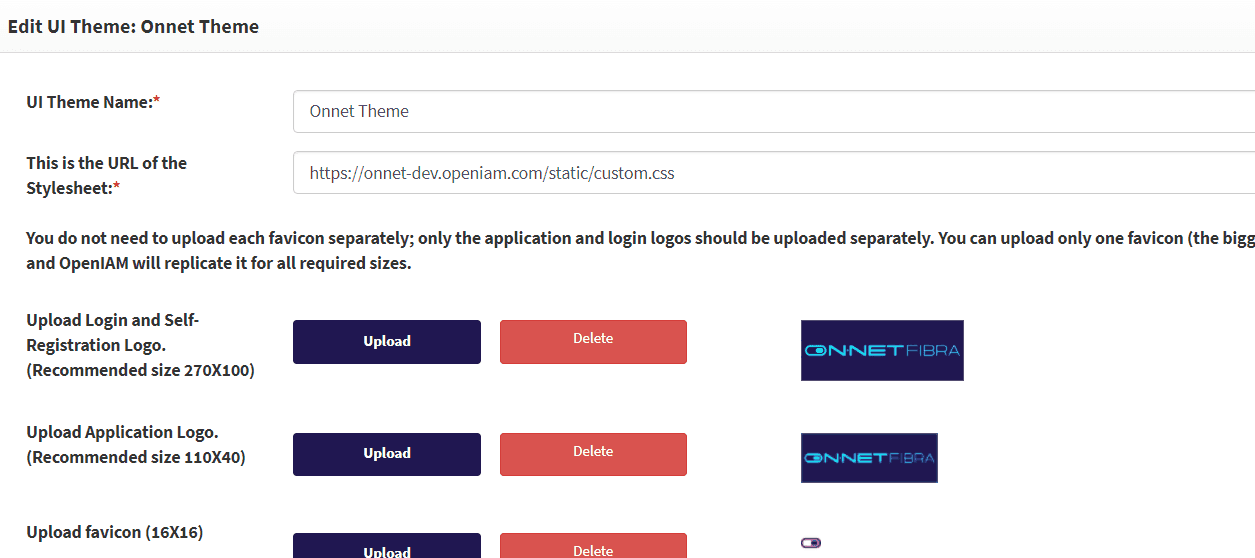
Go to Administration > UI Themes and click edit. In the Stylesheet URL field, enter the web-accessible path to your CSS file, e.g.
/openiam-ui-static/bootstrap-ui/css/custom.css.
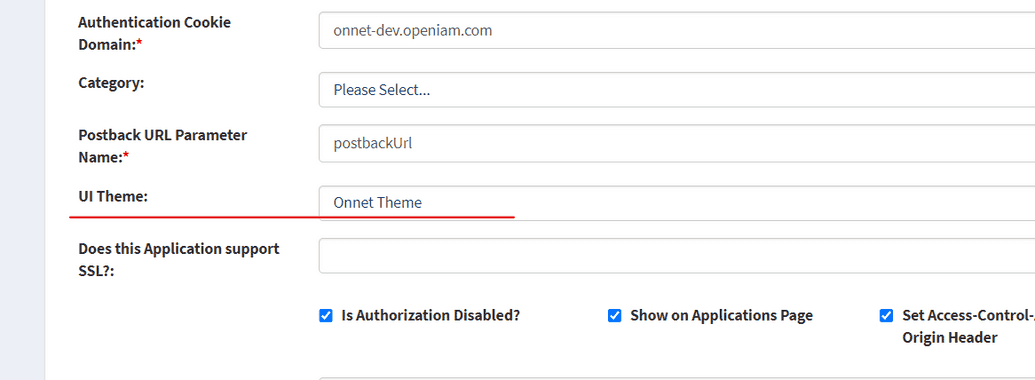
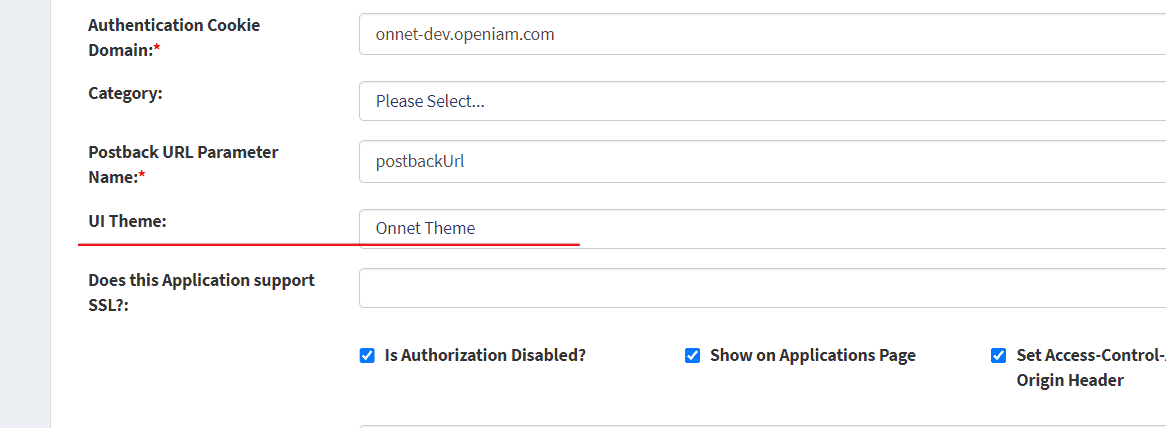
Go to Content provider and find the UI theme line. Add the theme edited at the step above.
Hit
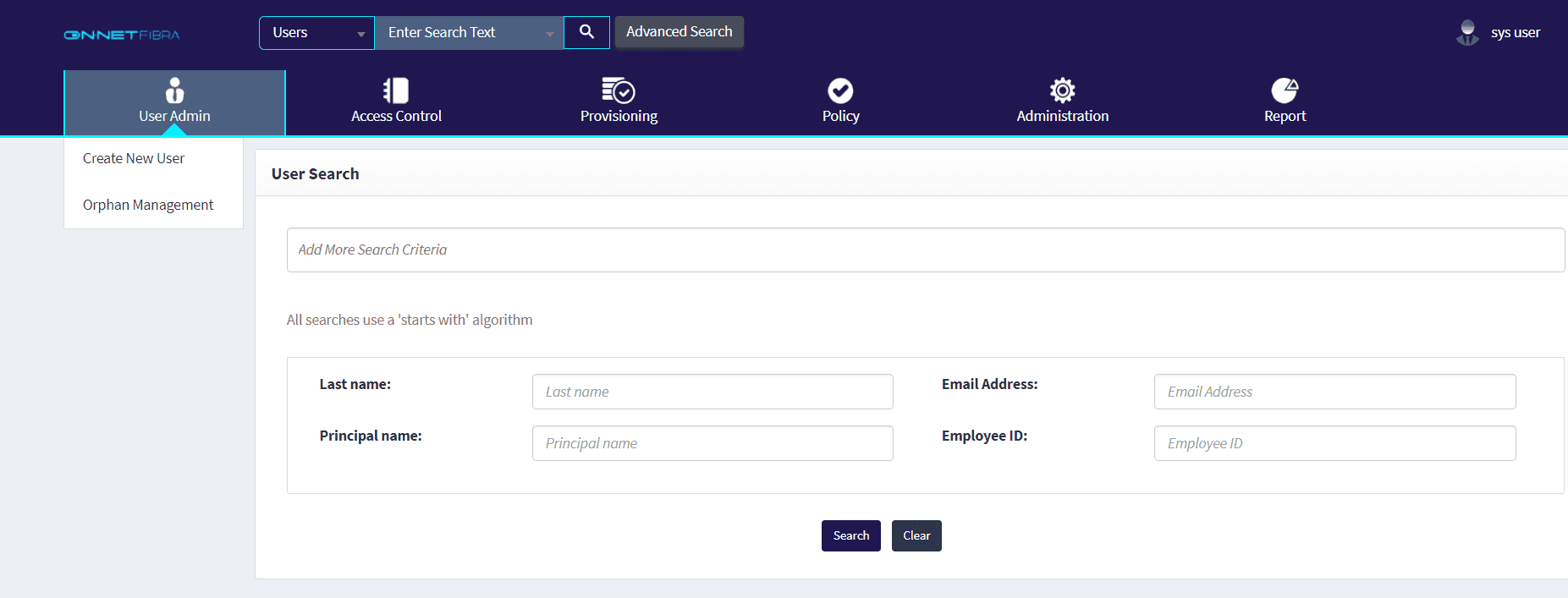
Ctrl + F5to reload cache. The CSS applied, as shown below.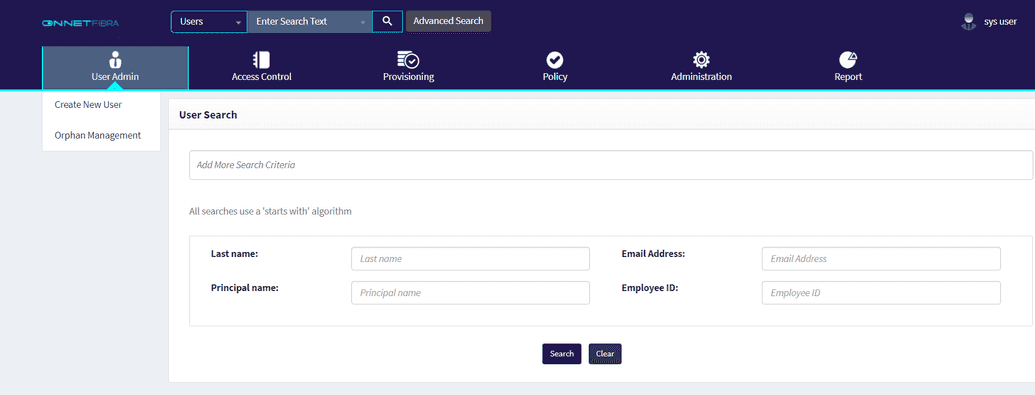
RPM environment
- Create the directory structure.
sudo mkdir -p /data/openiam/conf/ui/static/custom/bootstrap-ui/csssudo mkdir -p /data/openiam/conf/ui/static/custom/imagessudo chown -R openiam:openiam /data/openiam
- Add your CSS file.
Place your stylesheet at:
/data/openiam/conf/ui/static/custom/bootstrap-ui/css/custom.css
The file must be named custom.css. Custom images can be placed under the images/ directory at the same level.
- Restart the UI static service
sudo systemctl restart openiam-ui-static
- Configure UI theme and Content provider
Follow Steps 4–9 from the Docker section above — the UI Theme, Content Provider, and URI Pattern configuration is the same for RPM.
Tip: If the CSS does not apply after restarting, verify directory ownership (
sudo chown -R openiam:openiam /data/openiam), restart the service again, and test in a browser incognito window or with a hard reload (Ctrl+F5).