Known issues related to upgrading from 4.2.1.x to 2026.4.1 version
This document outlines known issues that may arise when upgrading from OpenIAM version 4.2.1.x to the 4.2.2 release. While the upgrade process is designed to be straightforward, certain changes in dependencies, configurations, and component behavior can introduce challenges in specific environments.
The purpose of this guide is to proactively highlight these issues, explain their potential impact, and provide recommended workarounds or mitigation steps. Reviewing this information before initiating the upgrade will help minimize downtime, avoid common pitfalls, and ensure a smoother transition to version 4.2.2.
IAM configuration and script migration
- Move IAM Groovy Scripts. Start with registering Groovy scripts in the database. Since this is an upgrade, there is a possibility that there may new Groovy scripts have been added to meet some business requirements. In such cases, those scripts should have corresponding entries in the database, specifically in the
GROOVY_FILEtable. For each new or customized Groovy script:
- Add a record to the groovy_file table.
- Ensure the entry is created in the Groovy database. This allows IAM to recognize and manage the script.
Update Groovy script references. Modify the GroovyScriptURL field in the relevant database tables. Replace file-based URLs with the corresponding ID from the groovy_file table.
UPDATE <table_name>SET GroovyScriptURL = <groovy_file_id>WHERE <condition>;
Page template changes
Enable the template-based user page. Verify that it is visible in the UI.
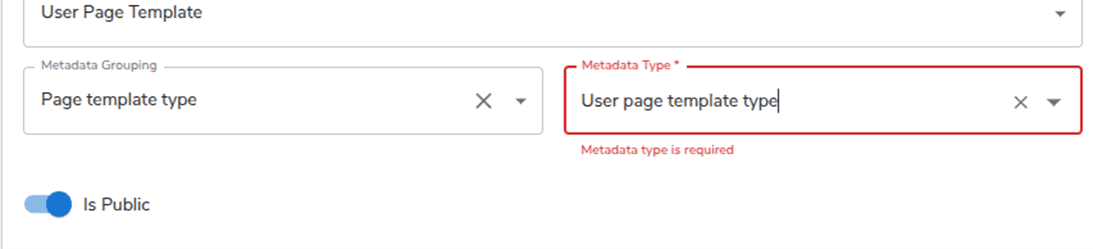
Configuration steps depend on the IAM UI / deployment setup.
Managed System configuration
Fix blank attribute values issue. A possible issue here is that Managed System attributes may appear blank even when values are entered. If so, the workaround is as follows.
- Enter the attribute value in the field.
- Press Enter.
- Click Save.
Pressing Enter ensures the value is registered before saving.
Updating Groovy script references in OpenIAM tables
Here, the most critical task is update database references from Groovy file paths to Groovy script IDs stored in the groovy.GROOVY_FILE table. The process applies to Business Rules, properties, batch tasks, and synchronization configurations.
Groovy scripts can also be referenced in PROPERTY_FILE_VALUES. Validate property values by running the following SELECT to verify which properties reference Groovy scripts by path and what their new IDs will be.
SELECTp.PROPERTY_ID,p.PROPERTY_VALUE AS OLD_VALUE,g.GROOVY_SCRIPT_ID AS NEW_VALUE,p.CATEGORYFROM openiam.PROPERTY_FILE_VALUES pJOIN groovy.GROOVY_FILE gON g.FILE_NAME = REPLACE(SUBSTRING_INDEX(p.PROPERTY_VALUE, '/', -1), '.groovy', '')AND g.PATH = CASEWHEN p.PROPERTY_VALUE LIKE '/%' THENSUBSTRING_INDEX(SUBSTRING(p.PROPERTY_VALUE, 2),'/',LENGTH(SUBSTRING(p.PROPERTY_VALUE, 2)) -LENGTH(REPLACE(SUBSTRING(p.PROPERTY_VALUE, 2), '/', '')))ELSESUBSTRING_INDEX(p.PROPERTY_VALUE,'/',LENGTH(p.PROPERTY_VALUE) -LENGTH(REPLACE(p.PROPERTY_VALUE, '/', '')))ENDWHERE p.PROPERTY_TYPE = 'GROOVY'AND p.PROPERTY_VALUE LIKE '%/%'ORDER BY p.CATEGORY, p.PROPERTY_ID;
After validation, update the properties to store the Groovy script ID.
UPDATE openiam.PROPERTY_FILE_VALUES pJOIN groovy.GROOVY_FILE gON g.FILE_NAME = REPLACE(SUBSTRING_INDEX(p.PROPERTY_VALUE, '/', -1), '.groovy', '')AND g.PATH = CASEWHEN p.PROPERTY_VALUE LIKE '/%' THENSUBSTRING_INDEX(SUBSTRING(p.PROPERTY_VALUE, 2),'/',LENGTH(SUBSTRING(p.PROPERTY_VALUE, 2)) -LENGTH(REPLACE(SUBSTRING(p.PROPERTY_VALUE, 2), '/', '')))ELSESUBSTRING_INDEX(p.PROPERTY_VALUE,'/',LENGTH(p.PROPERTY_VALUE) -LENGTH(REPLACE(p.PROPERTY_VALUE, '/', '')))ENDSET p.PROPERTY_VALUE = g.GROOVY_SCRIPT_IDWHERE p.PROPERTY_TYPE = 'GROOVY'AND p.PROPERTY_VALUE LIKE '%/%';
Final verification
After completing the update:
- Re-run validation SELECT queries to confirm no path-based Groovy references remain.
- Test synchronization, reconciliation, and provisioning flows.
Make sure to repeat managed-system–specific steps for all other managed systems.
Post-upgrade tasks
Update access_certification schedule types.
It will normalize deprecated schedule values after upgrade. Identify affected records and run the following query to review certifications with a defined schedule.
SELECT id, name, schedule_typeFROM access_certificationWHERE schedule_type IS NOT NULL;
Update deprecated schedule values using the following schedule value reference:
INTERVAL_2 = SEMI_ANNUALLYINTERVAL_4 = QUARTERLYINTERVAL_ANNUAL = ANNUALLY
For example, SQL conversion for INTERVAL_2 looks as follows.
BEGIN;UPDATE access_certificationSET schedule_type = 'SEMI_ANNUALLY'WHERE schedule_type = 'INTERVAL_2';COMMIT;
Here, all access certifications previously using INTERVAL_2 will now use SEMI_ANNUALLY.
For QUARTERLY interval, the SQL conversion looks as follows.
BEGIN;UPDATE access_certificationSET schedule_type = 'QUARTERLY'WHERE schedule_type = 'INTERVAL_4';COMMIT;
All access certifications previously using INTERVAL_4 will now use QUARTERLY.
And the following SQL conversion is used for INTERVAL_ANNUAL.
BEGIN;UPDATE access_certificationSET schedule_type = 'ANNUALLY'WHERE schedule_type = 'INTERVAL_ANNUAL';COMMIT;
All access certifications previously using INTERVAL_ANNUAL will now use ANNUALLY.
Script updates required
This ensures all Groovy scripts properly handle responses introduced or enforced after the upgrade.
Perform validation and updates for the following script categories:
- All policy map scripts.
- Preprocessor scripts.
- Postprocessor scripts.
ConnectorResponsescripts.- All transformation scripts.
- Validation scripts.
DefaultProvisionServiceEventProcessor.groovy.TestScriptConnector.groovy.- All connector scripts.
CustomNotificationDelegate.groovy.- All batch scripts.
Expected changes may include the following.
- Improved error parsing and logging.
- Adjusted return values or exception handling.
UI customization and custom CSS deployment
UI custom styling must be reapplied after system upgrade. Deploy custom.css. Move the customized stylesheet to the UI static storage volume.
/docker/volumes/ui_static_storage/_data
Restart the UI service if styles do not apply immediately.
Post-upgrade content pattern restoration
It helps to maintain backward compatibility for content and templates used before the upgrade. Reapply default patterns. After upgrading the system.
- Add the default content pattern that was used in the previous version.
- Ensure the pattern matches the structure expected by existing templates and pages.
Fixing missing connector.response.handler.script in IDM
Use this procedure if an IDM error occurs indicating that the connector response handler script is missing or not configured.
- Check if the property is already configured. First, verify whether the required property exists in the
PROPERTY_FILE_VALUEStable.
SELECT *FROM PROPERTY_FILE_VALUESWHERE PROPERTY_ID = 'org.openiam.idm.connector.response.handler.script';
If this query returns a result, the property is already configured and no further action is required. If no rows are returned, the property is missing and must be added manually.
You can also go to webconsole > Administration > System configuration after the upgrade, go through the tabs and check that all scripts are presented in the configurations. This will check not just connector listener, but all other default ones that now are defined through the properties table.
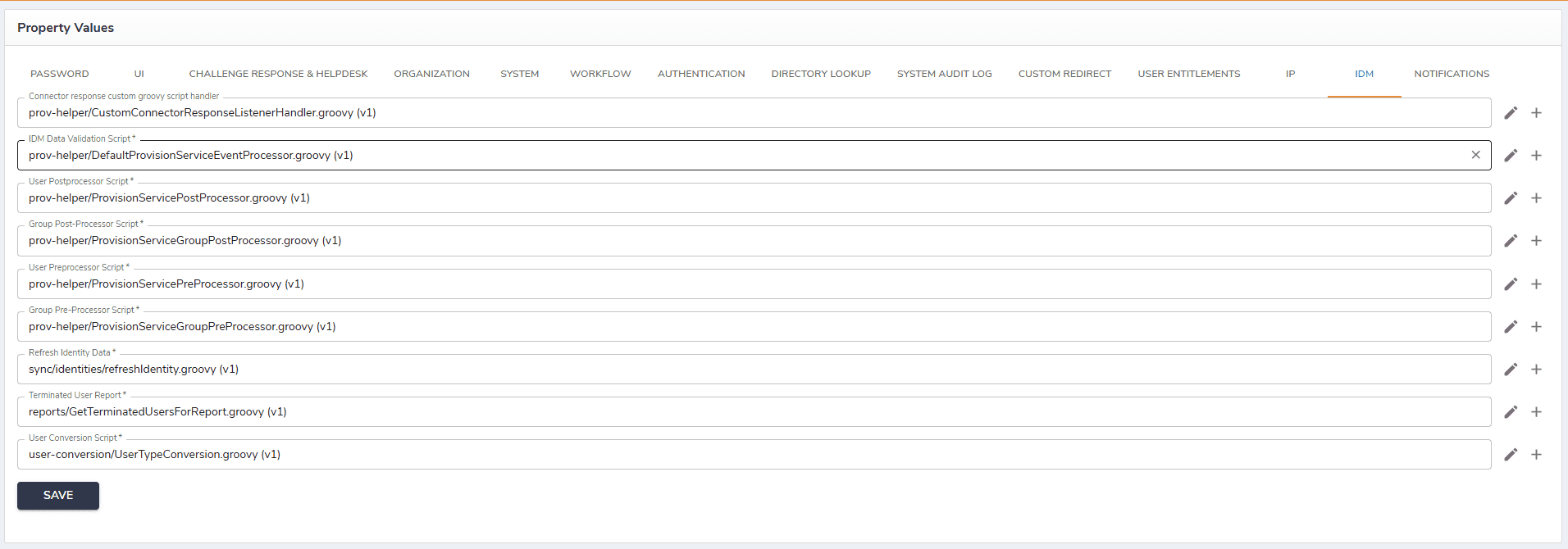
Another option is to check the count of such properties from DB. The below query can be used and as of today count is equal to 38.
SELECT COUNT(*)FROM PROPERTY_FILE_VALUESWHERE PROPERTY_TYPE = 'Groovy';
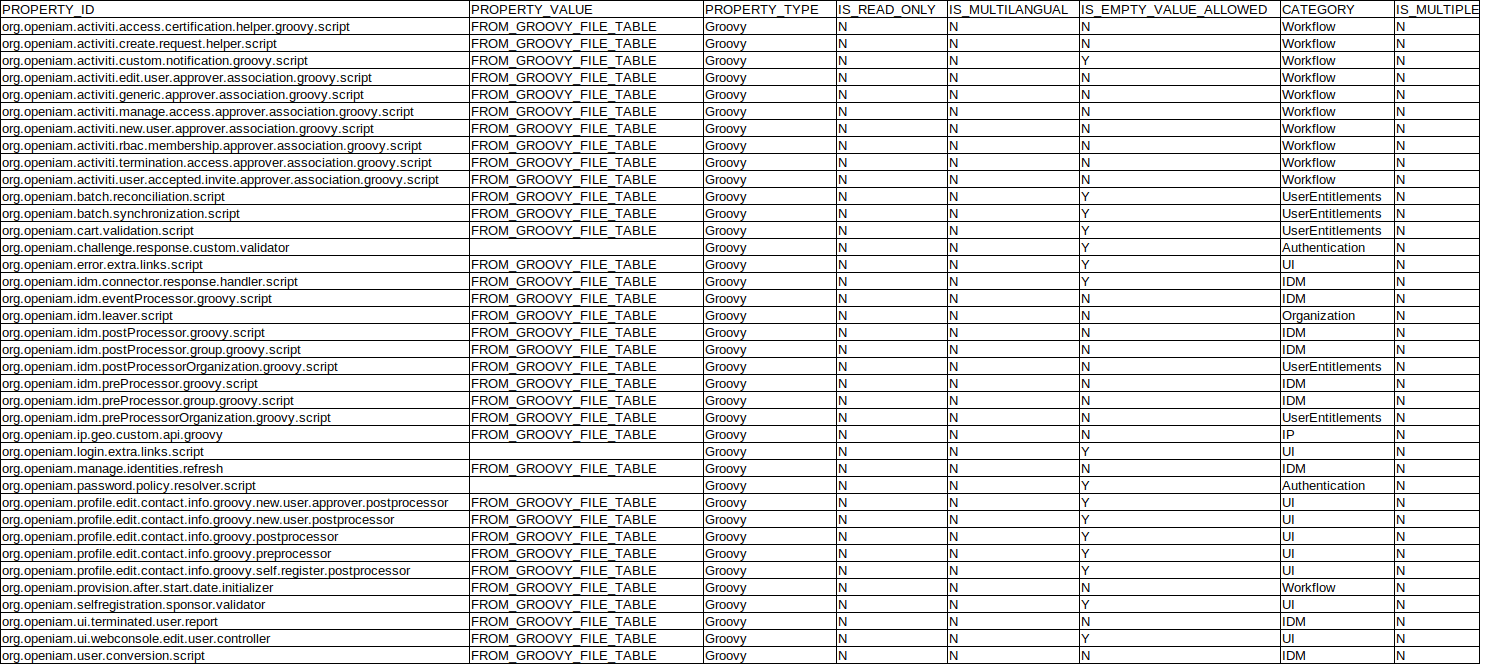
In case the count is different or the groovy is missing after the manual review, the property must be added manually.
- Find the Groovy script ID. If the property is missing, switch to the groovy schema and locate the Groovy script that should be used as the connector response handler.
SELECT *FROM GROOVY_FILEWHERE FILE_NAME LIKE 'CustomConnectorResponse%';
This query retrieves the Groovy script metadata. Note the value of GROOVY_SCRIPT_ID from the result. This ID will be used as the property value in the next step.
- Insert the missing property. Switch to the OpenIAM schema and insert a new record into
PROPERTY_FILE_VALUESusing theGROOVY_SCRIPT_IDobtained in step 2.
INSERT INTO PROPERTY_FILE_VALUES(category,is_empty_value_allowed,is_multilangual,is_multiple,is_read_only,property_id,property_type,property_value)VALUES('IDM','Y','N','N','N','org.openiam.idm.connector.response.handler.script','Groovy','id_from_previous_query_here');
property_iddefines the IDM configuration key.property_type = 'Groovy'tells OpenIAM that the value references a Groovy script.property_valuemust be replaced with the actualGROOVY_SCRIPT_ID.
- Commit the transaction (if required). Depending on your database configuration, explicitly commit the transaction:
COMMIT;
- ⚠️ Adjust SQL syntax as needed based on the database type (Oracle, MySQL, PostgreSQL, etc.).
- Always validate the inserted value by re-running the query from Step 1.
- Restart the application if the configuration is cached and the change does not take effect immediately.
Summary checklist
✅ Access certification schedules updated.
✅ All Groovy scripts reviewed for HTTP 422 handling.
✅ Custom UI styles restored.
✅ Legacy content patterns reintroduced.