Register applications
Manual applications, like automated applications, must be registered within OpenIAM before you can perform related operations. These applications can be registered individually through the UI or created in bulk if there are a large number of them. The sections below describe how to register an application.
Registering an application from the UI
To register an application, follow the steps below:
- Log in to the webconsole and navigate to Provisioning > Synchronization.
- Click on Create managed system from the side menu. The system will render the screen as shown below.
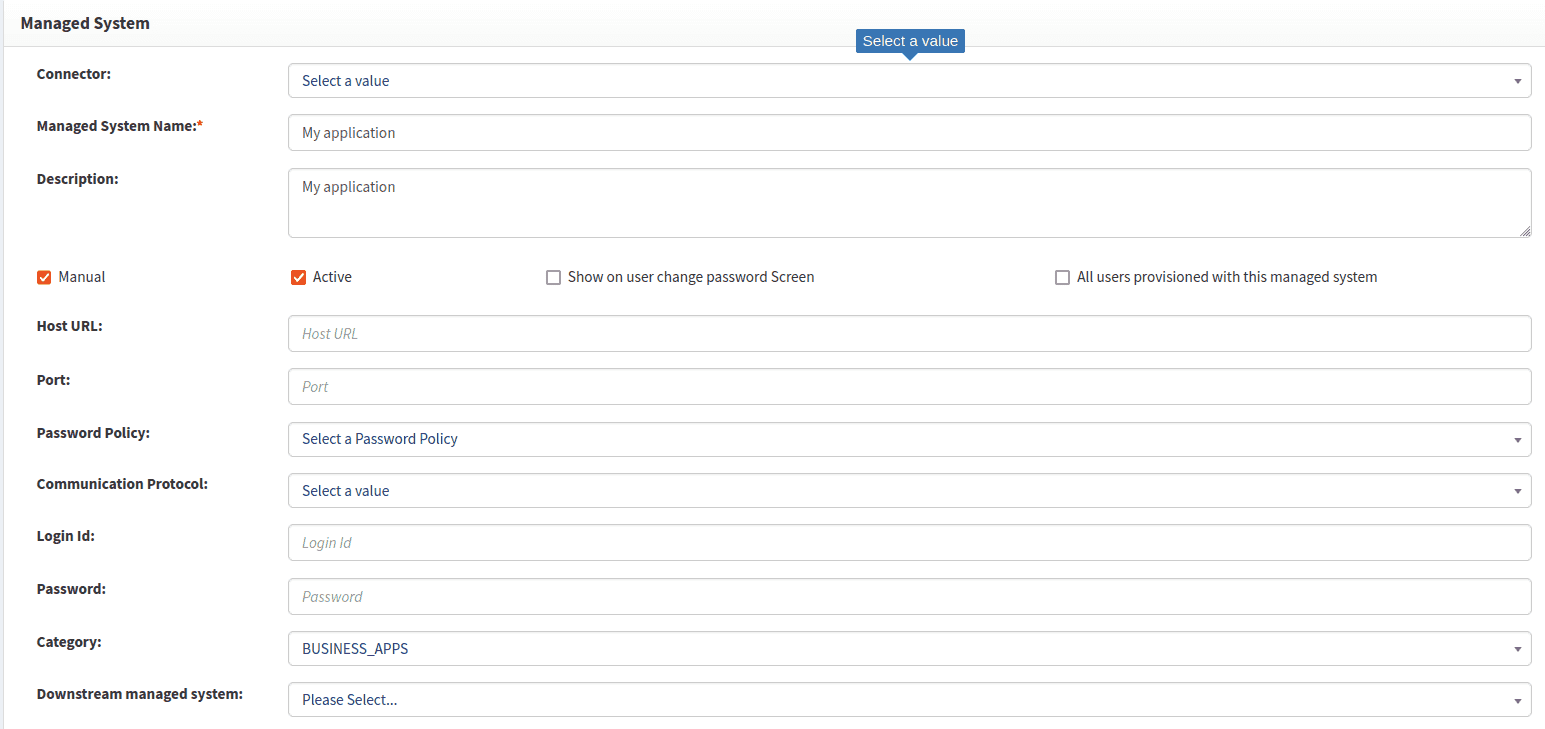
Populate the screen using the values from the table below.
| Field Name | Description |
|---|---|
| Connector | Leave this field blank for manual applications. |
| Managed System Name | Name of the managed system configuration or application. |
| Description | Description of the application to help end-users recognize it in the service catalog. |
| Manual | Enable this checkbox for manual applications. |
| Active | Enable this checkbox to indicate that this configuration is active. Uncheck it to disable the application in the catalog. |
| Category | Select the service catalog category where you want your application to appear. |
Defining an application owner
OpenIAM's out-of-the-box workflows support the use of application owners and admins. To define either the application owner or admin, follow the steps below:
- Log in to the webconsole and navigate to Access control > Resource.
- Filter the list of resources by Manual managed system, as shown in the image below.

After finding your application, click on the application's Actions button to view the resource/managed system details, as shown below.
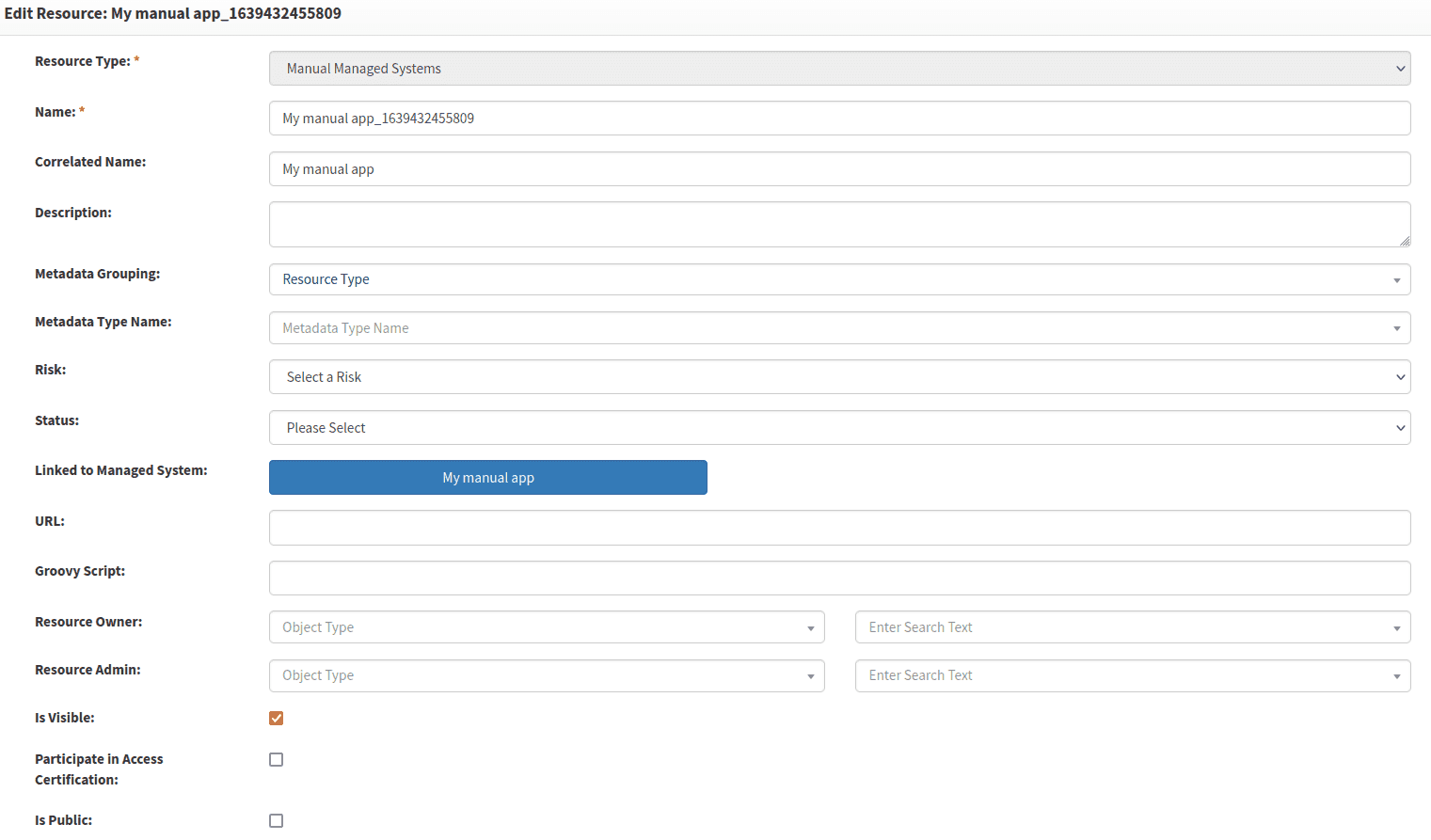
Here, you will see two fields: Resource owner and Resource admin. To define either the resource owner (aka Application owner) or the resource admin (aka Application admin), follow the steps below:
- Select whether the owner or admin will be a User or a Group in the first dropdown. If it's a group, then anyone in the group can approve.
- Select the name of the user or group in the second field.
Example:

Defining an application approval flow
If an application will be selectable from the service catalog in the SelfService portal, consider whether it should require approval before access can be granted. To support this behavior, OpenIAM provides the ability to define approval steps for each application. Use the steps below to define the approval process:
- Log in to the webconsole and navigate to Access control > Resource.
- Filter by Manual managed system and search for your application.
- View the application details by clicking on the application's Actions button.
- From the side menu, click on Approver associations. You will see the screen shown below.

By default, the sysadmin account is assigned as an approver. To modify the first approver, click on the Actions button and change the approver, as shown below.

| Field name | Description |
|---|---|
| Approver | Defines who will approve a request. This can be selected users, the requestee's immediate supervisor, a group, people in a role, the application owner, or the application admin. |
| Notify on approval | Person to notify when a request has been approved. |
| Notify on rejection | Person to notify when a request has been rejected. |
| 1* | Number of reminders to send to the approver to encourage them to complete the request. |
| 2* | Number of days to wait before sending a reminder notice. |
| 3* | Days to escalation. This value is calculated based on the values in 1 and 2. |
To add additional approval steps, click on the + icon and complete the row as described above.