> For the complete documentation index, see [llms.txt](https://docs.openiam.com/llms.txt). Markdown versions of documentation pages are available by appending `.md` to page URLs; this page is available as [Markdown](https://docs.openiam.com/getting-started-guide/brand-the-portals.md).

# Brand the portals

Apply your own CSS to the OpenIAM login, Webconsole, and SelfService portals.

**Goal:** your logo, colors, and styling on the login page and portals — built with a method that works, not by trial and error.\
**Time:** 60–90 minutes for a first working brand.\
**Prerequisites:** a running stack with Webconsole access. Basic CSS familiarity helps; the method below supplies the OpenIAM-specific knowledge.

## How OpenIAM branding actually works (read this first)

Three facts explain every branding success and failure:

1. **It's an override, not an edit.** OpenIAM's static UI app serves assets from two places, custom folder first: anything you put under `/data/openiam/conf/ui/static/custom/` overrides the packaged asset at the same relative path — CSS, images, fonts, JavaScript alike. You never modify shipped files.
2. **Your stylesheet loads last.** A UI theme's *Stylesheet URL* is appended after all default CSS on every page, so your rules win whenever they match at equal or higher specificity.
3. **Static assets are cached for 5 days.** The single most common "my CSS doesn't work" is cache. Always verify with `Ctrl+F5` or an incognito window. (Upgrades cache-bust automatically via a version query string like `custom.css?2026.7.1`.)

Two things are *not* done with CSS: **footer/copyright text** (Administration → System Configuration → UI tab → Footer) and **application tile icons** in the Launchpad (set per application on its Authentication Provider's *Application Icon* field).

{% stepper %}
{% step %}
**Get the pipeline working before you style anything**

Prove the override chain with a deliberately ugly smoke test.

{% code overflow="wrap" %}

```bash
sudo mkdir -p /data/openiam/conf/ui/static/custom/bootstrap-ui/css
sudo mkdir -p /data/openiam/conf/ui/static/custom/images
cat <<'EOF' | sudo tee /data/openiam/conf/ui/static/custom/bootstrap-ui/css/custom.css
/* smoke test — remove after step 1 */
body { background: #ff00ff !important; }
EOF
sudo chown -R openiam:openiam /data/openiam
sudo systemctl restart openiam-ui-static
```

{% endcode %}

The file **must** be named `custom.css`. Then wire it up in the Webconsole:

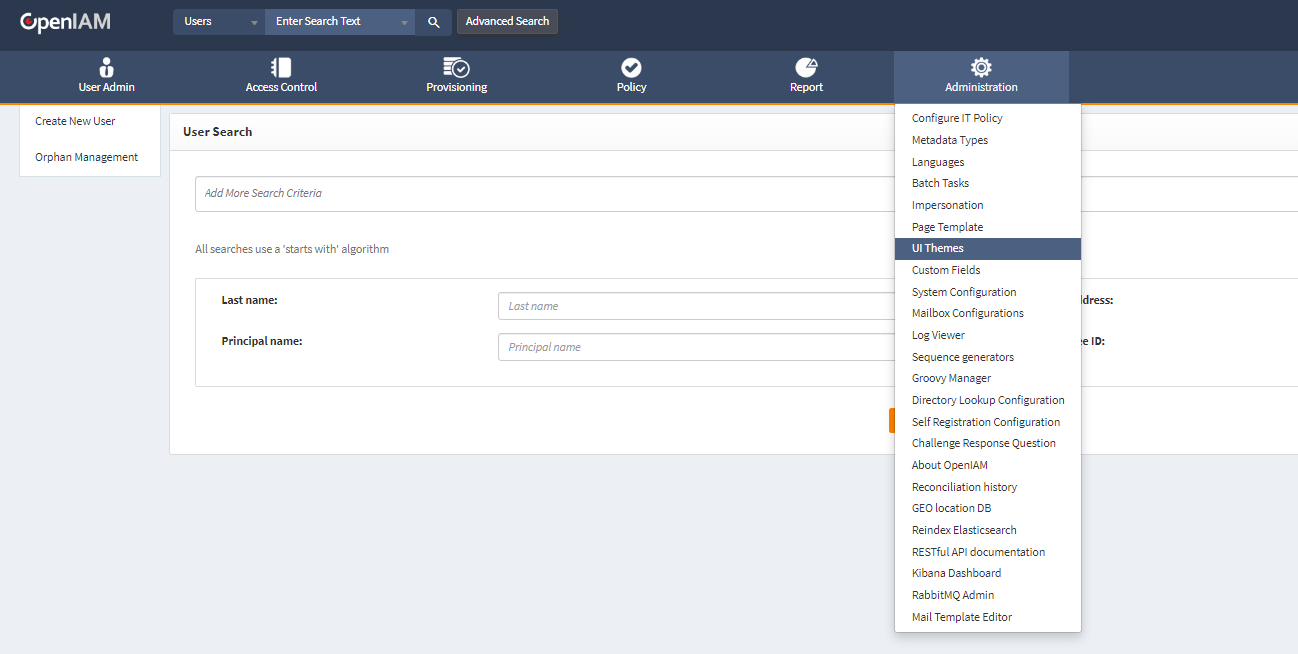
1. **Administration → UI Themes** → edit the existing theme (or create one) → set *Stylesheet URL* to `/openiam-ui-static/bootstrap-ui/css/custom.css` → Save.

   <figure><img src="https://2965242200-files.gitbook.io/~/files/v0/b/gitbook-x-prod.appspot.com/o/spaces%2F0uHWHRgcad6P03ehqgmX%2Fuploads%2Fgit-blob-c227eaf90373de74c71ff618ce702efa7968e7dc%2Fui-themes-list.png?alt=media" alt="The Webconsole Administration menu open, with UI Themes highlighted among its entries"><figcaption></figcaption></figure>

   The same screen carries the image uploads. Sizes are recommendations, not limits — but matching them avoids the browser rescaling your logo:

   | Upload                           | Recommended size | Where it appears                               |
   | -------------------------------- | ---------------- | ---------------------------------------------- |
   | Login and self-registration logo | 270 × 100        | The sign-in and self-registration pages        |
   | Application logo                 | 110 × 40         | The top-left of the Webconsole and SelfService |
   | Favicon                          | 16 × 16          | The browser tab                                |

   **Upload only the largest favicon you have.** OpenIAM replicates it to every size the browsers ask for, so there is no need to prepare a set.
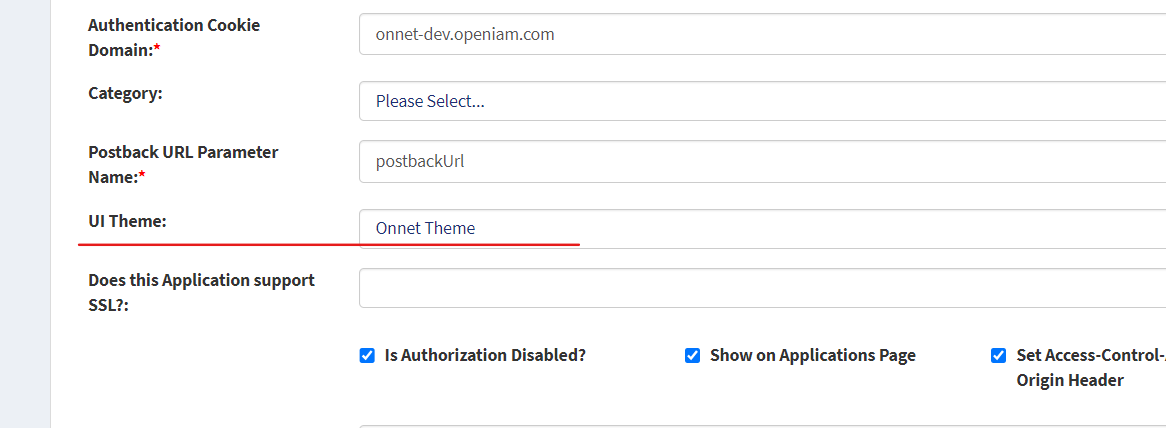
2. **Access Control → Content Providers** → your content provider (from [Verify health and log in](/getting-started-guide/verify-and-first-login.md)) → select the theme in *UI Theme* → Save. All URL patterns inherit it unless a pattern sets its own theme — which is also how you can brand `/selfservice/*` differently from `/webconsole/*` later.

   <figure><img src="https://2965242200-files.gitbook.io/~/files/v0/b/gitbook-x-prod.appspot.com/o/spaces%2F0uHWHRgcad6P03ehqgmX%2Fuploads%2Fgit-blob-eaa3653264f15fd0fc789e902350bd0fbc03085b%2Fcp-select-theme.png?alt=media" alt="The content provider form with the UI Theme field set to the theme created in the previous step"><figcaption></figcaption></figure>
3. Hard-reload the login page (`Ctrl+F5`).

If the page is now violently magenta, your pipeline works — everything from here is just CSS. Remove the smoke-test rule.
{% endstep %}

{% step %}
**Learn the selectors from the page itself, not from guesswork**

The reliable method for building working rules:

1. Open the page you want to change (start with the login page) in Chrome/Edge/Firefox.
2. Press `F12`, use the element picker (`Ctrl+Shift+C`), and click the element — logo, button, background.
3. Read the class/ID in the inspector (e.g. the login logo is `<a class="logo llogo">` inside `<div id="llogo">`).
4. Edit the style **live in DevTools** until it looks right — this is your zero-latency preview, with no cache in the way.
5. Copy the finished rule into `custom.css`, restart `openiam-ui-static`, hard-reload, confirm.

Iterate in DevTools, persist in `custom.css`. Never iterate by editing the file — the restart-and-cache loop will eat your afternoon.
{% endstep %}

{% step %}
**Start from a working template**

This template covers the elements every branding project touches. Selectors are from the shipped pages; adjust values, verify each in DevTools per step 2.

{% code overflow="wrap" expandable="true" %}

```css
/* ===== Logos =====
   Put your files in /data/openiam/conf/ui/static/custom/images/
   served at /openiam-ui-static/images/               */

/* Login page logo */
.llogo {
    background-image: url(/openiam-ui-static/images/your-logo-large.png);
    background-repeat: no-repeat;
    background-size: contain;
    width: 273px;      /* match your image's aspect ratio */
    height: 114px;
}

/* Logo on all pages after login */
.slogo {
    background-image: url(/openiam-ui-static/images/your-logo-small.png);
    background-repeat: no-repeat;
    background-size: contain;
    width: 110px;
    height: 41px;
}

/* ===== Login / logout page ===== */

#pagebg {                      /* full-page background behind the login box */
    background: #1a2b4a;       /* brand color, or url(...) for an image */
}

.loginBtn {                    /* the sign-in button */
    background: #0a66c2;
    border-color: #0a66c2;
}

/* ===== Logged-in layout bands ===== */

#top    { background: #1a2b4a; }   /* header band  */
#middle { background: #f5f7fa; }   /* content band */
#bottom { background: #1a2b4a; }   /* footer band  */

/* ===== Embedded content frames =====
   .openiam-client-frame is on the <body> of iframe content —
   use it to style framed pages specifically. */
.openiam-client-frame { }
```

{% endcode %}

Notes that save time: replace logo *images* by dropping same-named files under `custom/images/` (the override mechanism from fact #1) **or** point the CSS at new filenames as above — pick one approach and stay consistent; recent versions also let you upload logos directly on the UI Theme edit form, which is the fastest path if a logo is all you need. Use `!important` only as a last resort — if a rule doesn't apply, DevTools shows you which default rule outranks it, and matching its selector is the durable fix.
{% endstep %}

{% step %}
**Test like it will be used**

CSS that fixes one page can break another, because the portals share stylesheets. After each meaningful change, check all of: the login page (logged out), password-change screen, Webconsole landing, SelfService landing, and one framed page — in a fresh incognito window. Downloadable worked examples for the login, change-password, and SelfService request pages ship with the developer guide's branding chapter — use them as references for page-specific selectors.
{% endstep %}
{% endstepper %}

## If it failed

| Symptom                                    | Likely cause                                                                                                                                                                                                                                |
| ------------------------------------------ | ------------------------------------------------------------------------------------------------------------------------------------------------------------------------------------------------------------------------------------------- |
| Nothing changes at all                     | Cache (hard-reload/incognito); theme not assigned to the *content provider you're actually browsing through*; stylesheet URL typo — open `/openiam-ui-static/bootstrap-ui/css/custom.css` directly in the browser: you should see your file |
| Direct URL shows 404                       | Wrong path or filename (must be `custom.css`), or ownership — re-run the `chown` and restart `openiam-ui-static`                                                                                                                            |
| Rule visible in the file but not applied   | Outranked by a default rule — inspect the element in DevTools, check the crossed-out rule, and use a more specific selector                                                                                                                 |
| Logo shows as broken/blank                 | Image path wrong (must be web-accessible under `/openiam-ui-static/`), or width/height don't match the image                                                                                                                                |
| Works in Webconsole, broken in SelfService | Shared selector with different markup — scope the rule (e.g. under `#login` or a page-specific ancestor) and re-test both                                                                                                                   |

## You know this worked when…

{% hint style="success" %}
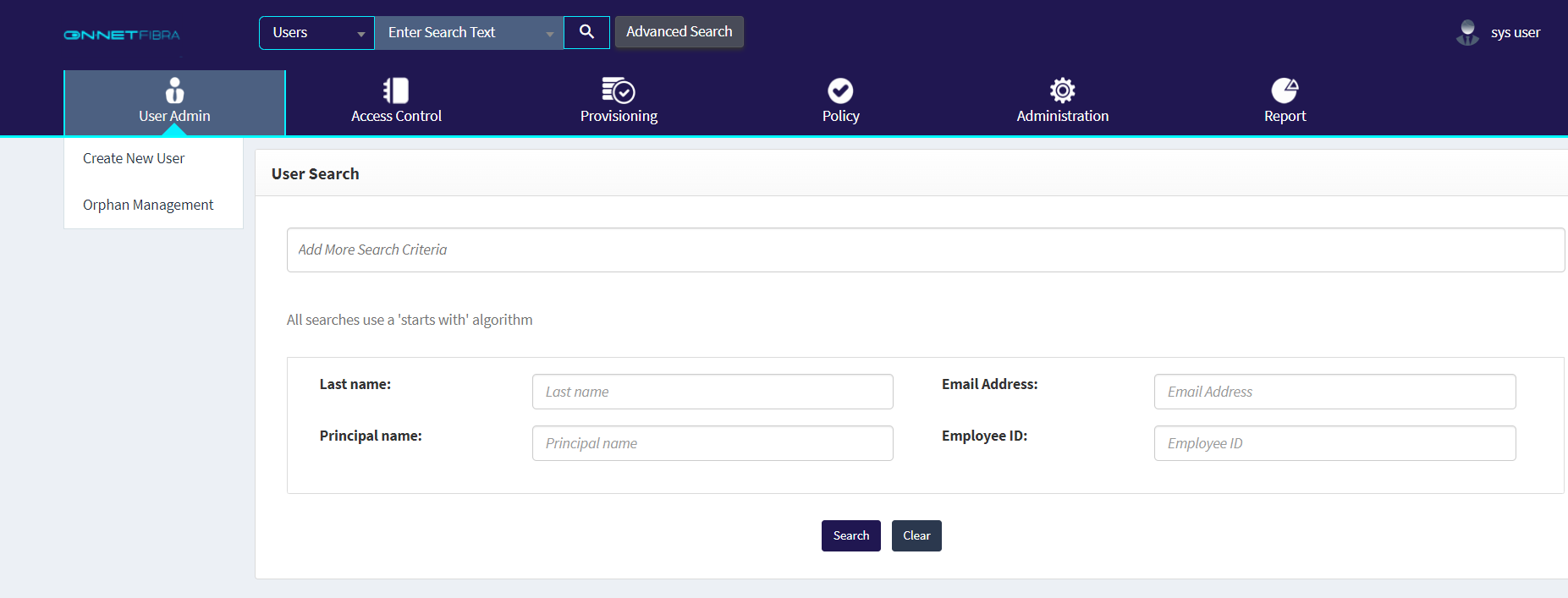
The login page and both portals show your logo and colors in an incognito window, and nothing looks broken on the five-page test list.
{% endhint %}

<figure><img src="https://2965242200-files.gitbook.io/~/files/v0/b/gitbook-x-prod.appspot.com/o/spaces%2F0uHWHRgcad6P03ehqgmX%2Fuploads%2Fgit-blob-fa95466b4812191749d64c2c4351c2d9a70f7d60%2Fbranded-webconsole.png?alt=media" alt="The Webconsole after a theme is applied: the logo in the top left is replaced and the navigation bar carries the theme colours instead of the OpenIAM default"><figcaption></figcaption></figure>

Next: [Where to go next](/getting-started-guide/where-to-go-next.md).


---

# Agent Instructions
This documentation is published with GitBook. GitBook is the documentation platform designed so that both humans and AI agents can read, navigate, and reason over technical content effectively. Learn more at gitbook.com.

## Querying This Documentation
If you need additional information that is not directly available in this page, you can query the documentation by asking a question.

Perform an HTTP GET request on the following URL with the `ask` and `goal` query parameters:

```
GET https://docs.openiam.com/getting-started-guide/brand-the-portals.md?ask=<question>&goal=<user_goal>
```

`ask` is the immediate question: it should be specific, self-contained, and written in natural language.
`goal` is what the user is ultimately trying to achieve, the reason they need the answer. Sharing it helps GitBook give you a better, more relevant answer. A goal is most helpful when it describes the outcome the user wants rather than restating the question. For example, with `ask=how do I create an API token`, a goal like `automate deployments from our CI pipeline` lets GitBook tailor the answer to that use case.

The response will contain a direct answer to the question and relevant excerpts and sources from the documentation.

Use this mechanism when the answer is not explicitly present in the current page, you need clarification or additional context, or you want to retrieve related documentation sections.