> For the complete documentation index, see [llms.txt](https://docs.openiam.com/llms.txt). Markdown versions of documentation pages are available by appending `.md` to page URLs; this page is available as [Markdown](https://docs.openiam.com/getting-started-guide/authentication/mfa-for-one-url.md).
# Require MFA for one URL
Require a one-time passcode on a single URL pattern without changing any other login.
**Goal:** users hitting one chosen URL pattern must complete password + email one-time passcode. Nobody gets locked out in the process.\
**Time:** 45–60 minutes.\
**Prerequisites:** mailbox configuration tested; break-glass admin session open in a second browser; a non-admin test user with a mailbox **and a known OpenIAM password** (AD-imported users don't bring passwords — set one via the admin *Change Password* action first).
This is adaptive authentication at its simplest: a per-URL step-up rule. The same rule designer scales to conditions on IP, device, role, and risk — explore that after this works.
{% stepper %}
{% step %}
**Configure and test the mailbox**
**Administration → Mailbox Configurations**: create a configuration from the template matching your mail system (host, port 587, StartTLS, credentials) and send a test message. Do not continue until the test mail arrives — every failure mode after this point looks identical to a broken SMTP setup.
{% endstep %}
{% step %}
**Check the authentication policy**
**Security → Authentication Policies → Default Authentication Policy**: note the failed-authentication count and auto-unlock time. For the POC, a short auto-unlock (e.g. 5 minutes) makes lockout experiments cheap.
{% endstep %}
{% step %}
**Enable email OTP on the authentication provider**
**Access Control → Authentication Providers**: open the default provider and enable **Supports Email One-Time Password**. The default **Email Code** OTP provider (Access Control → OTP Provider) delivers it using the `OTP_CODE` template through your mailbox configuration; defaults are fine.
{% endstep %}
{% step %}
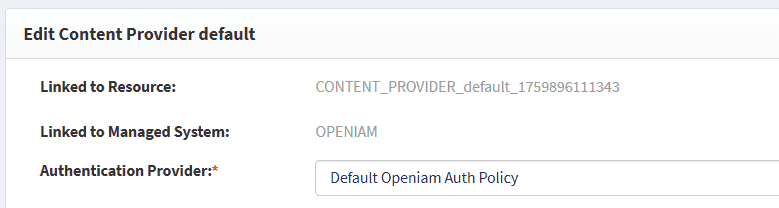
**Confirm the provider is linked to your content provider**
**Access Control → Content Providers → your provider (from** [**Verify health and log in**](/getting-started-guide/verify-and-first-login.md)**)**: the *Authentication provider* field must point at the provider you just edited. Save if you change it.
{% endstep %}
{% step %}
**Add the step-up rule to one URL pattern**
On the content provider, open **URL patterns** and pick (or create) a pattern for a low-stakes target — use `/selfservice/*`, **not** `/webconsole/*`, for the first attempt. Edit the pattern:
Then **Support authentication levels** → add the **TOTP** rule → Save.
Despite the name, this shipped authentication level covers one-time-passcode step-up generally — with only email OTP enabled on the provider, users get email codes directly, with no channel selector.
{% endstep %}
{% step %}
**Test as the non-admin user**
In a private browser window: log in to `/selfservice` as the test user → password accepted → OTP prompt → code arrives by email → enter it → landed. Meanwhile your admin sessions in the other browser remain untouched.
Then test the failure path: wrong code N times → account locks per the authentication policy → auto-unlock (or admin unlock) works.
{% endstep %}
{% endstepper %}
## Rollback
Remove the TOTP rule from the URL pattern and save. That's the whole rollback — which is exactly why the rule went on one pattern instead of the provider-wide default. If you ever lock the primary admin out: break-glass admin → Security → unlock.
## You know this worked when…
{% hint style="success" %}
The test user needs password + emailed code for `/selfservice`, the lockout path behaves per policy, and `/webconsole` login is unchanged.
{% endhint %}
Next: [Password policy and self-service reset](/getting-started-guide/authentication/password-policy-and-sspr.md).
---
# Agent Instructions
This documentation is published with GitBook. GitBook is the documentation platform designed so that both humans and AI agents can read, navigate, and reason over technical content effectively. Learn more at gitbook.com.
## Querying This Documentation
If you need additional information that is not directly available in this page, you can query the documentation by asking a question.
Perform an HTTP GET request on the following URL with the `ask` and `goal` query parameters:
```
GET https://docs.openiam.com/getting-started-guide/authentication/mfa-for-one-url.md?ask=&goal=
```
`ask` is the immediate question: it should be specific, self-contained, and written in natural language.
`goal` is what the user is ultimately trying to achieve, the reason they need the answer. Sharing it helps GitBook give you a better, more relevant answer. A goal is most helpful when it describes the outcome the user wants rather than restating the question. For example, with `ask=how do I create an API token`, a goal like `automate deployments from our CI pipeline` lets GitBook tailor the answer to that use case.
The response will contain a direct answer to the question and relevant excerpts and sources from the documentation.
Use this mechanism when the answer is not explicitly present in the current page, you need clarification or additional context, or you want to retrieve related documentation sections.