> For the complete documentation index, see [llms.txt](https://docs.openiam.com/llms.txt). Markdown versions of documentation pages are available by appending `.md` to page URLs; this page is available as [Markdown](https://docs.openiam.com/end-user-guide-for-selfservice/applications.md).
# Your applications
Open your work applications from one place, without signing in again.
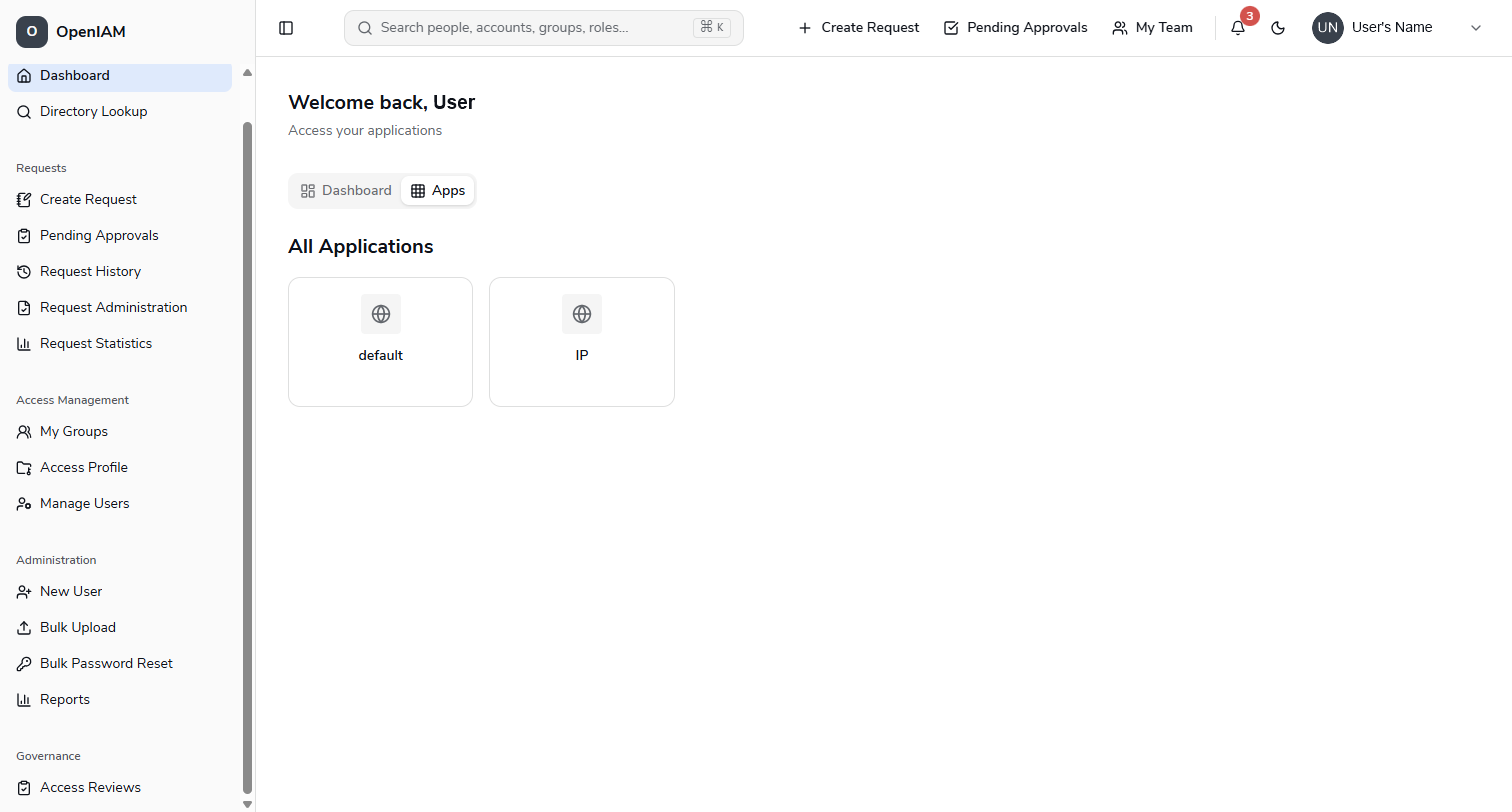
The **Apps** view is your launchpad: every application you have access to, shown as a tile under **All Applications**. Click one and it opens — already signed in.
Your applications live on the **Dashboard** — open **Main → Dashboard** and choose the **Apps** tab.
## How single sign-on works here
When you click a tile, OpenIAM tells the application who you are and that you have already proved it. The application trusts that and lets you straight in.
Two practical consequences:
* **You don't type another password.** Fewer passwords to remember, and fewer to have stolen.
* **Signing out matters more.** Your session is the key to everything on this page, so on a shared computer always sign out properly rather than just closing the tab.
## What you see
Only the applications you are entitled to. The tiles are not a catalogue of everything your organization owns — they are what has been granted to you, whether automatically because of your job or because you asked and were approved.
Each tile shows the application's name and icon. If a tile has a generic placeholder rather than a proper logo, that is a configuration detail on your organization's side, not a problem with your access.
## If an application is missing
| Situation | What to do |
| -------------------------------------------------------- | ----------------------------------------------------------------------------------------------------------------------------------------- |
| You have never had it | Ask for it — see [Requesting access](/end-user-guide-for-selfservice/requests.md) |
| You had it and it has gone | Access can expire, or be removed when you change role. Request it again, or ask your manager |
| A colleague has it and you don't | Access follows your job, so this is normal. Request it if you need it |
| You know you were approved, but the tile isn't there yet | Grants can take a short time to reach the application. Sign out and back in; if it is still missing after a while, contact your help desk |
## If a tile gives an error
The most common message is:
> *"Unable to SSO to this application as you do not have access. Please contact your Help Desk."*
This means you reached the application but it did not accept your access. Usually the entitlement was removed, or the account on that side was never fully set up. It is not something you can fix from this page — the help desk can see why.
{% hint style="info" %}
If an application asks you for a password after you clicked its tile, single sign-on did not complete. Don't work around it by using a saved password — tell your help desk, because it usually indicates a setup problem worth fixing.
{% endhint %}
---
# Agent Instructions
This documentation is published with GitBook. GitBook is the documentation platform designed so that both humans and AI agents can read, navigate, and reason over technical content effectively. Learn more at gitbook.com.
## Querying This Documentation
If you need additional information that is not directly available in this page, you can query the documentation by asking a question.
Perform an HTTP GET request on the following URL with the `ask` and `goal` query parameters:
```
GET https://docs.openiam.com/end-user-guide-for-selfservice/applications.md?ask=&goal=
```
`ask` is the immediate question: it should be specific, self-contained, and written in natural language.
`goal` is what the user is ultimately trying to achieve, the reason they need the answer. Sharing it helps GitBook give you a better, more relevant answer. A goal is most helpful when it describes the outcome the user wants rather than restating the question. For example, with `ask=how do I create an API token`, a goal like `automate deployments from our CI pipeline` lets GitBook tailor the answer to that use case.
The response will contain a direct answer to the question and relevant excerpts and sources from the documentation.
Use this mechanism when the answer is not explicitly present in the current page, you need clarification or additional context, or you want to retrieve related documentation sections.