> For the complete documentation index, see [llms.txt](https://docs.openiam.com/llms.txt). Markdown versions of documentation pages are available by appending `.md` to page URLs; this page is available as [Markdown](https://docs.openiam.com/end-user-guide-for-selfservice/access-reviews.md).
# Access reviews
Take part in an access review — confirm which access should stay and which should go.
Periodically, your organization checks that people still need the access they hold. Someone — usually a manager or the owner of a system — is asked to look through a list and confirm each item.
That exercise is an **access review**, part of what is more broadly called **access certification**.
Open it from **Governance → Access Reviews**. The page itself is headed **Certifications**, with *Review and certify user access across the certification campaigns assigned to you* beneath it.
If you have never been asked to do one, you are probably not a reviewer, and this page will be empty.
## Why you're being asked
Access accumulates. People change teams, cover for colleagues, join projects that end — and the access from each stage tends to stay. Nobody does anything wrong; it simply builds up.
A review is the scheduled moment when someone who knows the work looks at the list and says what is still needed. You are asked because you are the person who knows — not because anything is suspected.
Reviews are also frequently required by auditors and regulators, so a completed review is evidence your organization needs.
## What you see first
A review runs as a **campaign** — a defined set of access, a set of reviewers, and a deadline. The page opens on a summary bar showing where your campaigns stand, each entry carrying a count you can filter by.
**Status** groups them by how far you have got:
| | What it counts |
| --------------- | ------------------------------------------- |
| **In Progress** | Campaigns you have started but not finished |
| **Not Started** | Campaigns waiting for you to begin |
| **Completed** | Campaigns you have finished |
**Due** groups the same campaigns by urgency instead:
| | What it counts |
| ----------------- | --------------------- |
| **Past Due** | The deadline has gone |
| **1-5 Days Left** | |
| **5+ Days Left** | |
**Look at Due first.** Status tells you what you have touched; Due tells you what is about to cause a problem.
Below the bar are a search box — *Search for a campaign or entitlement* — and a sort control, which opens on **Campaign Title (A → Z)**.
If nothing is assigned to you, the page reads *"No Campaigns Yet — Once campaigns are created, they will appear here for you to review and manage."*
Your campaigns are listed below that, with **Rows per page** and paging at the foot. Open one to begin, or to pick up where you left off.
## Doing a review
{% stepper %}
{% step %}
**Open the campaign and start.**
You are shown a list — typically your team members and the access each one holds.
{% endstep %}
{% step %}
**Go through each item and decide.**
For every line you either **keep** the access or **remove** it. Both are valid outcomes; a review where everything is kept is not automatically a good review.
{% endstep %}
{% step %}
**Give a reason where you're asked to.**
Especially when removing something. The reason is part of the audit record.
{% endstep %}
{% step %}
**Work through it in stages if you need to.**
Your progress is saved. Come back and **Resume Review** rather than trying to finish a long list at one sitting.
{% endstep %}
{% step %}
**Submit.**
You see: *"Review submitted. This is a background process and may take some time depending on data volume. Please refresh the page to confirm the review was completed successfully."*
Large reviews take a while to process. Refresh to confirm it completed.
{% endstep %}
{% endstepper %}
## Getting context before you decide
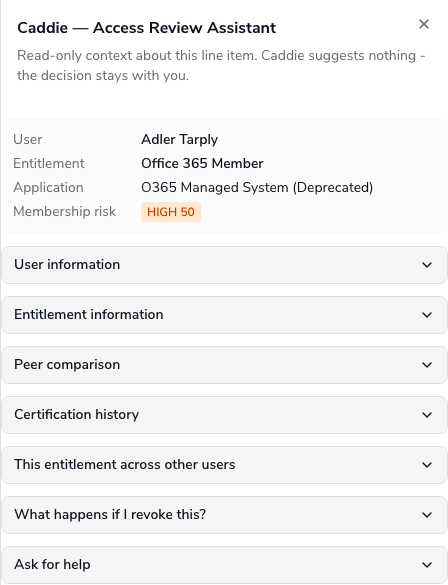
Some campaigns show a small **sparkles icon** beside the keep and remove controls on each line. It opens a panel called **Caddie — Access Review Assistant**, which gathers what your organization already knows about that one line: who the person is and what they do, what the access actually is, whether people on the same team hold it, what earlier reviews decided about it, and what would happen if you removed it. Open a section to read it; nothing is loaded until you do.
The panel never decides for you and cannot keep or remove anything. Read it, then decide on the line as usual. If you still cannot decide, its **Ask for help** section lets you write to the person who owns the access, the owner of the application, your own manager or the person running the campaign. The message is already drafted for you, and sending it does not count as a decision: the line stays yours to settle.
The icon appears only on lines you can still decide, and only in campaigns where your organization has switched it on. If you do not see it, nothing is wrong.
## Seeing what has already happened to a line
Every line also has a **History** column with a small clock icon. It opens a list of everything already recorded for that line, oldest first: when it was created, who has looked at it, whether it was passed to someone else, whether it was approved automatically, and any decision or question already recorded. It is read-only.
The **Campaign managers** entry at the top of a campaign, beside the dates, shows who is running it and how to reach them.
## Deciding well
The question is not "is this person trustworthy?" — it is "does their current job require this?"
* **Keep** what they use for their job now.
* **Remove** access left over from a previous role, a finished project, or holiday cover that ended.
* **Look hardest at exceptions** — access granted individually rather than through a role or group. Unusual access is where genuine problems sit.
* **Ask if you don't know.** A quick question to the person is better than a guess in either direction.
{% hint style="warning" %}
Approving everything without reading defeats the purpose and leaves your name on the record. If a list is too large or you don't have the knowledge to judge it, say so to whoever runs the campaign rather than clicking through.
{% endhint %}
## What happens to your decisions
* **Keep** — nothing changes.
* **Remove** — the access is taken away. As with any revocation, applications OpenIAM connects to are updated automatically, while the rest generate a task for someone to action by hand. See [Giving up access](/end-user-guide-for-selfservice/requests/revoke-access.md).
If someone loses access they turn out to need, they can request it again — it is not permanent, and a review erring slightly toward removal is healthier than one that keeps everything.
---
# Agent Instructions
This documentation is published with GitBook. GitBook is the documentation platform designed so that both humans and AI agents can read, navigate, and reason over technical content effectively. Learn more at gitbook.com.
## Querying This Documentation
If you need additional information that is not directly available in this page, you can query the documentation by asking a question.
Perform an HTTP GET request on the following URL with the `ask` and `goal` query parameters:
```
GET https://docs.openiam.com/end-user-guide-for-selfservice/access-reviews.md?ask=&goal=
```
`ask` is the immediate question: it should be specific, self-contained, and written in natural language.
`goal` is what the user is ultimately trying to achieve, the reason they need the answer. Sharing it helps GitBook give you a better, more relevant answer. A goal is most helpful when it describes the outcome the user wants rather than restating the question. For example, with `ask=how do I create an API token`, a goal like `automate deployments from our CI pipeline` lets GitBook tailor the answer to that use case.
The response will contain a direct answer to the question and relevant excerpts and sources from the documentation.
Use this mechanism when the answer is not explicitly present in the current page, you need clarification or additional context, or you want to retrieve related documentation sections.