> For the complete documentation index, see [llms.txt](https://docs.openiam.com/llms.txt). Markdown versions of documentation pages are available by appending `.md` to page URLs; this page is available as [Markdown](https://docs.openiam.com/connector-configuration/workday.md).

# Workday connector

This page describes how to set up connection to Workday

The Workday connector provides the ability to get user data from the Workday HR system. The operations that can be performed using OpenIAM are searching users and setting a user's email in Workday. The connector reads workers over the Workday **REST** custom-report interface (Report as a Service, or RaaS) or the **SOAP** API, selected by the *Fetch Type* on the managed system.

## Use cases

* Using **Workday as an authoritative HR source** — importing workers into OpenIAM to drive joiner, mover and leaver processes.
* **Writing the corporate email address back** to Workday once it is generated during provisioning.

The operations behind those two are the only ones the connector supports:

| Operation                               | Supported                                                |
| --------------------------------------- | -------------------------------------------------------- |
| Search / import users (workers)         | ✅                                                        |
| Update a user's (work) email in Workday | ✅                                                        |
| Create users in Workday                 | ❌                                                        |
| Delete users                            | ❌ requests are accepted but perform no action in Workday |
| Suspend / resume users                  | ❌ not supported                                          |
| Reset password                          | ❌ not supported                                          |
| Test connection                         | ✅                                                        |

{% hint style="info" %}
The acronyms on this page — REST, SOAP, WSDL and RaaS — are defined in the [*Glossary*](/glossary.md#acronyms).
{% endhint %}

## Versions and compatibility

Workday is a continuously released SaaS product, so there is no installed version to match. What matters is which **web service version** the connector talks to, and that differs between the two fetch types.

<table><thead><tr><th width="148">Fetch type</th><th>What sets the version</th><th>Notes</th></tr></thead><tbody><tr><td><strong>REST (RaaS)</strong></td><td>Your custom report</td><td>The connector reads whatever the report returns. No Workday service version is involved.</td></tr><tr><td><strong>SOAP</strong></td><td>The endpoint URL you enter on the managed system</td><td>The version is a path segment, e.g. <code>…/Human_Resources/v38.0?wsdl</code>. You choose it.</td></tr></tbody></table>

{% hint style="warning" %}
**Test Connection declares `v32.0` regardless of the endpoint you configure.** The connector's test-connection call sends `v32.0` in its request payload, while normal SOAP traffic uses the version in the URL you set. If Test Connection behaves differently from a working synchronization, this asymmetry is the first thing to check.
{% endhint %}

The connector's SOAP stubs are generated from a `Human_Resources` WSDL bundled with the connector, whose namespaces carry no version of their own.

{% hint style="info" %}
**OpenIAM has not published a supported Workday version range.** The facts above are what the connector's own code establishes. Before assuming a particular Workday release is covered, confirm it with OpenIAM support.
{% endhint %}

## Prerequisites

* A Workday **integration account** (login/password) with access to the APIs you plan to use (REST and/or SOAP).
* For REST fetch: a **custom report (RaaS)** exposed as a JSON service, e.g. `https://wd2-impl-services1.workday.com/ccx/service/customreport2/[your tenant name]/[account qualifier]/OPEN_IAM_OUTBOUND_RAAS?format=json`.
* For SOAP fetch: the **Human\_Resources** and **Staffing** WSDL endpoints of your tenant.

## Installing the connector

Based on the nature of your deployment, follow the procedures below to deploy the connector.

### RPM

{% hint style="info" %}
To start a connector in the RPM environment download a .jar file of connector from the [customer's portal](https://help.openiam.com/knowledge) and make sure to download a correct version.
{% endhint %}

Afterwards, use the following command.

```
systemctl start openiam-connector@workday-connector-rabbitmq
```

### Kubernetes

Enable the connector in your deployment configuration; no separate installation is required.

## Starting, stopping, and restarting

<table><thead><tr><th width="179">Deployment</th><th>Commands</th></tr></thead><tbody><tr><td>RPM (systemd)</td><td><code>systemctl start|stop|restart openiam-connector@workday-connector-rabbitmq</code></td></tr><tr><td>Kubernetes</td><td><code>kubectl rollout restart</code> the connector deployment.</td></tr></tbody></table>

## Command-line parameters and properties

The connector is a Spring Boot application and takes **no connector-specific command-line flags**. Everything adjustable is a property, which can be set in the override file or passed on the command line in the usual Spring Boot forms (`--name=value`, or `-Dname=value` as a JVM argument).

`confpath` must point at the OpenIAM configuration directory. The connector reads its overrides from:

{% code overflow="wrap" %}

```
${confpath}/conf/properties/oracle-workday-connector-rabbitmq.properties
```

{% endcode %}

{% hint style="warning" %}
**That filename is correct as written, despite the `oracle-` prefix.** It is the path the connector actually loads. A file named `workday-connector-rabbitmq.properties` will be ignored.
{% endhint %}

| Property                          | Default                                         | Purpose                                                                                                                                                                                                                            |
| --------------------------------- | ----------------------------------------------- | ---------------------------------------------------------------------------------------------------------------------------------------------------------------------------------------------------------------------------------- |
| `org.openiam.connector.queue`     | `8a80819f6a45db87016a4fec1b2a000a_6257_Request` | ⚠️ The default request-queue name is an opaque generated identifier, not a readable name. The connector record in OpenIAM must match it **exactly** — copy it verbatim when registering, or align both sides on a friendlier name. |
| `workday.property.date.format`    | `yyyy/MM/dd`                                    | Date format used with the Workday API.                                                                                                                                                                                             |
| `workday.soap.connect.timeout.ms` | `30000`                                         | SOAP connection timeout (ms) for Workday calls.                                                                                                                                                                                    |
| `workday.soap.receive.timeout.ms` | `300000`                                        | SOAP receive timeout (ms) — raise it if large syncs time out mid-response.                                                                                                                                                         |

## Verifying the connector is running

{% stepper %}
{% step %}
In the Webconsole, open the managed system — the **Running connector status** indicator must be green.
{% endstep %}

{% step %}
Click **Test Connection** — it must return success.
{% endstep %}

{% step %}
In the RabbitMQ management console, confirm the request queue (default `8a80819f6a45db87016a4fec1b2a000a_6257_Request`) exists and has a consumer.
{% endstep %}

{% step %}
Run the synchronization with a single-worker filter (e.g. `workerID=006971`) and confirm the user is created in OpenIAM.
{% endstep %}
{% endstepper %}

## Troubleshooting

| Symptom                                                           | Likely cause                   | Resolution                                                                                                                                                     |
| ----------------------------------------------------------------- | ------------------------------ | -------------------------------------------------------------------------------------------------------------------------------------------------------------- |
| Connector never receives messages                                 | Queue-name mismatch            | The default queue name is an opaque GUID-style identifier — the connector record in OpenIAM must match it character-for-character.                             |
| Property changes have no effect                                   | Wrong override filename        | Overrides must be in `oracle-workday-connector-rabbitmq.properties`, despite the prefix.                                                                       |
| Test Connection fails while synchronization works                 | Web service version mismatch   | Test Connection declares `v32.0` while normal traffic uses the version in your endpoint URL. See *Versions and compatibility*.                                 |
| Sync returns no workers                                           | Wrong Fetch Type or report URL | For REST fetch, verify the *Workers* attribute holds the full RaaS report URL (with `?format=json`); for SOAP, verify the WSDL attribute URLs and credentials. |
| Large syncs time out mid-response                                 | SOAP receive timeout           | Raise `workday.soap.receive.timeout.ms` (default 300000).                                                                                                      |
| Deletes/suspends appear successful but nothing changes in Workday | Operations not supported       | The connector only searches workers and updates the work email; deprovisioning must be handled in Workday itself.                                              |

See also: [general connector troubleshooting](/connector-configuration/4-troubleshootingconnector.md) and the [connector error-code reference](/connector-configuration/4-troubleshootingconnector.md#connector-error-codes).

## Registering the connector in OpenIAM

First, log in to the OpenIAM Webconsole and create a page template for the connector's managed-system fields.

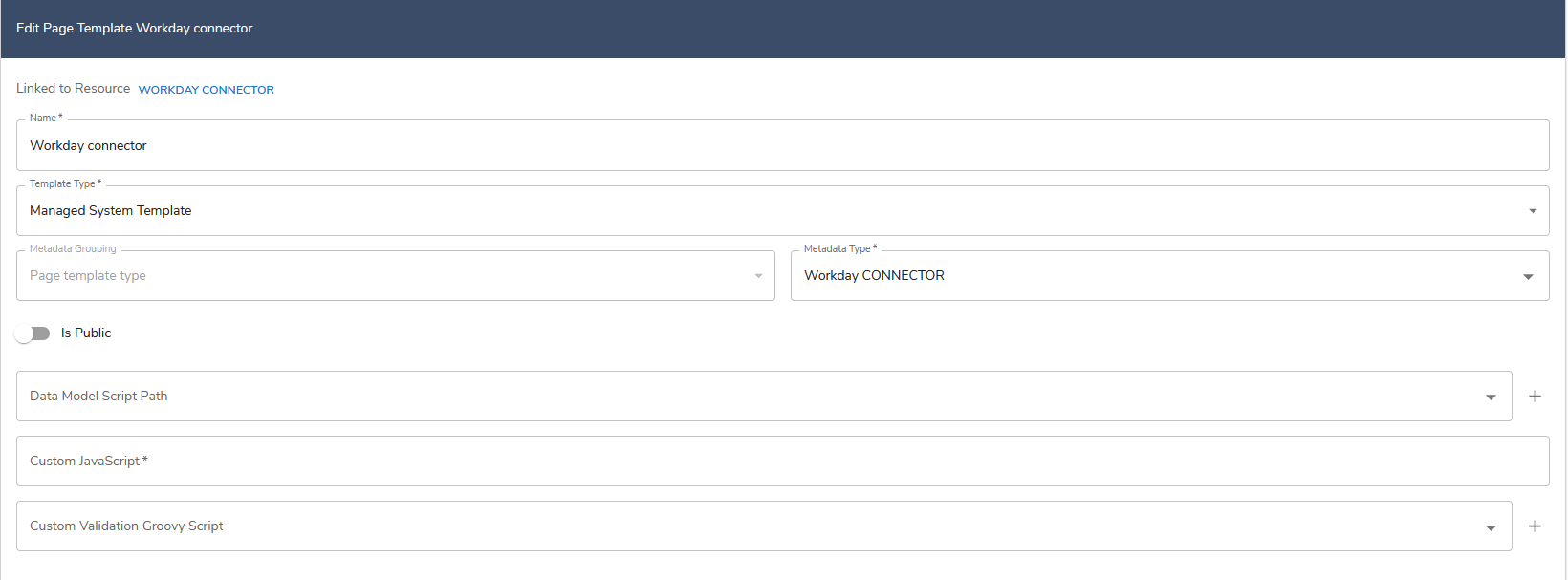
1. Create new Page Template.

Go to the **Administration** → **Page Template** → **Create New Template**.

| Field          | Value                   |
| -------------- | ----------------------- |
| Name:          | Workday connector       |
| Template Type: | Managed System Template |
| Metadata Type: | Workday CONNECTOR       |

Leave **Metadata Grouping** and **Is Public** alone — the grouping is optional and the template saves without it.

Click **Save** button.

<figure><img src="https://2965242200-files.gitbook.io/~/files/v0/b/gitbook-x-prod.appspot.com/o/spaces%2F0uHWHRgcad6P03ehqgmX%2Fuploads%2Fgit-blob-a5c0b9e3d9b03d2dd77206f43f288d5f2f7fd322%2FWorkday1.png?alt=media" alt="The saved Workday connector page template, with Template Type set to Managed System Template and Metadata Type to Workday CONNECTOR"><figcaption></figcaption></figure>

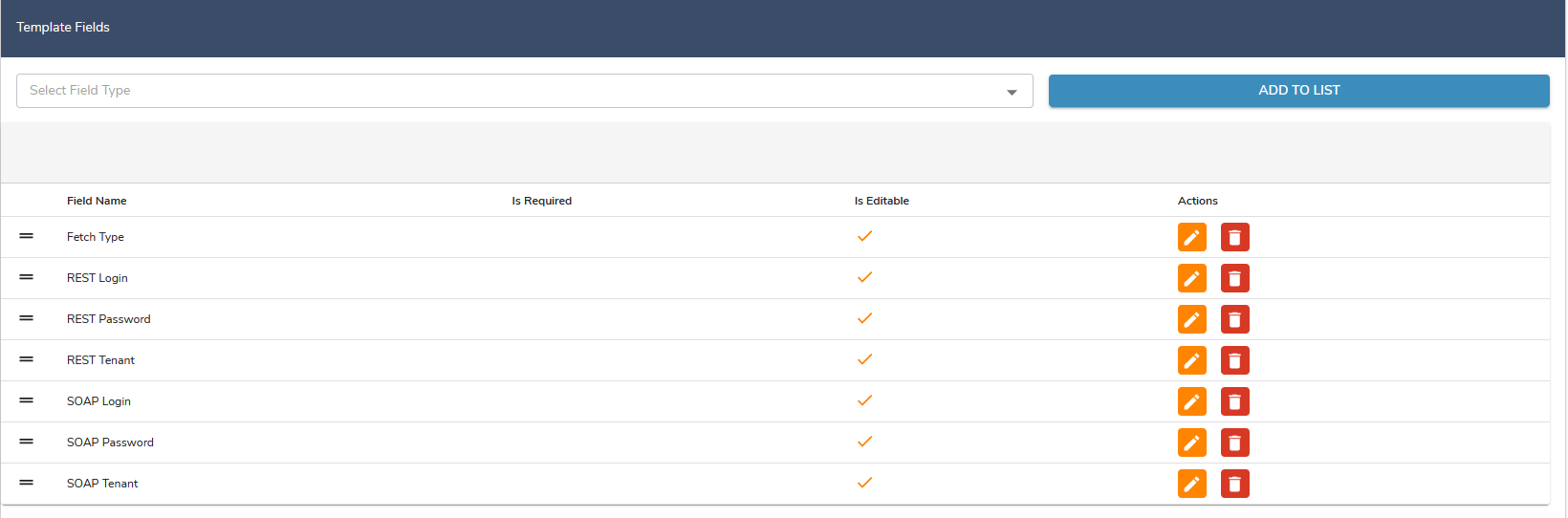
2. Once the Page template is saved, go to **Template fields** section and add below fields.

| Field Name    | Is Required | Is Editable |
| ------------- | ----------- | ----------- |
| Fetch Type    |             | check       |
| REST Login    |             | check       |
| REST Password |             | check       |
| REST Tenant   |             | check       |
| SOAP Login    |             | check       |
| SOAP Password |             | check       |
| SOAP Tenant   |             | check       |

Every row gets **Edit** and **Delete** actions once it is added; none of the seven is required.

<figure><img src="https://2965242200-files.gitbook.io/~/files/v0/b/gitbook-x-prod.appspot.com/o/spaces%2F0uHWHRgcad6P03ehqgmX%2Fuploads%2Fgit-blob-c9b33e5cc2f15b0117676f85887563597589cfdd%2Fworkday-template-fields.png?alt=media" alt="The Template Fields table listing Fetch Type, REST Login, REST Password, REST Tenant, SOAP Login, SOAP Password and SOAP Tenant, each marked editable and none marked required"><figcaption></figcaption></figure>

Save the template upon all field are added.

## Configuring the managed system

{% stepper %}
{% step %}
Go to **Provisioning** → **Managed System**.
{% endstep %}

{% step %}
Find **Workday connector** and click **Action**.
{% endstep %}

{% step %}
Fill in the details as follows.
{% endstep %}
{% endstepper %}

| Field                               | Value                                     |
| ----------------------------------- | ----------------------------------------- |
| Connector:                          | Workday Connector                         |
| Managed System Name:                | Workday Manage System                     |
| Description:                        | Workday Manage System                     |
| Active                              | checked                                   |
| Show on user change password Screen | checked                                   |
| Host URL:                           | your-tenant-url                           |
| Port:                               | 9999                                      |
| Password Policy:                    | Default password policy                   |
| Login Id:                           | Login                                     |
| Password:                           | Enter client password                     |
| Fetch Type:                         | REST                                      |
| REST Password:                      | Enter client password                     |
| REST Login:                         | Login                                     |
| REST Tenant:                        | <https://wd2-impl-services1.workday.com/> |
| SOAP Password:                      | Enter client password                     |
| SOAP Login:                         | login                                     |
| SOAP Tenant:                        | tenant-name                               |

4. Add new attributes.

Scroll down to the **Attributes** section and add these three with the **+** button. Each takes a name and a single value; save after each one.

<table><thead><tr><th width="187">Attribute Name</th><th>Attribute Value</th></tr></thead><tbody><tr><td><code>WORKERS</code></td><td><code>https://&#x26;#x3C;host>/ccx/service/customreport2/&#x26;#x3C;tenant>/&#x26;#x3C;qualifier>/OPEN_IAM_OUTBOUND_RAAS?format=json</code></td></tr><tr><td><code>HUMAN_RESOURCES</code></td><td><code>https://&#x26;#x3C;host>/ccx/service/&#x26;#x3C;tenant>/Human_Resources/v38.0?wsdl</code></td></tr><tr><td><code>STAFFING</code></td><td><code>https://&#x26;#x3C;host>/ccx/service/&#x26;#x3C;tenant>/Staffing/v38.0?wsdl</code></td></tr></tbody></table>

Substitute your own Workday host, tenant name and account qualifier. The screenshot below uses a demo tenant on Workday's implementation host.

#### What the custom report has to return

The shipped transformation script reads these columns out of `OPEN_IAM_OUTBOUND_RAAS`. Name them exactly as below in the Workday report, or change the script to match.

`workerID` · `userID` · `WID` · `firstName` · `middleName` · `lastName` · `mobile` · `emailAddressData1` · `emailAddressData2` · `emailAddressData3` · `addressData1` · `jobData1` · `organizationRoles` · `workerStatus` · `terminationLastDayOfWork`

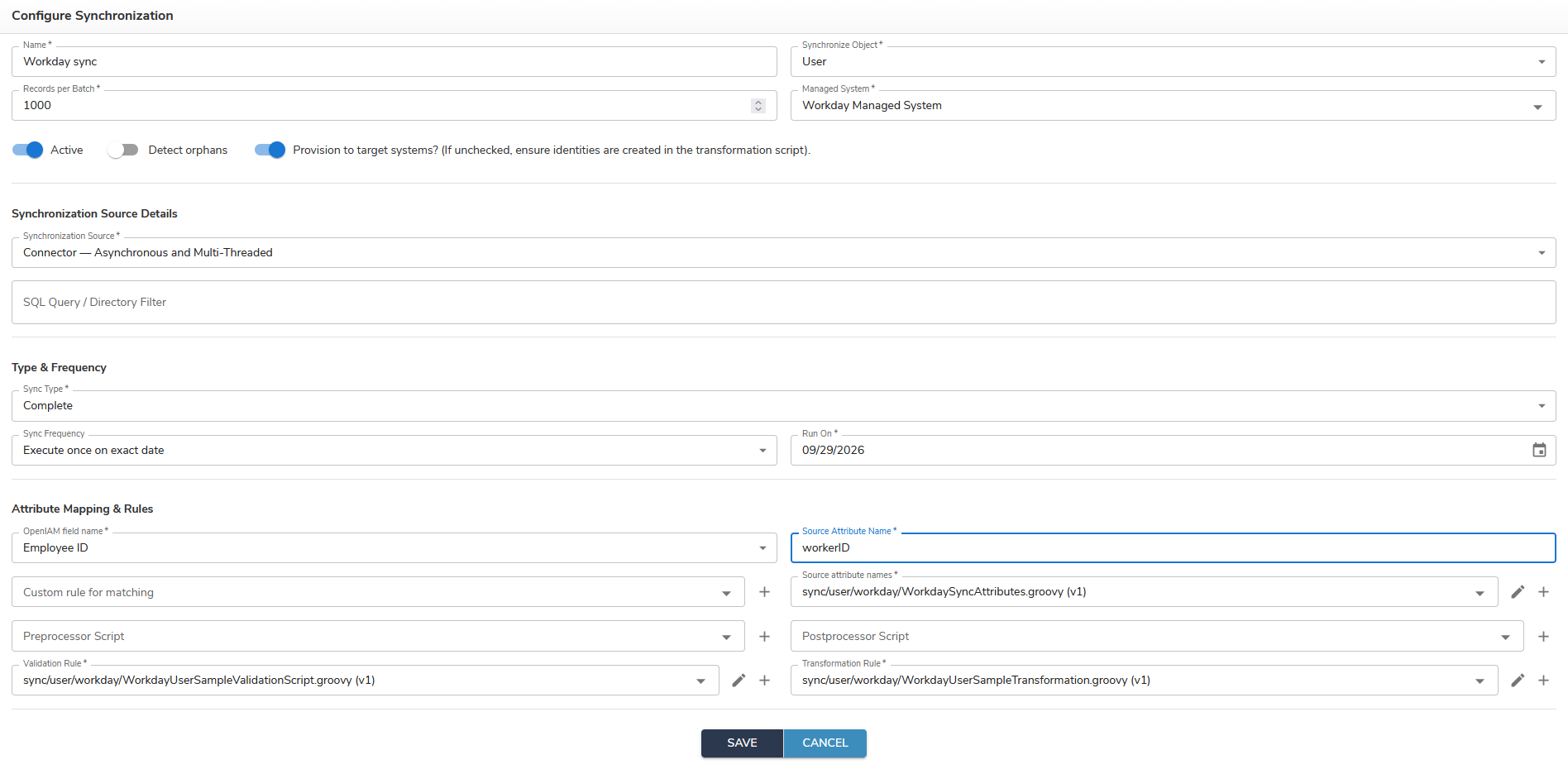
**`workerID` is the one that becomes the OpenIAM employee ID**, which is why it is the value to put in **Source Attribute Name** when you configure the synchronization below.

<figure><img src="https://2965242200-files.gitbook.io/~/files/v0/b/gitbook-x-prod.appspot.com/o/spaces%2F0uHWHRgcad6P03ehqgmX%2Fuploads%2Fgit-blob-f577f5839eae5efe40de3ace7968c8511b997e6d%2FWorkday5.png?alt=media" alt="The managed system Attributes table holding HUMAN_RESOURCES, STAFFING and WORKERS, each with one Workday service URL"><figcaption></figcaption></figure>

Now go to **Provisioning** → **Managed System** and find *Workday connector*. Connector should be up, as shown below.

## Attribute mapping and policy map

Workday is used as a **source** system: worker attributes arrive through synchronization and are mapped in the sync transformation script (see below). The only attribute the connector writes back to Workday is the user's work email (via the SOAP Human\_Resources service).

## Reconciliation and synchronization

How synchronization and reconciliation work in general is covered in the Administration guide — see [*Synchronize and import data*](/administration-guide/lifecycle/synchronize-and-import-data.md) and [*Configure reconciliation*](/administration-guide/lifecycle/configure-reconciliation.md). This section covers only what is specific to Workday.

Workday is a **source** system, so identities flow inbound. Reconciliation against Workday is read-only in practice: the connector cannot create, suspend or delete workers, so a reconciliation situation that would normally provision into the target has nowhere to act. Plan reconciliation policies accordingly.

Go to **Provisioning** → **Synchronization** → **Create New Synchronization**.

<table><thead><tr><th width="263">Field</th><th>Value</th></tr></thead><tbody><tr><td>Name:</td><td>Workday sync</td></tr><tr><td>Synchronize Object:</td><td>User</td></tr><tr><td>Records per Batch:</td><td>1000</td></tr><tr><td>Managed System:</td><td>Workday Managed System</td></tr><tr><td>Active</td><td>on</td></tr><tr><td>Provision to target systems?</td><td>on — if you leave it off, create the identities in the transformation script</td></tr><tr><td>Synchronization Source:</td><td>Connector — Asynchronous and Multi-Threaded</td></tr><tr><td>SQL Query / Directory Filter:</td><td>leave empty for a full sync</td></tr><tr><td>Sync Type:</td><td>Complete</td></tr><tr><td>Sync Frequency:</td><td>Execute once on exact date — this reveals a <strong>Run On</strong> date field</td></tr><tr><td>OpenIAM field name:</td><td>Employee ID</td></tr><tr><td>Source Attribute Name:</td><td><code>workerID</code></td></tr><tr><td>Source attribute names:</td><td><code>sync/user/workday/WorkdaySyncAttributes.groovy</code></td></tr><tr><td>Validation Rule:</td><td><code>sync/user/workday/WorkdayUserSampleValidationScript.groovy</code></td></tr><tr><td>Transformation Rule:</td><td><code>sync/user/workday/WorkdayUserSampleTransformation.groovy</code></td></tr></tbody></table>

The **SQL Query / Directory Filter** and **Sync Type** fields only appear once a Synchronization Source is chosen. Leave **Detect orphans** off — Workday is a source system, so there is nothing to detect orphans against.

The CSV sample validation script at `sync/user/csv/CSVSampleValidationScript.groovy` behaves identically — both log every column of each row and pass it — so either will do.

To rehearse against a single worker before running the whole population, put that worker's identifier in **SQL Query / Directory Filter** — for example `workerID=006971` — and clear it once the run looks right.

The field values are indicated in the image below.

<figure><img src="https://2965242200-files.gitbook.io/~/files/v0/b/gitbook-x-prod.appspot.com/o/spaces%2F0uHWHRgcad6P03ehqgmX%2Fuploads%2Fgit-blob-7078cf9abb0a2f789e11f52366eeef83580aa938%2FWorkday10.png?alt=media" alt="The Configure Synchronization form for Workday Sync, with Connector as the synchronization source, Complete as the sync type, and the validation, transformation and source-attribute scripts selected"><figcaption></figcaption></figure>

Click **Save** and then click **Sync Now** and check — a new user with the Employee ID from your example should be created in OpenIAM.


---

# Agent Instructions
This documentation is published with GitBook. GitBook is the documentation platform designed so that both humans and AI agents can read, navigate, and reason over technical content effectively. Learn more at gitbook.com.

## Querying This Documentation
If you need additional information that is not directly available in this page, you can query the documentation by asking a question.

Perform an HTTP GET request on the following URL with the `ask` and `goal` query parameters:

```
GET https://docs.openiam.com/connector-configuration/workday.md?ask=<question>&goal=<user_goal>
```

`ask` is the immediate question: it should be specific, self-contained, and written in natural language.
`goal` is what the user is ultimately trying to achieve, the reason they need the answer. Sharing it helps GitBook give you a better, more relevant answer. A goal is most helpful when it describes the outcome the user wants rather than restating the question. For example, with `ask=how do I create an API token`, a goal like `automate deployments from our CI pipeline` lets GitBook tailor the answer to that use case.

The response will contain a direct answer to the question and relevant excerpts and sources from the documentation.

Use this mechanism when the answer is not explicitly present in the current page, you need clarification or additional context, or you want to retrieve related documentation sections.