> For the complete documentation index, see [llms.txt](https://docs.openiam.com/llms.txt). Markdown versions of documentation pages are available by appending `.md` to page URLs; this page is available as [Markdown](https://docs.openiam.com/connector-configuration/tableau.md).

# Tableau connector

This page describes how to configure and use the Tableau connector

The Tableau connector enables provisioning and deprovisioning with the [Tableau.com](https://www.tableau.com) visual analytics platform. The connector uses the Tableau **REST API** for integration.

| Operation                                           | Supported                                                      |
| --------------------------------------------------- | -------------------------------------------------------------- |
| Create / modify user                                | ✅                                                              |
| Suspend user (site role set to `Unlicensed`)        | ✅                                                              |
| Resume user (site role set to `ExplorerCanPublish`) | ✅                                                              |
| Delete user                                         | ✅ soft delete — the user is set to `Unlicensed`, not removed   |
| Assign user to groups                               | ✅ the group must already exist in **both** Tableau and OpenIAM |
| Create / delete groups in Tableau                   | ❌                                                              |
| Reset password                                      | ❌                                                              |
| Bulk user import / synchronization                  | ✅                                                              |
| Test connection                                     | ✅                                                              |

{% hint style="info" %}
This connector has been tested with Tableau **REST API v3.2 and v3.25**.
{% endhint %}

## Use cases

* Provisioning and deprovisioning **Tableau Cloud site users** from OpenIAM.
* Driving **Tableau group membership** from OpenIAM entitlements (for groups that already exist in Tableau).
* **Importing Tableau users** into OpenIAM for visibility and access review.

## Versions and compatibility

The end application is **Tableau Cloud** (formerly Tableau Online) or Tableau Server, reached over the **Tableau REST API**.

<table><thead><tr><th width="147">Property</th><th>Value</th></tr></thead><tbody><tr><td><strong>Platform</strong></td><td>Tableau Cloud, Tableau Server</td></tr><tr><td><strong>Interface</strong></td><td>Tableau REST API, <strong>version 3.2</strong></td></tr><tr><td><strong>Host</strong></td><td>The managed system's URL — your Tableau pod, for example <code>https://prod-apsoutheast-b.online.tableau.com</code></td></tr><tr><td><strong>Site</strong></td><td><code>SITE_CONTENT_URL</code>, a managed system attribute, selects which Tableau site the connector acts on</td></tr><tr><td><strong>Authentication</strong></td><td>Sign-in at <code>/api/3.2/auth/signin</code>, which returns a token</td></tr></tbody></table>

{% hint style="warning" %}
**The API version is fixed at 3.2 and cannot be configured.** It is part of every endpoint path compiled into the connector, so there is no managed system field or property that changes it. Tableau 3.2 dates from 2018; it continues to work because Tableau keeps old REST API versions available, but a capability added in a later version is not reachable without a connector change.
{% endhint %}

## Prerequisites

* A Tableau **service account** for the connector to communicate with Tableau. Begin by creating an account in Tableau and logging in.
* The Tableau **host URL** (e.g., `https://your-site-name.tableau.com`) and the `SITE_CONTENT_URL` of the site you want to connect to.

{% hint style="warning" %}
**Important!** For a newly created site, navigate to the **Users** tab and change the admin user's authentication method to **Tableau**. By default, it is set to "Tableau with MFA". If you do not make this change, you will not be able to authenticate into the new site via the API.
{% endhint %}

## Installing the connector

In a Kubernetes deployment, the connector is deployed as part of OpenIAM. In an RPM environment, run it with the connector service unit (`openiam-connector@tableau-connector-rabbitmq`) or as a standalone JAR — see [Connectors via RPM](/installation/rpm/rpm-single-node/add-a-connector.md).

## Starting, stopping, and restarting

<table><thead><tr><th width="164">Deployment</th><th>Commands</th></tr></thead><tbody><tr><td>RPM (systemd)</td><td><code>systemctl start|stop|restart openiam-connector@tableau-connector-rabbitmq</code></td></tr><tr><td>Kubernetes</td><td><code>kubectl rollout restart</code> the connector deployment.</td></tr></tbody></table>

## Command-line parameters and properties

The connector is a Spring Boot application. Its defaults ship inside the jar, and you override them in either of two places:

* **An external property file**, read at `${confpath}/conf/properties/tableau-connector-rabbitmq.properties`. The file is optional, and `confpath` is itself a system property, set with `-Dconfpath=/data/openiam/`.
* **Directly on the command line**, as `-D` arguments, which win over the file.

{% code overflow="wrap" %}

```bash
java -Dconfpath=/data/openiam/ -Dlogging.level.root=INFO -Dorg.openiam.connector.queue=TABLEAU_Connector_1_Request -jar tableau-connector-rabbitmq.jar
```

{% endcode %}

| Property                       | Default                       | Purpose                                                                                                                                    |
| ------------------------------ | ----------------------------- | ------------------------------------------------------------------------------------------------------------------------------------------ |
| `org.openiam.connector.queue`  | `TABLEAU_Connector_1_Request` | Must match the connector record in OpenIAM.                                                                                                |
| `org.openiam.update.site.role` | `false`                       | When `true`, the connector also updates the user's Tableau **site role** during provisioning; when `false`, site roles are left unchanged. |

| Property                       | Default | Purpose                                                                               |
| ------------------------------ | ------- | ------------------------------------------------------------------------------------- |
| `org.openiam.update.site.role` | `false` | Whether the connector updates a user's Tableau **site role** when it updates the user |

{% hint style="warning" %}
**`org.openiam.update.site.role` has no built-in fallback.** It is read as `${org.openiam.update.site.role}` with no default value behind it, so it has to be present — in the property file or as a `-D` argument. Remove it from a property file you are editing and the connector fails at startup rather than falling back to `false`.
{% endhint %}

The connection details themselves are **not** set here — they are managed system parameters, covered under [Configuring the managed system](#configuring-the-managed-system).

## Verifying the connector is running

{% stepper %}
{% step %}
Open **Provisioning → Managed system** and find the Tableau row. Its **Running connector status** turns green and names the connector instance that answered; *No active connectors found* means the connector is not reachable on its queue.
{% endstep %}

{% step %}
Click **Test Connection** — it must return success.
{% endstep %}

{% step %}
In the RabbitMQ management console, confirm the `TABLEAU_Connector_1_Request` queue exists and has a consumer.
{% endstep %}
{% endstepper %}

At this point, the connector should be successfully configured.

## Troubleshooting

| Symptom                                                    | Likely cause                             | Resolution                                                                                                 |
| ---------------------------------------------------------- | ---------------------------------------- | ---------------------------------------------------------------------------------------------------------- |
| Cannot authenticate into a new site via the API            | Admin user still uses "Tableau with MFA" | Change the admin user's authentication method to **Tableau** on the site's Users tab.                      |
| Group assignment doesn't happen                            | Group missing on one side                | The group must exist, with a matching name, in **both** Tableau and OpenIAM.                               |
| Deleted users still appear in Tableau                      | Soft delete by design                    | Delete sets the user's site role to `Unlicensed`; the account is not removed from the site.                |
| Display name changes don't apply                           | Tableau locks the display name           | Once set during registration, the display name cannot be changed via OpenIAM or the Tableau UI.            |
| Site role changes don't apply                              | Site-role updates disabled               | Set `org.openiam.update.site.role=true` and restart the connector.                                         |
| Group create or delete reports success but nothing changes | Group-object operations are stubs        | Both return `SUCCESS` without calling Tableau. Create the group in Tableau first, then assign users to it. |

If the connection is not established, possible causes and troubleshooting steps can be found in [this document](/connector-configuration/4-troubleshootingconnector.md). See also the [connector error-code reference](/connector-configuration/4-troubleshootingconnector.md#connector-error-codes).

## Registering the connector in OpenIAM

Register the connector under **Provisioning → Connectors** and attach it to the managed system — see [Registering the connector](/administration-guide/lifecycle/connectors-and-managed-systems.md).

## Configuring the managed system

Configure the [Managed System](/administration-guide/lifecycle/configure-managed-system.md) and associate the connector with it.

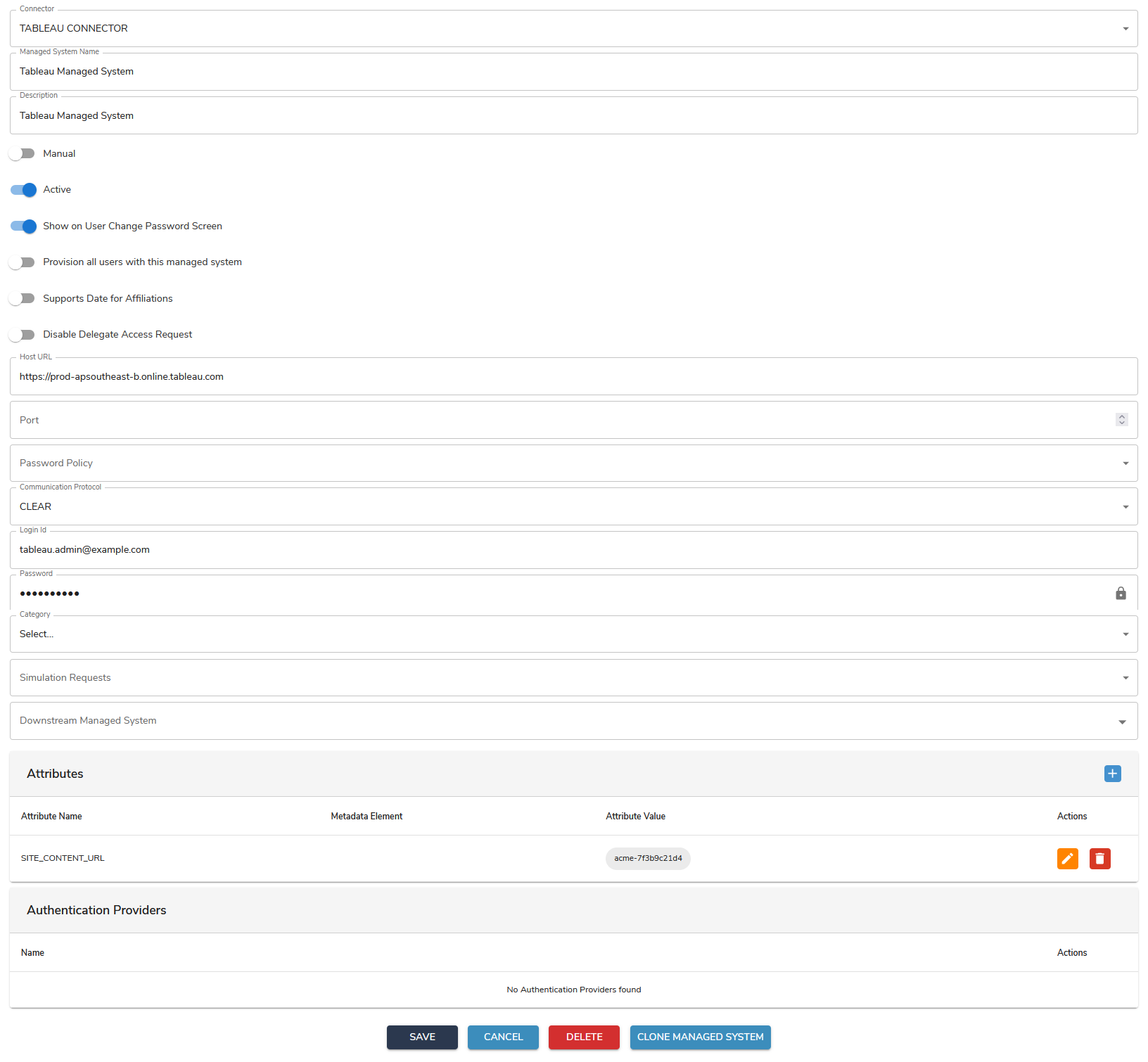
<figure><img src="https://2965242200-files.gitbook.io/~/files/v0/b/gitbook-x-prod.appspot.com/o/spaces%2F0uHWHRgcad6P03ehqgmX%2Fuploads%2Fgit-blob-e9550bcdce565650b34a075682f8b644e0ab3c79%2FManaged_system.png?alt=media" alt="The Tableau managed system, Active switched on, Host URL set to a Tableau Cloud pod and Login Id to the service account, with a single attribute SITE_CONTENT_URL holding the site identifier"><figcaption></figcaption></figure>

* Enter the Tableau host URL (e.g., `https://your-site-name.tableau.com`).
* Enter your Tableau login credentials.
* Enter the value of `SITE_CONTENT_URL` for the site you want to connect to.

Both values are visible in the address bar once you are signed in to the site. A Tableau Cloud URL reads:

{% code overflow="wrap" %}

```
https://prod-apsoutheast-b.online.tableau.com/#/site/acme-7f3b9c21d4/home
\___________________________________________/        \_____________/
                  Host URL                          SITE_CONTENT_URL
```

{% endcode %}

The site content URL is the segment after `/#/site/`, and it is not the site's display name — it carries a generated suffix, so copy it from the address bar rather than typing the name you gave the site.

* You can create multiple sites in Tableau. To do this, go to the Cloud Management portal and create a new site.

## Attribute mapping and policy map

Map the user attributes to be written to Tableau in the managed system's [policy map](/administration-guide/lifecycle/policy-map.md). Behavior specific to Tableau:

* Once a user is added to Tableau—either through OpenIAM or the Tableau UI—their email address will initially appear in **both** the *Username* and *Display Name* columns. When the user registers via the **Tableau invitation link**, they will be prompted to set their password, first name, and last name. After completing registration, the *Display Name* is updated accordingly.

{% hint style="info" %}
Please note that once the display name is set, it cannot be changed later through OpenIAM or the Tableau UI, as Tableau locks it.
{% endhint %}

* To assign a user to a group, the group **must** exist in **both** Tableau and OpenIAM. The connector compares group names in both systems, and if a match is found, the group is assigned to the user.

## Reconciliation and synchronization

The connector supports bulk user import — configure a synchronization against the managed system as described in [Configuring synchronization](/administration-guide/lifecycle/synchronize-and-import-data.md).


---

# Agent Instructions
This documentation is published with GitBook. GitBook is the documentation platform designed so that both humans and AI agents can read, navigate, and reason over technical content effectively. Learn more at gitbook.com.

## Querying This Documentation
If you need additional information that is not directly available in this page, you can query the documentation by asking a question.

Perform an HTTP GET request on the following URL with the `ask` and `goal` query parameters:

```
GET https://docs.openiam.com/connector-configuration/tableau.md?ask=<question>&goal=<user_goal>
```

`ask` is the immediate question: it should be specific, self-contained, and written in natural language.
`goal` is what the user is ultimately trying to achieve, the reason they need the answer. Sharing it helps GitBook give you a better, more relevant answer. A goal is most helpful when it describes the outcome the user wants rather than restating the question. For example, with `ask=how do I create an API token`, a goal like `automate deployments from our CI pipeline` lets GitBook tailor the answer to that use case.

The response will contain a direct answer to the question and relevant excerpts and sources from the documentation.

Use this mechanism when the answer is not explicitly present in the current page, you need clarification or additional context, or you want to retrieve related documentation sections.
