> For the complete documentation index, see [llms.txt](https://docs.openiam.com/llms.txt). Markdown versions of documentation pages are available by appending `.md` to page URLs; this page is available as [Markdown](https://docs.openiam.com/connector-configuration/scim.md).

# SCIM connector

This page describes how to configure the SCIM connector

OpenIAM provides an out-of-the-box SCIM connector to simplify integration with applications which support the SCIM standard for user life cycle management. A **default Managed System configuration** has been provided to simplify the configuration process.

The connector supports both **SCIM 1.1** and **SCIM 2.0** target applications.

{% hint style="warning" %}
**Direction:** this connector is **outbound** — OpenIAM pushes users and groups **out** to a SCIM-enabled application. For the reverse, where an external identity provider pushes users **into** OpenIAM, see the inbound SCIM 2.0 server.
{% endhint %}

| Operation                       | Supported |
| ------------------------------- | --------- |
| Create / modify user            | ✅         |
| Delete user                     | ✅         |
| Suspend / resume user           | ✅         |
| Reset password                  | ✅         |
| Search / synchronize users      | ✅         |
| Create / modify / delete groups | ✅         |
| Search groups                   | ✅         |
| Test connection                 | ✅         |

*Unless you are familiar with OpenIAM, we recommend that you leverage the OTB configuration and modify it to suit your needs.*

The steps provided below assume that you are creating a new configuration and not leveraging the existing configuration.

## Use cases

* Provisioning and deprovisioning users in **SaaS applications that expose a SCIM interface** (for example, Slack or Atlassian) without needing a dedicated connector.
* A **generic integration path** for any SCIM 1.1 / SCIM 2.0-compliant application.

## Versions and compatibility

The end application is **any service that exposes a SCIM endpoint**. The connector carries two separate client libraries, one for each version of the standard, and picks between them from the **SCIM Version** field on the managed system.

<table><thead><tr><th width="167">Property</th><th>Value</th></tr></thead><tbody><tr><td><strong>Standard</strong></td><td>SCIM <strong>1.0</strong> and SCIM <strong>2.0</strong></td></tr><tr><td><strong>Interface</strong></td><td>The SCIM REST API, over HTTPS</td></tr><tr><td><strong>Libraries</strong></td><td>The UnboundID SCIM SDK for 1.0, and the PingIdentity SCIM 2 SDK for 2.0</td></tr><tr><td><strong>Host</strong></td><td>The managed system's URL, the service's SCIM base path</td></tr><tr><td><strong>Authentication</strong></td><td>A bearer token</td></tr></tbody></table>

{% hint style="warning" %}
**Set SCIM Version to match the service, not to the newer number.** The two versions are different schemas, not revisions of one — the connector builds a different client for each, and pointing a 1.0 client at a 2.0 endpoint fails in ways that look like authentication or schema errors rather than a version mismatch. Check which the target service publishes before configuring it.
{% endhint %}

## Prerequisites

* The **SCIM endpoint URL** of the target application (e.g. `https://api.atlassian.com/scim/directory/[tenant id]`).
* Credentials for the target: either an **authentication token** (Bearer) or a **Basic-auth** login and password.
* The **SCIM version** (1.0/1.1 or 2.0) used by the target application.

## Installing the connector

Normally, the SCIM connector is installed as part of the standard OpenIAM installation — no separate installation is required in a Kubernetes deployment.

In an RPM environment, run it with the connector service unit (`openiam-connector@scim-connector-rabbitmq`) or as a standalone JAR — see [Connectors via RPM](/installation/rpm/rpm-single-node/add-a-connector.md).

## Starting, stopping, and restarting

<table><thead><tr><th width="165">Deployment</th><th>Commands</th></tr></thead><tbody><tr><td>RPM (systemd)</td><td><code>systemctl start|stop|restart openiam-connector@scim-connector-rabbitmq</code></td></tr><tr><td>Kubernetes</td><td><code>kubectl rollout restart</code> the connector deployment.</td></tr></tbody></table>

## Command-line parameters and properties

The connector is a Spring Boot application. Its defaults ship inside the jar, and you override them in either of two places:

* **An external property file**, read at `${confpath}/conf/properties/scim-connector-rabbitmq.properties`. The file is optional, and `confpath` is itself a system property, set with `-Dconfpath=/data/openiam/`.
* **Directly on the command line**, as `-D` arguments, which win over the file.

{% code overflow="wrap" %}

```bash
java -Dconfpath=/data/openiam/ -Dlogging.level.root=INFO -Dorg.openiam.connector.queue=SCIM_Connector_1_Request -jar scim-connector-rabbitmq.jar
```

{% endcode %}

The connection details themselves are **not** set here — they are managed system parameters, covered under [Configuring the managed system](#configuring-the-managed-system).

## Verifying the connector is running

{% stepper %}
{% step %}
In the Webconsole, open the managed system — the **Running connector status** indicator must be green.
{% endstep %}

{% step %}
Click **Test Connection** — it must return success.
{% endstep %}

{% step %}
In the RabbitMQ management console, confirm the `SCIM_Connector_1_Request` queue exists and has a consumer.
{% endstep %}
{% endstepper %}

## Troubleshooting

| Symptom                                            | Likely cause                     | Resolution                                                                                                          |
| -------------------------------------------------- | -------------------------------- | ------------------------------------------------------------------------------------------------------------------- |
| Operations fail with `SCIM_CLIENT_NOT_INITIALIZED` | Connection parameters incomplete | Verify Host URL, Authentication type, and — for Token auth — that the Token field is populated.                     |
| Authentication errors (401/403)                    | Wrong auth type or expired token | Check whether the target expects Basic Auth or a Bearer token, and rotate the token if it expired.                  |
| Requests rejected by the target with schema errors | Wrong SCIM version selected      | The SCIM version on the managed system must match the interface version of the target application (1.0/1.1 vs 2.0). |
| Connector never receives messages                  | Queue-name mismatch              | The connector record's queue must equal `SCIM_Connector_1_Request` exactly.                                         |

See also: [general connector troubleshooting](/connector-configuration/4-troubleshootingconnector.md) and the [connector error-code reference](/connector-configuration/4-troubleshootingconnector.md#connector-error-codes).

## Registering the connector in OpenIAM

Before you can use the SCIM connector, ensure that the connector has been registered with the OpenIAM application. You can validate the connector has registered by doing the following:

* Goto the *Webconsole -> Provisioning -> Connectors*
* Search for SCIM

You should see an entry in the list. If you don't, then follow the step below to register the connector

* Go to `Webconsole -> Provisioning -> Connectors`
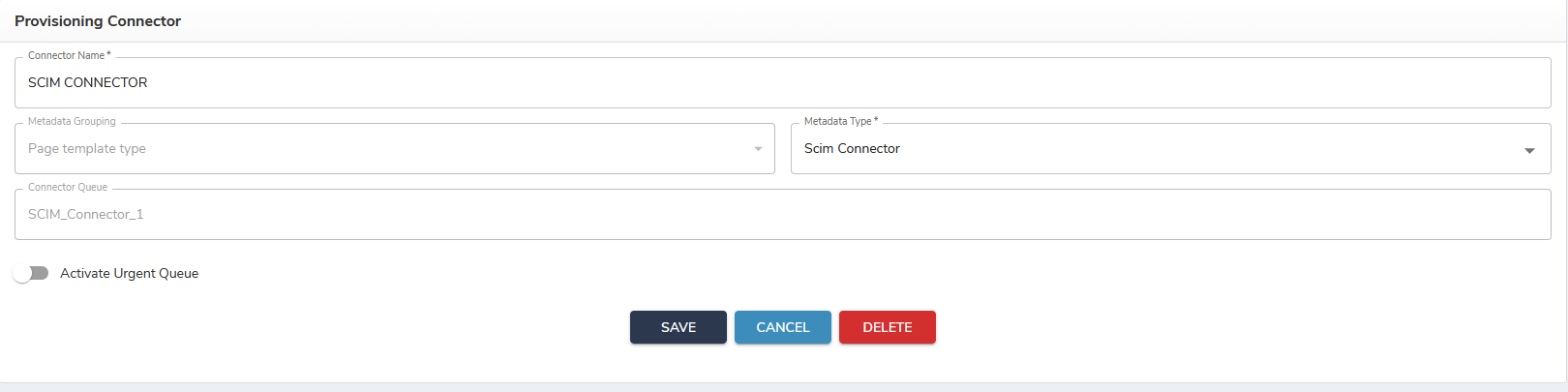
* Click on `Create new connector` as shown in the image below:

<figure><img src="https://2965242200-files.gitbook.io/~/files/v0/b/gitbook-x-prod.appspot.com/o/spaces%2F0uHWHRgcad6P03ehqgmX%2Fuploads%2Fgit-blob-27b3c34b2aa15840cbe3a53aba11592ba8ad2f7d%2Fscim_connector-reg-queue.png?alt=media" alt="The Provisioning Connector form for SCIM, with Connector Name set to SCIM CONNECTOR, Metadata Type to Scim Connector and the Connector Queue field showing SCIM_Connector_1"><figcaption></figcaption></figure>

Complete the form as described in the table below

| Field name         | Description                                                                                                           | Recommended Value  |
| ------------------ | --------------------------------------------------------------------------------------------------------------------- | ------------------ |
| Connector Name     | Name of the connector. They can be any user-friendly name                                                             | SCIM Connector     |
| Metadata Grouping  | Connectors are part of a metadata group which is used internally                                                      | Connector Type     |
| Metadata Type name | The metadata type is used to define attributes and configurations                                                     | SCIM Connector     |
| Connector Queue    | Name of the RabbitMQ message queue which will be used by the connector to communicate with the other OpenIAM Services | SCIM\_Connector\_1 |

* Next, define the configuration parameters which will be used by the connector by using the `Connector configuration` menu on the sidebar. The following options should be enabled for the SCIM connector:

| Parameter Name              | Is required |
| --------------------------- | ----------- |
| Add object rule             |             |
| Delete object rule          |             |
| Modify object rule          |             |
| Password rule               |             |
| Test connection object rule |             |
| Search object rule          |             |
| Resume object rule          |             |
| Suspend object rule         |             |
| Object primary key for user | Y           |

Add the following Custom Fields:

| Custom field name | Field type |
| ----------------- | ---------- |
| AUTH\_TYPE        | Combo box  |
| TOKEN             | Text field |
| SCIM\_VERSION     | Combo box  |
| TOKEN\_TYPE       | Combo box  |

| Property                                  | Default                     | Purpose                                     |
| ----------------------------------------- | --------------------------- | ------------------------------------------- |
| `org.openiam.connector.queue`             | `SCIM_Connector_1_Request`  | Must match the connector record in OpenIAM. |
| `org.openiam.connector.queueResponseName` | `SCIM_Connector_1_Response` |                                             |

## Configuring the managed system

After the connector has been registered, you will need to define a managed system configuration. The managed system configuration will:

* Tell the connector how to connect to the end application using SCIM
* Determine which attributes will be *Managed* by OpenIAM during the provisioning/de-provisioning process

To configure a managed system, do the following:

* Go to `Webconsole -> Provisioning -> Managed System`
* Click on `Create Managed System`

Complete the form as described below.

<table><thead><tr><th>Field name</th><th width="298">Description</th><th>Value</th></tr></thead><tbody><tr><td>Connector</td><td>This is the name of the connector as described above during the registration process</td><td>SCIM Connector</td></tr><tr><td>Managed system name</td><td>Descriptive name to represent this configuration</td><td>[ User defined ]</td></tr><tr><td>Active</td><td>Checkbox to indicate if this configuration is active. If it's unchecked, the connector will not communicate with the end-application</td><td></td></tr><tr><td>Host URL</td><td>URL of the SCIM interface on the end-application: eg. https://api.atlassian.com/scim/directory/[ tenant id]</td><td></td></tr><tr><td>Login ID</td><td>If the Authentication type is Token, Login Id is not needed as this will be replaced by the authentication token</td><td>0001</td></tr><tr><td>Password</td><td>If the Authentication type is Token, Password is not needed as this will be replaced by the authentication token</td><td></td></tr><tr><td>Authentication type</td><td>Indicates the type of authentication</td><td>Token</td></tr><tr><td>Token</td><td>Value of the authentication token</td><td>Token</td></tr><tr><td>SCIM version</td><td>Version of the SCIM interface being used by the target application</td><td>1.0 or 2.0</td></tr><tr><td>Token Type</td><td>Type of authentication token being used</td><td>Bearer</td></tr></tbody></table>

{% hint style="info" %}
Two authentication types are supported: **Basic Auth** (uses the Login ID and Password fields) and **Token** (uses the Token field, sent as a Bearer token). The `AUTH_TYPE` value on the managed system selects between them.
{% endhint %}

### Examples

Two worked examples. They are worth reading side by side, because the two services sit on different versions of the standard — which is the single setting most often wrong on a new SCIM managed system.

| Managed system field    | Slack                            | Atlassian                                                |
| ----------------------- | -------------------------------- | -------------------------------------------------------- |
| **Host URL**            | `https://api.slack.com/scim/v1/` | `https://api.atlassian.com/scim/directory/<directoryId>` |
| **Authentication Type** | `Token`                          | `Token`                                                  |
| **Token Type**          | `Bearer`                         | `Bearer`                                                 |
| **Token**               | The Slack SCIM token             | The Atlassian organisation API key                       |
| **SCIM Version**        | `1.0`                            | `2.0`                                                    |

Take the Atlassian directory ID from the SCIM base URL that Atlassian shows when you create the API key; it is part of the path, not a separate field.

## Attribute mapping and policy map

Which user attributes are written to the target application is controlled by the managed system's policy map, as with any other connector — see the [Policy map](/administration-guide/lifecycle/policy-map.md) documentation. The attributes are transmitted in the standard SCIM user schema of the version selected on the managed system.

## Reconciliation and synchronization

The connector supports searching users and groups from the SCIM target, so you can configure a synchronization against the managed system as described in [Configuring synchronization](/administration-guide/lifecycle/synchronize-and-import-data.md).


---

# Agent Instructions
This documentation is published with GitBook. GitBook is the documentation platform designed so that both humans and AI agents can read, navigate, and reason over technical content effectively. Learn more at gitbook.com.

## Querying This Documentation
If you need additional information that is not directly available in this page, you can query the documentation by asking a question.

Perform an HTTP GET request on the following URL with the `ask` and `goal` query parameters:

```
GET https://docs.openiam.com/connector-configuration/scim.md?ask=<question>&goal=<user_goal>
```

`ask` is the immediate question: it should be specific, self-contained, and written in natural language.
`goal` is what the user is ultimately trying to achieve, the reason they need the answer. Sharing it helps GitBook give you a better, more relevant answer. A goal is most helpful when it describes the outcome the user wants rather than restating the question. For example, with `ask=how do I create an API token`, a goal like `automate deployments from our CI pipeline` lets GitBook tailor the answer to that use case.

The response will contain a direct answer to the question and relevant excerpts and sources from the documentation.

Use this mechanism when the answer is not explicitly present in the current page, you need clarification or additional context, or you want to retrieve related documentation sections.