> For the complete documentation index, see [llms.txt](https://docs.openiam.com/llms.txt). Markdown versions of documentation pages are available by appending `.md` to page URLs; this page is available as [Markdown](https://docs.openiam.com/connector-configuration/salesforce.md).

# Salesforce.com connector

This section describes how to enable provisioning / deprovisioning users in Salesforce.com using OpenIAM

The Salesforce.com connector provisions and deprovisions users in Salesforce.com (SFDC) over the Salesforce REST API. This page covers deploying it, registering it in OpenIAM, and configuring the managed system behind it.

<table><thead><tr><th width="202">Operation</th><th width="126">Supported</th><th>How it is carried out</th></tr></thead><tbody><tr><td>Create user</td><td>Yes</td><td><code>POST /sobjects/User</code>, immediately followed by a password call — see <a href="#passwords-on-newly-created-users">Passwords on newly created users</a></td></tr><tr><td>Update user</td><td>Yes</td><td><code>PATCH /sobjects/User/{id}</code></td></tr><tr><td>Delete user</td><td><strong>Deactivates</strong></td><td>Salesforce does not permit User records to be deleted. The connector sets <code>IsActive</code> to false, which is the same change Suspend makes</td></tr><tr><td>Suspend / resume user</td><td>Yes</td><td>Sets <code>IsActive</code> to false / true</td></tr><tr><td>Reset password</td><td>Yes</td><td><code>POST /sobjects/User/{id}/password</code></td></tr><tr><td>Search or look up a user</td><td>Yes</td><td>SOQL through <code>/query/</code></td></tr><tr><td>Search roles</td><td>Yes</td><td>SOQL through <code>/query/</code></td></tr><tr><td>Test connection</td><td>Yes</td><td>Requests an OAuth token</td></tr><tr><td>Login</td><td>No</td><td>Returns <code>OPERATION_NOT_SUPPORTED</code></td></tr><tr><td>Update group</td><td>Yes</td><td><code>PATCH /sobjects/Profile/{id}</code> — a "group" here is a Salesforce <strong>Profile</strong></td></tr><tr><td>Delete group</td><td>Yes</td><td><code>DELETE /sobjects/Profile/{id}</code></td></tr><tr><td>Create group</td><td><strong>No</strong></td><td>Salesforce does not allow Profiles to be created this way. See the warning below</td></tr></tbody></table>

{% hint style="danger" %}
**Provisioning a group that does not already exist in Salesforce reports success and does nothing.** The connector looks the Profile up, finds nothing, writes a line to its own log, and still returns a success status to OpenIAM. Create Profiles in Salesforce first, then reference them from OpenIAM — and do not rely on a successful group provisioning result to mean the Profile exists.
{% endhint %}

## Use cases

* Provisioning and deprovisioning **Salesforce users** — accounts, profiles, and permission flags — from OpenIAM.
* **Importing Salesforce users** into OpenIAM for visibility and access review.
* Managing **password resets** in Salesforce through OpenIAM.

## Versions and compatibility

The connector calls the Salesforce REST API directly over HTTPS. It is not built against a particular Salesforce release, and it pins no API version of its own — the version is a managed system setting that the connector drops straight into the request path (`/services/data/<version>/...`).

<table><thead><tr><th width="163">Property</th><th>Value</th></tr></thead><tbody><tr><td><strong>Editions</strong></td><td>Any Salesforce edition whose licence includes API access</td></tr><tr><td><strong>Interface</strong></td><td>Salesforce REST API over HTTPS</td></tr><tr><td><strong>API version</strong></td><td>Whatever you set on the managed system</td></tr><tr><td><strong>Authentication</strong></td><td>OAuth 2.0, <code>password</code> grant — username, password + security token, client ID and client secret</td></tr></tbody></table>

{% hint style="warning" %}
**Set an API version your org still supports.** Salesforce retires older API versions on a published schedule, and a request against a retired version fails outright. `v39.0` appears in older configurations and dates from 2017 — check Salesforce's own list of supported versions and use a current one for a new deployment.

Enter it exactly as Salesforce writes it — `v` and the number, with no dot between them. The connector substitutes the field into the request path unchanged (`/services/data/<version>/...`) and normalises nothing, so `v.39.0` or `39.0` produces a path Salesforce does not serve.
{% endhint %}

## Prerequisites

### Connector host

This connector requires a Linux host.

* **Kubernetes:** connectors are deployed automatically.
* **RPM distribution:** follow the installation steps below.

### Service account privileges

The connector authenticates as a single Salesforce user. That account needs:

| Requirement                        | Why                                                     |
| ---------------------------------- | ------------------------------------------------------- |
| A licence that includes API access | Without it, every call is refused regardless of profile |
| A profile with **API Enabled**     | The permission the REST API checks                      |
| Permission to administer users     | To create, update and deactivate User records           |

**API Enabled** is a checkbox under *Administrative Permissions* on the profile assigned to the service account. In Salesforce Setup, open the profile, edit it, and select **API Enabled**. Follow Salesforce's own documentation for the current click path rather than a screenshot here, because the Setup UI changes between Salesforce releases.

## Installing the connector

### Kubernetes

In Kubernetes deployments this connector is deployed automatically as part of OpenIAM. No additional steps are required.

### RPM install

Download the connector JAR and run it:

{% code overflow="wrap" %}

```bash
java -Dlogging.level.root=INFO -Dconfpath=/data/openiam/ -Dorg.openiam.connector.queue=SALESFORCE_Connector_1_Request -Dorg.openiam.connector.queueResponseName=SALESFORCE_Connector_1_Response -jar salesforce-connector-rabbitmq.jar > salesforce.out &
```

{% endcode %}

{% hint style="info" %}
`SALESFORCE_Connector_1` is the default queue. If you register the connector under a different queue name, update the command to match.
{% endhint %}

To follow the connector log:

```bash
tail -f salesforce.out
```

## Starting, stopping, and restarting

<table><thead><tr><th width="170">Deployment</th><th>Commands</th></tr></thead><tbody><tr><td>RPM (systemd)</td><td><code>systemctl start|stop|restart openiam-connector@salesforce-connector-rabbitmq</code></td></tr><tr><td>Kubernetes</td><td><code>kubectl rollout restart</code> the connector deployment</td></tr></tbody></table>

## Command-line parameters and properties

The connector is a Spring Boot application. Its defaults ship inside the jar, and you override them in either of two places:

* **An external property file**, read at `${confpath}/conf/properties/salesforce-connector-rabbitmq.properties`. The file is optional, and `confpath` is itself a system property, set with `-Dconfpath=/data/openiam/`.
* **Directly on the command line**, as `-D` arguments, which win over the file.

| Property                                         | Default                           | Purpose                                                                                                                                                   |
| ------------------------------------------------ | --------------------------------- | --------------------------------------------------------------------------------------------------------------------------------------------------------- |
| `org.openiam.connector.queue`                    | `SALESFORCE_Connector_1_Request`  | Request queue. Must match the connector record in OpenIAM                                                                                                 |
| `org.openiam.connector.queueResponseName`        | `SALESFORCE_Connector_1_Response` | Response queue                                                                                                                                            |
| `org.openiam.salesforce.date.format`             | `yyyy-MM-dd HH:mm:ss`             | Date format used with the Salesforce API                                                                                                                  |
| `org.openiam.salesforce.token.expiresIn.minutes` | `15`                              | How long the connector caches a Salesforce session token before re-authenticating. Align it with, or keep it below, your Salesforce org's session timeout |

The Salesforce connection details themselves are **not** set here — they are managed system parameters, covered under [Configuring the managed system](#configuring-the-managed-system).

## Verifying the connector is running

{% stepper %}
{% step %}
In the Webconsole, open the managed system — the connection health check must appear **green** (this can take a few minutes after startup).
{% endstep %}

{% step %}
Click **Test Connection** — it must return success.
{% endstep %}

{% step %}
In the RabbitMQ management console, confirm the `SALESFORCE_Connector_1_Request` queue exists and has a consumer.
{% endstep %}

{% step %}
Check the connector output (`tail -f salesforce.out` in an RPM install) for startup errors.
{% endstep %}
{% endstepper %}

## Troubleshooting

### Passwords on newly created users

The connector creates the user, then makes a second call to set the password. Two consequences are worth knowing before you build a policy map.

{% hint style="danger" %}
**Map the `Password` attribute.** When the policy map supplies no password value, the connector sets a fixed, well-known default rather than leaving the password unset. Every account created without a mapped password therefore ends up with the same password. Always map `Password` to a generated value.
{% endhint %}

The password call runs after the account has already been created, and its result does not change the result OpenIAM sees. A create can therefore be reported as successful while the password step failed — if a newly provisioned user cannot sign in, check the connector log for the password call rather than assuming the account was not created.

After a password is assigned, the user's first sign-in through the Salesforce UI forces a reset. Salesforce also enforces a short delay — roughly five minutes — before a newly provisioned account can sign in.

### Known errors

If the forced reset described above is cancelled, setting a new password through the API can raise the following, even though the password is applied:

{% code overflow="wrap" %}

```
[UnexpectedErrorFault [ApiFault  exceptionCode='UNKNOWN_EXCEPTION' exceptionMessage='invalid repeated password' extendedErrorDetails='{[0]}']
```

{% endcode %}

| Symptom                                                     | Likely cause                                                                                                     | Resolution                                                                                              |
| ----------------------------------------------------------- | ---------------------------------------------------------------------------------------------------------------- | ------------------------------------------------------------------------------------------------------- |
| Test Connection fails immediately                           | Client ID, client secret or grant type is missing or wrong, or the password field has no security token appended | Check all four. The **Password** field holds the password and the token concatenated, with no separator |
| Test Connection fails after a password change               | The security token is regenerated whenever the account's password changes                                        | Append the new token to the new password                                                                |
| Every call fails with an API error                          | The service account's profile does not have **API Enabled**, or its licence excludes API access                  | Enable **API Enabled** on the profile, or move the account to a licence that includes API access        |
| Requests fail against a version that used to work           | The API version on the managed system has been retired by Salesforce                                             | Set a currently supported API version                                                                   |
| A group provisioning operation succeeds but nothing appears | The Profile does not exist in Salesforce                                                                         | Create the Profile in Salesforce first — see the warning at the top of this page                        |

See also: [general connector troubleshooting](/connector-configuration/4-troubleshootingconnector.md) and the [connector error-code reference](/connector-configuration/4-troubleshootingconnector.md#connector-error-codes).

## Registering the connector in OpenIAM

The connector must be registered within OpenIAM for it to be operational. This process defines the message queue used by the core OpenIAM services to communicate with the connector. To register the SFDC connector, log in to the Webconsole and follow the steps below.

{% stepper %}
{% step %}
Go to **Provisioning** → **Connector**.
{% endstep %}

{% step %}
If the Salesforce.com connector entry does not exist, click **Create new connector** from the side menu.
{% endstep %}

{% step %}
Complete the fields as shown below.
{% endstep %}
{% endstepper %}

| Connector configuration parameter | Description                                                                        |
| --------------------------------- | ---------------------------------------------------------------------------------- |
| Connector Name                    | A descriptive name to identify this connector, for example `Salesforce.com`        |
| Metadata Grouping                 | Select `Connector type`                                                            |
| Metadata Type Name                | Select `Salesforce.com connector` — identifies the connector type internally       |
| Connector Queue                   | Enter `SALESFORCE_Connector_1`. This is the queue name used for receiving messages |

## Configuring the managed system

Define a managed system in the Webconsole under **Provisioning** → **Managed system**. Before you do, collect two things from Salesforce.

### Security token

The managed system's **Password** field takes the service account's password and its Salesforce **security token** concatenated into one string, with no separator.

Salesforce issues the token when the account is created and emails a new one whenever the account's password is changed. If you no longer have it, the account holder can reset it from **Settings** → **My Personal Information** → **Reset My Security Token**. See Salesforce's own help centre for the current procedure.

{% hint style="warning" %}
**Changing the service account's password invalidates the security token.** The managed system then fails to connect until the Password field is updated with both the new password and the new token.
{% endhint %}

### Client ID and client secret

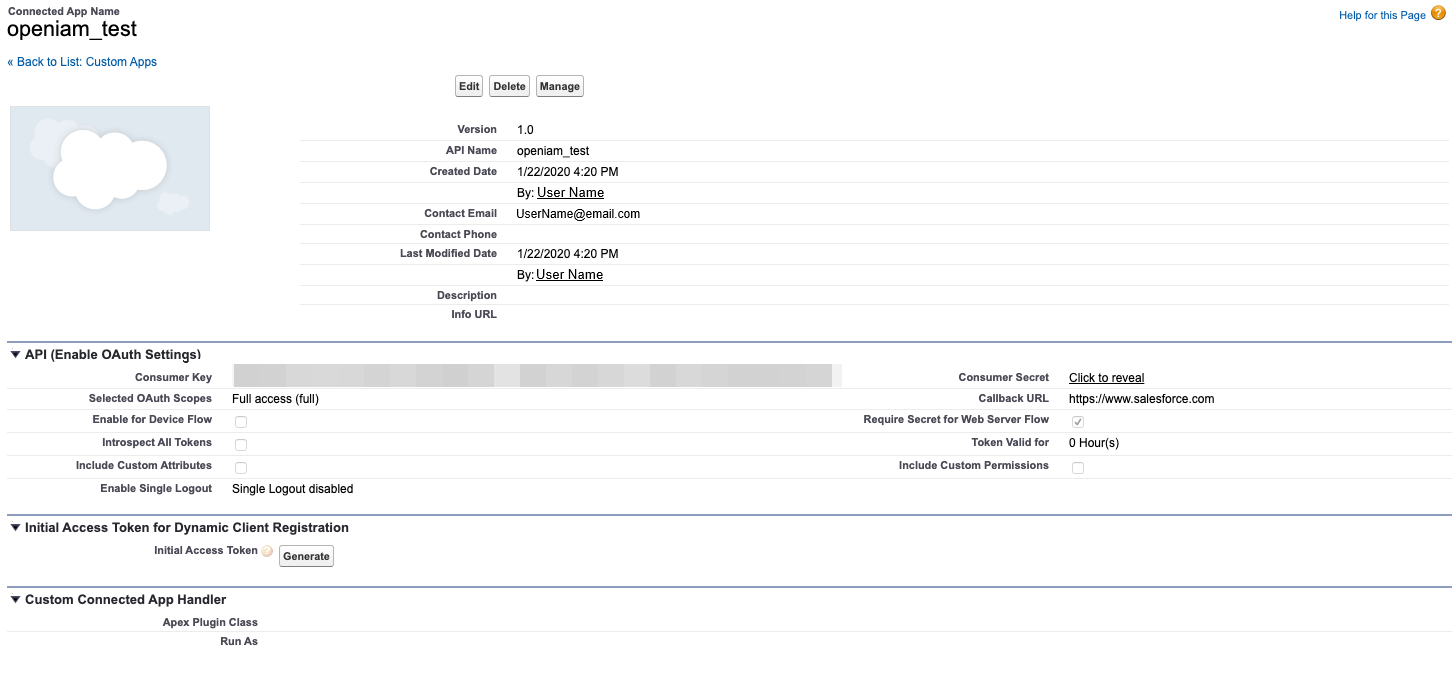
The connector authenticates with the OAuth 2.0 `password` grant, so it also needs the consumer key and consumer secret of a Salesforce connected app. A Salesforce administrator can read them from **Setup** → **App Manager** → the app → **View** → **Manage Consumer Details**.

In OpenIAM, the consumer key goes in **Client ID** and the consumer secret in **Client Secret**.

<figure><img src="https://2965242200-files.gitbook.io/~/files/v0/b/gitbook-x-prod.appspot.com/o/spaces%2F0uHWHRgcad6P03ehqgmX%2Fuploads%2Fgit-blob-35ccc2f295a7185da03144e6bf9ac3bde738ee78%2Fid_and_secret2.png?alt=media" alt="A Salesforce connected app detail page showing the API (Enable OAuth Settings) block, with the Consumer Key masked and the Consumer Secret behind a Click to reveal link"><figcaption></figcaption></figure>

### Managed system settings

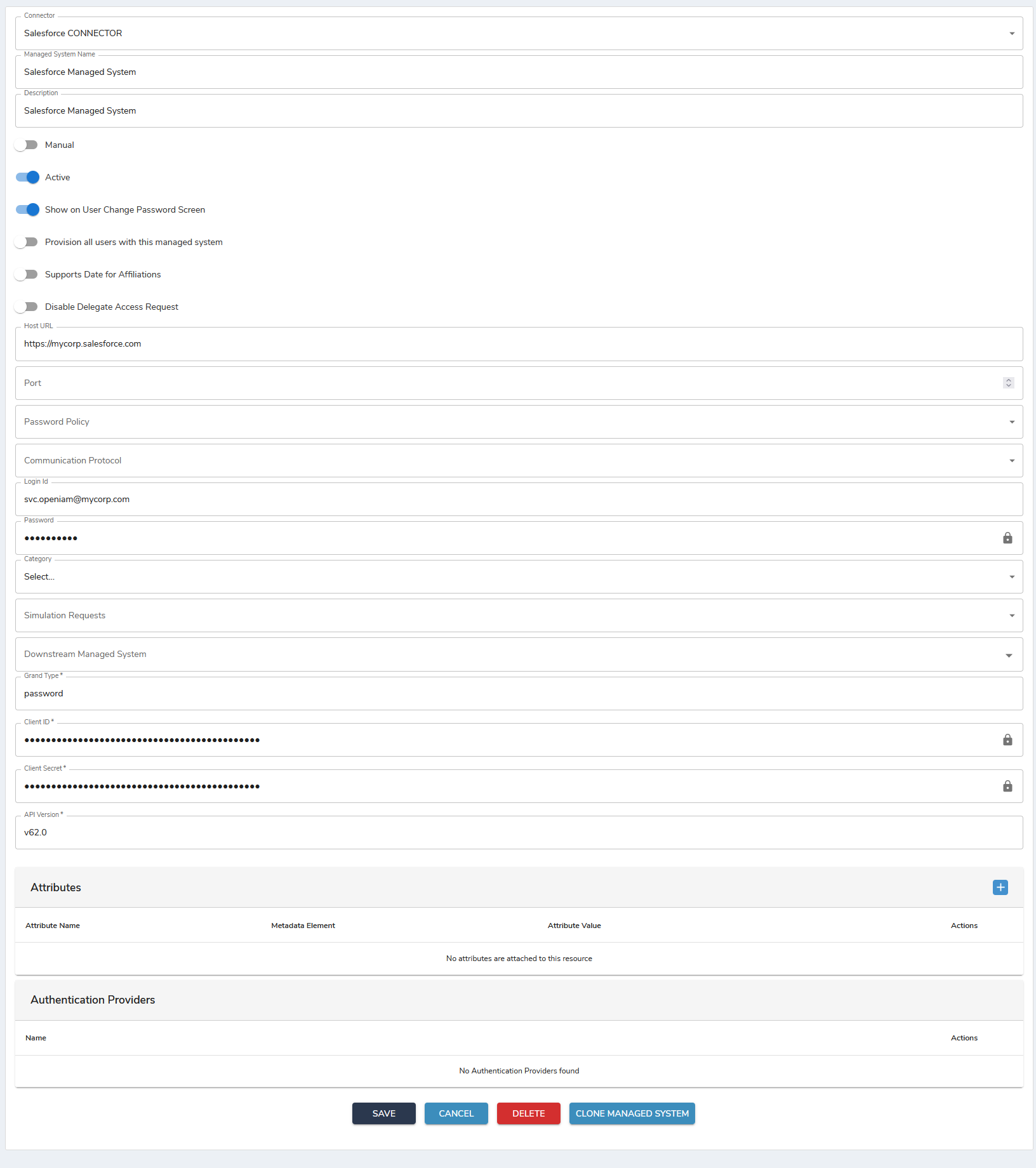
<table><thead><tr><th width="177">Managed system field</th><th>Value</th></tr></thead><tbody><tr><td>Host URL</td><td><code>https://[tenant].salesforce.com</code>, for example <code>https://mycorp.salesforce.com</code></td></tr><tr><td>Login Id</td><td>The service account username</td></tr><tr><td>Password</td><td>Password and security token, entered as one string</td></tr><tr><td>Grand Type</td><td><code>password</code></td></tr><tr><td>Client ID</td><td>The connected app's consumer key</td></tr><tr><td>Client Secret</td><td>The connected app's consumer secret</td></tr><tr><td>API Version</td><td>A currently supported Salesforce API version, in Salesforce's own <code>vNN.0</code> form</td></tr></tbody></table>

{% hint style="info" %}
**The console labels the grant field `Grand Type`.** The misspelling is in the UI, not in the setting — the value `password` is the OAuth grant type, which the connector sends as `grant_type` when it requests a token.
{% endhint %}

If the connection is successful, the connection health check appears **green** within a few minutes. If it fails it appears **red** — see [Troubleshooting](#troubleshooting).

An example of a configured managed system:

<figure><img src="https://2965242200-files.gitbook.io/~/files/v0/b/gitbook-x-prod.appspot.com/o/spaces%2F0uHWHRgcad6P03ehqgmX%2Fuploads%2Fgit-blob-618e57804dd120ffabbfe6f90fa715bf547613bd%2FmanagedSystem.png?alt=media" alt="A configured Salesforce managed system - Active switched on, the Host URL set to a Salesforce tenant, a service account in Login Id, and Grand Type, Client ID, Client Secret and API Version filled in below"><figcaption></figcaption></figure>

## Attribute mapping and policy map

Define a **policy map**, which determines how the connector populates attributes on the User object.

1. Go to **Policy Map** on the managed system created above.
2. Click **Add** and select *Provision user* from the dropdown.

<table><thead><tr><th width="214">Field name</th><th width="101">Required</th><th>Value</th></tr></thead><tbody><tr><td>Alias</td><td></td><td>User alias. Requires custom field. Max 8 characters</td></tr><tr><td>DefaultGroupNotificationFrequency</td><td></td><td>Set default via Groovy or custom field, type <code>select</code></td></tr><tr><td>DigestFrequency</td><td></td><td>Set default via Groovy or custom field, type <code>select</code></td></tr><tr><td>Email</td><td></td><td>Maps to Primary email in OpenIAM. Must be unique</td></tr><tr><td>EmailEncodingKey</td><td></td><td>Default <code>UTF-8</code>. Requires Groovy or custom field</td></tr><tr><td>FirstName</td><td>N</td><td>User's first name. Required in OpenIAM but optional in Salesforce</td></tr><tr><td>IsActive</td><td></td><td>Determines active or disabled state in SFDC. Default scripts use OpenIAM Status</td></tr><tr><td>LanguageLocaleKey</td><td></td><td>Default <code>en_US</code>. Requires Groovy or custom field</td></tr><tr><td>LastName</td><td></td><td>User's last name</td></tr><tr><td>LocaleSidKey</td><td></td><td>Default <code>en_US</code>. Requires Groovy or custom field</td></tr><tr><td>Password</td><td><strong>Y</strong></td><td>See <a href="#passwords-on-newly-created-users">Passwords on newly created users</a>. If the account is inactive the reset is sent as a link; if active, the password is updated directly</td></tr><tr><td>ProfileId</td><td></td><td>Requires custom field. Holds the ID of the Profile the user is added to</td></tr><tr><td>TimeZoneSidKey</td><td></td><td>Default <code>America/New_York</code>. Requires Groovy or custom field</td></tr><tr><td>Username</td><td></td><td>Principal. Defaults to primary email</td></tr><tr><td>UserPermissionsCallCenterAutoLogin</td><td></td><td>Default <code>false</code>. Requires Groovy or custom field</td></tr><tr><td>UserPermissionsMarketingUser</td><td></td><td>Required in SFDC. Default <code>false</code>, set via Groovy or custom field</td></tr><tr><td>UserPermissionsOfflineUser</td><td></td><td>Required in SFDC. Default <code>false</code>, set via Groovy or custom field</td></tr><tr><td>UserPermissionsWirelessUser</td><td></td><td>Required in SFDC. Default <code>false</code>, set via Groovy or custom field</td></tr></tbody></table>

All fields except `FirstName`, `LastName`, `Email`, `Password` and `IsActive` must be created as custom fields in the user template. Most can be given default values in Groovy scripts.

## Reconciliation and synchronization

The connector supports user lookup, search and bulk import. Configure a synchronization against the managed system as described in [Configuring synchronization](/administration-guide/lifecycle/synchronize-and-import-data.md).


---

# Agent Instructions
This documentation is published with GitBook. GitBook is the documentation platform designed so that both humans and AI agents can read, navigate, and reason over technical content effectively. Learn more at gitbook.com.

## Querying This Documentation
If you need additional information that is not directly available in this page, you can query the documentation by asking a question.

Perform an HTTP GET request on the following URL with the `ask` and `goal` query parameters:

```
GET https://docs.openiam.com/connector-configuration/salesforce.md?ask=<question>&goal=<user_goal>
```

`ask` is the immediate question: it should be specific, self-contained, and written in natural language.
`goal` is what the user is ultimately trying to achieve, the reason they need the answer. Sharing it helps GitBook give you a better, more relevant answer. A goal is most helpful when it describes the outcome the user wants rather than restating the question. For example, with `ask=how do I create an API token`, a goal like `automate deployments from our CI pipeline` lets GitBook tailor the answer to that use case.

The response will contain a direct answer to the question and relevant excerpts and sources from the documentation.

Use this mechanism when the answer is not explicitly present in the current page, you need clarification or additional context, or you want to retrieve related documentation sections.