> For the complete documentation index, see [llms.txt](https://docs.openiam.com/llms.txt). Markdown versions of documentation pages are available by appending `.md` to page URLs; this page is available as [Markdown](https://docs.openiam.com/connector-configuration/microsoft/7-azuredevops.md).
# Azure DevOps connector
This page describes how to work with OpenIAM Azure DevOps connector
The Azure DevOps connector reads **users, groups and group memberships** out of an Azure DevOps organization and into OpenIAM. It is a .NET/PowerShell connector: it runs as a Windows service and exchanges requests with OpenIAM over RabbitMQ.
{% hint style="warning" %}
**This connector only reads.** Search is the one operation it implements — every write refuses the request with *"… not implemented"*. Use it to bring Azure DevOps users and groups into OpenIAM for reconciliation and reporting; it cannot provision, deprovision, suspend or reset a password there.
{% endhint %}
| Operation | Supported |
| ------------------------ | -------------------------------------------------- |
| Search | ✅ — users, groups, group members and access levels |
| Create / update (Save) | ❌ Not implemented |
| Delete | ❌ Not implemented |
| Suspend / resume | ❌ Not implemented |
| Reset password | ❌ Not implemented |
| Check a password (Login) | ❌ Not implemented |
| Test connection | ⚠️ Always reports success — see below |
{% hint style="info" %}
**Test Connection proves nothing here.** Unlike most connectors in this family, this one's test does not call Azure DevOps — it logs success and returns. A passing test means the connector service is running and reachable over RabbitMQ, not that the organization name or the token are right. Run a search to check those.
{% endhint %}
## Use cases
* **Bringing Azure DevOps into the identity picture** — reading its users and groups into OpenIAM so that access there shows up alongside every other system in reports and certifications.
* **Reconciling group membership**, which Azure DevOps holds on the group rather than on the user.
## Versions and compatibility
The end application is **Azure DevOps Services**, reached over its REST API using the organization name and a personal access token. There is no product version to match on: what the connector reads is whatever the API returns.
## Prerequisites
The operating system, `.NET Framework` and PowerShell requirements are the same for every .NET/PowerShell connector and are listed once in [Installing PowerShell connectors](/connector-configuration/microsoft/1-powershellconnectorinstallation.md#basic-requirements). This connector needs **PowerShell 5.1** in particular — upgrade before installing if the host has an older version.
You also need an Azure DevOps **personal access token** with read scopes, and the **organization name**.
## Installing the connector
Every .NET/PowerShell connector installs the same way. See [Installing PowerShell connectors](/connector-configuration/microsoft/1-powershellconnectorinstallation.md).
## Starting, stopping, and restarting
The installer registers a pair of Windows services named after the connector name you supply. See [Installing PowerShell connectors](/connector-configuration/microsoft/1-powershellconnectorinstallation.md#starting-stopping-and-restarting).
## Command-line parameters and properties
The connector takes no command-line parameters. Queue names, concurrency, logging, simulation mode and the RabbitMQ settings live in `Connector.config`, documented for the whole family in [Using PowerShell connectors](/connector-configuration/microsoft/2-powershellconnectorsusage.md#working-with-the-connector-configuration).
## Verifying the connector is running
{% stepper %}
{% step %}
Confirm the connector's Windows services are running on the host.
{% endstep %}
{% step %}
Check that the connector's request queue in RabbitMQ has a consumer.
{% endstep %}
{% step %}
Run a search — **not** Test Connection, which does not reach Azure DevOps. `Get-oiDevOpsUsers` is the cheapest one.
{% endstep %}
{% endstepper %}
## Troubleshooting
Troubleshooting for the whole family is in [Using PowerShell connectors](/connector-configuration/microsoft/2-powershellconnectorsusage.md). What is specific to this connector is that any failure other than a search is expected: every write operation is a stub, so *"Save-Identity not implemented"* and its equivalents mean the request should not have been sent rather than that something is misconfigured.
## Registering the connector in OpenIAM
The connector's request queue name in OpenIAM has to match the queue in the connector's own `Connector.config` exactly. Getting the connection parameters out of OpenIAM and into the installer is covered in [Installing PowerShell connectors](/connector-configuration/microsoft/1-powershellconnectorinstallation.md#getting-connection-parameters-with-openiam).
## Configuring the managed system
While configuring the managed system you should have following properties set:
* Login Id - should contain the organization name (example is given below)
* Password - should contain the token for accessing API of Azure DevOps
Azure DevOps has several endpoint base addresses, each of them well known, and each is built from your organization name. The endpoint for reading groups, for example:
{% code overflow="wrap" %}
```
https://vssps.dev.azure.com/{{OrganizationName}}/_apis/graph/groups
```
{% endcode %}
Every request therefore carries the organization name, and the connector takes it from the **Login Id** you configure.
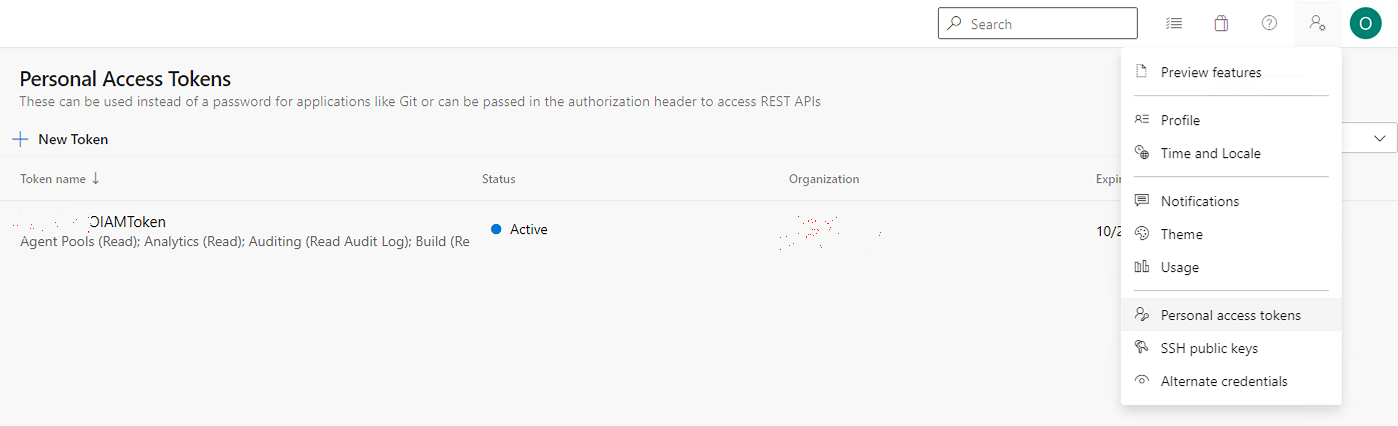
The value the managed system takes as its **Password** is a personal access token. Generate it in Azure DevOps under **User settings → Personal access tokens → New Token**, granting the token the read scopes the connector needs. Azure DevOps shows the token value once, when it is created, and never again — copy it then.
## Reconciliation and synchronization
How synchronization and reconciliation work in general is covered in the Administration guide — see [*Synchronize and import data*](/administration-guide/lifecycle/synchronize-and-import-data.md) and [*Configure reconciliation*](/administration-guide/lifecycle/configure-reconciliation.md).
The connector supplies the **organization name** and the **token** to every query from the managed system, so a query does not carry them — pass `-OrganizationName` or `-Token` explicitly only when you want to override what the managed system holds.
For running synchronization you need to specify the query that you are going to use with the connector. The connector can run synchronization of users, groups and group memberships.
Because group memberships are stored inside the groups objects it is common practice to synchronize users first and groups and memberships after that to be able to match users inside the group memberships.
**Synchronizing users**
You can run the following query to synchronize users:
```powershell
Get-oiDevOpsUsers
```
You choose which attributes come back through the managed system's search attributes. The available ones are:
* originId
* origin
* displayName
* mailAddress
* principalName
* description
* domain
* directoryAlias
* metaType
* subjectKind
Sometimes it is useful to grab information only about the list of users and ignoring the rest. In this case you can specify the list of user descriptors in `-Descriptors` parameter. A sample query would look like:
{% code overflow="wrap" %}
```powershell
Get-oiDevOpsUsers -Descriptors 'vssgp.Uz0xLTktMTU1MTM3NDI0NS05MTM1MjY2ODMtODE4MDAzMjY0LTIyODA4NjYzMDUtOTA3OTI2NDgxLTAtMC0wLXAtMg', 'vssgp.Zz0xLTktMTU1MTM3NDI0NS05MTM1MjY2ODMtODE4MDAzMjY0LTIyODA4NjYzMDUtOTA3OTI2NDgxLTAtMC0wLXAtMe'
```
{% endcode %}
**Synchronizing groups**
To run synchronization of groups you can run the following request:
```powershell
Get-oiDevOpsGroups
```
You choose which attributes come back through the managed system's search attributes. The available ones are:
* originId
* displayName
* mailAddress
* principalName
* description
* members
*Warning* The Azure DevOps API does not return group membership in a single request. Therefore, to collect group memberships the connector runs additional requests per each group (if the 'members' parameter was requested). Because of this, synchronization execution may take up to several minutes depending on how many groups you have inside your environment.
Sometimes it is useful to grab information only about the list of groups while ignoring the rest. In this case you can specify the list of storage id's (objectID) in the `-OriginIDs` parameter. A sample query would look like:
{% code overflow="wrap" %}
```powershell
Get-oiDevOpsGroups -OriginIDs '70d1fcf4-ebb5-4164-98e2-111111111111', '70d1fcf4-ebb5-4164-98e2-222222222222'
```
{% endcode %}
**Filtering by projects and names**. The OpenIAM connector can filter groups by projects to which they belong. Projects are calculated by principal name, which includes the project name at the beginning. It acts in the same way as the popular PowerShell module for Azure DevOps [VSTeam](https://github.com/MethodsAndPractices/vsteam) does. For example, if the principalName of the group is '\[Infrastructure]\Build Administrators', it means that the group with the displayName 'Build Administrators' belong to the 'Infrastructure' projects. The OpenIAM connector can filter results by both project names and display names. To include only some groups by project names you should use the `-AllowedProjects` attribute that takes an array of strings. To include only groups that have a definite displayName you should use the`-AllowedDisplayNames` attribute that takes an array of strings.
The query below will get all Azure DevOps groups that have the display names 'Build Administrators' or 'Project Administrators' but without regard to which project they belong. There can be a list of groups with such names but belonging to different projects.
{% code overflow="wrap" %}
```powershell
Get-oiDevOpsGroups -AllowedDisplayNames 'Build Administrators', 'Project Administrators'
```
{% endcode %}
The below request returns all Azure DevOps groups that belong to TestProject.
```powershell
Get-oiDevOpsGroups -AllowedProjects 'TestProject'
```
The below request returns only the 'Build Administrators' group from TestProject. Narrowing the search scope like this could be useful in use cases like getting group members of definite groups.
{% code overflow="wrap" %}
```powershell
Get-oiDevOpsGroups -AllowedProjects 'TestProject' -AllowedDisplayNames 'Build Administrators'
```
{% endcode %}
**Deleted groups**. The Azure DevOps API returns all groups by default even if those groups were deleted. In most cases it is useful to get only those groups that were not deleted. To do this you should include the `-ExcludeDeleted` boolean parameter in your request. For example:
```powershell
Get-oiDevOpsGroups -AllowedProjects 'TestProject' -ExcludeDeleted:$true
```
The query above gets all the groups from 'TestProject' that were not deleted.
**Synchronizing users' access levels**
The Azure DevOps connector can synchronize 'Access level' or license assignments for given users. Azure DevOps has a predefined set of access levels that is described in the [official documentation](https://docs.microsoft.com/en-us/azure/devops/organizations/security/access-levels?view=azure-devops).
To grab all available users & access level mappings you should use the 'Get-oiDevOpsUserAccessLevel' request which returns an array of objects. Each of them contains following properties:
* originId - originID of the user
* principalName - princpalName of the user
* mailAddress - email address of the user
* origin - identifies where this user comes from, for example 'aad' means that this is an Azure Active Directory user
* displayName - display name of the user
* subjectKind - 'user' means this is a user object
* licensingSource - identifies what is the source of the license. For example, 'account', 'msdn', etc.
* licenseDisplayName - the name of the license
* status - license status. For example, 'active' or 'pending'.
* assignmentSource - the source of assignment -- for example, 'groupRule'. If the source is not defined, it would be 'unknown'
To get all data about users and licensing associations you can use a request such as the one below:
```powershell
Get-oiDevOpsUserAccessLevel
```
It is possible to narrow your search scope by specifying the list of principal names that will be looked up. For example, the request below will get data about access levels of only the following users '' and '':
{% code overflow="wrap" %}
```powershell
Get-oiDevOpsUserAccessLevel -AllowedPrincipalNames 'user1@openiamtest.com','user2@openiamtest.com'
```
{% endcode %}
In the similar way, we can filter by originIDs. In this case the request would look as such:
{% code overflow="wrap" %}
```powershell
Get-oiDevOpsUserAccessLevel - AllowedOriginIDs '70d1fcf4-ebb5-4164-98e2-111111111111', '70d1fcf4-ebb5-4164-98e2-222222222222'
```
{% endcode %}
You can filter using principal names or originIDs as needed.
---
# Agent Instructions
This documentation is published with GitBook. GitBook is the documentation platform designed so that both humans and AI agents can read, navigate, and reason over technical content effectively. Learn more at gitbook.com.
## Querying This Documentation
If you need additional information that is not directly available in this page, you can query the documentation by asking a question.
Perform an HTTP GET request on the following URL with the `ask` and `goal` query parameters:
```
GET https://docs.openiam.com/connector-configuration/microsoft/7-azuredevops.md?ask=&goal=
```
`ask` is the immediate question: it should be specific, self-contained, and written in natural language.
`goal` is what the user is ultimately trying to achieve, the reason they need the answer. Sharing it helps GitBook give you a better, more relevant answer. A goal is most helpful when it describes the outcome the user wants rather than restating the question. For example, with `ask=how do I create an API token`, a goal like `automate deployments from our CI pipeline` lets GitBook tailor the answer to that use case.
The response will contain a direct answer to the question and relevant excerpts and sources from the documentation.
Use this mechanism when the answer is not explicitly present in the current page, you need clarification or additional context, or you want to retrieve related documentation sections.