> For the complete documentation index, see [llms.txt](https://docs.openiam.com/llms.txt). Markdown versions of documentation pages are available by appending `.md` to page URLs; this page is available as [Markdown](https://docs.openiam.com/connector-configuration/microsoft/1-powershellconnectorinstallation.md).
# Installing PowerShell connectors
This page describes how to install any PowerShell connector
This page applies to every connector in [Microsoft application connectors](/connector-configuration/microsoft.md) — they all install the same way.
All of them support the following operating systems.
* Windows Server 2016.
* Windows Server 2019.
* Windows Server 2022.
* Windows Server 2025.
While older operating systems are supported, OpenIAM recommends using newer versions. Older operating systems will require the installation of additional dependencies. Please make sure that the following minimal dependencies have been met.
### Basic requirements
Basic requirements should be checked before starting the PowerShell connector installation as they refer to basic OS components and hardware.
#### Hardware requirements
For demo/test scenarios the following minimum hardware requirements are recommended:
* 2 (v)CPU.
* 8 GB RAM.
* 60 GB disk space.
For production scenarios the following minimum hardware requirements must be met:
* 4 (v)CPU.
* 16 GB RAM.
* 100 GB disk space.
Please note that the RAM is mostly busy during synchronization. Hence, if you have 10000+ objects in your managed system, we highly recommend to increase RAM to 24GB+.
Disk space is mostly used for storing logs when running in debug mode. If this mode is on, you should monitor disk usage. Running out of disk space will negatively impact the connector. During the installation you will be asked if the connector should remove old logs while rotating. This will reduce the possibility of logs using extensive disk space. If disabled, please delete old logs yourself or move them to an appropriate location.
*Please make sure that the OS has enough space for normal operation and updates.*
#### Software requirements
* .NET Framework 4.8.
* PowerShell 5.1.
**.NET Framework**
If you are running Windows Server older than 2016 and are not sure which .NET Framework version you have, you can refer to Microsoft guide: [How to: Determine which .NET Framework versions are installed](https://docs.microsoft.com/en-us/dotnet/framework/migration-guide/how-to-determine-which-versions-are-installed). Or you can also install the newest .NET Framework 4.x
**PowerShell**
If you run Windows Server 2016 or later, PowerShell 5.1 is included by default, and you don't need to check this dependency.
If you are running Windows Server older than 2016, you can check the PowerShell version by running the following PowerShell command.
```
$PVersionTable
```
### Additional dependencies
PowerShell connectors use SQL CE 4.0 database to manage log records. You can read more about it at [Microsoft® SQL Server® Compact 4.0 SP1 download page](https://www.microsoft.com/en-us/download/details.aspx?id=30709).
During the installation, the connector installer checks if the SQL CE 4.0 runtime is installed. If no runtime is detected, the connector will start this installation automatically, so no additional steps are required.
## Multiple connectors installation
It is possible to host multiple OpenIAM PowerShell connectors on the same connector server. For example, you can run AD and Office365 connectors on the same machine at the same time.
{% hint style="info" %}
Two connectors of same type cannot be installed on the same machine out of the box. So, for example, you cannot run 2 AD connectors on the same connector server by default.
{% endhint %}
## Load balancing
For load balancing you can install two or more connectors of the same type on different servers. Each of them should use the same configuration settings. During runtime, requests will be split between the number of connectors installed.
## Getting connection parameters with OpenIAM
Before you start the installation process you should know following parameters.
* Hostname or IP address of RabbitMQ server instance and make sure it can be reached from the connector server. Usually, it is the same as the OpenIAM address.
* Queue name.
To get the queue name to specify during the installation process you need to log in to your OpenIAM Webconsole → **Provisioning** → **Connectors** → *select your connector* → copy its **Connector queue** value from this page, as shown on the image below.
## Installation process
All connectors have a generic installation process, so the information below is suited for all OpenIAM PowerShell connectors. For this example, we just randomly picked the AD connector for demonstration of installation steps.
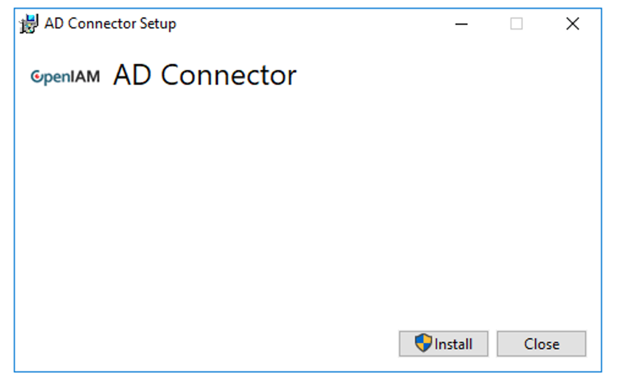
The screenshot below demonstrates the initial connector installation window.
When you press `Install`, the installer will check for the SQL CE 4.0 SP1 dependency. If the dependency is not found during installation, then the installer will install SQL CE 4.0 SP1. If it is present, then the installer will skip this step and proceed with the installation.
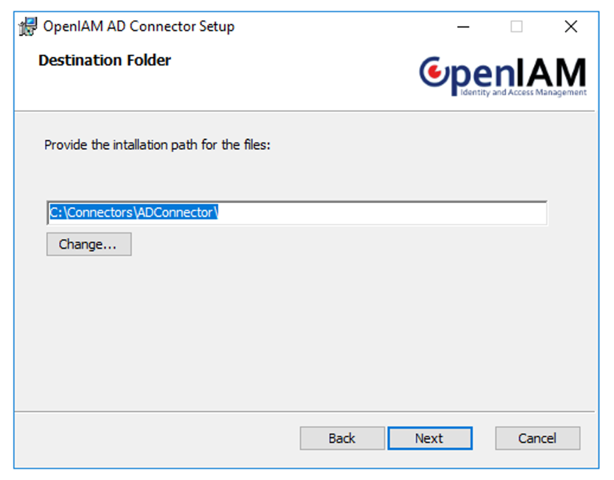
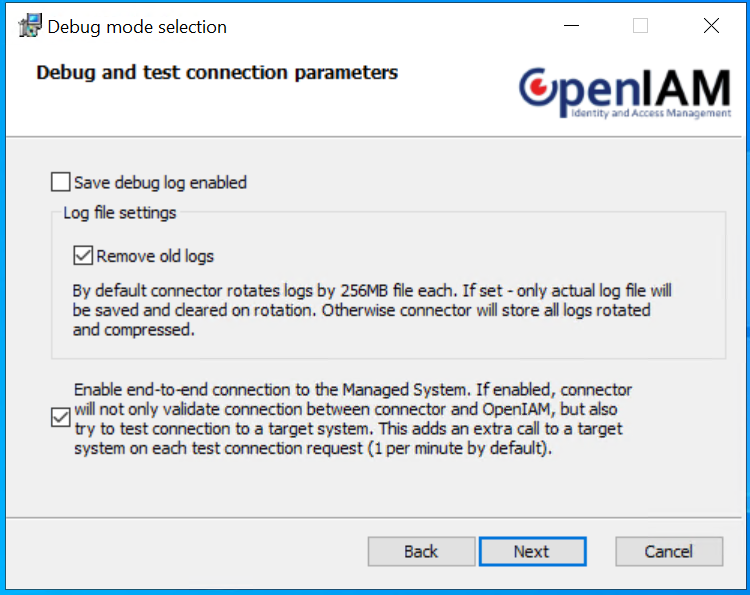
During the installation step above, you will be asked to provide the connector installation location. By default, it is `C:\Connectors\ConnectorName`. However, you may want to override it. You can also enable end-to-end connection to the Managed system, which is optional, as shown below.
You will be asked to configure log settings. If you are installing the connector for the first time you may want to set debug mode on to be able to track what is happening on the connector side when you run requests from OpenIAM.
If debug mode is disabled only information and error messages will appear in logs. Normally it will be just one record per request indicating that the request was processed. Hence, if it is not running in debug mode the connector does not consume much disk space. However, in debug mode the log records amount significantly grows.
If you select the `Remove old logs` option, the connector will automatically delete rotated log records.
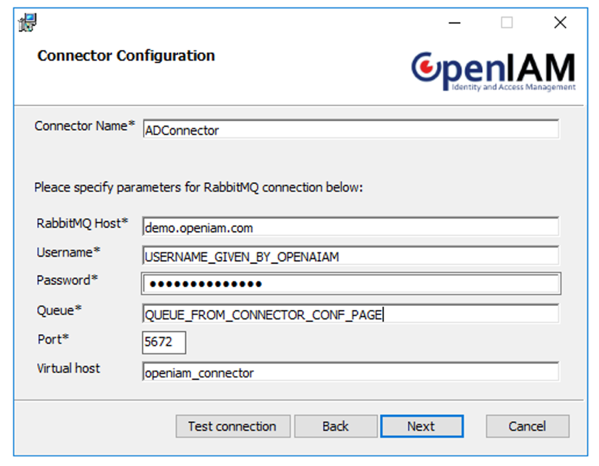
After clicking `Next` you will be asked to configure the RabbitMQ connection to your OpenIAM instance.
* **Connector name**: this parameter is used for distinguishing this connector among other connectors of different types installed on the same machine. It is just a human-readable value that makes sense for you. It should not contain whitespaces however, because this name will be included to process names.
* **RabbitMQ host**: usually hostname or IP address of your OpenIAM instance. However, in different scenarios this may vary.
* **Username**: RabbitMQ connection username. By default: `openiam`.
* **Password**: RabbitMQ connection password. By default: `Password#51`, however, this is usually changed after initial configuration.
* **Queue**: this parameter should be taken from the connector configuration page inside OpenIAM. It is described above.
* **Port**: by default 5672. However, this could be overridden by your configuration. Please make sure that this port is opened on the OpenIAM instance and the RabbitMQ service that listens to it. well.
* **Virtual host**: by default, it is `openiam_connector`.
To be sure that you have specified RabbitMQ settings correctly please press the **Test connection** button. Please note that `Test connection` just tests connection to RabbitMQ itself - address, port, username and password, and it cannot verify if your queue is correctly set (because different connectors can use different queues). Please make sure that you have specified the queue parameter correctly, because this is a frequently made mistake during the installation according to our feedback.
After having done the above you can confirm your installation by pressing **Install**. This will finalize your connector installation.
## Starting, stopping, and restarting
Each install registers **two Windows services**, both suffixed with the connector name you supply during installation. A connector installed as `Contoso` therefore registers `OpenIAMADConnectorContoso` and `OpenIAMLogServiceContoso`.
| Connector | Service name, before the suffix |
| --------------------------------- | ---------------------------------------------- |
| Active Directory | `OpenIAMADConnector` |
| Azure DevOps | `OpenIAMAzureDevOpsConnector` |
| Azure / Entra ID | `OpenIAMAzureConnector` |
| Dynamics 365 | `OpenIAMDynamics365Connector` |
| Dynamics 365 Finance & Operations | `OpenIAMD365FOConnector` |
| Exchange | `OpenIAMExchangeConnector` |
| Generic PowerShell | `OpenIAMGenericConnector` |
| WinLocal | `OpenIAM WinLocal Connector` — note the spaces |
The second service is `OpenIAMLogService` for every connector in the family, and writes the connector's log database.
Start and stop them as you would any Windows service:
{% code overflow="wrap" %}
```powershell
Get-Service OpenIAMADConnector* | Restart-Service
```
{% endcode %}
{% hint style="info" %}
**The installer handles this on install and uninstall.** Both services are started when the install completes, stopped on upgrade and on uninstall, and removed on uninstall — so you only start and stop them by hand when troubleshooting a running connector.
{% endhint %}
## Removing connector
OpenIAM PowerShell connectors are removed like any other Windows software by going to **Control Panel** → **Uninstall a program** → select your connector → right-click → **Uninstall**.
When the connector installer removes the connector it leaves all logs, configs and all other files that were created during the runtime. If you do not need that data, you can manually remove the connector folder after the connector was uninstalled from the operating system.
## Updating connector
There is no in-place upgrade. A connector is updated by reinstalling it: back the folder up, uninstall, delete the folder, then install the new version with the same connection parameters.
Customizations to the connector scripts make that more involved, and which route you take depends on how far the version moves. The full procedure is in [Updating PowerShell connector](/connector-configuration/microsoft/3-powershellconnectorupdate.md), and [Checking the connector version](/connector-configuration/microsoft/2-powershellconnectorsusage.md#checking-the-connector-version) covers reading the version both before and after installation.
## RabbitMQ QueueType
Starting from version 4.2.1.9, OpenIAM uses `quorum` QueueType for RabbitMQ communication that involves communication with connectors.
.NET/PS connectors use this value by default starting from 5.31.0.0 version and higher. However, this parameter was made configurable on a connector side to retain backward compatibility, so if anyone would need to use any .NET/PS connector of 5.31.0.0 version of higher with any OpenIAM version below 4.2.1.9, it is possible to open `Connector.config` inside connector folder and edit QueueType parameter by changing `quorum` type to `classic`.
{% code title="Connector.config" overflow="wrap" %}
```json
"RabbitMQQueues": [
{
"RabbitMQReceiveQueue": "ADConnector_1_Request",
"RabbitMQResponseQueue": "ADConnector_1_Response",
"Concurrency": 1,
"QueueType": "classic"
}
]
```
{% endcode %}
The connector ships with `quorum`; the block above shows the value after the edit.
**Troubleshooting**: checking that connector QueueType parameter inside `Connector.config` matches the one that exists on RabbitMQ side.
---
# Agent Instructions
This documentation is published with GitBook. GitBook is the documentation platform designed so that both humans and AI agents can read, navigate, and reason over technical content effectively. Learn more at gitbook.com.
## Querying This Documentation
If you need additional information that is not directly available in this page, you can query the documentation by asking a question.
Perform an HTTP GET request on the following URL with the `ask` and `goal` query parameters:
```
GET https://docs.openiam.com/connector-configuration/microsoft/1-powershellconnectorinstallation.md?ask=&goal=
```
`ask` is the immediate question: it should be specific, self-contained, and written in natural language.
`goal` is what the user is ultimately trying to achieve, the reason they need the answer. Sharing it helps GitBook give you a better, more relevant answer. A goal is most helpful when it describes the outcome the user wants rather than restating the question. For example, with `ask=how do I create an API token`, a goal like `automate deployments from our CI pipeline` lets GitBook tailor the answer to that use case.
The response will contain a direct answer to the question and relevant excerpts and sources from the documentation.
Use this mechanism when the answer is not explicitly present in the current page, you need clarification or additional context, or you want to retrieve related documentation sections.