> For the complete documentation index, see [llms.txt](https://docs.openiam.com/llms.txt). Markdown versions of documentation pages are available by appending `.md` to page URLs; this page is available as [Markdown](https://docs.openiam.com/connector-configuration/linux.md).

# Linux connector

This page describes how to enable provisioning to a Linux system

The Linux connector enables provisioning/de-provisioning of users on a **Linux server**. It connects over **SSH** (password or certificate authentication) and executes bash scripts (the *object rules*) on the target host for each operation.

| Operation                                 | Supported                              |
| ----------------------------------------- | -------------------------------------- |
| Create user                               | ✅ (`add_script.sh`)                    |
| Modify user                               | ✅ (`modify_script.sh`)                 |
| Delete user                               | ✅ (`delete_script.sh`)                 |
| Reset password                            | ✅ (`sudo passwd`)                      |
| Search / synchronize users                | ✅                                      |
| Group create/modify/delete and membership | ✅ (via the same scripts, type `group`) |
| SSH key provisioning                      | ✅ (policy-map field + SSH Key manager) |
| Test connection                           | ✅                                      |

## Use cases

* Managing **local accounts and groups on Linux servers** from OpenIAM — including group membership.
* **Provisioning users' SSH public keys** to Linux hosts, with expiry-driven removal.
* **Importing existing Linux users** into OpenIAM via synchronization/reconciliation.

## Versions and compatibility

There is no end-application version here. The connector opens an **SSH session** to the target host and runs ordinary shell commands through it, so it works against any Linux that accepts SSH and provides the usual user and group tools — it is not built against a distribution or release.

<table><thead><tr><th width="164">Property</th><th>Value</th></tr></thead><tbody><tr><td><strong>Platform</strong></td><td>Any Linux host reachable over SSH</td></tr><tr><td><strong>Interface</strong></td><td>SSH, using the JSch library</td></tr><tr><td><strong>Authentication</strong></td><td>Password, or a private key — see <a href="#prerequisites">Prerequisites</a></td></tr><tr><td><strong>Privilege</strong></td><td>Commands are run through <code>sudo</code>, so the service account needs sudo rights</td></tr><tr><td><strong>What it runs</strong></td><td>Standard tools — <code>useradd</code>, <code>usermod</code>, <code>groupadd</code>, <code>groupmod</code>, <code>groupdel</code>, <code>passwd</code>, <code>chmod</code> — plus the object-rule scripts below</td></tr></tbody></table>

{% hint style="danger" %}
**The connector does not verify the target host's SSH key.** It sets `StrictHostKeyChecking` to `no` on every session, which means it will connect to whatever host answers on that address and accept whatever host key it presents. A host that has been substituted — or a connection intercepted on the path — is indistinguishable from the real one, and the credentials and commands the connector sends go to it. Treat the network between the connector host and its Linux targets as part of the trust boundary, and keep it one you control.
{% endhint %}

## Prerequisites

A service account on the target Linux host with sudo rights and SSH access. Two options:

### Create a Linux user for password authentication

```
$ useradd linuxuser -m -G sudo
$ passwd  linuxuser

$ sudo sh -c "echo 'linuxuser ALL=(ALL) ALL' >> /etc/sudoers"
```

Install openssh-server if needed:

```
sudo apt install openssh-server
```

Configure `/etc/ssh/sshd_config`:

```
PasswordAuthentication yes
```

Restart ssh:

```
$ sudo systemctl restart ssh
```

### Create a Linux user for certificate authentication

```
$ useradd linuxusercert -m -G sudo
$ passwd linuxusercert
$ su linuxuser
$ cd /home/linuxusercert/
$ mkdir .ssh
$ cd .ssh
$ ssh-keygen
Generating public/private rsa key pair.
...

$ sudo sh -c "echo 'linuxusercert ALL=NOPASSWD: ALL' >> /etc/sudoers"

$ ssh-copy-id linuxusercert@localhost
```

## Installing the connector

Deploy the connector for your deployment type (the Kubernetes deployment configuration, or the RPM connector service `openiam-connector@linux-connector-rabbitmq`) — see [Connectors via RPM](/installation/rpm/rpm-single-node/add-a-connector.md). For certificate authentication, place the private key at a path readable by the connector (check file permissions).

## Starting, stopping, and restarting

<table><thead><tr><th width="173">Deployment</th><th>Commands</th></tr></thead><tbody><tr><td>RPM (systemd)</td><td><code>systemctl start|stop|restart openiam-connector@linux-connector-rabbitmq</code></td></tr><tr><td>Kubernetes</td><td><code>kubectl rollout restart</code> the connector deployment.</td></tr></tbody></table>

## Command-line parameters and properties

The connector is a Spring Boot application. Its defaults ship inside the jar, and you override them in either of two places:

* **An external property file**, read at `${confpath}/conf/properties/linux-connector-rabbitmq.properties`. The file is optional, and `confpath` is itself a system property, set with `-Dconfpath=/data/openiam/`.
* **Directly on the command line**, as `-D` arguments, which win over the file.

{% code overflow="wrap" %}

```bash
java -Dconfpath=/data/openiam/ -Dlogging.level.root=INFO -Dorg.openiam.connector.queue=LINUX_Connector_1_Request -jar linux-connector-rabbitmq.jar
```

{% endcode %}

| Property                      | Default                     |
| ----------------------------- | --------------------------- |
| `org.openiam.connector.queue` | `LINUX_Connector_1_Request` |
| `org.openiam.connector.name`  | `Linux`                     |

<table><thead><tr><th width="205">Property</th><th>Default</th><th>Purpose</th></tr></thead><tbody><tr><td><code>linux.local.linux.command.directory</code></td><td><code>${confpath}/conf/iamscripts/connector/linux/</code></td><td>Where the connector reads its object-rule scripts on the <strong>connector host</strong></td></tr><tr><td><code>linux.remote.linux.command.directory</code></td><td><code>~/</code></td><td>The working directory used on the <strong>target host</strong></td></tr><tr><td><code>linux.local.linux.cert.location</code></td><td><code>${confpath}/conf/linux-connector-rabbitmq/certs/</code></td><td>Where private keys for certificate authentication are kept on the connector host</td></tr></tbody></table>

The connection details themselves are **not** set here — they are managed system parameters, covered under [Configuring the managed system](#configuring-the-managed-system).

## Verifying the connector is running

{% stepper %}
{% step %}
In the Webconsole, open the managed system — the **Running connector status** indicator must be green.
{% endstep %}

{% step %}
Click **Test Connection** — it must return success.
{% endstep %}

{% step %}
In the RabbitMQ management console, confirm the `LINUX_Connector_1_Request` queue exists and has a consumer.
{% endstep %}

{% step %}
Provision a test user and confirm the account exists on the Linux host (`id <login>`).
{% endstep %}
{% endstepper %}

## Troubleshooting

| Symptom                           | Likely cause                                                       | Resolution                                                                                           |
| --------------------------------- | ------------------------------------------------------------------ | ---------------------------------------------------------------------------------------------------- |
| Test connection fails             | SSH unreachable, wrong port, or wrong credentials/key path         | Verify SSH connectivity manually; for certificate auth, check the key path and its file permissions. |
| Operations fail on the host       | The service account lacks sudo rights, or scripts are missing      | Verify the sudoers entry and that the object-rule scripts exist and are executable.                  |
| Password reset hangs or fails     | `sudo -S passwd` flow differs on the host                          | Test the `sudo -S passwd <login>` sequence manually (see SSH commands above).                        |
| Second sync deletes entitlements  | Provision role/group/resource missing in the transformation script | Add them to the sync object (see the warning above).                                                 |
| SSH key not appearing on the host | Key expired or policy-map field missing                            | Check the key's expiration date and the `ssh_keys` policy-map field.                                 |

See also: [general connector troubleshooting](/connector-configuration/4-troubleshootingconnector.md) and the [connector error-code reference](/connector-configuration/4-troubleshootingconnector.md#connector-error-codes).

## Registering the connector in OpenIAM

The connector ships pre-registered. Configure its optional fields under **Provisioning → Connectors → Linux connector → Connector Configuration**:

<figure><img src="https://2965242200-files.gitbook.io/~/files/v0/b/gitbook-x-prod.appspot.com/o/spaces%2F0uHWHRgcad6P03ehqgmX%2Fuploads%2Fgit-blob-064979d8061c2bd5cc72ffc436d9e8936c970699%2Flinux_con_conf_connector_page.png?alt=media" alt="The Provisioning Connector form for Linux, with Connector Name set to Linux CONNECTOR, Metadata Type to Linux Connector and the queue LINUX_Connector_1"><figcaption></figcaption></figure>

| Field             | Value               |
| ----------------- | ------------------- |
| Connector Name    | `Linux CONNECTOR`   |
| Metadata Grouping | `Connector type`    |
| Metadata Type     | `Linux Connector`   |
| Connector Queue   | `LINUX_Connector_1` |

**Connector Configuration** then lists every field the platform offers and lets you enable the ones this connector uses. Five are enabled for Linux:

<table><thead><tr><th width="199">Field</th><th width="112">Required</th><th>What it holds for Linux</th></tr></thead><tbody><tr><td>Connection String</td><td></td><td>Path to the private key, for certificate authentication</td></tr><tr><td>Add Object Rule</td><td>Yes</td><td><code>add_script.sh</code> and its parameters</td></tr><tr><td>Modify Object Rule</td><td>Yes</td><td><code>modify_script.sh</code> and its parameters</td></tr><tr><td>Delete Object Rule</td><td>Yes</td><td><code>delete_script.sh</code> and its parameters</td></tr><tr><td>Search Object Rule</td><td>Yes</td><td>The attribute mapping the search returns</td></tr></tbody></table>

The values themselves go on the managed system, not here — see the table below. The remaining fields on that screen (JDBC Driver URL, Is Primary Repository, Secondary Repository, Always Update Secondary) belong to other connectors and stay unchecked. [Connector configuration parameters](/connector-configuration/2-configparam.md) describes the screen itself.

## Configuring the managed system

<table><thead><tr><th width="171">Field name</th><th>Example value</th><th>Description</th></tr></thead><tbody><tr><td>Host URL</td><td><code>localhost</code></td><td>URL of the Linux server (used for the SSH connection).</td></tr><tr><td>Port</td><td><code>22</code></td><td>Linux server SSH port.</td></tr><tr><td>Password Policy</td><td><code>Default Pswd Policy</code></td><td>Password policy to apply.</td></tr><tr><td>Login Id</td><td><code>linuxuser</code></td><td>Username for SSH login with the required rights.</td></tr><tr><td>Password</td><td><code>passwd00</code></td><td>For password authentication.</td></tr><tr><td>Connection String</td><td><code>/data/openiam/conf/linux-connector-rabbitmq/certs/id_rsa</code></td><td>Path to the private key (for certificate authentication). Check file permissions. Appears on this screen only while <strong>Connection String</strong> is enabled in Connector Configuration, above.</td></tr><tr><td>Add Object Rule</td><td><code>add_script.sh type login password groupsadd groupsdel</code></td><td>The bash script called with the necessary parameters.</td></tr><tr><td>Modify Object Rule</td><td><code>modify_script.sh type login oldlogin groupsadd groupsdel</code></td><td>The bash script called with the necessary parameters.</td></tr><tr><td>Delete Object Rule</td><td><code>delete_script.sh type login</code></td><td>The bash script called with the necessary parameters.</td></tr><tr><td>Search Object Rule</td><td><code>LOGIN=login, GROUPS=groups, GECOS=name:roomNumber:homePhone:workPhone</code></td><td></td></tr></tbody></table>

<figure><img src="https://2965242200-files.gitbook.io/~/files/v0/b/gitbook-x-prod.appspot.com/o/spaces%2F0uHWHRgcad6P03ehqgmX%2Fuploads%2Fgit-blob-986c486ab88f23968e45cc9cc287d59b9bb5e06b%2Flinux_con_conf_example_man_sys_page.png?alt=media" alt="A configured Linux managed system - Active on, the host and SSH port, the linuxuser service account, the four object rules naming their bash scripts, both search filters, and an Attributes table holding eight managed system attributes"><figcaption></figcaption></figure>

The **Attributes** table below the fields holds managed system attributes rather than connector settings — `ON_DELETE` and the pre/post-processor entries are the ones worth setting. See [Managed system fields](/administration-guide/reference/managed-system-fields.md) for what each name does and which are still read.

### Object-rule scripts

The object rules are bash scripts run on the server; the first parameter is the object type — `user` or `group`. Default scripts:

`add_script.sh` type login password groupsadd groupsdel

{% code expandable="true" %}

```bash
#!/bin/bash

if [ $1 = "user" ]; then
  useradd -N  $2
  printf "$3\n$3" | passwd $2
  if [ ! -z $5 ]; then
    IFS=',' ;
    for i in $5; do
      gpasswd -d $2 $i;
    done
  fi
  if [ ! -z $4 ]; then
    IFS=',' ;
    for i in $4; do
      gpasswd -a $2 $i;
    done
  fi
  echo $2
fi

if [ $1 = "group" ]; then
  groupadd -f $2
fi
```

{% endcode %}

`modify_script.sh` type login oldlogin groupsadd groupsdel

{% code expandable="true" %}

```bash
#!/bin/bash

if [ $1 = "user" ]; then
  usermod -l $2 $3

  if [ ! -z $5 ]; then
    IFS=',' ;
    for i in $5; do
      gpasswd -d $2 $i;
    done
  fi
  if [ ! -z $4 ]; then
    IFS=',' ;
    for i in $4; do
      gpasswd -a $1 $i;
    done
  fi
  echo $1
fi

if [ $1 = "group" ]; then
  groupmod --new-name $2 $3
fi
```

{% endcode %}

`delete_script.sh` type login:

```bash
#!/bin/bash

if [ $1 = "user" ]; then
  userdel $2
  echo $2
fi

if [ $1 = "group" ]; then
  groupdel -f $2
fi
```

**Note** that no script is needed for the reset-password operation — users simply perform the operation.

### SSH commands used by the connector

Example ssh requests:

{% code overflow="wrap" %}

```ssh-config
sudo -S sh add_script.sh user "jFvlmjYZ30sC854Sk"  "" "" ""
sudo -S sh modify_script.sh user "CPpLMGQDkP33R2gFj"  "jFvlmjYZ30sC854Sk"  "" ""
sudo -S sh delete_script.sh user "CPpLMGQDkP33R2gFj"
```

{% endcode %}

For password reset the connector uses:

```
sudo -S passwd <login>
```

then sends the sudo password and the new password twice. Verify that setting a password this way works on the host:

```
$ sudo -S passwd Test.Linux001
[sudo] password for linuxuser:
Enter new UNIX password:
Retype new UNIX password:
passwd: password updated successfully
```

## Attribute mapping and policy map

<figure><img src="https://2965242200-files.gitbook.io/~/files/v0/b/gitbook-x-prod.appspot.com/o/spaces%2F0uHWHRgcad6P03ehqgmX%2Fuploads%2Fgit-blob-46d94f62a5d1a099676bf7f42ebc5cc8563aa78b%2Flinux_con_conf_policy_map.png?alt=media" alt="The USER policy map for the Linux managed system, with ten active mappings - password, login, enable, end_date, groups, home_phone, name, room_number, surname and work_phone - each resolved by a Groovy script under provision/linux"><figcaption></figcaption></figure>

### SSH key provisioning (v4.2.1+)

A policy-map field provisions users' SSH keys — add it to the USER policy map as:

| Object type | Attribute name | Type   | Policy                             | Data type |
| ----------- | -------------- | ------ | ---------------------------------- | --------- |
| USER        | `ssh_keys`     | Policy | `/provision/linux/ssh_keys.groovy` | string    |

The default Groovy for this field:

{% code overflow="wrap" expandable="true" %}

```groovy
package org.openiam

import org.openiam.api.connector.groovy.AbstractIPolicyMapGroovy
import org.openiam.api.connector.model.ConnectorAttribute
import org.openiam.api.connector.model.StringOperationalConnectorValue
import org.openiam.base.AttributeOperationEnum
import org.openiam.idm.provisioning.diff.model.user.ProvisionUserObjectDiff
import org.openiam.idm.searchbeans.UserSshKeySearchBean
import org.openiam.idm.srvc.user.dto.UserSshKey
import org.openiam.mq.constants.api.user.UserServiceAPI
import org.openiam.base.response.list.UserSshKeyListResponse
import org.openiam.base.request.UserSshKeySearchRequest
import org.springframework.beans.factory.annotation.Autowired
import org.openiam.mq.constants.queue.user.UserServiceQueue;
import org.openiam.mq.constants.api.OpenIAMAPI

class UserSshKeyGroovy extends AbstractIPolicyMapGroovy<ProvisionUserObjectDiff> {

    @Autowired
    protected UserServiceQueue userServiceQueue

    @Override
    boolean isPerform(ProvisionUserObjectDiff diffObject) {
        return true
    }

    @Override
    void perform(ConnectorAttribute attribute, ProvisionUserObjectDiff diffObject) {
        UserSshKeySearchBean sb = new UserSshKeySearchBean(diffObject.getValue().getId(), null, null);
        final UserSshKeyListResponse response = rabbitMQSender.sendAndReceive(userServiceQueue, (OpenIAMAPI)UserServiceAPI.GET_USER_SSH_KEYS,
                new UserSshKeySearchRequest(sb, 0, Integer.MAX_VALUE), UserSshKeyListResponse.class);
        if (response.isSuccess()) {
            List<UserSshKey> keyList = response.getList()
                    Date curDate = new Date()
            for (UserSshKey key : keyList) {
                if (key.getExpirationDate().after(curDate)) {
                    attribute.addValue(new StringOperationalConnectorValue(mapper.mapToStringQuietly(key), AttributeOperationEnum.ADD))
                } else {
                    key.setPkValue(null)
                    key.setPubValue(null)
                    attribute.addValue(new StringOperationalConnectorValue(mapper.mapToStringQuietly(key), AttributeOperationEnum.DELETE))
                }
            }
        }
    }

    @Override
    void getActualValue(final ConnectorAttribute attribute, final ProvisionUserObjectDiff diffObject) {

    }
}
```

{% endcode %}

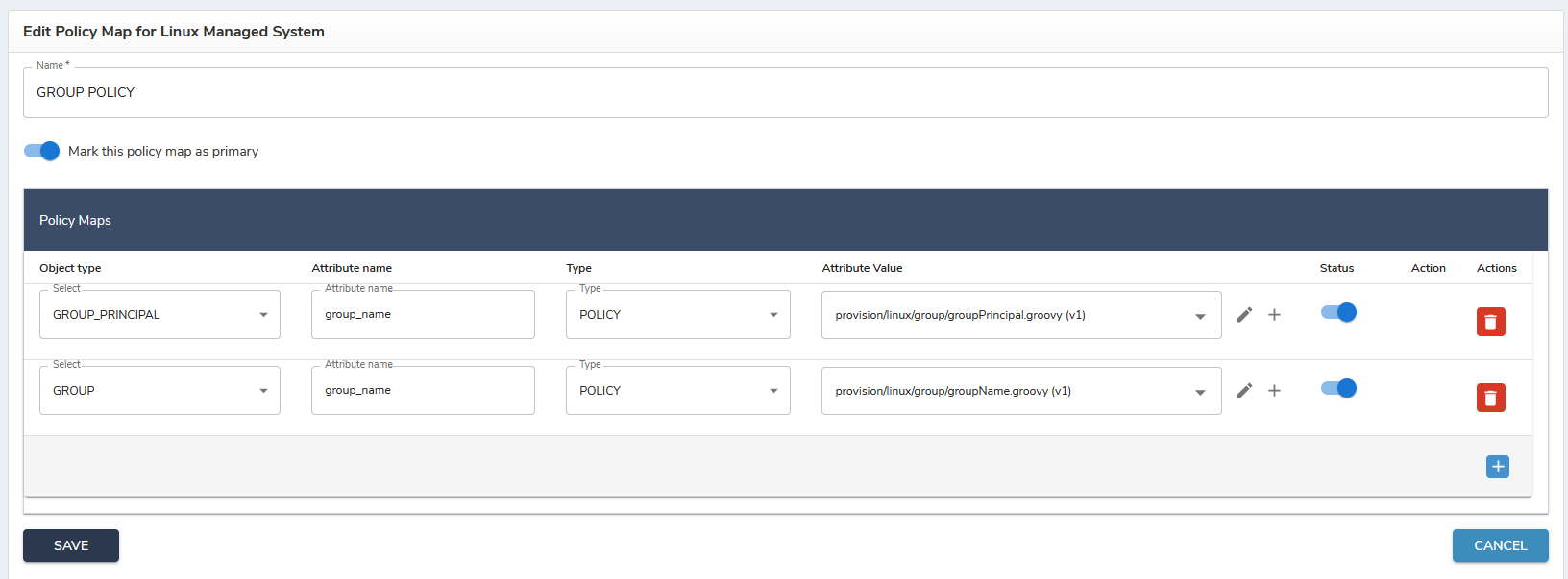
<figure><img src="https://2965242200-files.gitbook.io/~/files/v0/b/gitbook-x-prod.appspot.com/o/spaces%2F0uHWHRgcad6P03ehqgmX%2Fuploads%2Fgit-blob-0229adb9a0dc3d593e923d1067b9863576ff9461%2Flinux_con_conf_policy_map_group.png?alt=media" alt="The GROUP policy map for the Linux managed system, with two mappings - GROUP_PRINCIPAL and GROUP, both on group_name - resolved by groupPrincipal.groovy and groupName.groovy"><figcaption></figcaption></figure>

#### Using the SSH Key manager

{% stepper %}
{% step %}
**Configure the policy map** for provisioning SSH keys: add the `ssh_keys` field shown above.
{% endstep %}

{% step %}
**Add an SSH key** in SelfService, from the account menu → **Security → SSH Keys**. The public key is mandatory; the private key is optional, reserved for a future capability that obtains keys and certificates from a company CA. [SSH keys](/end-user-guide-for-selfservice/change-password/ssh-keys.md) in the SelfService guide covers the screen itself.
{% endstep %}

{% step %}
**On provisioning**, the key is checked: it is added to the system if its expiration date is not in the past, and deleted from the Linux system once the expiration date passes.
{% endstep %}
{% endstepper %}

## Reconciliation and synchronization

Two fields on the managed-system page drive both:

| Field                   | Value     |
| ----------------------- | --------- |
| Search Filter for User  | `login=?` |
| Search Filter for Group | `group=?` |

Example sync configuration page:

<figure><img src="https://2965242200-files.gitbook.io/~/files/v0/b/gitbook-x-prod.appspot.com/o/spaces%2F0uHWHRgcad6P03ehqgmX%2Fuploads%2Fgit-blob-54ae9569bbc55cf8ba67f0819dbd3934db08f079%2Flinux_con_conf_sync.png?alt=media" alt="An example synchronization configuration for Linux users, with the Linux managed system as the source, a Complete sync type, the filter login=%test%, and validation, transformation and attribute-lookup scripts under sync/user/linux"><figcaption></figcaption></figure>

**Provision to target systems?** — if unchecked, you need to add the login to the user in the transformation script:

{% code overflow="wrap" %}

```groovy
if (isNewUser) {
            pUser.id = null
            def attrVal = columnMap.get("login")
            if (attrVal) {
                // PRE-POPULATE THE USER LOGIN. IN SOME CASES THE COMPANY WANTS TO KEEP THE LOGIN THAT THEY HAVE
                // THIS SHOWS HOW WE CAN DO THAT
                Login linuxLogin = new Login()
                linuxLogin.operation = AttributeOperationEnum.ADD
                linuxLogin.login = attrVal.value
                linuxLogin.managedSysId = "105"
                pUser.principalList.add(linuxLogin)

                /*   primary identity  */
                Login lg = new Login()
                lg.operation = AttributeOperationEnum.ADD
                lg.login = attrVal.value
                lg.managedSysId = "0"
                pUser.principalList.add(lg)
            }
        }
```

{% endcode %}

**SQL Query / Directory Filter** filters users by login:

* `*` — select all records from Linux.
* For 4.1.x: `any_string` — logins containing `any_string` anywhere.
* For 4.2.x: `login=any_string` — exact match; `login=any_string%` — contains anywhere.

{% hint style="warning" %}
**Add the provision role / group / resource to the sync object in the transformation script.** If you don't, the second sync run will send a DELETE command to the connector for such objects.
{% endhint %}

### Reconciliation

Reconciliation uses the same two search filters as synchronization, above. An example reconciliation configuration:

<figure><img src="https://2965242200-files.gitbook.io/~/files/v0/b/gitbook-x-prod.appspot.com/o/spaces%2F0uHWHRgcad6P03ehqgmX%2Fuploads%2Fgit-blob-689e88177889e5694f2c0dff71b1a507f11a0290%2Flinux_con_conf_recon.png?alt=media" alt="An example reconciliation configuration for the Linux connector, with target and OpenIAM search query scripts under recon/Linux, their filters, and a Situations list mapping all four situations to a response and the user population script"><figcaption></figcaption></figure>


---

# Agent Instructions
This documentation is published with GitBook. GitBook is the documentation platform designed so that both humans and AI agents can read, navigate, and reason over technical content effectively. Learn more at gitbook.com.

## Querying This Documentation
If you need additional information that is not directly available in this page, you can query the documentation by asking a question.

Perform an HTTP GET request on the following URL with the `ask` and `goal` query parameters:

```
GET https://docs.openiam.com/connector-configuration/linux.md?ask=<question>&goal=<user_goal>
```

`ask` is the immediate question: it should be specific, self-contained, and written in natural language.
`goal` is what the user is ultimately trying to achieve, the reason they need the answer. Sharing it helps GitBook give you a better, more relevant answer. A goal is most helpful when it describes the outcome the user wants rather than restating the question. For example, with `ask=how do I create an API token`, a goal like `automate deployments from our CI pipeline` lets GitBook tailor the answer to that use case.

The response will contain a direct answer to the question and relevant excerpts and sources from the documentation.

Use this mechanism when the answer is not explicitly present in the current page, you need clarification or additional context, or you want to retrieve related documentation sections.