> For the complete documentation index, see [llms.txt](https://docs.openiam.com/llms.txt). Markdown versions of documentation pages are available by appending `.md` to page URLs; this page is available as [Markdown](https://docs.openiam.com/connector-configuration/ldap.md).

# LDAP connector

This page describes how to configure the LDAP connector which can be used with Active Directory and LDAP

The LDAP connector can be used with any directory which supports the LDAP and LDAPS protocols, such as OpenLDAP, Active Directory, or eDirectory. It provides full user and group lifecycle management against the directory.

| Operation                       | Supported                                 |
| ------------------------------- | ----------------------------------------- |
| Create / update user            | ✅                                         |
| Delete user                     | ✅                                         |
| Suspend / resume user           | ✅                                         |
| Reset password                  | ✅                                         |
| Search / synchronize users      | ✅                                         |
| Group management and membership | ✅ (configurable — see connector settings) |
| Test connection                 | ✅                                         |

## Use cases

* Full **user and group lifecycle** against OpenLDAP, eDirectory, or any LDAP v3 directory.
* **Importing directory users and groups** into OpenIAM via synchronization.
* For **Active Directory on Windows**, also consider the [Active Directory PowerShell connector](/connector-configuration/microsoft/4-adpowershell.md) — the LDAP connector works with AD over LDAP/LDAPS, while the PowerShell connector offers Windows-native capabilities.

## Versions and compatibility

The end application is **any LDAP v3 directory**. The connector speaks the protocol through the JDK's own JNDI provider rather than a vendor library, so it has no version range of its own and nothing in it is tied to a particular server build.

<table><thead><tr><th width="176">Property</th><th>Value</th></tr></thead><tbody><tr><td><strong>Directories</strong></td><td>Any that implements LDAP v3 — OpenLDAP, Active Directory, eDirectory and others</td></tr><tr><td><strong>Protocols</strong></td><td>LDAP on port 389, LDAPS on port 636</td></tr><tr><td><strong>Active Directory</strong></td><td>Works over LDAP and LDAPS. For Windows-native operations, use the <a href="/connector-configuration/microsoft/4-adpowershell.md">Active Directory PowerShell connector</a> instead</td></tr></tbody></table>

{% hint style="info" %}
Because the connector is not written against a specific directory, what it can do against yours is decided by that directory's own schema and the rights of the bind account — not by the connector. An attribute the page shows in an example is only writable if your schema allows it.
{% endhint %}

## Prerequisites

* A directory service account (bind DN) with rights to manage the target subtrees.
* Network access from the connector host to the directory on port 389 (LDAP) or 636 (LDAPS).
* For LDAPS: the CA certificate of the directory imported into the connector JVM's truststore (see Troubleshooting).

## Installing the connector

The steps below describe how to install and start the connector, varying by deployment type.

### RPM

First, download the JAR into `/usr/local/openiam/connectors/bin` and change the owner to the OpenIAM user. Substitute your platform version for `<version>` — for example `2026.9.1`:

{% code overflow="wrap" %}

```
wget https://download.openiam.com/release/enterprise/<version>/connectors/ldap-connector-rabbitmq.jar
chown openiam:openiam /usr/local/openiam/connectors/bin/ldap-connector-rabbitmq.jar
```

{% endcode %}

Next, create a new `.sh` file for starting the LDAP connector:

```
nano ldap_start.sh
```

Content of the file:

{% code overflow="wrap" %}

```
#!/bin/bash
. /usr/local/openiam/env.conf
export VAULT_CERTS="$HOME_DIR/vault/certs/"
export JAVA_HOME="$HOME_DIR/jdk"
export JAR_FILE="ldap-connector-rabbitmq"
export JAVA_OPTS="-Xmx256m -Djdk.tls.client.protocols=TLSv1.2"
su openiam -c "$JAVA_HOME/bin/java -Dlogging.level.root=ERROR -Dlogging.level.org.openiam=ERROR -Dconfpath=$HOME_DIR/ -Djavax.net.ssl.keyStorePassword=changeit -Djavax.net.ssl.trustStore=$HOME_DIR/conf/$JAR_FILE/ -jar $JAVA_OPTS $HOME_DIR/connectors/bin/$JAR_FILE.jar > $HOME_DIR/logs/$JAR_FILE.log&"
```

{% endcode %}

Make the file executable and start the connector:

```
chmod +x ldap_start.sh
./ldap_start.sh
```

### Kubernetes

Enable the connector in your deployment configuration; no separate installation is required.

## Starting, stopping, and restarting

<table><thead><tr><th width="171">Deployment</th><th>Commands</th></tr></thead><tbody><tr><td>RPM (script)</td><td>Start with <code>./ldap_start.sh</code>; stop by killing the <code>ldap-connector-rabbitmq</code> java process; restart = stop + start.</td></tr><tr><td>RPM (systemd)</td><td><code>systemctl start|stop|restart openiam-connector@ldap-connector-rabbitmq</code></td></tr><tr><td>Kubernetes</td><td><code>kubectl rollout restart</code> the connector deployment.</td></tr></tbody></table>

{% hint style="info" %}
After importing a certificate into the JVM truststore, you must **restart the connector** for it to take effect.
{% endhint %}

## Command-line parameters and properties

The connector is a Spring Boot application. Its defaults ship inside the jar, and you override them in either of two places:

* **An external property file**, read at `${confpath}/conf/properties/ldap-connector-rabbitmq.properties`. The file is optional — the connector starts without it — and `confpath` is itself a system property, set with `-Dconfpath=/data/openiam/`.
* **Directly on the command line**, as `-D` arguments. Anything in the table below can be set that way, and a `-D` value wins over the file.

{% code overflow="wrap" %}

```bash
java -Dconfpath=/data/openiam/ -Dlogging.level.root=INFO -Dorg.openiam.connector.queue=LDAP_Connector_1_Request -jar ldap-connector-rabbitmq.jar
```

{% endcode %}

| Property                                  | Default                                    | Purpose                                                                                                                                                              |
| ----------------------------------------- | ------------------------------------------ | -------------------------------------------------------------------------------------------------------------------------------------------------------------------- |
| `org.openiam.connector.queue`             | `LDAP_Connector_1_Request`                 | The queue the connector consumes. Its base name must match the **Connector Queue** field on the connector record, which holds `LDAP_Connector_1` without the suffix. |
| `org.openiam.connector.queueResponseName` | `LDAP_Connector_1_Response`                | Where the connector publishes its replies.                                                                                                                           |
| `ldap.groupMembershipEnabled`             | `true`                                     | When `false`, the connector skips reading/writing group membership during operations — useful when memberships are managed elsewhere or slow down large syncs.       |
| `ldap.supervisorMembershipEnabled`        | `true`                                     | When `false`, skips supervisor (manager) relationship processing.                                                                                                    |
| `ldap.cert.persistent.path`               | `${confpath}/conf/ldap-connector-rabbitmq` | Where the connector persists trusted certificates for LDAPS connections.                                                                                             |
| `org.openiam.search.page.size`            | `1000`                                     | Page size for LDAP search/synchronization paging.                                                                                                                    |

## Verifying the connector is running

{% stepper %}
{% step %}
In the Webconsole, open the managed system — the **Running connector status** indicator must be green.
{% endstep %}

{% step %}
Click **Test Connection** — it must return success.
{% endstep %}

{% step %}
In the RabbitMQ management console, confirm the `LDAP_Connector_1_Request` queue exists and has a consumer, and that `LDAP_Connector_1_Response` exists alongside it.
{% endstep %}

{% step %}
Check `logs/ldap-connector-rabbitmq.log` for startup errors.
{% endstep %}
{% endstepper %}

## Troubleshooting

| Symptom                                                                                                          | Likely cause                                                       | Resolution                                                                                                                                                                                                                                                                                                                                                             |
| ---------------------------------------------------------------------------------------------------------------- | ------------------------------------------------------------------ | ---------------------------------------------------------------------------------------------------------------------------------------------------------------------------------------------------------------------------------------------------------------------------------------------------------------------------------------------------------------------- |
| `SSLHandshakeException: PKIX path building failed … unable to find valid certification path` on LDAPS (port 636) | The directory's CA certificate is not trusted by the connector JVM | Verify the port is reachable (`telnet myldap.example.com 636`), then import the CA cert: `keytool -noprompt -import -v -trustcacerts -alias ldap_ca$(pwgen -s 13 1) -file /path/to/ca_cert.crt -keystore /usr/local/openiam/jdk/lib/security/cacerts -keypass changeit -storepass changeit` — into the **JVM that starts the connector** — then restart the connector. |
| Connector never receives messages                                                                                | Queue-name mismatch                                                | The **Connector Queue** field on the connector record holds the base name `LDAP_Connector_1`; the connector appends `_Request` and `_Response` itself. A mismatch between that base name and the connector's `org.openiam.connector.queue` property is what leaves the queue without a consumer.                                                                       |
| Group operations missing on the Managed System screen                                                            | Optional fields not enabled                                        | Enable the Base DN / Search Base DN checkboxes under **Connector Configuration** (see Registering).                                                                                                                                                                                                                                                                    |
| Group membership not syncing                                                                                     | Wrong member attribute for the schema                              | `posixGroup` uses `memberUid`; `groupOfNames` uses `member` — adjust the transformation script and `SourceAttributesNames`.                                                                                                                                                                                                                                            |
| Large syncs slow                                                                                                 | Membership processing overhead                                     | Consider `ldap.groupMembershipEnabled=false` / `ldap.supervisorMembershipEnabled=false` (below) if memberships are managed elsewhere.                                                                                                                                                                                                                                  |

See also: [general connector troubleshooting](/connector-configuration/4-troubleshootingconnector.md) and the [connector error-code reference](/connector-configuration/4-troubleshootingconnector.md#connector-error-codes).

## Registering the connector in OpenIAM

The LDAP connector ships pre-registered. What you choose here is which fields appear on the Managed System screen later.

1. Navigate to **Provisioning → Connectors**.
2. Find the LDAP connector and click **Edit**.

<figure><img src="https://2965242200-files.gitbook.io/~/files/v0/b/gitbook-x-prod.appspot.com/o/spaces%2F0uHWHRgcad6P03ehqgmX%2Fuploads%2Fgit-blob-dec665f8070230bc87f3182a6e31879acdad5f5d%2Fldap-edit-connector.png?alt=media" alt="The Provisioning Connector screen for LDAP CONNECTOR, with Metadata Type set to LDAP Connector, Connector Queue reading LDAP_Connector_1 and Activate Urgent Queue switched off"><figcaption></figcaption></figure>

**Connector Queue** holds the base name, `LDAP_Connector_1`. The connector appends `_Request` and `_Response` to it for the two RabbitMQ queues it uses, so the value here is deliberately shorter than the queue names you will see in RabbitMQ.

3. In the left-hand menu, click **Connector configuration**.

<figure><img src="https://2965242200-files.gitbook.io/~/files/v0/b/gitbook-x-prod.appspot.com/o/spaces%2F0uHWHRgcad6P03ehqgmX%2Fuploads%2Fgit-blob-a81f458d31c38dcea07f2047e51852e0b9e325f5%2Fconnector-configuration.png?alt=media" alt="The Connector configuration screen for the LDAP connector, showing six of twenty-five fields configured across five groups: Connection, Operation Handlers, Directory and Search, User Objects and Group Objects"><figcaption></figcaption></figure>

The fields are grouped, and each group shows how many of its fields are selected. **Directory & Search and User Objects arrive already configured** — two of two and four of four — so a user-only deployment needs nothing here at all.

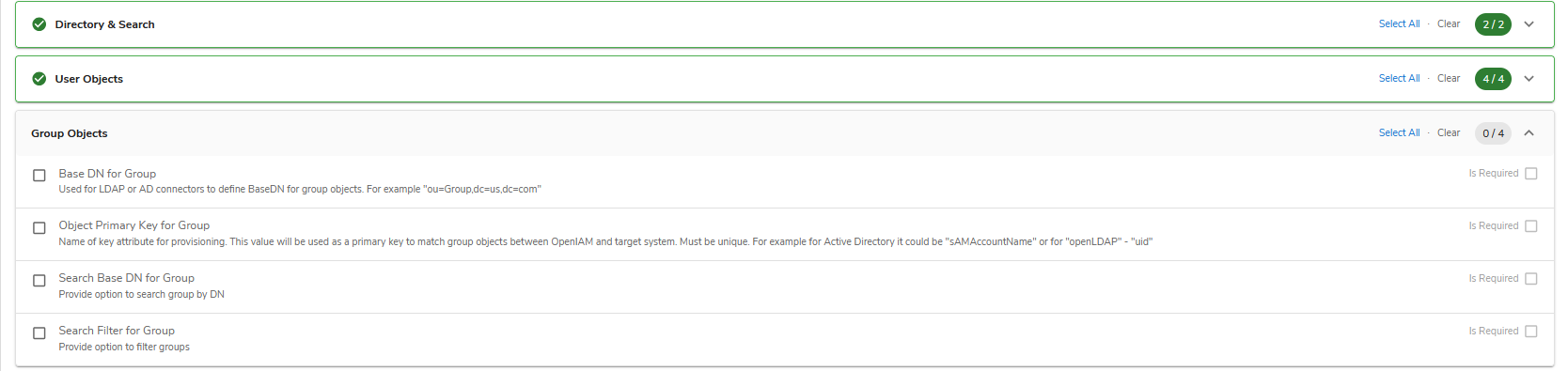
4. To manage groups as well, expand **Group Objects** and select the fields you need.

<figure><img src="https://2965242200-files.gitbook.io/~/files/v0/b/gitbook-x-prod.appspot.com/o/spaces%2F0uHWHRgcad6P03ehqgmX%2Fuploads%2Fgit-blob-8724135f7f0485b2de85f66e51715a7a3beb707a%2Fcheckboxes.png?alt=media" alt="The Group Objects group expanded, listing its four fields: Base DN for Group, Object Primary Key for Group, Search Base DN for Group and Search Filter for Group, none selected"><figcaption></figcaption></figure>

<table><thead><tr><th width="234">Field</th><th>What it is for</th></tr></thead><tbody><tr><td><strong>Base DN for Group</strong></td><td>The branch group objects live under, for example <code>ou=groups,dc=ldap,dc=local</code></td></tr><tr><td><strong>Object Primary Key for Group</strong></td><td>The attribute that matches a group between OpenIAM and the directory, and must be unique — <code>cn</code> on OpenLDAP</td></tr><tr><td><strong>Search Base DN for Group</strong></td><td>The branch to search when looking a group up by DN</td></tr><tr><td><strong>Search Filter for Group</strong></td><td>An optional filter narrowing which groups are returned</td></tr></tbody></table>

5. Click **Save** and proceed to the managed system.

## Configuring the managed system

OpenIAM has a built-in managed system named **`OpenLDAP`** (**Provisioning → Managed System**), pre-configured and usable as-is. If configuring from scratch, fill in the fields manually.

<figure><img src="https://2965242200-files.gitbook.io/~/files/v0/b/gitbook-x-prod.appspot.com/o/spaces%2F0uHWHRgcad6P03ehqgmX%2Fuploads%2Fgit-blob-13ac81f9bfcaaece6e1bf8a6f11c43bd3f085c78%2Fmanaged-system.png?alt=media" alt="The LDAP Managed System form, with LDAP CONNECTOR selected, ldap:// on port 389, uid as the object primary key, a SUBTREE_SCOPE search and the shipped attribute list including MEMBER_FIELD_NAME and PASSWORD_FIELD_NAME"><figcaption></figcaption></figure>

Provide all required details and verify that **Base DN** and **Search Base DN** are present for both Group and User — for example:

* Base DN for Group: `ou=groups,dc=ldap,dc=local`
* Search Base DN for Group: `ou=groups,dc=ldap,dc=local`

## Attribute mapping and policy map

Map OpenIAM user attributes to directory attributes in the managed system's [policy map](/administration-guide/lifecycle/policy-map.md).

Four scripts ship for LDAP synchronization, and the Groovy Manager lists them at these paths:

| Script                                                     | Purpose                                                          |
| ---------------------------------------------------------- | ---------------------------------------------------------------- |
| `sync/user/openLDAP/LdapUserSyncAttributes.groovy`         | The attributes to read from the directory for a user             |
| `sync/user/openLDAP/LdapUserTransformation.groovy`         | Turns a directory entry into an OpenIAM user                     |
| `sync/group/openLDAP/LdapGroupSyncAttributes.groovy`       | The attributes to read for a group                               |
| `sync/group/openLDAP/LdapGroupTransformationScript.groovy` | Turns a directory entry into an OpenIAM group and its membership |

The **Source attribute names** field on a synchronization points at the `…SyncAttributes` script for that object type, and that script is where you name the attributes to retrieve. The group one ships returning `cn`, `displayName`, `gidNumber`, `dn` and `memberUid`.

{% hint style="warning" %}
**The shipped group scripts read `memberUid` only** — that is, they assume a `posixGroup` schema. A directory using `groupOfNames` keeps membership in `member` instead, holding full DNs rather than bare uids, so both the transformation and the `…SyncAttributes` script need changing for it.
{% endhint %}

The extended example below handles both schemas, extracting the uid from each DN for `groupOfNames`. Note that it predates the 2026 package rename: its `org.openiam.idm.srvc.*` imports are `org.openiam.dto.*` from 2026.1.1 onward, so update those against the shipped script before using it.

{% file src="/files/eDqc9twbzIZRRxzK7bM5" %}

## Reconciliation and synchronization

OpenIAM provides two pre-configured synchronization options for the LDAP connector, both with example transformation scripts:

1. **OpenLDAP User** — matches the OpenIAM **User ID** field against the directory's `uid`.
2. **OpenLDAP Group** — matches the OpenIAM **name** field against the directory's `cn`.

To access them: Webconsole → **Provisioning → Synchronization** → search for `OpenLDAP User` or `OpenLDAP Group`. Verify each configuration and update details as needed.


---

# Agent Instructions
This documentation is published with GitBook. GitBook is the documentation platform designed so that both humans and AI agents can read, navigate, and reason over technical content effectively. Learn more at gitbook.com.

## Querying This Documentation
If you need additional information that is not directly available in this page, you can query the documentation by asking a question.

Perform an HTTP GET request on the following URL with the `ask` and `goal` query parameters:

```
GET https://docs.openiam.com/connector-configuration/ldap.md?ask=<question>&goal=<user_goal>
```

`ask` is the immediate question: it should be specific, self-contained, and written in natural language.
`goal` is what the user is ultimately trying to achieve, the reason they need the answer. Sharing it helps GitBook give you a better, more relevant answer. A goal is most helpful when it describes the outcome the user wants rather than restating the question. For example, with `ask=how do I create an API token`, a goal like `automate deployments from our CI pipeline` lets GitBook tailor the answer to that use case.

The response will contain a direct answer to the question and relevant excerpts and sources from the documentation.

Use this mechanism when the answer is not explicitly present in the current page, you need clarification or additional context, or you want to retrieve related documentation sections.