> For the complete documentation index, see [llms.txt](https://docs.openiam.com/llms.txt). Markdown versions of documentation pages are available by appending `.md` to page URLs; this page is available as [Markdown](https://docs.openiam.com/connector-configuration/jdbc.md).

# JDBC connector

This page describes how to enable provisioning to a database table with JDBC

OpenIAM can provision to a **database table** by means of several solutions. The JDBC connector integrates with a database through the Java Database Connectivity programming interface — it is used to integrate with existing relational database systems for user provisioning and identity data synchronization.

| Operation                   | Supported                                  |
| --------------------------- | ------------------------------------------ |
| Create / update user (Save) | ✅                                          |
| Delete user                 | ✅                                          |
| Suspend / resume user       | ✅                                          |
| Reset password              | ✅                                          |
| Search / synchronize users  | ✅                                          |
| Search groups               | ✅                                          |
| Test connection             | ✅                                          |
| Login                       | ❌ Not implemented in the current connector |
| Group create/delete         | ❌ Not implemented in the current connector |

{% hint style="info" %}
For PostgreSQL and Oracle there are also dedicated connectors ([PostgreSQL](/connector-configuration/postgresql.md), [Oracle RDBMS](/connector-configuration/oracle.md)) that manage **database accounts** (roles, privileges). The JDBC connector manages **rows in your application's user tables** — choose based on what you are provisioning.
{% endhint %}

## Use cases

* Provisioning users into an **application's own database tables** (a custom app whose users live in a `users` table).
* **Importing users from a legacy database** into OpenIAM via synchronization.
* Working with any RDBMS with a JDBC driver — DB2, MySQL, MariaDB, PostgreSQL, SQL Server, Oracle.

## Versions and compatibility

JDBC is a programming interface rather than a product, so there is no target version to match. What matters is the **driver**, and the connector loads the driver class named by the `JDBC_DRIVER` attribute at run time.

The **JDBC Driver** selection stores the driver class name (managed-system attribute `JDBC_DRIVER`), which the connector loads before connecting:

<table><thead><tr><th width="225">Database</th><th>Driver class</th></tr></thead><tbody><tr><td>DB2</td><td><code>com.ibm.db2.jcc.DB2Driver</code></td></tr><tr><td>MySQL</td><td><code>com.mysql.cj.jdbc.Driver</code></td></tr><tr><td>MariaDB</td><td><code>org.mariadb.jdbc.Driver</code></td></tr><tr><td>PostgreSQL</td><td><code>org.postgresql.Driver</code></td></tr><tr><td>Microsoft SQL Server</td><td><code>com.microsoft.sqlserver.jdbc.SQLServerDriver</code></td></tr><tr><td>Oracle</td><td><code>oracle.jdbc.driver.OracleDriver</code></td></tr></tbody></table>

{% hint style="warning" %}
**The six drivers above ship with the connector** — you do not need to add their JARs. For any other database, put the driver JAR on the connector's classpath yourself: the connector loads the class by name at runtime, and a missing JAR or a wrong class name fails every operation with `JDBC_DRIVER_NOT_FOUND`. That is the most common cause of *"Unable to load the class"* when configuring a new database connection.
{% endhint %}

## Prerequisites

* A database account with rights on the target tables.
* The matching **JDBC driver JAR on the connector's classpath** (see Supported drivers below).
* Network access from the connector host to the database.
* Verify JDBC connector availability in your OpenIAM environment before proceeding.

## Installing the connector

Deploy the connector for your deployment type (the Kubernetes deployment configuration, or the RPM connector service `openiam-connector@jdbc-connector-rabbitmq`) — see [Connectors via RPM](/installation/rpm/rpm-single-node/add-a-connector.md). Ensure the JDBC driver JAR for your database is on the connector's classpath.

## Starting, stopping, and restarting

<table><thead><tr><th width="203">Deployment</th><th>Commands</th></tr></thead><tbody><tr><td>RPM (systemd)</td><td><code>systemctl start|stop|restart openiam-connector@jdbc-connector-rabbitmq</code></td></tr><tr><td>Kubernetes</td><td><code>kubectl rollout restart</code> the connector deployment.</td></tr></tbody></table>

## Command-line parameters and properties

The connector is a Spring Boot application and takes **no connector-specific command-line flags**. Everything adjustable is a property, settable in the override file or in the usual Spring Boot forms (`--name=value`, or `-Dname=value` as a JVM argument).

`confpath` must point at the OpenIAM configuration directory. The connector reads its overrides from:

{% code overflow="wrap" %}

```
${confpath}/conf/properties/jdbc-connector-rabbitmq.properties
```

{% endcode %}

| Property                                  | Default                     | Purpose                                                                    |
| ----------------------------------------- | --------------------------- | -------------------------------------------------------------------------- |
| `org.openiam.connector.queue`             | `JDBC_Connector_1_Request`  | The queue the connector takes requests from. Must match the managed system |
| `org.openiam.connector.queueResponseName` | `JDBC_Connector_1_Response` | The queue it publishes responses to                                        |
| `org.openiam.connector.name`              | `JDBC`                      | The connector's registered name                                            |
| `org.openiam.connector.type`              | `JDBC Connector`            | The connector type shown in the Webconsole                                 |

Change the queue names only when running more than one JDBC connector, and change them in both places.

## Verifying the connector is running

{% stepper %}
{% step %}
In the Webconsole, open the managed system — the **Running connector status** indicator must be green.
{% endstep %}

{% step %}
Click **Test Connection** — it must return success.
{% endstep %}

{% step %}
In the RabbitMQ management console, confirm the `JDBC_Connector_1_Request` queue exists and has a consumer, and that `JDBC_Connector_1_Response` exists alongside it.
{% endstep %}

{% step %}
Provision a test user and confirm the row appears in the database.
{% endstep %}
{% endstepper %}

## Troubleshooting

| Symptom                                                | Likely cause                                                                                | Resolution                                                                                                                                                                                       |
| ------------------------------------------------------ | ------------------------------------------------------------------------------------------- | ------------------------------------------------------------------------------------------------------------------------------------------------------------------------------------------------ |
| `JDBC_DRIVER_NOT_FOUND` / *"Unable to load the class"* | Wrong driver class, or a database outside the six bundled ones with no JAR on the classpath | Re-check the JDBC Driver value against the table above. For MySQL in particular the class is `com.mysql.cj.jdbc.Driver` — the older `com.mysql.jdbc.Driver` was removed from Connector/J at 8.0. |
| `SQL_ERROR` on operations                              | The SQL fails against the target schema or the account lacks privileges                     | Check the query/table mapping and the database account's rights.                                                                                                                                 |
| Test connection fails                                  | Wrong connection string or credentials                                                      | Verify the JDBC URL format for your database type.                                                                                                                                               |
| Group create/delete does nothing                       | Not implemented in this connector                                                           | Expected — see the operations table above.                                                                                                                                                       |

See also: [general connector troubleshooting](/connector-configuration/4-troubleshootingconnector.md) and the [connector error-code reference](/connector-configuration/4-troubleshootingconnector.md#connector-error-codes).

After completing this setup, your JDBC connector is ready to connect to your existing database system for seamless user provisioning and identity data synchronization with OpenIAM.

## Registering the connector in OpenIAM

If registering manually under **Provisioning → Connectors**, the queue name must match exactly:

| Property                      | Default                    |
| ----------------------------- | -------------------------- |
| `org.openiam.connector.queue` | `JDBC_Connector_1_Request` |
| `org.openiam.connector.name`  | `JDBC`                     |

## Configuring the managed system

Log in to the Webconsole, go to **Provisioning → Managed system**, click **Create managed system**, and configure it with the following parameters:

<table><thead><tr><th width="197">Field</th><th>Value</th></tr></thead><tbody><tr><td><strong>Type</strong></td><td>JDBC Connector</td></tr><tr><td><strong>System Name</strong></td><td>A descriptive name for your environment</td></tr><tr><td><strong>Description</strong></td><td>Brief description of the database system</td></tr><tr><td><strong>Status</strong></td><td>Active</td></tr><tr><td><strong>Connection String</strong></td><td>Complete JDBC URL (e.g., <code>jdbc:mariadb://your-host:3306/your-database</code>)</td></tr><tr><td><strong>Login Id</strong></td><td>Database username</td></tr><tr><td><strong>Password</strong></td><td>Database password</td></tr><tr><td><strong>JDBC Driver</strong></td><td>Select your database type (see below)</td></tr></tbody></table>

<figure><img src="https://2965242200-files.gitbook.io/~/files/v0/b/gitbook-x-prod.appspot.com/o/spaces%2F0uHWHRgcad6P03ehqgmX%2Fuploads%2Fgit-blob-e4bc1e6c662f828ddb4cc6c2b06b5f8c8651d089%2FJDBC-01-managed-system.png?alt=media" alt="The Managed System form for a JDBC connector, active, with a MariaDB connection string, a database login, and MariaDB chosen as the JDBC Driver"><figcaption></figcaption></figure>

{% hint style="info" %}
Configure the complete JDBC URL using the standard format for your database type.
{% endhint %}

### Managed system attributes

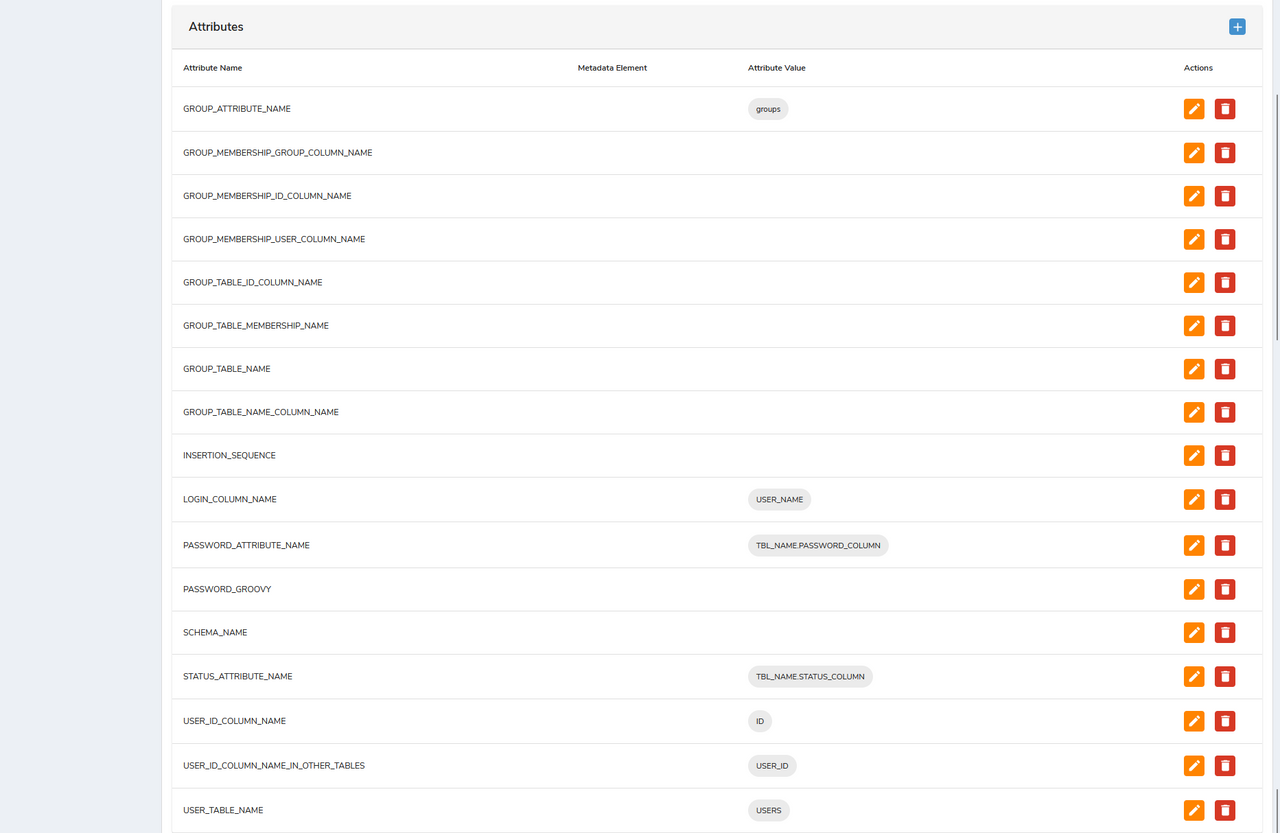
The connector reads these from the managed system's **Attributes** panel, which appears once the managed system has been saved.

<figure><img src="https://2965242200-files.gitbook.io/~/files/v0/b/gitbook-x-prod.appspot.com/o/spaces%2F0uHWHRgcad6P03ehqgmX%2Fuploads%2Fgit-blob-0950df2b090dc9c46f35e9bc627c98f19bd9fc7f%2FJDBC-02-attributes.png?alt=media" alt="The Attributes panel of a JDBC managed system listing all eighteen connector fields, with USER_TABLE_NAME, LOGIN_COLUMN_NAME and USER_ID_COLUMN_NAME filled in and PASSWORD_ATTRIBUTE_NAME and STATUS_ATTRIBUTE_NAME holding table dot column values"><figcaption></figcaption></figure>

Three are required — without them every operation fails with \`INVALID\_CONFIGURATION\` and a message naming the attribute.

<table><thead><tr><th width="243">Attribute</th><th width="105">Required</th><th>What it does</th></tr></thead><tbody><tr><td><code>JDBC_DRIVER</code></td><td>Yes</td><td>The driver class to load before connecting. Set by the <strong>JDBC Driver</strong> field</td></tr><tr><td><code>USER_TABLE_NAME</code></td><td>Yes</td><td>The table holding the user rows</td></tr><tr><td><code>USER_ID_COLUMN_NAME</code></td><td>Yes</td><td>The primary key column of that table</td></tr><tr><td><code>LOGIN_COLUMN_NAME</code></td><td>Yes</td><td>The column the identity's login is matched on</td></tr><tr><td><code>SCHEMA_NAME</code></td><td>No</td><td>Prefixed to every table name as <code>schema.table</code>. Needed on DB2</td></tr><tr><td><code>INSERTION_SEQUENCE</code></td><td>No</td><td>Dependent tables to write after the user row, separated by <code>></code></td></tr><tr><td><code>USER_ID_COLUMN_NAME_IN_OTHER_TABLES</code></td><td>No</td><td>The column those dependent tables use to refer back to the user</td></tr><tr><td><code>PASSWORD_ATTRIBUTE_NAME</code></td><td>No</td><td>Which attribute carries the password, in <code>table.column</code> form</td></tr><tr><td><code>PASSWORD_GROOVY</code></td><td>No</td><td>A Groovy script the password is passed through before it is written. Applied on reset password only</td></tr><tr><td><code>STATUS_ATTRIBUTE_NAME</code></td><td>No</td><td>Which attribute carries the account status, in <code>table.column</code> form. Suspend and resume write it</td></tr><tr><td><code>GROUP_TABLE_NAME</code></td><td>No</td><td>The table holding groups</td></tr><tr><td><code>GROUP_TABLE_ID_COLUMN_NAME</code></td><td>No</td><td>Its primary key column</td></tr><tr><td><code>GROUP_TABLE_NAME_COLUMN_NAME</code></td><td>No</td><td>The column holding the group name</td></tr><tr><td><code>GROUP_TABLE_MEMBERSHIP_NAME</code></td><td>No</td><td>The membership table joining users to groups</td></tr><tr><td><code>GROUP_MEMBERSHIP_USER_COLUMN_NAME</code></td><td>No</td><td>Its user column</td></tr><tr><td><code>GROUP_MEMBERSHIP_GROUP_COLUMN_NAME</code></td><td>No</td><td>Its group column</td></tr><tr><td><code>GROUP_MEMBERSHIP_ID_COLUMN_NAME</code></td><td>No</td><td>Its primary key column</td></tr><tr><td><code>GROUP_ATTRIBUTE_NAME</code></td><td>No</td><td>Which attribute carries group membership</td></tr></tbody></table>

{% hint style="warning" %}
**`PASSWORD_ATTRIBUTE_NAME` and `STATUS_ATTRIBUTE_NAME` take `table.column`, not a column name**, despite what the names suggest. The connector splits the value on the dot to find the table and the column, and skips the write entirely when the value contains no dot.

For suspend and resume that failure is silent: the operation returns **success** and nothing changes. The same is true when `STATUS_ATTRIBUTE_NAME` is unset, or when the policy map does not supply a value for that same `table.column`.
{% endhint %}

{% hint style="info" %}
`UPDATE_MEMBERSHIP_ONLY_MODE` appears among the connector's field names but is **not read from the managed system**, so setting it has no effect. It is intended to make a save manage group memberships only and leave the user row untouched. Until it is wired up, do not point this connector at a user table you need left alone — a save writes the row either way.
{% endhint %}

## Attribute mapping and policy map

The **policy map** decides which OpenIAM attributes reach the database and what each one carries. Name every mapped attribute `<table>.<column>` — the table being the one named in `USER_TABLE_NAME`, or any table listed in `INSERTION_SEQUENCE`.

{% hint style="warning" %}
**An attribute whose name has no dot is silently dropped.** To decide which attributes belong to a table, the connector keeps those whose name contains the table name followed by a dot, and builds its statement from what is left. `USERS.EMAIL` is kept; `USERS_EMAIL` is not.

Nothing reports this. The save succeeds, and the column is simply never written — so a mapping that looks present in the policy map can have been doing nothing since the day it was added. If one column never arrives while the rest do, check the dot first.
{% endhint %}

Where the tables and key columns themselves are declared is a separate matter, covered in [Managed system attributes](#managed-system-attributes).

<figure><img src="https://2965242200-files.gitbook.io/~/files/v0/b/gitbook-x-prod.appspot.com/o/spaces%2F0uHWHRgcad6P03ehqgmX%2Fuploads%2Fgit-blob-4eafd7d8cdffd3fea0cdc7d06153b1c4973eb28a%2FJDBC-04-policy-map.png?alt=media" alt="The Edit Policy Map screen for a JDBC managed system, with five attributes named USERS dot column, each carrying an object type and a Groovy provisioning script"><figcaption></figcaption></figure>

Provision a user, then confirm the write reached the database.

In the Webconsole the audit entry for the request reports **User has been successfully modified** and names the target managed system. Its **Request Body** lists each mapped column with the value sent and the operation applied, for example `USERS.USER_NAME` with `REPLACE`. The password column is masked in that view.

Then check the row itself. Select the columns you mapped rather than `SELECT *`, so the password column does not end up on screen:

{% code overflow="wrap" %}

```sql
SELECT ID, USER_NAME, FIRST_NAME, LAST_NAME
FROM USERS
WHERE USER_NAME = 'jdoe';
```

{% endcode %}

## Reconciliation and synchronization

How synchronization and reconciliation work in general is covered in the Administration guide — see [*Synchronize and import data*](/administration-guide/lifecycle/synchronize-and-import-data.md) and [*Configure reconciliation*](/administration-guide/lifecycle/configure-reconciliation.md). This section covers only what is specific to this connector.

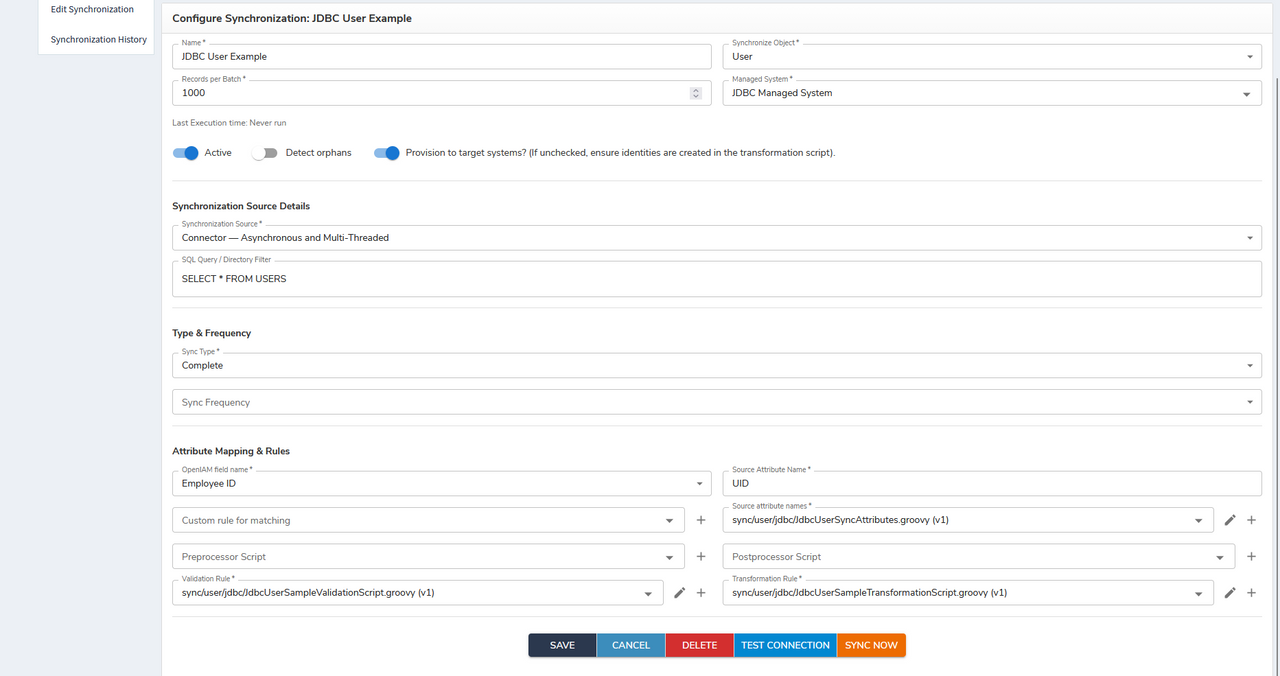
1. Log in to the Webconsole, go to **Provisioning → Synchronization**, and click **Create Synchronization**.
2. Use the following settings for JDBC synchronization:
   * **Name**: JDBC User Example
   * **Managed System**: JDBC Managed System
   * **Sync Type**: Complete
   * **Source Attribute Name**: UID
   * **SQL Query**: `SELECT * FROM USERS`

<figure><img src="https://2965242200-files.gitbook.io/~/files/v0/b/gitbook-x-prod.appspot.com/o/spaces%2F0uHWHRgcad6P03ehqgmX%2Fuploads%2Fgit-blob-f9e07d8a2636847691e9db6e5dfb32946ec6ca8e%2FJDBC-03-synchronization.png?alt=media" alt="The Configure Synchronization form for a JDBC user import, showing the managed system, the SQL query, a Complete sync type, and the validation and transformation scripts"><figcaption></figcaption></figure>

3. Click **Save**, then **Sync now**.

Synchronization runs in the background, so the screen that follows reports that the run has **started**, not that it has finished. It gives you three things worth reading:

* **The query the connector actually ran.** Check it against what you typed — this is where a filter that silently returned nothing shows itself.
* **A summary row per object type**, with the number of threads, the minimum, average and maximum transformation time, and a count of objects as success, failure or orphan, and total.
* **A row per object**, carrying its name, whether it was treated as an orphan, the result, the request body that was sent, and any error.

The details block also states the batch size the objects will be processed in, which is the **Records per Batch** value from the form above.

Past runs are kept under **Synchronization History**, in the left menu beside **Edit Synchronization**.

{% hint style="warning" %}
**A synchronization is not a read-only operation.** It creates and updates identities in OpenIAM from the rows it reads, and with **Provision to target systems?** switched on it then provisions those identities outward to every managed system they are entitled to — not only this one. On a shared environment, switch that off before the first run, or use **Test Connection** to check the database is reachable without writing anything.
{% endhint %}

Confirm the rows the synchronization read:

{% code overflow="wrap" %}

```sql
SELECT ID, USER_NAME, FIRST_NAME, LAST_NAME
FROM USERS
ORDER BY ID;
```

{% endcode %}


---

# Agent Instructions
This documentation is published with GitBook. GitBook is the documentation platform designed so that both humans and AI agents can read, navigate, and reason over technical content effectively. Learn more at gitbook.com.

## Querying This Documentation
If you need additional information that is not directly available in this page, you can query the documentation by asking a question.

Perform an HTTP GET request on the following URL with the `ask` and `goal` query parameters:

```
GET https://docs.openiam.com/connector-configuration/jdbc.md?ask=<question>&goal=<user_goal>
```

`ask` is the immediate question: it should be specific, self-contained, and written in natural language.
`goal` is what the user is ultimately trying to achieve, the reason they need the answer. Sharing it helps GitBook give you a better, more relevant answer. A goal is most helpful when it describes the outcome the user wants rather than restating the question. For example, with `ask=how do I create an API token`, a goal like `automate deployments from our CI pipeline` lets GitBook tailor the answer to that use case.

The response will contain a direct answer to the question and relevant excerpts and sources from the documentation.

Use this mechanism when the answer is not explicitly present in the current page, you need clarification or additional context, or you want to retrieve related documentation sections.