> For the complete documentation index, see [llms.txt](https://docs.openiam.com/llms.txt). Markdown versions of documentation pages are available by appending `.md` to page URLs; this page is available as [Markdown](https://docs.openiam.com/connector-configuration/gsuite.md).

# Google Workspace (GSuite) connector

This page describes how to configure the Google Workspace connector for OpenIAM

The Google Workspace connector provisions users to **Google Workspace** (Google Apps — tools for communication, collaboration, storage, and access management). It authenticates as a Google Cloud **service account** with **domain-wide delegation**, using a P12 key, and calls the Admin SDK Directory API.

| Operation                   | Supported                                                                  |
| --------------------------- | -------------------------------------------------------------------------- |
| Create / update user (Save) | ✅                                                                          |
| Delete user                 | ✅                                                                          |
| Suspend / resume user       | ✅                                                                          |
| Reset password              | ✅                                                                          |
| Search / synchronize users  | ✅ (Directory API search filters)                                           |
| Search / synchronize groups | ✅                                                                          |
| Group membership            | ✅ (directory group scope)                                                  |
| Test connection             | ✅                                                                          |
| Group create / delete       | ❌ **reports success and does nothing** — manage groups in Google Workspace |

## Use cases

* Automating the **joiner/mover/leaver lifecycle for Google Workspace accounts** from OpenIAM.
* **Role-based provisioning** into Google Workspace — users gain/lose their Google account through role membership.
* **Importing Google Workspace users** into OpenIAM via synchronization.

## Versions and compatibility

The end application is **Google Workspace**, reached through Google's own Java client libraries rather than by building REST calls. The connector uses two of Google's APIs, which is why the delegation scopes above cover both.

<table><thead><tr><th width="213">Property</th><th>Value</th></tr></thead><tbody><tr><td><strong>Platform</strong></td><td>Google Workspace</td></tr><tr><td><strong>Users and groups</strong></td><td>Admin SDK <strong>Directory API</strong></td></tr><tr><td><strong>Drive</strong></td><td><strong>Drive API</strong>, used to check whether a user owns any Drive files</td></tr><tr><td><strong>Authentication</strong></td><td>OAuth 2.0 as a service account, with domain-wide delegation and a P12 key</td></tr><tr><td><strong>Impersonation</strong></td><td>The service account acts as the admin named in the managed system's Login ID</td></tr></tbody></table>

{% hint style="info" %}
**The two Drive scopes are not optional extras.** The connector asks Drive whether a user owns any files, so a delegation granting only the two directory scopes leaves that call failing. Grant all four listed under [Prerequisites](#prerequisites), and enable the Drive API alongside the Admin SDK.
{% endhint %}

## Prerequisites

You need a Google Cloud **service account** with credentials and domain-wide delegation:

{% stepper %}
{% step %}
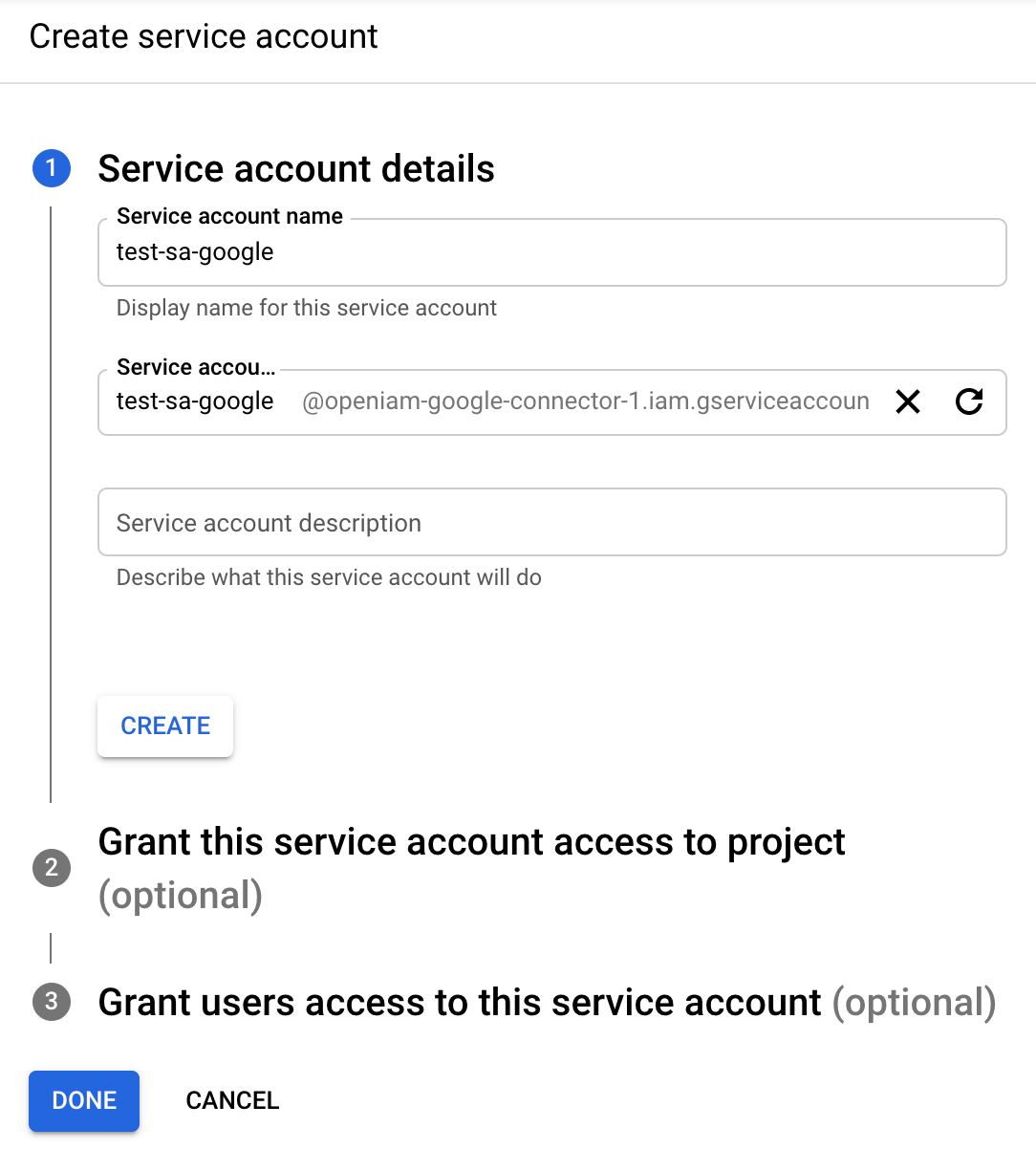
Create the service account and its credentials at [console.cloud.google.com/iam-admin/serviceaccounts](https://console.cloud.google.com/iam-admin/serviceaccounts):

* Select your project and create the service account.

  <figure><img src="https://2965242200-files.gitbook.io/~/files/v0/b/gitbook-x-prod.appspot.com/o/spaces%2F0uHWHRgcad6P03ehqgmX%2Fuploads%2Fgit-blob-e98bb167d36f7f9c0ac9622a74422605a4028855%2F2.google-create-service-account-page.png?alt=media" alt="The Google Cloud service account creation page, with the project selected and the service account name and ID being entered"><figcaption></figcaption></figure>
* For **Project role**, specify **Owner**.
* Find your service account and select **Manage Keys** → **Add Key** → **P12**. The generated P12 key downloads to your machine — it is the **only copy**; store it securely.
* After downloading, note the service account's **email address** and **Unique ID**.

  <figure><img src="https://2965242200-files.gitbook.io/~/files/v0/b/gitbook-x-prod.appspot.com/o/spaces%2F0uHWHRgcad6P03ehqgmX%2Fuploads%2Fgit-blob-b676cde359c7a4c7629d38ae8907bdff37cc99f6%2F3.google-create-p12-key.png?alt=media" alt="A Google Cloud service account detail page, showing the email address and the Unique ID that becomes the OAuth client ID"><figcaption></figcaption></figure>
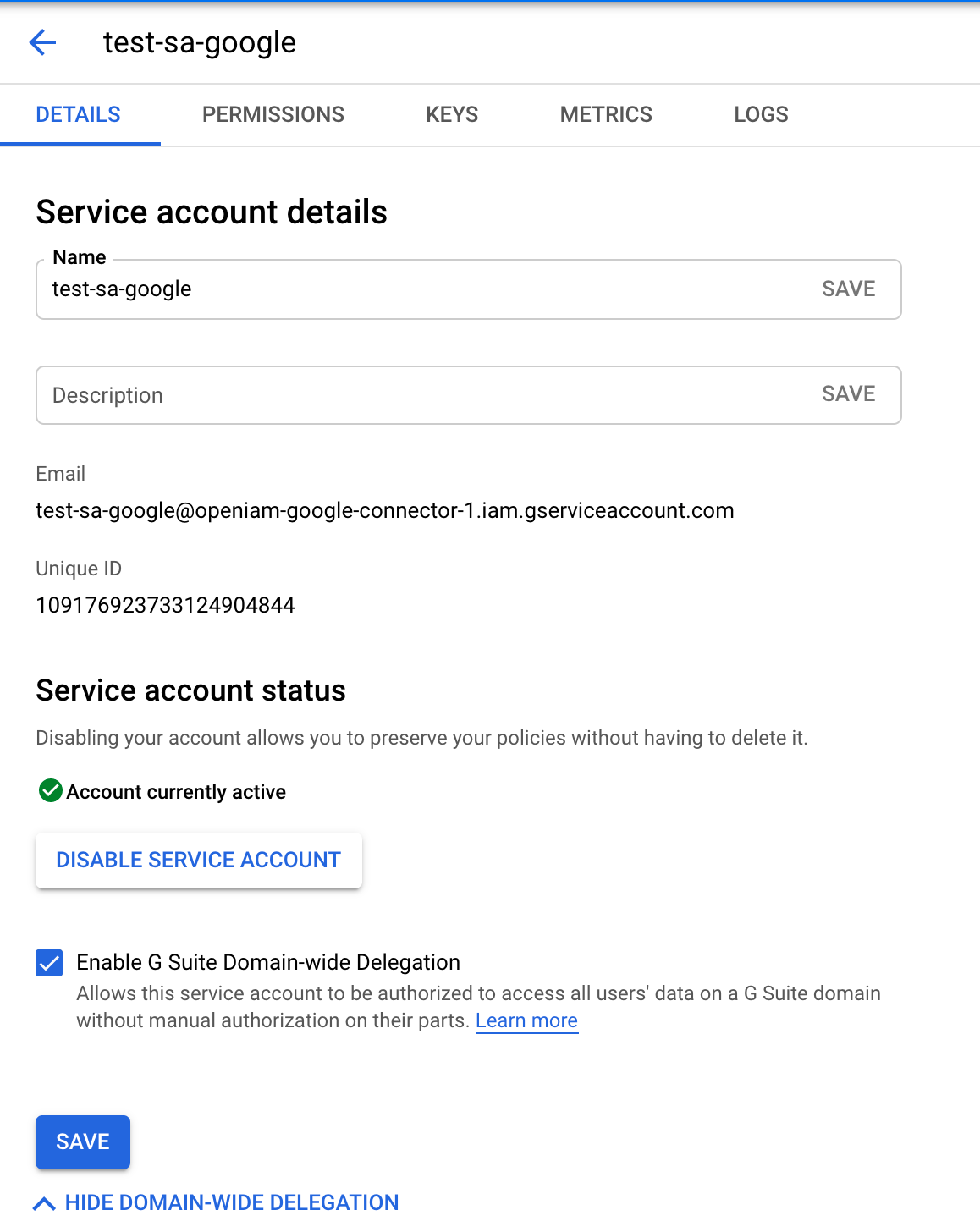
* Enable **Google Workspace Domain-wide Delegation** under the **Details** tab.

  <figure><img src="https://2965242200-files.gitbook.io/~/files/v0/b/gitbook-x-prod.appspot.com/o/spaces%2F0uHWHRgcad6P03ehqgmX%2Fuploads%2Fgit-blob-7fc700b4794ae7420e8045336a9cbb2f2dac9aaf%2F4.google-enable-domain-wide-delegation.png?alt=media" alt="The Details tab of a Google Cloud service account, with Google Workspace Domain-wide Delegation enabled"><figcaption></figcaption></figure>

{% endstep %}

{% step %}
Add scopes for the service account. In the [Admin Console](https://admin.google.com/), go to **Security → API Controls → Manage Domain-wide Delegation → Add New**. The **Client ID** is the service account's unique ID ([console.cloud.google.com/apis/credentials](https://console.cloud.google.com/apis/credentials) → OAuth 2.0 Client IDs).

<figure><img src="https://2965242200-files.gitbook.io/~/files/v0/b/gitbook-x-prod.appspot.com/o/spaces%2F0uHWHRgcad6P03ehqgmX%2Fuploads%2Fgit-blob-65e1670372359fd948e2cfff326850c81c6eade9%2F6.google-client-id.png?alt=media" alt="The OAuth 2.0 Client IDs list in Google Cloud credentials, where the service account Unique ID is read off"><figcaption></figcaption></figure>

Add the following comma-separated scopes:

{% code overflow="wrap" %}

```
https://www.googleapis.com/auth/admin.directory.user,https://www.googleapis.com/auth/admin.directory.group,https://www.googleapis.com/auth/drive.file,https://www.googleapis.com/auth/drive
```

{% endcode %}
{% endstep %}

{% step %}
Enable the **Admin SDK API**: [console.cloud.google.com/apis/dashboard](https://console.cloud.google.com/apis/dashboard) → Enable APIs and Services → search for Admin SDK → Enable. To use Google Drive, enable the Google Drive API the same way.
{% endstep %}
{% endstepper %}

## Installing the connector

Deploy the connector for your deployment type (the Kubernetes deployment configuration, or the RPM connector service) — see [Connectors via RPM](/installation/rpm/rpm-single-node/add-a-connector.md). The **P12 key file** must be present on the host where the connector runs.

## Starting, stopping, and restarting

<table><thead><tr><th width="186">Deployment</th><th>Commands</th></tr></thead><tbody><tr><td>RPM (systemd)</td><td><code>systemctl start|stop|restart openiam-connector@google-connector-rabbitmq</code></td></tr><tr><td>Kubernetes</td><td><code>kubectl rollout restart</code> the connector deployment.</td></tr></tbody></table>

## Command-line parameters and properties

The connector is a Spring Boot application. Its defaults ship inside the jar, and you override them in either of two places:

* **An external property file**, read at `${confpath}/conf/properties/google-connector-rabbitmq.properties`. The file is optional, and `confpath` is itself a system property, set with `-Dconfpath=/data/openiam/`.
* **Directly on the command line**, as `-D` arguments, which win over the file.

{% code overflow="wrap" %}

```bash
java -Dconfpath=/data/openiam/ -Dlogging.level.root=INFO -Dorg.openiam.connector.queue=GOOGLE_Connector_1_Request -jar google-connector-rabbitmq.jar
```

{% endcode %}

| Property                      | Default                      |
| ----------------------------- | ---------------------------- |
| `org.openiam.connector.queue` | `GOOGLE_Connector_1_Request` |
| `org.openiam.connector.name`  | `Google`                     |

The connection details themselves are **not** set here — they are managed system parameters, covered under [Configuring the managed system](#configuring-the-managed-system).

## Verifying the connector is running

{% stepper %}
{% step %}
In the Webconsole, open the managed system — the dashboard must show the green success status.
{% endstep %}

{% step %}
Click **Test Connection** — it must return success.
{% endstep %}

{% step %}
In the RabbitMQ management console, confirm the `GOOGLE_Connector_1_Request` queue exists and has a consumer.
{% endstep %}
{% endstepper %}

## Troubleshooting

| Symptom                                | Likely cause                                              | Resolution                                                                                                       |
| -------------------------------------- | --------------------------------------------------------- | ---------------------------------------------------------------------------------------------------------------- |
| Connection fails                       | Wrong pkPath, or the P12 key is not on the connector host | Verify the key path exists on the host where the **connector** runs.                                             |
| API calls are rejected                 | Missing scopes or delegation                              | Re-check the domain-wide delegation scopes and that the Admin SDK API is enabled.                                |
| Operations fail with permission errors | The Login ID lacks admin privileges                       | Use a Google Workspace account with admin rights.                                                                |
| User search returns nothing            | Filter syntax                                             | Use the [Directory API search syntax](https://developers.google.com/admin-sdk/directory/v1/guides/search-users). |

See also: [general connector troubleshooting](/connector-configuration/4-troubleshootingconnector.md) and the [connector error-code reference](/connector-configuration/4-troubleshootingconnector.md#connector-error-codes).

## Registering the connector in OpenIAM

If registering manually under **Provisioning → Connectors**, the queue name must match exactly:

| Field           | Value                        |
| --------------- | ---------------------------- |
| Connector Queue | `GOOGLE_Connector_1_Request` |

The connector replies on `GOOGLE_Connector_1_Response`. Both are the shipped defaults; override them together, or the connector listens on one queue while OpenIAM publishes to another.

## Configuring the managed system

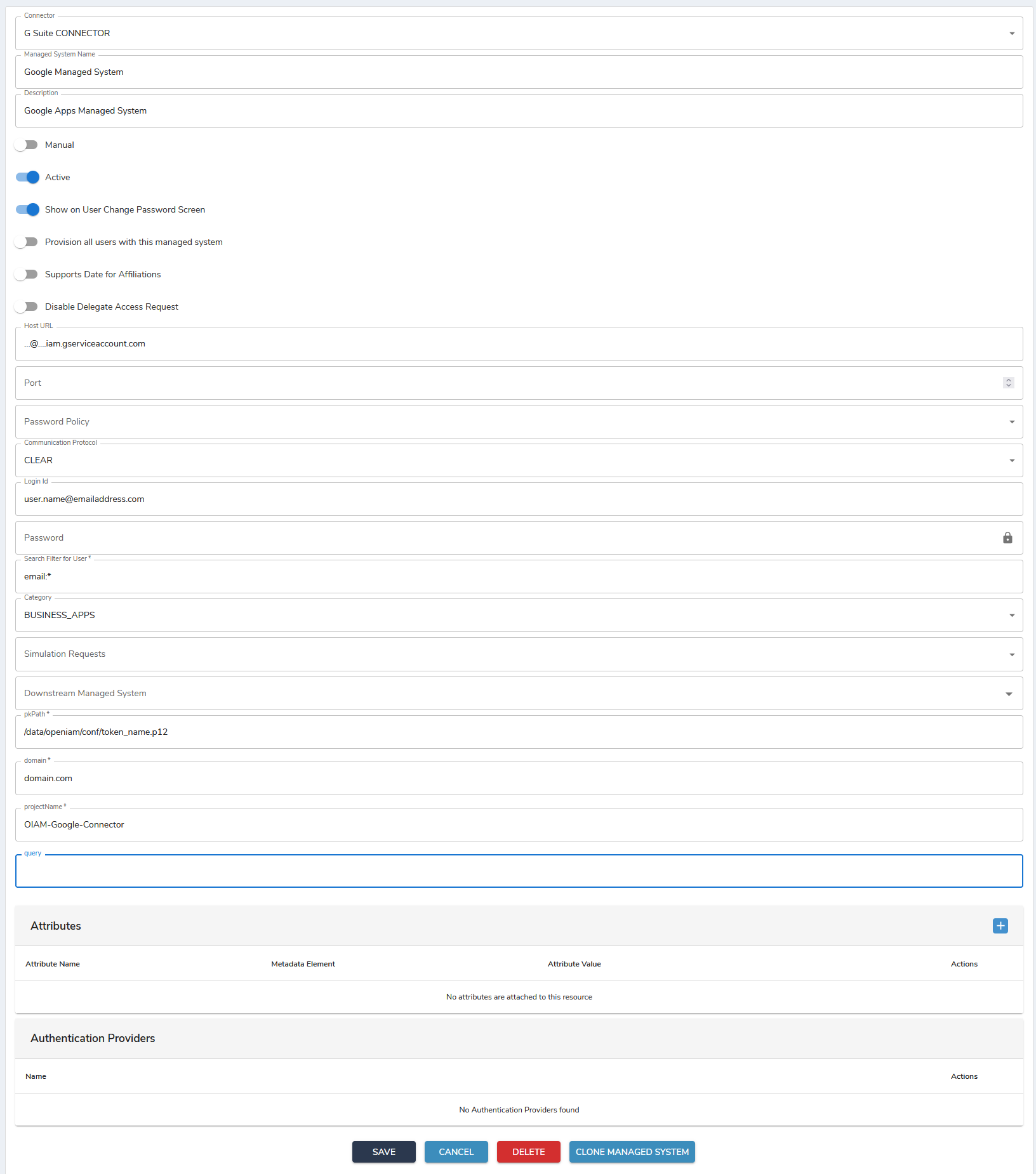
In the Webconsole, go to **Provisioning → Managed System**. OpenIAM provides a predefined **Google Managed System** — use it or create a new one.

<figure><img src="https://2965242200-files.gitbook.io/~/files/v0/b/gitbook-x-prod.appspot.com/o/spaces%2F0uHWHRgcad6P03ehqgmX%2Fuploads%2Fgit-blob-fe9ab5b7cb31cb1f3b7839dda1fc6163335e3f1c%2F8.google-managed-sys-confg.png?alt=media" alt="A configured Google managed system - Active on, the service account address as the Host URL, an admin Login Id, the search filter email colon asterisk, and the pkPath, domain and projectName fields the connector requires"><figcaption></figcaption></figure>

<table><thead><tr><th width="217">Field</th><th>Configuration</th></tr></thead><tbody><tr><td>Host URL</td><td>Your service account name</td></tr><tr><td>Login ID</td><td>The login ID for the Google Workspace account. The specified login ID must have admin privileges.</td></tr><tr><td>Search Filter for User</td><td>Google search filter — see the <a href="https://developers.google.com/admin-sdk/directory/v1/guides/search-users">Directory API search reference</a></td></tr><tr><td>pkPath</td><td>Path to the <strong>private key (P12)</strong> for your Google service account (see Prerequisites).</td></tr><tr><td>domain</td><td>The name of the Google domain.</td></tr><tr><td>projectName</td><td>The name of the Google project.</td></tr></tbody></table>

If all settings are correct, the **Running connectors status** column on the Managed System dashboard turns green and names the connector instance that answered. A red status, or *No active connectors found*, means the connector is not reachable on its queue.

## Attribute mapping and policy map

The policy map maps the attributes needed by the Google connector to attribute policies providing each value. The Google Apps connector uses a **fixed set of attributes**, predefined in the default Google Managed System — typically the correct policy map already exists and needs no update. View it via the **Policy Map** tab.

<figure><img src="https://2965242200-files.gitbook.io/~/files/v0/b/gitbook-x-prod.appspot.com/o/spaces%2F0uHWHRgcad6P03ehqgmX%2Fuploads%2Fgit-blob-c63ac116e0e93d0073c21a0d65121741e112ecd0%2F10.google-mng-sys-policy-map.png?alt=media" alt="The USER policy map for the Google managed system, with eight mappings - password, primaryEmail, familyName, givenName, groupRole, groups, orgUnitPath and suspended - each resolved by a Groovy script under provision/google, the first four enabled and the last four off"><figcaption></figcaption></figure>

**Role-based provisioning.** Create an access role whose **Managed System** is the Google managed system, then give the user that role — **User Admin → Create New User**, or an existing user's **Membership** tab. Saving the user provisions the account into Google. The role form and the mechanics behind it are the same for every connector; see [Configure provisioning](/administration-guide/lifecycle/configure-provisioning.md) and [Birthright access](/administration-guide/lifecycle/birthright-access.md) for granting the role automatically.

The user's **User Identities** tab is where to check the result. A provisioned account shows a second identity beside the OpenIAM one:

<table><thead><tr><th>Principal</th><th width="230">Managed System</th><th width="86">Active</th><th>Provision Status</th></tr></thead><tbody><tr><td>The OpenIAM login</td><td><code>OPENIAM</code></td><td>yes</td><td><code>SAVED</code></td></tr><tr><td>The Google primary email</td><td><code>Google Managed System</code></td><td>yes</td><td><code>SAVED</code></td></tr></tbody></table>

Only `SAVED` on the Google row means the connector completed. If the row is missing entirely, the role did not grant the resource; if it is there with another status, the connector was reached and refused — see [Troubleshooting](#troubleshooting).

## Reconciliation and synchronization

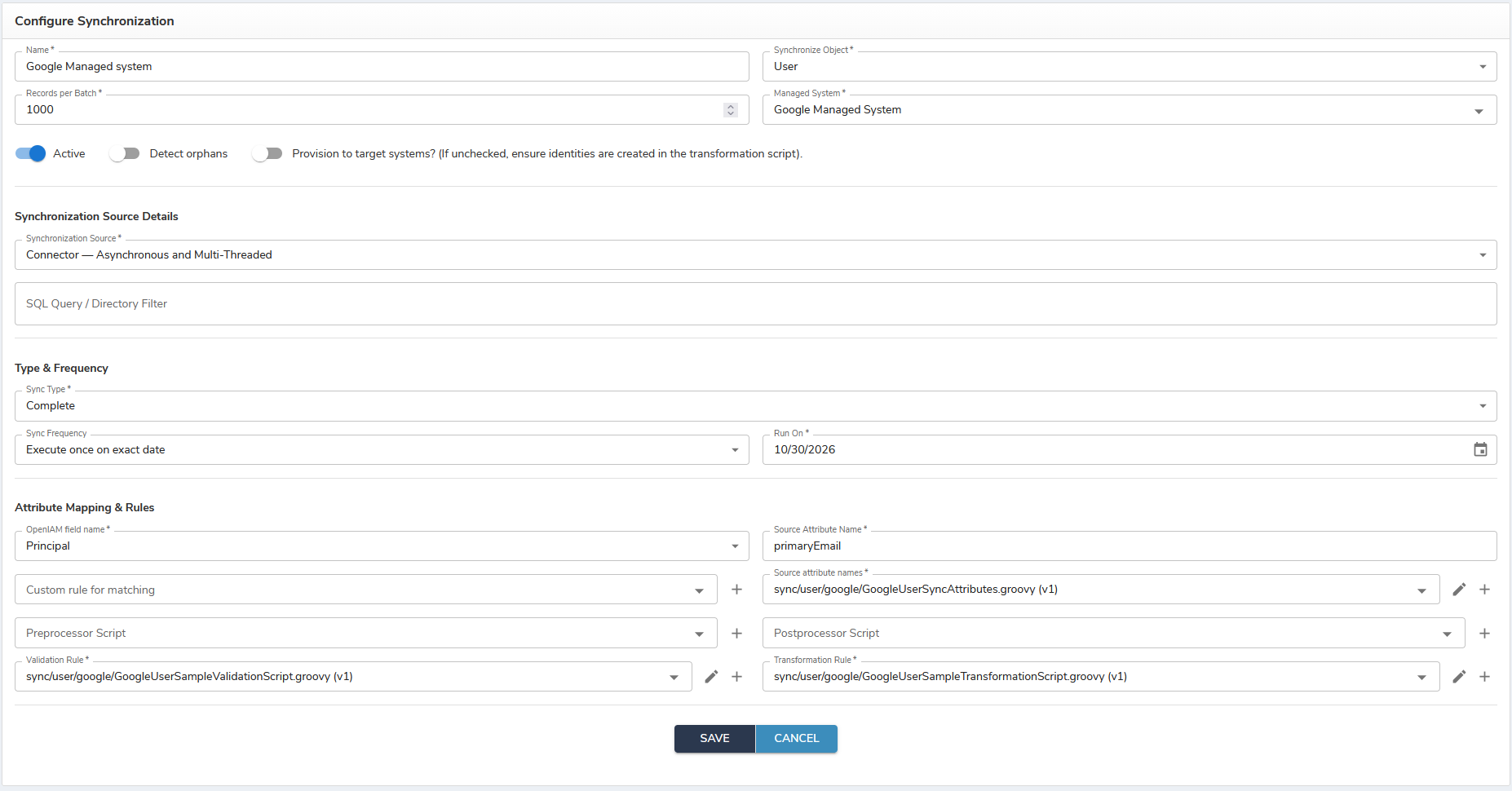
To synchronize users **from** Google: Webconsole → **Provisioning → Synchronization**, create a sync from Google — for example **Google User Sync**, with the Google managed system as the source and **Principal** matched against **primaryEmail**.

Three shipped scripts go in three separate fields under **Attribute Mapping & Rules**. There is a set for each **Synchronize Object**, and all three fields must come from the same set — the dropdowns list both, so a user sync can end up holding a group script:

| Field                  | `User` sync                                   | `Group` sync                                   |
| ---------------------- | --------------------------------------------- | ---------------------------------------------- |
| Source attribute names | `GoogleUserSyncAttributes.groovy`             | `GoogleGroupSyncAttributes.groovy`             |
| Validation Rule        | `GoogleUserSampleValidationScript.groovy`     | `GoogleGroupSampleValidationScript.groovy`     |
| Transformation Rule    | `GoogleUserSampleTransformationScript.groovy` | `GoogleGroupSampleTransformationScript.groovy` |

The user set lives under `sync/user/google` and keys on `primaryEmail`; the group set lives under `sync/group/google` and keys on the group's `name`, carrying `description` and `email` with it. Leave **Preprocessor Script** and **Postprocessor Script** empty in both.

<figure><img src="https://2965242200-files.gitbook.io/~/files/v0/b/gitbook-x-prod.appspot.com/o/spaces%2F0uHWHRgcad6P03ehqgmX%2Fuploads%2Fgit-blob-3b499e7b83f94b3d18b2c700bd1ed18d99a5dc55%2F15.google-sync-config.png?alt=media" alt="An example synchronization configuration for Google users - Active on, the Google managed system as the source, Principal matched against primaryEmail, and the attribute-lookup, validation and transformation scripts all under sync/user/google"><figcaption></figcaption></figure>

**Sync Now** synchronizes users from Google to OpenIAM based on the provided SQL Query / Directory Filter — see the [Directory API search reference](https://developers.google.com/admin-sdk/directory/v1/guides/search-users).


---

# Agent Instructions
This documentation is published with GitBook. GitBook is the documentation platform designed so that both humans and AI agents can read, navigate, and reason over technical content effectively. Learn more at gitbook.com.

## Querying This Documentation
If you need additional information that is not directly available in this page, you can query the documentation by asking a question.

Perform an HTTP GET request on the following URL with the `ask` and `goal` query parameters:

```
GET https://docs.openiam.com/connector-configuration/gsuite.md?ask=<question>&goal=<user_goal>
```

`ask` is the immediate question: it should be specific, self-contained, and written in natural language.
`goal` is what the user is ultimately trying to achieve, the reason they need the answer. Sharing it helps GitBook give you a better, more relevant answer. A goal is most helpful when it describes the outcome the user wants rather than restating the question. For example, with `ask=how do I create an API token`, a goal like `automate deployments from our CI pipeline` lets GitBook tailor the answer to that use case.

The response will contain a direct answer to the question and relevant excerpts and sources from the documentation.

Use this mechanism when the answer is not explicitly present in the current page, you need clarification or additional context, or you want to retrieve related documentation sections.