> For the complete documentation index, see [llms.txt](https://docs.openiam.com/llms.txt). Markdown versions of documentation pages are available by appending `.md` to page URLs; this page is available as [Markdown](https://docs.openiam.com/connector-configuration/aws.md).

# AWS connector

This page describes how to enable provisioning to manage AWS system users

The AWS connector is a Java connector that manages users in **Amazon Web Services**. AWS has two ways of managing users and their accounts — the **Identity and Access Management (IAM)** tool and the **Identity Store (IAM Identity Center)** — and OpenIAM supports **both**.

IAM Identity Center allows you to manage workforce user access across multiple AWS accounts and cloud applications. In contrast, an IAM user is tied to a single AWS account and can only access the account where it was created. Using IAM Identity Center, you can set an identity source and assign permissions for multiple accounts to the same user; for IAM users, access to multiple accounts requires explicit permissions in each account.

| Operation                   | Supported                                                                                           |
| --------------------------- | --------------------------------------------------------------------------------------------------- |
| Create / update user (Save) | ✅ (IAM and Identity Center)                                                                         |
| Delete user                 | ✅                                                                                                   |
| Reset password              | ✅                                                                                                   |
| Search / synchronize users  | ✅                                                                                                   |
| Search groups               | ✅ (search-only — no group create/delete)                                                            |
| Search roles and policies   | ✅ (sync as Role objects; policies limited to 1000, attributes `name`, `arn`, `path`, `description`) |
| Test connection             | ✅                                                                                                   |

## Use cases

* Managing the **AWS account lifecycle** — creating, updating, and removing IAM / Identity Center users from OpenIAM.
* **Importing AWS users, groups, roles, and policies** into OpenIAM for visibility and access review.
* Managing access across **multiple AWS accounts** via IAM Identity Center.

## Versions and compatibility

The end application is **AWS**, and the connector reaches it two different ways depending on which AWS user directory you are managing. The **AWS Manager** field on the managed system selects between them, and they use different AWS SDKs underneath.

| AWS Manager                        | Manages                                                         | AWS SDK                 |
| ---------------------------------- | --------------------------------------------------------------- | ----------------------- |
| **Identity and Access Management** | Classic IAM users, groups and policies in one account           | AWS SDK for Java **v1** |
| **Identity Store**                 | The identity store behind IAM Identity Center, formerly AWS SSO | AWS SDK for Java **v2** |

<table><thead><tr><th width="185">Property</th><th>Value</th></tr></thead><tbody><tr><td><strong>Interface</strong></td><td>The AWS APIs, over HTTPS, through the bundled SDKs</td></tr><tr><td><strong>Authentication</strong></td><td>An access key ID and secret access key, set as the managed system's Login ID and Password</td></tr><tr><td><strong>Region</strong></td><td>Resolved by the SDK from the managed system's configuration</td></tr></tbody></table>

{% hint style="info" %}
**These are two different user directories, not two ways of reaching one.** An IAM user does not appear in the Identity Store and vice versa, so the choice is decided by where your AWS users actually live. To manage both, create two managed systems — see [Configuring the managed system](#configuring-the-managed-system).
{% endhint %}

## Prerequisites

* An AWS **service account** with an **access key** (see below) — read-only (`IAMReadOnlyAccess`) if you only synchronize, or with user-management permissions for provisioning.
* Network access from the connector host to the AWS APIs (HTTPS).

## Installing the connector

The AWS connector is deployed using the common deployment steps for your deployment scenario:

### Kubernetes

Enable the connector in your deployment configuration; no separate installation is required.

### RPM

Run the connector JAR or use the connector service unit (`openiam-connector@aws-connector-rabbitmq`). To deploy on a separate host, see [Connectors via RPM](/installation/rpm/rpm-single-node/add-a-connector.md).

## Starting, stopping, and restarting

<table><thead><tr><th width="176">Deployment</th><th>Commands</th></tr></thead><tbody><tr><td>RPM (systemd)</td><td><code>systemctl start|stop|restart openiam-connector@aws-connector-rabbitmq</code></td></tr><tr><td>Kubernetes</td><td><code>kubectl rollout restart</code> the connector deployment.</td></tr></tbody></table>

## Command-line parameters and properties

The connector is a Spring Boot application. Its defaults ship inside the jar, and you override them in either of two places:

* **An external property file**, read at `${confpath}/conf/properties/aws-connector-rabbitmq.properties`. The file is optional, and `confpath` is itself a system property, set with `-Dconfpath=/data/openiam/`.
* **Directly on the command line**, as `-D` arguments, which win over the file.

{% code overflow="wrap" %}

```bash
java -Dconfpath=/data/openiam/ -Dlogging.level.root=INFO -Dorg.openiam.connector.queue=AWS_Connector_1_Request -jar aws-connector-rabbitmq.jar
```

{% endcode %}

| Property                      | Default                   |
| ----------------------------- | ------------------------- |
| `org.openiam.connector.queue` | `AWS_Connector_1_Request` |
| `org.openiam.connector.name`  | `AWS`                     |

The connection details themselves are **not** set here — they are managed system parameters, covered under [Configuring the managed system](#configuring-the-managed-system).

## Verifying the connector is running

{% stepper %}
{% step %}
In the Webconsole, open the managed system — the **Running connector status** indicator must be green.
{% endstep %}

{% step %}
Click **Test Connection** — it must return success.
{% endstep %}

{% step %}
In the RabbitMQ management console, confirm the `AWS_Connector_1_Request` queue exists and has a consumer.
{% endstep %}

{% step %}
Run **AWS User Sync** with a known-good query and check **Synchronization History**.
{% endstep %}
{% endstepper %}

## Troubleshooting

| Symptom                            | Likely cause                                             | Resolution                                                                                 |
| ---------------------------------- | -------------------------------------------------------- | ------------------------------------------------------------------------------------------ |
| Test connection fails              | Wrong access key/secret, or the key is deactivated       | Verify the Login ID (access key ID) and Password (secret); check the key's status in AWS.  |
| Operations fail with access denied | The service account's policy is too narrow               | `IAMReadOnlyAccess` only covers sync — grant user-management permissions for provisioning. |
| IAM user search returns nothing    | Wrong or missing user **path** in the sync configuration | Copy the path from the AWS **Users** view's Path column.                                   |
| Group create/delete does nothing   | AWS groups are search-only in this connector             | Expected — manage groups in AWS.                                                           |
| Policy sync incomplete             | The 1000-policy limit                                    | Expected — narrow the query.                                                               |

See also: [general connector troubleshooting](/connector-configuration/4-troubleshootingconnector.md) and the [connector error-code reference](/connector-configuration/4-troubleshootingconnector.md#connector-error-codes).

## Registering the connector in OpenIAM

If registering manually under **Provisioning → Connectors**, the queue name must match exactly:

## Configuring the managed system

To establish a connection with AWS, fill the **Login ID** and **Password** fields of the managed system: for AWS these are the **access key ID** and **secret access key** from the service account's **My Security Credentials** page.

{% stepper %}
{% step %}
Create a service account for the connection. You can use a root account, but a dedicated service account with an appropriate permission policy is recommended:

* Go to the [Identity and Access Management](https://console.aws.amazon.com/iam/home) or [Identity Store](https://console.aws.amazon.com/singlesignon/identity/home) homepage and log in.
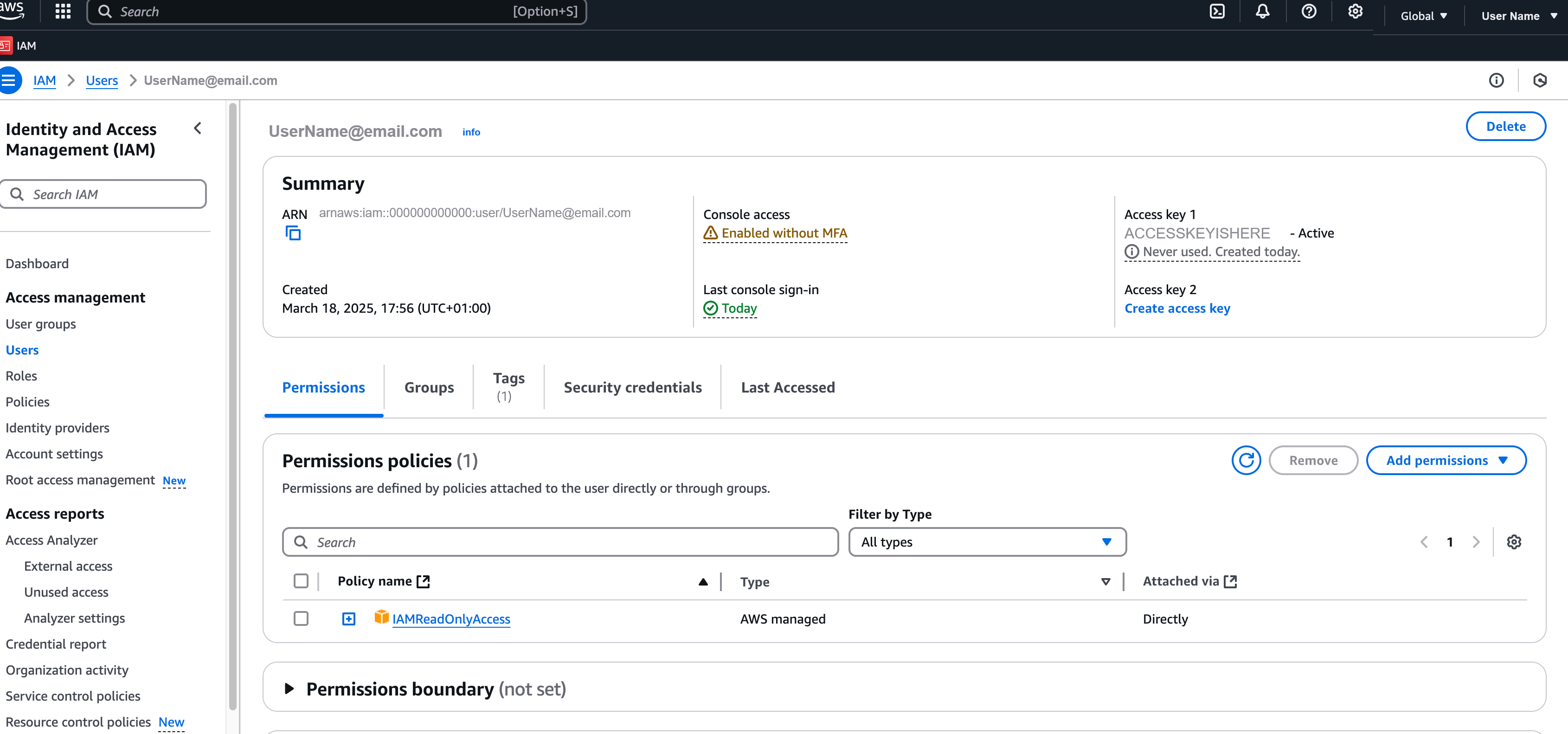
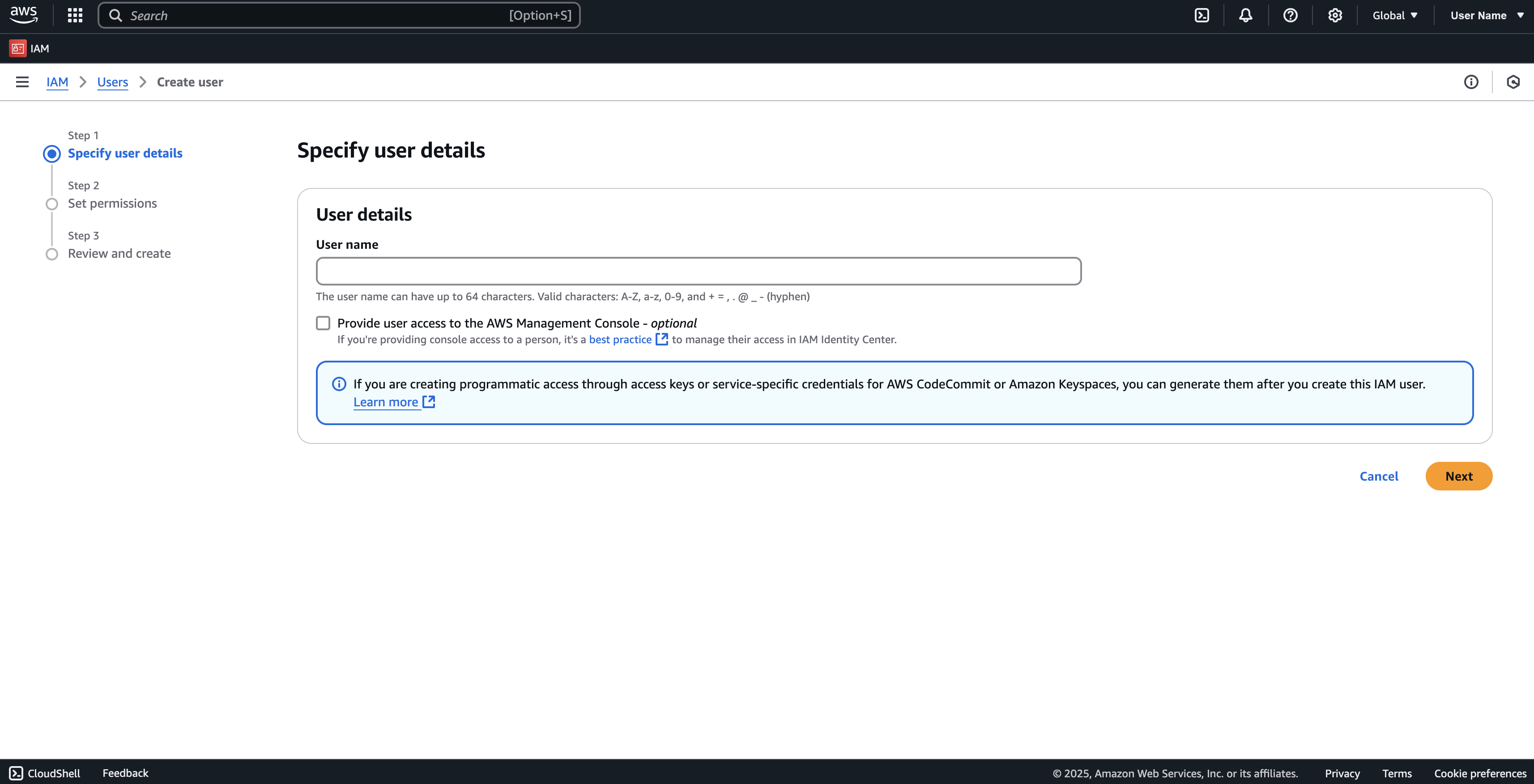
* Go to **Users**, click **Create user**, and fill in the user details. AWS documents the current steps, which change with its console, under *Creating an IAM user in your AWS account*.

<figure><img src="https://2965242200-files.gitbook.io/~/files/v0/b/gitbook-x-prod.appspot.com/o/spaces%2F0uHWHRgcad6P03ehqgmX%2Fuploads%2Fgit-blob-1f6ded43a2819a76db4d6b1459f312b935f45eea%2Fcreating-service-user1.png?alt=media" alt="The IAM Create user page, step one, with the User name field empty and console access not selected"><figcaption></figcaption></figure>

* Set permissions for the user. For a sync-only account, `IAMReadOnlyAccess` is sufficient.

<figure><img src="https://2965242200-files.gitbook.io/~/files/v0/b/gitbook-x-prod.appspot.com/o/spaces%2F0uHWHRgcad6P03ehqgmX%2Fuploads%2Fgit-blob-f330c22fc10734ebdebdfe6e84cfbad0c8f1711b%2Fread-only-permission-policy.png?alt=media" alt="The Set permissions step with Attach policies directly chosen and the IAMReadOnlyAccess managed policy found by search"><figcaption></figcaption></figure>

* Review and create the user.

<figure><img src="https://2965242200-files.gitbook.io/~/files/v0/b/gitbook-x-prod.appspot.com/o/spaces%2F0uHWHRgcad6P03ehqgmX%2Fuploads%2Fgit-blob-8994820c699cf9c406dec58c13e44aff152ce36e%2Fservice-account-overview.png?alt=media" alt="The IAM user summary for the service account, showing its ARN, one active access key, and the IAMReadOnlyAccess policy attached directly"><figcaption></figcaption></figure>
{% endstep %}

{% step %}
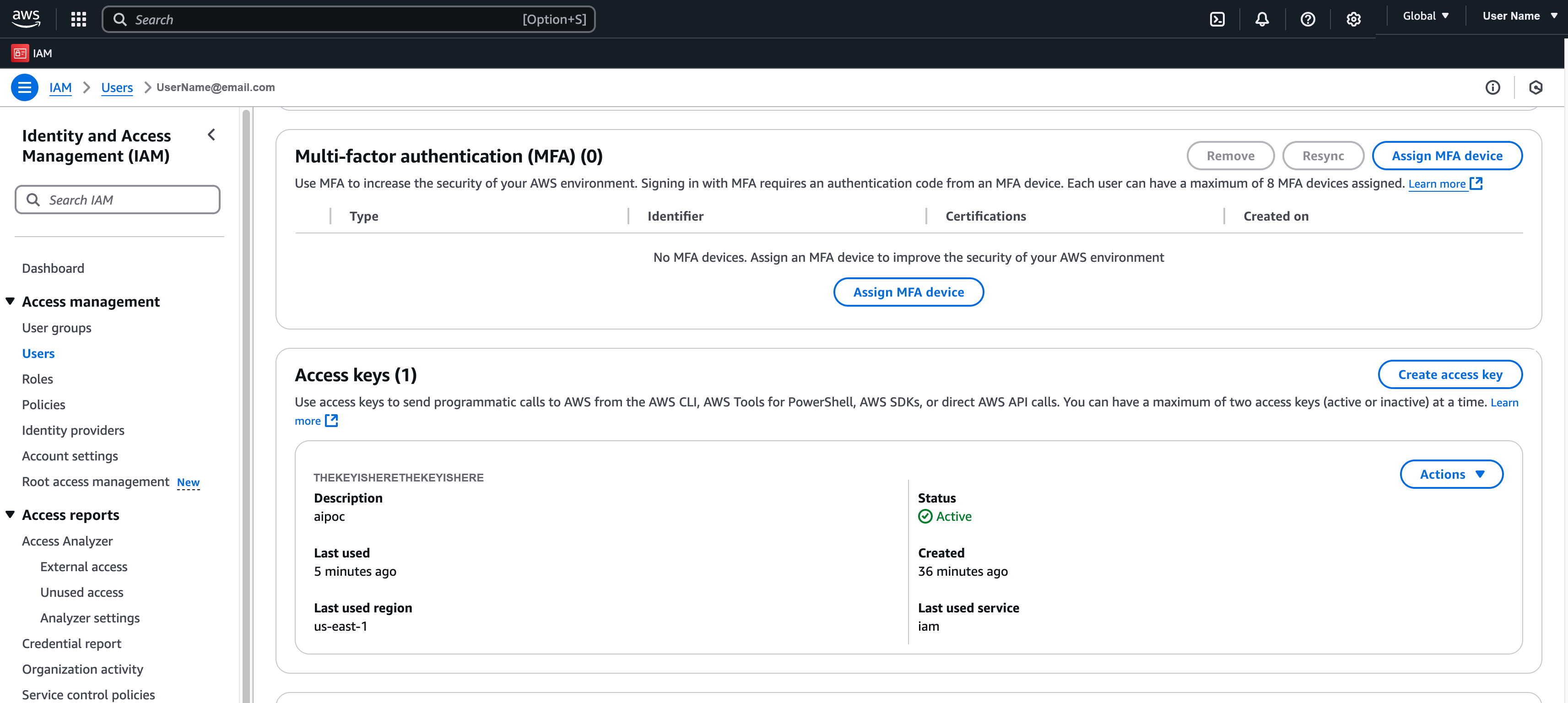
Under the **root** user, create an **access key** for the service user (the root user can create keys for other users — no extra permission needed on the service account).

<figure><img src="https://2965242200-files.gitbook.io/~/files/v0/b/gitbook-x-prod.appspot.com/o/spaces%2F0uHWHRgcad6P03ehqgmX%2Fuploads%2Fgit-blob-7ba1f940ebaa9c14b2ee579fd1d1766973781456%2Faccess-key.png?alt=media" alt="The Security credentials tab of an IAM user showing one active access key and the Create access key button"><figcaption></figcaption></figure>
{% endstep %}

{% step %}
Put the key into the managed system. The two fields do not have AWS's names, so the mapping is worth stating plainly:

<table><thead><tr><th width="212">Managed system field</th><th>AWS value</th></tr></thead><tbody><tr><td><strong>Login ID</strong></td><td>The <strong>access key ID</strong> — the visible identifier, beginning <code>AKIA</code></td></tr><tr><td><strong>Password</strong></td><td>The <strong>secret access key</strong> — shown once, when the key is created</td></tr></tbody></table>

{% hint style="warning" %}
AWS shows the secret access key only at the moment the key is created. If it is not captured then, the key cannot be recovered and a new one has to be issued.
{% endhint %}
{% endstep %}
{% endstepper %}

{% hint style="info" %}
To use the AWS connector for **both** Identity Store and IAM, create **two managed systems** — one with the **AWS Manager** set to Identity Store, the other to Identity and Access Management. You can share one access key or use separate ones.
{% endhint %}

## Attribute mapping and policy map

For AWS systems, the default policy map supports the `userName`, `password`, `groups`, and `userPath` attributes.

## Reconciliation and synchronization

OpenIAM offers two out-of-the-box synchronization configurations — **AWS User Sync** and **AWS Group Sync** — usable as-is or amended.

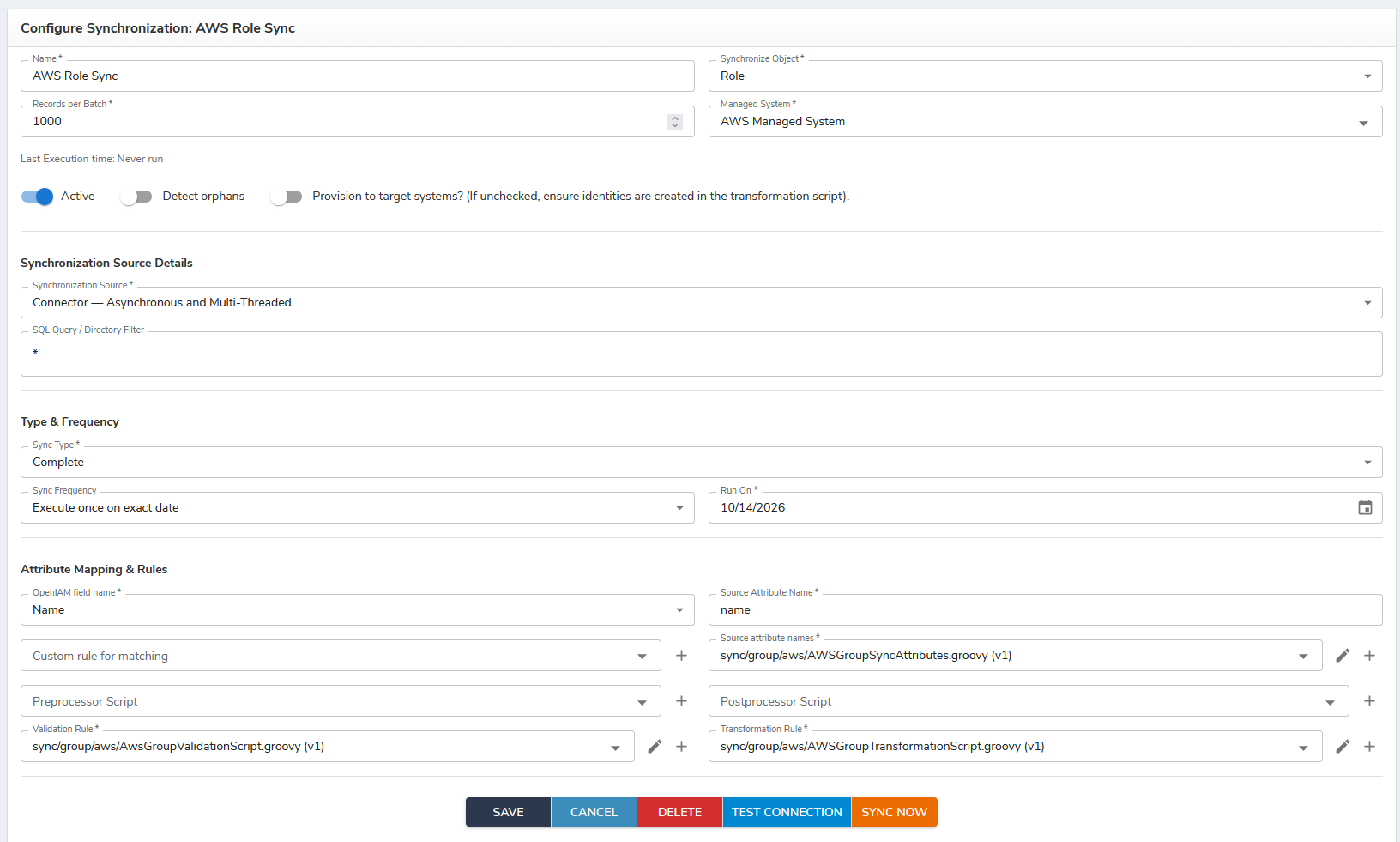
* **Roles:** the default synchronization object is Roles; there are no filters for Role objects — insert `*` in the search query and roles are synchronized.

  <figure><img src="https://2965242200-files.gitbook.io/~/files/v0/b/gitbook-x-prod.appspot.com/o/spaces%2F0uHWHRgcad6P03ehqgmX%2Fuploads%2Fgit-blob-a38a0d4088dc78137994e380abd1e8d4f2462366%2Froles-search-query.png?alt=media" alt="An AWS role synchronization - Active on, Synchronize Object set to Role, the filter set to an asterisk, and the attribute-lookup, validation and transformation scripts all under sync/group/aws"><figcaption></figcaption></figure>
* **Groups:** change the synchronization object to Groups. AWS groups are **search-only** (no create/delete). The search covers both IAM and Identity Center.
* **Policies:** select **Role** as the synchronization object and make sure the search query contains the word `policy`. The limit is **1000 policies**; synchronized attributes are `name`, `arn`, `path`, and `description`.
* **Users (AWS User Sync):** supports delete, password reset, save/update, and search in both IAM and Identity Center. For IAM, make sure the user **path** is inserted correctly in the sync configuration (shown in the **Path** column of the AWS **Users** view); in Identity Center, the search is performed for all users without filters.

  <figure><img src="https://2965242200-files.gitbook.io/~/files/v0/b/gitbook-x-prod.appspot.com/o/spaces%2F0uHWHRgcad6P03ehqgmX%2Fuploads%2Fgit-blob-02af0621d6e81d31c9a47e7804cfe21f6615d8fa%2Fuser-path-aws.png?alt=media" alt="The IAM Users list with the Path column showing a forward slash for every user, which is the value the synchronization configuration needs"><figcaption></figcaption></figure>


---

# Agent Instructions
This documentation is published with GitBook. GitBook is the documentation platform designed so that both humans and AI agents can read, navigate, and reason over technical content effectively. Learn more at gitbook.com.

## Querying This Documentation
If you need additional information that is not directly available in this page, you can query the documentation by asking a question.

Perform an HTTP GET request on the following URL with the `ask` and `goal` query parameters:

```
GET https://docs.openiam.com/connector-configuration/aws.md?ask=<question>&goal=<user_goal>
```

`ask` is the immediate question: it should be specific, self-contained, and written in natural language.
`goal` is what the user is ultimately trying to achieve, the reason they need the answer. Sharing it helps GitBook give you a better, more relevant answer. A goal is most helpful when it describes the outcome the user wants rather than restating the question. For example, with `ask=how do I create an API token`, a goal like `automate deployments from our CI pipeline` lets GitBook tailor the answer to that use case.

The response will contain a direct answer to the question and relevant excerpts and sources from the documentation.

Use this mechanism when the answer is not explicitly present in the current page, you need clarification or additional context, or you want to retrieve related documentation sections.