> For the complete documentation index, see [llms.txt](https://docs.openiam.com/llms.txt). Markdown versions of documentation pages are available by appending `.md` to page URLs; this page is available as [Markdown](https://docs.openiam.com/administration-guide/reports/views-and-sql-sources.md).
# Views and SQL data sources
Build a reusable view with the visual builder — primary entity, related entities, joins, filters, validation — or, as a super administrator, publish a vetted SQL statement as a data source.
## What this is, and when you need it
A **view** is a named data source: one primary entity, the related entities joined to it and the filters that narrow it, saved on its own so that several reports can read it. A report built in the wizard or the designer gets an **inline** data source that belongs to that report alone; a view is the same thing with a name, an owner and a life of its own. Build one when two or more reports should agree on the same population — "active contractors with their roles" — or when you want to hand a ready-made starting point to someone who should not have to learn the relationships.
An **SQL data source** is a view whose definition is a Structured Query Language (SQL) statement that a super administrator wrote and validated. It exists for the cases the visual builder cannot express. It runs as written, which is why only super administrators may create or edit one and why reports over it carry the badge *Not subject to field and row filters*.
You do not need this page to make a single report: the wizard builds the inline source for you ([Create a report](/administration-guide/reports/create-a-report.md#wizard-data-source)). You do need it to understand the builder's four sections, which the [designer's Data source tab](/administration-guide/reports/design-a-report.md#designer-data-source-entities) embeds unchanged.
## At a glance
| | View (visual builder) | SQL data source |
| --------------------------- | ---------------------------------------------------------------------------- | -------------------------------------------------------------------------- |
| Who may create | Anyone who can open the report builder | Super administrators only |
| Who may edit | The owner or a super administrator | Super administrators only |
| Field and row access rules | Apply (locked entities and fields stay locked) | Do not apply; the badge says so |
| Appears in | Data Catalog → Views; wizard → Custom views; designer → Use an existing view | The same places, with the SQL badge |
| Deleted when | Not read by any report and no run is active | The same |
| Retention of files produced | The report's setting, PII rule applies per field | Always treated as personal data: 7 days at most |
| Audit actions | `REPORT_VIEW_CREATE`, `_UPDATE`, `_DELETE` | `REPORT_SQL_DATA_SOURCE_CREATE`, `_UPDATE`, `_DELETE`, `_VALIDATE`, `_RUN` |
## Before you begin
* Know which entity every row should represent. The [Data Catalog](/administration-guide/reports/data-catalog.md) shows each entity's fields and the relationships it can be joined through.
* For an SQL data source: the super administrator entitlement (see [Access and permissions](/administration-guide/reports/access-and-permissions.md#access-super-admin)), the source database the statement reads, and a statement that is a single read-only `SELECT`.
## Where to start
Three doors lead to the same editor, at `/webconsole-v2/audit/report-views/new`:
* **Data Catalog → Views → New view** — an empty editor.
* An entity's sheet in the Data Catalog → **Create view from this entity** — the editor with that entity already set as the primary entity ([below](#view-create-from-entity)).
* The designer's **Save as view** — not the editor at all: it copies a report's inline source into a view in one step ([Design a report](/administration-guide/reports/design-a-report.md#designer-save-as-view)).
An existing view opens from its card on the Data Catalog's Views tab, at `/webconsole-v2/audit/report-views/`.
### Create view from this entity
The footer button of an entity sheet in the Data Catalog. It is disabled while the sheet is loading and when your access to the entity is **No access**. Otherwise it opens the editor with the entity as primary entity; everything else is still yours to add.
## The view editor
The page is titled **New view** or **Edit view** (*Combine catalog entities into a reusable view for reports*). Above the builder sits one card:
| Field | What to enter | Anchor |
| ----------- | -------------------------------------------------------------------------------------------------- | ------ |
| View name | Required (*Enter a view name*). It is what the Data Catalog, the wizard and the designer show. | |
| Description | Optional. Shown on the view's card. | |
| Used by | *Used by N report(s)* — how many reports read this view. Read-only; above zero it blocks deletion. | |
### Visual builder or SQL query
Two mode tabs, **Visual builder** and **SQL query**, appear only when both of these hold: the view is new, and you are a super administrator. Everyone else always gets the visual builder, and an existing view keeps the mode it was saved in. An SQL data source opened by someone who is not a super administrator shows the definition read-only with the notice *Only administrators can edit an SQL data source. You can still use it in reports*; its Save button is hidden.
The footer holds **Delete view** (your own view only, never a system view, and disabled while the view is in use), **Cancel** and **Save view** — or **Save SQL data source** in SQL mode. Saving a view that has no primary entity is refused with *Choose a primary entity before saving the view*.
## Build a view visually
The builder has four numbered sections. The same four appear inside the designer's Data source tab.
### 1. Primary entity
A combobox (*Choose an entity or view*) with a search box (*Search entities and views*). The **Entities** group lists every catalog entity. A **Views** group is also drawn but holds only *Available in a later release*: a view cannot yet be built on another view.
Every row of the view is one record of the primary entity. Related entities add columns to that row; they never add rows of their own. Choosing the primary entity therefore answers "what is this a list *of*" — users, logins, role memberships, certification items.
An entity you lack the data permission for is shown **Locked** with a **Request access** link (see [Access and permissions](/administration-guide/reports/access-and-permissions.md#access-entity-access)).
### 2. Related entities
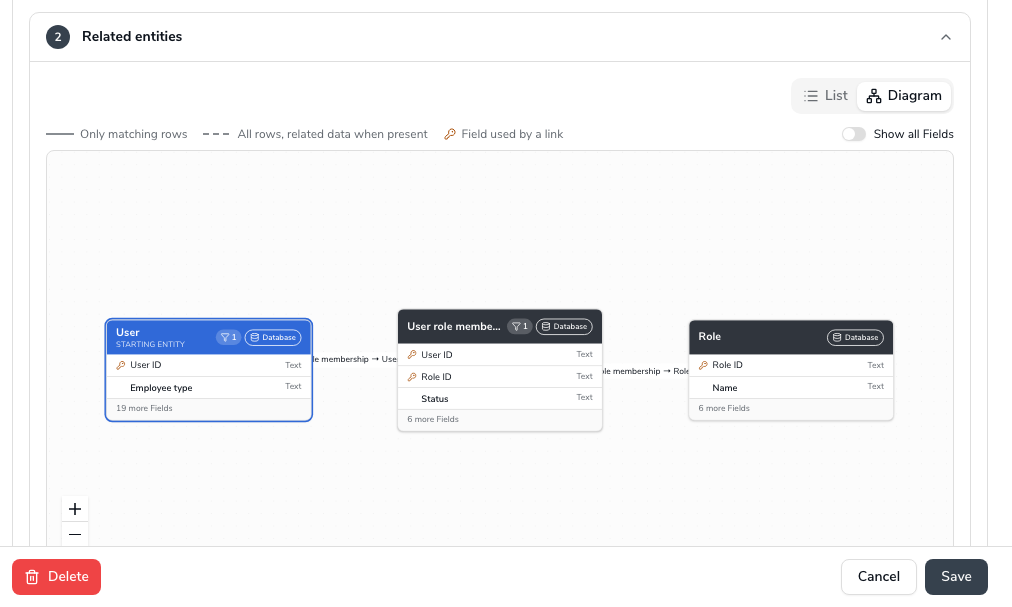
The entities joined to the primary one, shown as a **List** or as a **Diagram** (*Show related entities as*). While there are none the section reads *No related entities*.
#### Add related entity
The popover lists every entity that has a relationship to an entity already in the view, each with the relationship it would come through (*via …*). When nothing is left it says so. An entity that cannot be added is listed anyway, greyed out, with a badge that says why:
| Badge | Reason | Rule |
| ------------------------ | --------------------------------------------------------------- | -------------------------------------------------------------------------------------------------------------------- |
| Different backend | *This entity is stored in another backend than …* | A data source reads from one backend only — [rule](/administration-guide/reports/overview.md#rules-one-backend) |
| Different database | *This entity is stored in another database than …* | Entities join only within one source database — [rule](/administration-guide/reports/overview.md#rules-one-database) |
| Second OpenSearch entity | *A data source can read only one OpenSearch entity.* | [Rule](/administration-guide/reports/overview.md#rules-one-opensearch-entity) |
| Locked | *You do not have access to this entity or to the relationship.* | [Entity permissions](/administration-guide/reports/access-and-permissions.md#access-entity-access) |
An entity can appear once in a view (`DUPLICATE_OBJECT` otherwise), and when two relationships could connect it the server asks you to pick one (`AMBIGUOUS_JOIN`). At most five related entities join one view ([limits](/administration-guide/reports/overview.md#limits)).
#### The join row
Each related entity is a row with the relationship it came through and a **Join** select:
| Join | Means | SQL equivalent |
| ----------------------------------- | -------------------------------------------------------------------------------- | -------------- |
| Only matching rows | A primary record without a related record is dropped from the view. | `INNER JOIN` |
| All rows, related data when present | Every primary record stays; the related columns are empty where nothing matches. | `LEFT JOIN` |
*Only matching rows* is the default. Choose *All rows…* when the absence of a related record is itself the finding — users with no login, roles with no members.
#### Join conditions
**Add condition on …** adds a condition that narrows the *match*, not the result. The hints spell out the difference:
* With *Only matching rows*: *Only rows with related … data that matches these conditions are kept.*
* With *All rows, related data when present*: *All rows are kept. Related … data appears only where it matches these conditions.*
A condition on the related entity placed in section 3 instead would turn a left join back into an inner one, because rows without related data fail it. Put "only active memberships" here and "only contractors" in Filters.
**Remove** on the row takes the entity out together with every field, filter and join that depended on it.
#### The diagram
\*\*Diagram\*\* draws the same joins as cards linked by edges. The primary entity is marked \*\*Starting Entity\*\*; each card lists the fields in use and offers \*\*Show all Fields\*\* when there are more (\*N more Fields\*); an edge is labelled with the field it joins on (\*Field used by a link\*) and a card notes \*N conditions on this Entity\* when join conditions exist. \*\*Show … in the list\*\* jumps back to the row. The diagram is read-only here; the same drawing appears as the \*\*Data model\*\* card on a report's \[details page]\(manage-reports.md#details-data-model).
### 3. Filters
The condition editor: conditions on any field in the view, combined with **All**, **Any** or custom logic, plus related-record conditions. It has its own page: [Filters and parameters](/administration-guide/reports/filters-and-parameters.md#filter-editor). Filters saved on a view apply to every report that reads it and show read-only in those reports.
### 4. Validate
**Validate** sends the definition to the report service without saving it. The answer is one of *The data source is valid*, *The data source has errors* (with the errors listed against the sections they belong to) or *The data source could not be validated* (the service did not answer). Save runs the same validation again, so Validate is a convenience, not a gate.
#### Estimated rows
Next to it, *About N matching rows*. The number comes from the catalog's approximate record counts — database statistics or the index document count, refreshed every six hours — never from counting. Treat it as an order of magnitude.
When the estimate passes the export limit the section shows the warning *Estimate exceeds the export limit — Exports are limited to 1,000,000 rows. Add filters to narrow the data.* A view can still be saved; a run of a report over it fails with `LIMIT_EXCEEDED` once it writes the millionth row. See [limits](/administration-guide/reports/overview.md#limits).
## SQL data sources
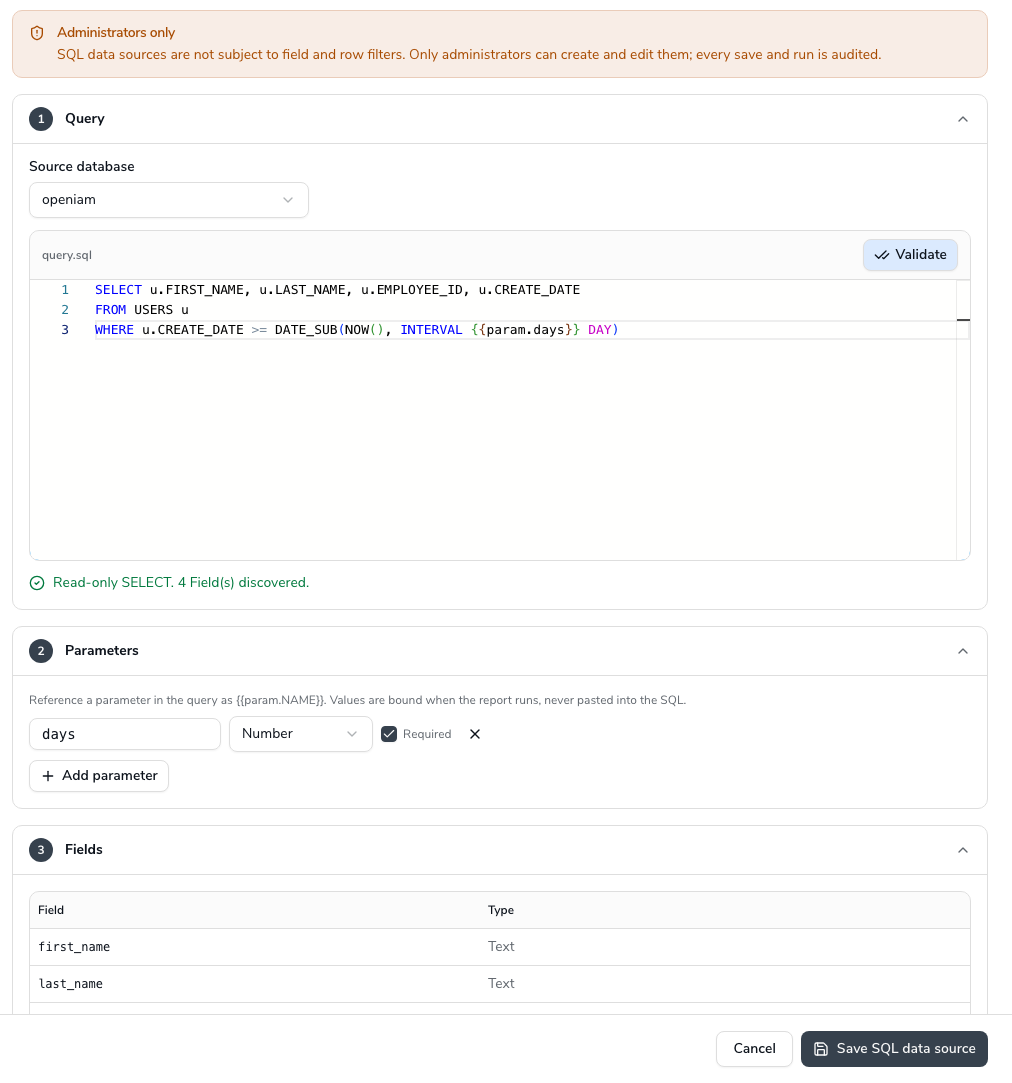
Choose **SQL query** on a new view. The panel opens with the notice:
> **Administrators only.** SQL data sources are not subject to field and row filters. Only administrators can create and edit them; every save and run is audited.
The statement runs against the source database as the read-only **reporting** user, in that database's own SQL dialect (MySQL and MariaDB, PostgreSQL, Oracle or SQL Server — whichever the installation runs). Nothing is rewritten: no catalog, no locked fields, no row filters. A report over the source shows every row and field the statement returns, and everyone who can run the report sees them. Three consequences follow, and the pages say them where they matter:
* The badge *Not subject to field and row filters* on the view's card and on every report that reads it ([Access and permissions](/administration-guide/reports/access-and-permissions.md#access-sql-sources)).
* Files produced from it are treated as containing personal data: the [7-day retention cap](/administration-guide/reports/run-and-download.md#retention-pii) applies whatever the report says.
* Only a super administrator may create, edit or delete one; everyone else sees it read-only.
### Query
| Element | What it is |
| --------------- | --------------------------------------------------------------------------------------------------------------------------------------------------------------------------------------------------------------------------------------------------------------------------------------- |
| Source database | The database the statement runs in: one of the databases the operator configured for reporting (`openiam`, `certification`, `privacy`, `pbac`, `batchtasks` and `activiti` by default). The list comes from the service; *Could not load the source databases* means it did not answer. |
| SQL query | The statement, in a code editor. |
| Validate | Checks the statement and discovers its fields, [below](#sql-validate). |
Write the statement for the dialect of the database you chose. There is no translation between dialects: an installation that moves from PostgreSQL to Oracle has to revisit every SQL data source.
### What Validate accepts
**Validate** runs a lexical check in the report service, then describes the result set in the database without fetching rows. The check is strict and applies again on every save and run:
| Rule | Detail |
| ------------- | ----------------------------------------------------------------------------------------------------------------------------------------------------------------------------------------------------------------------------- |
| One statement | Exactly one `SELECT`, or `WITH … SELECT`. No second statement after a semicolon. |
| Size | At most 65,536 characters. |
| Read-only | No `INSERT`, `UPDATE`, `DELETE`, `MERGE`; no `CREATE`, `ALTER`, `DROP`, `TRUNCATE`; no `SELECT … INTO`; no `FOR UPDATE` or lock hints; no session or transaction control; no procedure calls; no functions with side effects. |
| Values | Only through `{{param.NAME}}` placeholders, declared in the Parameters section. A literal in the text is allowed; a value spliced in from outside is not possible. |
Success reads *Read-only SELECT. N Field(s) discovered.* and fills the Fields section. Failure shows the rule that was broken, or the database's own message when the statement is acceptable to the checker but the database rejects it (`INVALID_SQL`, `SQL_DESCRIBE_FAILED`). A column the service cannot map to a report field type (`UNSUPPORTED_SQL_COLUMN`) must be cast or dropped from the select list. Every Validate is audited as `REPORT_SQL_DATA_SOURCE_VALIDATE`.
### Parameters
*Reference a parameter in the query as `{{param.NAME}}`. Values are bound when the report runs, never pasted into the SQL.* Declare each placeholder as a row:
| Column | What to enter |
| -------------- | ------------------------------------------------------------------------------------------------------ |
| Parameter name | Letters, digits and `_`, starting with a letter, at most 64 characters; the `NAME` of the placeholder. |
| Data type | The type the value is bound as. A new row starts as a text (`STRING`) parameter. |
| Required | On by default. A required parameter with no value makes a run fail validation. |
**Add parameter** adds a row; the bin removes one. *No parameters declared* is the empty state. How a parameter gets its value at run time is the same as for any report — [Filters and parameters](/administration-guide/reports/filters-and-parameters.md#param-at-run-time) — and today only the Preview asks for one, so give every required parameter a default in the report that reads the source, or make it optional.
### Fields
The columns the statement returns, as the report builder will offer them: **Field** (the column name or alias) and **Type**. The table is filled by Validate (*Validate the query to discover its Fields*) and saved with the source. Reports then pick from these fields like from an entity's; they can sort and group on them and add calculated fields, but there are no relationships to follow and no locked fields.
Name your columns with aliases that read well as headings — `AS last_login` rather than a function call — because the alias is what the report author sees.
### Save
**Save SQL data source** refuses with *Enter the SQL query before saving* or *Choose a source database before saving* when either is missing, validates the statement again, and writes the source with its fields. The audit entry (`REPORT_SQL_DATA_SOURCE_CREATE` or `_UPDATE`) records the name, the database and whether the SQL changed — *SQL changed* or *SQL not changed* — but never the statement text. Every run of a report over the source adds `REPORT_SQL_DATA_SOURCE_RUN`.
## Edit a view
Open the view from the Data Catalog's Views tab and change anything; **Save view** validates and writes it. The owner and super administrators may edit; anyone else gets *You can only edit your own views*. A view OpenIAM ships (a system view) is read-only for everyone.
A saved change takes effect at the **next run** of every report that reads the view. A report whose selected field disappeared from the view fails validation at its next run (`VALIDATION_FAILED`) until its owner fixes it in the designer — so check *Used by N report(s)* before removing an entity or a field the reports may depend on.
Like reports, views carry a version: when another session saved the view first, Save fails with *Someone else saved this view in the meantime. Reload it and apply your changes again.*
## Delete a view
**Delete view** in the footer asks *Delete this view? The view is removed. This cannot be undone.* It is offered on your own views only (super administrators on any), and it is disabled with *This view is used by N report(s) and cannot be deleted* while a report reads the view. The service also refuses while a run that uses the view is queued or running. Point the reports at another source, or delete them, then delete the view.
Deleting a view does not delete the files reports produced from it; they expire on their own.
## The running example
Dana's **Contractor role access** report started with an inline source. A colleague needs the same population for a certification scoping report, so Dana opens the designer and chooses **Save as view**, naming it **Contractor roles**. The view is User (primary) joined to User role membership and Role, both as *Only matching rows*, with one filter: *Employee type equals CONTRACTOR*. Her report now reads the view; the Data Catalog's Views tab shows *Contractor roles — Used by 1 report(s)*, and the colleague picks it under **Custom views** in the wizard.
When Dana later adds the join condition *Status equals ACTIVE* on User role membership, both reports pick it up at their next run.
## Verification
* The view's card appears on **Data Catalog → Views** with its backend chip and, for an SQL source, the badge *Not subject to field and row filters* and *Source database: …*.
* In the wizard, **Custom views** lists it; in the designer, **Use an existing view** offers it.
* A report over the view previews the expected rows on its details page.
* **Validate** on the view answers *The data source is valid* and an estimate of the right order.
* The audit log shows `REPORT_VIEW_CREATE` or `REPORT_SQL_DATA_SOURCE_CREATE` with the view's name.
## When it goes wrong
| Symptom | Likely cause |
| ----------------------------------------------------------------------------------- | --------------------------------------------------------------------------------------------------------------------------------------------------------- |
| *No relationship connects this entity to the data source here* (`NO_ASSOCIATION`) | The entity has no catalog relationship to any entity already in the view. Add the intermediate entity first — User role membership between User and Role. |
| *This entity is stored in another backend or database* (`CROSS_BACKEND_JOIN`) | A database entity and an OpenSearch entity, or two source databases, in one view. Split into two views and two reports. |
| *A data source can read only one OpenSearch entity* (`MULTIPLE_INDEXES`) | Remove the second OpenSearch entity. |
| *This entity is already part of the data source* (`DUPLICATE_OBJECT`) | An entity may be used once per view. |
| *…connected by more than one relationship* (`AMBIGUOUS_JOIN`) | Pick the relationship in the Add related entity popover. |
| Validate fails with the database's own error (`INVALID_SQL`, `SQL_DESCRIBE_FAILED`) | The statement is not valid in the chosen database's dialect, or names a table the reporting user cannot read. Run it as that user in a database client. |
| `UNKNOWN_SOURCE_DATABASE` | The database was removed from the configured list; choose another. |
| `UNSUPPORTED_SQL_COLUMN` | A column of a type the builder cannot represent; cast it to text, number or date. |
| **Delete view** is disabled | *Used by N report(s)* is above zero, or a run is active. |
| The **SQL query** tab is missing | You are not a super administrator, or the view already exists. The mode is chosen once, at creation. |
| Reports over the view started failing with `VALIDATION_FAILED` | A field or entity they select was removed from the view. Fix each report in the designer. |
| The estimate says millions of rows | It is approximate, but a run over the export limit fails. Add filters. |
## Related
* [Browse the Data Catalog](/administration-guide/reports/data-catalog.md) — the entities and relationships the builder offers, and the Views tab
* [Filters and parameters](/administration-guide/reports/filters-and-parameters.md) — section 3 of the builder
* [Design a report](/administration-guide/reports/design-a-report.md) — the same builder inside a report, and Save as view
* [Access and permissions](/administration-guide/reports/access-and-permissions.md) — super administrators, entity permissions, the SQL badge
* [Run a report and download the file](/administration-guide/reports/run-and-download.md) — the 7-day retention rule for SQL output
* [Report builder overview](/administration-guide/reports/overview.md) — the one-backend, one-database and one-OpenSearch-entity rules
---
# Agent Instructions
This documentation is published with GitBook. GitBook is the documentation platform designed so that both humans and AI agents can read, navigate, and reason over technical content effectively. Learn more at gitbook.com.
## Querying This Documentation
If you need additional information that is not directly available in this page, you can query the documentation by asking a question.
Perform an HTTP GET request on the following URL with the `ask` and `goal` query parameters:
```
GET https://docs.openiam.com/administration-guide/reports/views-and-sql-sources.md?ask=&goal=
```
`ask` is the immediate question: it should be specific, self-contained, and written in natural language.
`goal` is what the user is ultimately trying to achieve, the reason they need the answer. Sharing it helps GitBook give you a better, more relevant answer. A goal is most helpful when it describes the outcome the user wants rather than restating the question. For example, with `ask=how do I create an API token`, a goal like `automate deployments from our CI pipeline` lets GitBook tailor the answer to that use case.
The response will contain a direct answer to the question and relevant excerpts and sources from the documentation.
Use this mechanism when the answer is not explicitly present in the current page, you need clarification or additional context, or you want to retrieve related documentation sections.