> For the complete documentation index, see [llms.txt](https://docs.openiam.com/llms.txt). Markdown versions of documentation pages are available by appending `.md` to page URLs; this page is available as [Markdown](https://docs.openiam.com/administration-guide/reports/run-and-download.md).
# Run a report and download the file
Run a report on demand or export it once, preview it before you commit, read Run history, collect files from the Download center, and understand when a file expires.
## What this is, and when you need it
A report produces nothing until it runs. This page covers every way a run starts by hand (**Run**, **Export CSV**, **Export Excel**), the **Preview** that shows rows without producing a file, the **Run history** tab where each run's status and file appear, the **Downloads** page that lists every file generated for you, and the retention rules that decide how long a file stays. Read it when you have a report and want its output, or when a file you expected is missing.
It is not the page for runs that start by themselves: see [Schedule and deliver a report](/administration-guide/reports/schedule-and-deliver.md). It is not the page for the queue as a whole either; super administrators watch that on the [Job Monitor](/administration-guide/reports/job-monitor.md).
## At a glance
| Setting or rule | Value |
| ----------------------------- | ----------------------------------------------------------------------------------------------------------------------- |
| Formats a run can produce | CSV, Excel (`.xlsx`). The report's own format is Excel unless changed |
| Preview sample | 10, 50 or 100 rows; never more than 100 |
| Rows per file | 1,000,000; an Excel sheet also stops at 1,048,575 |
| File size cap | 500 MB |
| Default file retention | 365 days; a report can shorten it or keep its files forever; at most 7 days when the file holds personal data |
| Run history retention | 12 months, unless the run's file is kept |
| Who may download a file | The person who started the run, the report owner, a user named directly as a schedule subscriber, a super administrator |
| Who may keep or delete a file | The report owner or a super administrator |
## Run the report now
**Run** starts one run in the report's own file format. It is in the row menu of the [Reports list](/administration-guide/reports/manage-reports.md#list-row-menu) and in the header of the [details page](/administration-guide/reports/manage-reports.md#details-page).
{% stepper %}
{% step %}
Go to Webconsole → **Audit & Reports** → **Reports**.
{% endstep %}
{% step %}
Open the row menu of the report, or open the report, and choose **Run**.
{% endstep %}
{% step %}
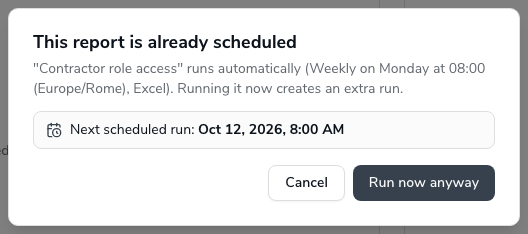
If the report is scheduled, the dialog described below appears. Choose **Run now anyway**.
{% endstep %}
{% step %}
Read the toast: *"Contractor role access" run started — You'll see it in Run history when it finishes.* Open the **Run history** tab to follow it.
{% endstep %}
{% endstepper %}
What happens next: the run is queued with the trigger **Manual** (`RUN_NOW`), the highest priority in the queue. A worker on one of the report service instances claims it, validates the definition again as you (so a field you lost access to since you saved makes the run fail rather than leak), streams the rows straight into the file, writes progress every thousand rows, and closes the run as **Completed** with the file's path, size and row count. Nothing is held in memory; a run of a million rows uses the same memory as a run of ten.
{% hint style="info" %}
A run always uses the report's current definition. If somebody edits the report while a run is queued, the run that starts afterwards reads the edited definition. A run that has already started keeps the definition it started with.
{% endhint %}
### When the report is already scheduled
A report with an active schedule shows a dialog before it runs: **This report is already scheduled** — *"Contractor role access" runs automatically (Weekly on Monday at 08:00 (Europe/Rome), Excel). Running it now creates an extra run.* — followed by **Next scheduled run:** and the time.
**Run now anyway** queues the extra run. It does not move, pause or skip the scheduled one, it is not delivered to the subscribers (only scheduled runs are), and it appears in Run history with the trigger **Manual**. **Cancel** closes the dialog without a run.
## Export once in another format
**Export CSV** and **Export Excel** sit next to **Run** in the row menu, and under **Export** in the details header. Each starts one run in the format you name, whatever the report's own format is, and changes nothing on the report. The run has the trigger **Export** (`EXPORT`), the lowest priority: manual and scheduled runs that are queued at the same time go first.
Use an export when a report is normally delivered as Excel and somebody needs the same data as CSV for a script, or the other way round. To change the format of every future run, edit the report instead: the **Naming** tab of the designer, see [Design a report](/administration-guide/reports/design-a-report.md#designer-naming-file-type).
## Preview before you run
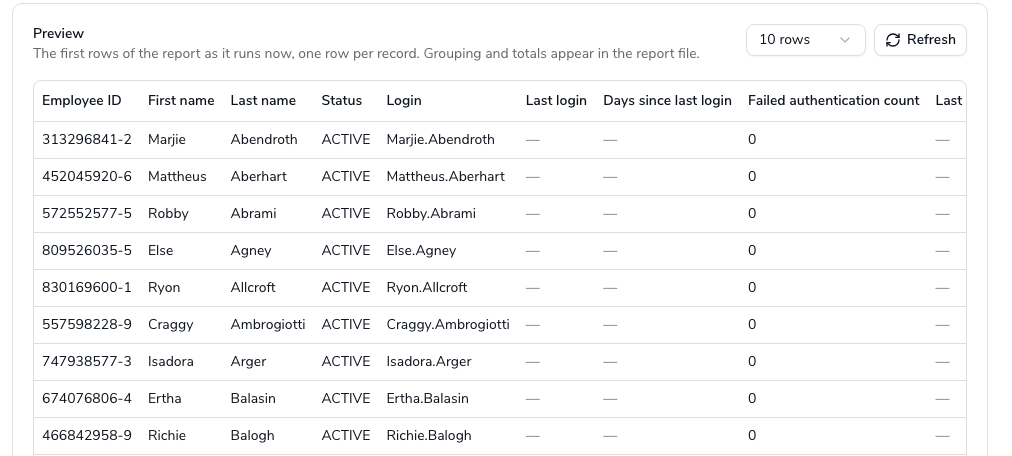
The **Preview** card at the bottom of the details page shows the first rows of the report as it would run now, one row per record. It is there for anyone who may run the report.
A preview is not a run. It reads the rows in memory and answers at once; nothing is queued, stored or written to disk, it does not appear in Run history, and it is not written to the audit log. Grouping and totals are not applied either; the hint on the card says so: *Grouping and totals appear in the report file.*
### Rows to preview
The **Rows to preview** select offers **10**, **50** and **100**. The report service caps a preview at 100 rows (`report.limits.preview-rows`), so 100 is the most any installation shows. **Refresh** reads the rows again.
Each report service instance reads at most four previews at once, and at most two for one person (`report.limits.preview-concurrency` and `-per-user`). One more is refused at once rather than queued; the card then says *Too many previews are running. Try again in a moment.*
### Preview parameters
When the report declares a required parameter without a default, the card shows a small form instead of rows: *This report needs values for its parameters before it can be previewed.* Enter a value for each parameter (*Separate several values with commas* for a list parameter) and choose **Show preview**.
The preview is the only place that asks. **Run**, **Export** and a schedule send no values and use the stored default, so a required parameter without a default lets you preview but not run; see [Filters and parameters](/administration-guide/reports/filters-and-parameters.md#param-at-run-time).
## Read the Run history
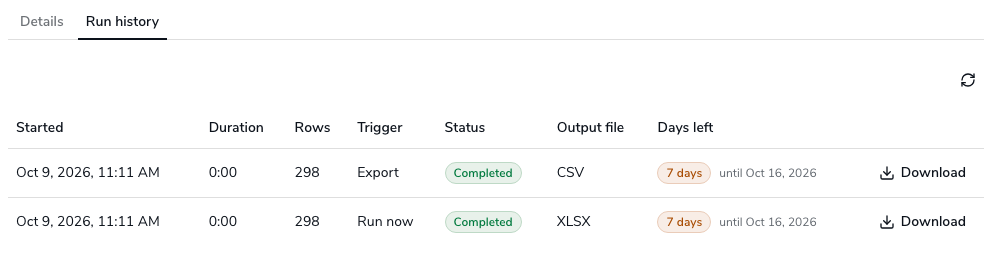
The **Run history** tab of the details page lists every run of this report, newest first, twenty per page, with a refresh icon in the header. Until the first run it reads *No runs yet*.
### Columns
| Column | What it shows |
| ----------- | ------------------------------------------------------------------------------------------------ |
| Started | When the worker started the run; for a run still queued, when it was queued |
| Duration | Start to finish, for a run that has finished |
| Rows | Rows written to the file so far; the final count once the run completes |
| Trigger | How the run started: see [Triggers](#history-triggers) |
| Status | Where the run is: see [Statuses](#history-statuses) |
| Output file | The format of a completed run's file; struck through with *File not found* once the file is gone |
| Days left | Days until the file expires, or *Kept*, or *Expired*: see [Days left](#retention-days-left) |
| (action) | **Download** for a completed run with a file, **View error** for a failed run |
### Triggers
A trigger says who or what started the run, and fixes its place in the queue: the higher the priority, the sooner a free worker takes it.
| Trigger | Value | Priority | Started by |
| --------- | ----------- | -------- | ------------------------------------------------------------------------------------------------------------------- |
| Manual | `RUN_NOW` | 30 | **Run** on the list or the details page, or **Retry** on a failed run |
| Scheduled | `SCHEDULED` | 20 | The report's schedule, as the report owner; the only runs that are e-mailed |
| Export | `EXPORT` | 10 | **Export CSV** or **Export Excel** |
| Preview | `PREVIEW` | — | Not used since 2026.10.1: previews are no longer runs. The label remains for history rows written by earlier builds |
Within one priority the oldest run goes first.
### Statuses
| Status | Meaning | What you can do |
| --------- | -------------------------------------------------------------------------------------------------- | ------------------------------------------------------------------------------------------------------------------- |
| Queued | Waiting for a free worker on any report service instance | Cancel it in the [Job Monitor](/administration-guide/reports/job-monitor.md#jobs-cancel); it stops before it starts |
| Running | A worker is streaming rows into the file; Rows grows as it goes | Cancel it; the worker stops at its next batch of a thousand rows and no file is kept |
| Completed | The file is written and downloadable until its expiry date | **Download** |
| Failed | The run stopped with an error code | **View error**; a super administrator can **Retry** |
| Cancelled | Stopped by the requester or a super administrator, or by the service because its instance was lost | Run it again |
The same five statuses drive the **Last run status** column and filter of the Reports list.
### Download the file
**Download** appears on a completed CSV or Excel run whose file has not expired. It streams the file through the Webconsole; nothing is copied anywhere else. The button is shown to everyone who can open the report. If the server refuses the download, you are not among the people allowed for that particular run: see [Who can download](#downloads-who-can-download).
### Output file and File not found
The **Output file** column names the format of the file a completed run produced: **CSV** or **Excel**. A run that produced no file, such as a cancelled one, shows nothing.
When the file is gone but the run row is still there, the format is struck through and the row reads **File not found**. The file expired, was evicted because the store was over its cap, or was deleted by the owner or a super administrator. The run is not re-run by itself; choose **Run** again.
### View error and the error codes
\*\*View error\*\* on a failed run opens the \*\*Run failed\*\* sheet with the error code and the message the report service recorded. Super administrators also see \*\*Retry\*\*, which queues a new manual run with the same definition and parameters.
| Code | What the sheet says | Usual cause | What to do |
| -------------------- | ------------------------------------------- | ------------------------------------------------------------------------------------------------------------------------------------ | ----------------------------------------------------------------------------------------------------------------------------------------------- |
| `VALIDATION_FAILED` | The definition is not valid | A field, entity or view the report reads changed since it was saved, or you lost access to a field | Open the report in the designer; the validation summary names the problem |
| `SOURCE_UNAVAILABLE` | The data source is not available | The source database or OpenSearch could not be reached, or the index behind an OpenSearch entity does not exist on this installation | Ask the operator; see [Operate the report service](/administration-guide/reports/operate-the-report-service.md#operate-troubleshooting) |
| `LIMIT_EXCEEDED` | The run exceeded a limit | More than 1,000,000 rows, more than 500 MB, or a compiled statement longer than the service allows | Add filters or grouping; see [Limits](/administration-guide/reports/overview.md#limits) |
| `QUERY_FAILED` | The query failed | The database or OpenSearch rejected the generated query; the message carries their error text | Report it with the message; usually a data type or dialect problem in a calculated field or an SQL source |
| `UNSUPPORTED_FORMAT` | The output format is not supported | The run asked for a format this release does not produce, such as PDF | Use CSV or Excel |
| `WORKER_RESTARTED` | The service restarted during the run | The report service instance that ran it restarted with the same instance name before the run finished | **Retry** |
| `WORKER_LOST` | The run's worker stopped sending heartbeats | No heartbeat for 90 seconds; another instance marked the run failed and removed the partial file | **Retry**; if it repeats, the operator checks the instance |
| `INTERNAL_ERROR` | An unexpected error occurred | A failure inside the report service | The service log has the stack trace; see [Operate the report service](/administration-guide/reports/operate-the-report-service.md#operate-logs) |
## The Download center
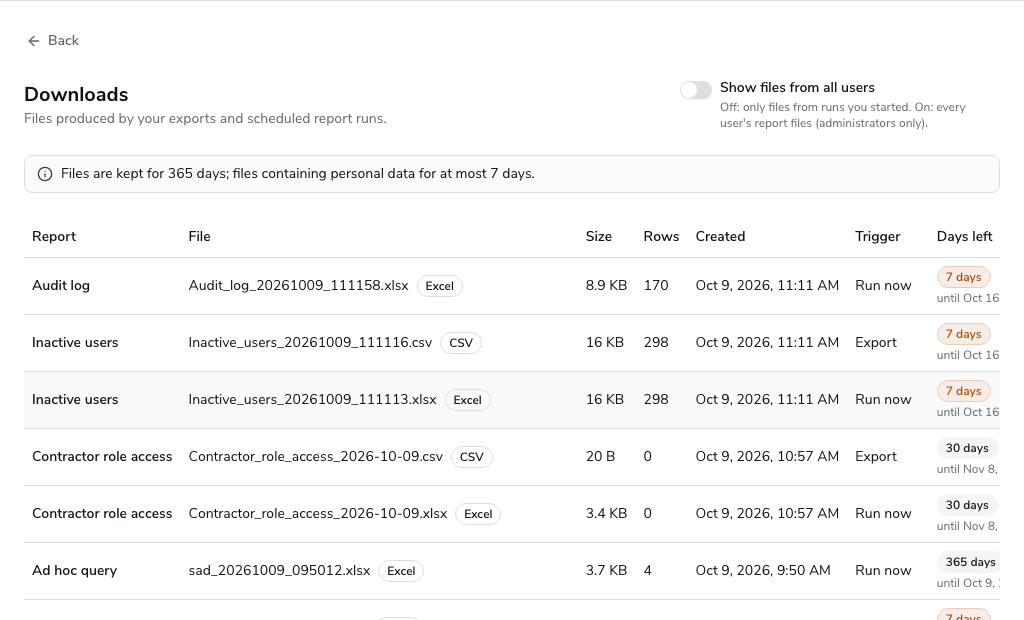
**Downloads**, reached from the **Downloads** button on the Reports list or from Webconsole → **Audit & Reports** → **Reports** → **Downloads**, lists every file produced by your exports and scheduled runs, across all your reports, newest first, twenty per page. It is the one place to look when you remember the file but not the report. The subtitle reads *Files produced by your exports and scheduled report runs*; before the first file it reads *No files yet*.
A banner at the top restates the installation's retention: *Files are kept for 365 days; files containing personal data for at most 7 days.*
| Column | What it shows |
| ------------ | ------------------------------------------------------------------------------------------------------- |
| Report | The report's name, or **Ad hoc query** for a run started through the API without a report |
| File | The rendered file name, see [Name the output files](/administration-guide/reports/output-file-names.md) |
| Size, Rows | Of the file |
| Created | When the run finished |
| Trigger | Manual, Scheduled or Export |
| Expires | Days left and the date, or **Kept** |
| Download | The state of the file: see [States](#downloads-states) |
| File actions | The row menu: see [Keep](#retention-keep) and [Delete](#downloads-delete) |
### Show files from all users
Super administrators see a switch in the header: **Show files from all users** — *Off: only files from runs you started. On: every user's report files (administrators only).* Switch it on to find a file whose owner has left, or to see what the store holds before the nightly purge evicts it.
### States
| State | Meaning |
| ------------------- | --------------------------------------------------------------------------------------------------------------- |
| **Download** button | The file exists; click to stream it |
| **Expired** | The retention period passed and the nightly purge deleted the file; the run row stays for twelve months |
| **Deleted** | The owner or a super administrator deleted the file, or the purge evicted it because the store was over its cap |
| **Kept** badge | The file is pinned and never expires; *This file is kept and does not expire.* |
### Who can download
The Downloads page lists only files from runs you started (or everyone's, for a super administrator with the switch on), but a link can reach anyone. The server lets a file go to:
* the person who started the run;
* the owner of the run's report;
* for a scheduled run, a user named directly on the schedule as a subscriber;
* a super administrator.
Anyone else gets *You do not have access to this file.* Two consequences:
* A person who receives the delivery mail **through a group** is not on that list. When the file was over 10 MB and the mail carried a link instead of the attachment, the link gives them 403. Until this changes, name such people directly as users on the schedule, or keep scheduled files under 10 MB.
* An external address never gets a link, only the attachment, so it is never affected.
### Delete a file
**Delete file** in the row menu removes the file now; *"Contractor-role-access\_2026-10-12.xlsx" is deleted now. The run stays in the run history.* The report owner may delete files of their reports, the person who started an ad hoc run may delete its file, and a super administrator may delete any. Deleting does not touch the report or its schedule.
### The link in a delivery mail
When a scheduled run's file is too large to attach, the mail carries a link to `/webconsole-v2/audit/reports/downloads/`. The link always requires signing in. After sign-in the **Report download** page says one of:
| Text | Meaning |
| -------------------------------------------------------------------- | --------------------------------------------------------------------------------------------------- |
| Your download should start in a moment | The file exists and you may have it; a direct link is below in case the browser blocks the download |
| This file is no longer available — This file expired and was deleted | The retention period passed since the mail was sent |
| This file was deleted | The owner or a super administrator removed it |
| This run did not produce a file | The run was cancelled or failed |
| You do not have access to this file | You are not among the people in [Who can download](#downloads-who-can-download) |
**Back to downloads** returns to the Downloads page.
## Retention: how long a file stays
Every file a run produces has an expiry date, computed when the run finishes. The **Retention policy** card on the details page shows the report's rule: *Keep files for: 30 days*, *Installation default (365 days)* or *Kept forever (never deleted)*, with the hint *Output files older than this are deleted automatically from the server.* The nightly purge deletes the file on the first night after the date; the run row stays for twelve months.
The expiry is the earlier of two rules:
1. The report's own **Keep files for** value, or the installation default (365 days) when the report has none. A report set to keep its files forever gives them no expiry date.
2. **7 days** when the file contains personal data: see [the personal data rule](#retention-pii).
Changing the rule on a report affects runs that finish after the change. Files already produced keep the expiry they were given.
### Manage the rule
**Manage** on the Retention policy card (shown to whoever may edit the report; never on a system template) opens a sheet with one field, **Keep files for** … **days**, and two checkboxes:
**Use the installation default (365 days)** — ticked, the report has no value of its own and follows whatever the operator sets in `report.artifact.retention-days`; unticked, type a whole number of days, 1 or more (*Enter a whole number of days, 1 or more.*).
**Keep files forever (never deleted)** — ticked, the report's files get no expiry date; the card then reads *Kept forever (never deleted)*. Use it for reports whose files are evidence, and remember that the personal data rule is not switched off by it.
**Save** is enabled once the value is valid and differs from what was saved. The same choices are asked on the wizard's Retention step when you create a report, see [Create a report](/administration-guide/reports/create-a-report.md#wizard-retention).
### The personal data rule
*Files containing personal data are kept for at most 7 days.* A file holds personal data when an output column reads a catalog field that carries a permission mark (date of birth, sex, e-mail address, last login IP, audit client IP, the orphaned-account e-mail address), or when the report reads an [SQL data source](/administration-guide/reports/views-and-sql-sources.md#sql-source), whose output is always treated as personal data. A field that is only used in a filter does not count; a calculated field counts through the fields it reads.
The 7-day cap comes from `report.artifact.pii-retention-days` and wins over any value on the report. The mark is applied even though field permissions are not enforced in this release (see [Access and permissions](/administration-guide/reports/access-and-permissions.md#access-locked-fields)): a file with a date of birth column expires after 7 days for everyone.
### Days left
Run history and the Downloads page show the same badge:
| Badge | Meaning |
| ------------------------------- | ------------------------------------------------------------------------------------- |
| *12 days* — *until 24 Oct 2026* | The file expires on that date; the badge turns to a warning colour at 7 days or fewer |
| *1 day* | Expires tomorrow night |
| **Kept** | Pinned; no expiry |
| **Expired** — *on 12 Oct 2026* | The purge deleted it on that date |
| — | The run produced no file |
### Keep a file
**Keep file** in the row menu of the Downloads page, and of the Job Monitor, pins a file: it is exempt from expiry, from the twelve-month history purge and from eviction when the store is over its cap, until somebody chooses **Stop keeping**. The report owner (or the requester of an ad hoc run) and super administrators may keep and release; Run history offers neither action, so go to Downloads for a file you see there.
A released file whose expiry date has already passed is deleted by the next nightly purge.
## What is written to the audit log
Each **Run**, **Export**, cancel, retry and download is an audit entry with the report's name and yours; a scheduled run also gets a *run finished* entry; keeping, releasing, deleting, expiring and evicting a file are entries too. A preview is not audited. The action names are listed in [Operate the report service](/administration-guide/reports/operate-the-report-service.md#operate-audit-actions).
## The example
Dana Okafor opens **Contractor role access**, which runs every Monday. On a Wednesday the compliance team asks for a fresh file. She chooses **Run**, reads the *already scheduled* dialog, which names next Monday 08:00 Europe/Rome as the next run, and chooses **Run now anyway**. The toast confirms the run; two minutes later Run history shows a **Manual** run, **Completed**, 1,214 rows, **Excel**, *30 days — until 14 Nov 2026*. She downloads it from the row. Monday's scheduled run still happens and still goes to the group; her Wednesday file does not, because only scheduled runs are delivered.
## Verification
* A run you started is on the **Run history** tab within a few seconds as **Queued**, then **Running**, then **Completed** with a row count and **Days left**.
* The file downloads from the row, opens, and its first row holds the column headings you named.
* The same file is on **Downloads** with the right **Expires** date.
## When it goes wrong
| Symptom | Likely cause |
| ------------------------------------------------------------------- | ----------------------------------------------------------------------------------------------------------------------------------------------------------------------------------------------------------------------------------------------------------------------- |
| **Run** shows *The report cannot run until its definition is fixed* | The definition no longer validates. Open it in the designer: the validation summary names the problem. A required parameter without a default is the usual one; see [Filters and parameters](/administration-guide/reports/filters-and-parameters.md#param-at-run-time) |
| The run stays **Queued** for minutes | Every worker is busy, or no report service instance is running. A super administrator reads the **Workers** tile on the [Job Monitor](/administration-guide/reports/job-monitor.md#jobs-tiles) |
| The run is **Failed** with `SOURCE_UNAVAILABLE` | The source database or OpenSearch index is unreachable or absent; see [the error codes](#history-error-codes) |
| The run is **Cancelled** and nobody cancelled it | Its instance stopped sending heartbeats and a cancel request, or the stale-run sweep, ended it. Run it again; see [Lost workers](/administration-guide/reports/job-monitor.md#jobs-workers-lost) |
| **Download** returns *You do not have access to this file* | You are not the requester, the owner, a directly named subscriber or a super administrator; see [Who can download](#downloads-who-can-download) |
| The row reads **File not found** | The file expired, was evicted or was deleted; the run itself is history. Run the report again |
| The file expired after a week although retention is 30 days | The file holds personal data or comes from an SQL source; see [the personal data rule](#retention-pii) |
| A link from the delivery mail gives 403 to a group member | Group subscribers are not on the download list; name them as users or keep the file under 10 MB |
| The **Preview** says *Too many previews are running* | Four previews on this instance or two of yours are in flight; wait a moment |
## Related
* [Schedule and deliver a report](/administration-guide/reports/schedule-and-deliver.md) — runs that start by themselves and reach subscribers
* [Job Monitor](/administration-guide/reports/job-monitor.md) — the queue across all users, cancel and retry
* [Name the output files](/administration-guide/reports/output-file-names.md) — what the **File** column is made of
* [Manage reports](/administration-guide/reports/manage-reports.md) — the list, the row menu and the details page
* [Access and permissions](/administration-guide/reports/access-and-permissions.md) — who may run, download and keep
* [Operate the report service](/administration-guide/reports/operate-the-report-service.md) — the nightly purge, the store cap and every retention property
---
# Agent Instructions
This documentation is published with GitBook. GitBook is the documentation platform designed so that both humans and AI agents can read, navigate, and reason over technical content effectively. Learn more at gitbook.com.
## Querying This Documentation
If you need additional information that is not directly available in this page, you can query the documentation by asking a question.
Perform an HTTP GET request on the following URL with the `ask` and `goal` query parameters:
```
GET https://docs.openiam.com/administration-guide/reports/run-and-download.md?ask=&goal=
```
`ask` is the immediate question: it should be specific, self-contained, and written in natural language.
`goal` is what the user is ultimately trying to achieve, the reason they need the answer. Sharing it helps GitBook give you a better, more relevant answer. A goal is most helpful when it describes the outcome the user wants rather than restating the question. For example, with `ask=how do I create an API token`, a goal like `automate deployments from our CI pipeline` lets GitBook tailor the answer to that use case.
The response will contain a direct answer to the question and relevant excerpts and sources from the documentation.
Use this mechanism when the answer is not explicitly present in the current page, you need clarification or additional context, or you want to retrieve related documentation sections.