> For the complete documentation index, see [llms.txt](https://docs.openiam.com/llms.txt). Markdown versions of documentation pages are available by appending `.md` to page URLs; this page is available as [Markdown](https://docs.openiam.com/administration-guide/reports/create-a-report.md).
# Create a report
Build a new report with the ten-step wizard — name it, pick entities or a view, choose fields, filter and group the rows, set the file format, schedule it, choose how the file is delivered and how lon
## What this is, and when you need it
The wizard is the way to make a new report. It asks ten questions in a fixed order, from the name to the review, and creates the report, and its schedule if you set one, when you confirm the last step. Use it when you start from nothing, or from an entity you found in the [Data Catalog](/administration-guide/reports/data-catalog.md).
Do not use it to change a report you already have: open the report and choose **Edit fields & layout** instead, which opens the [designer](/administration-guide/reports/design-a-report.md). The designer also has what the wizard leaves out: calculated fields, sort order and totals per column. To start from a report OpenIAM ships, clone a [system template](/administration-guide/reports/system-templates.md) rather than rebuilding it here.
{% hint style="info" %}
The **Filters** step (step 4) arrives with the change tracked as OE-5366. On a build without it, the wizard has nine steps and you add filters afterwards in the designer, on the [Data source tab](/administration-guide/reports/design-a-report.md#designer-data-source-entities).
{% endhint %}
## At a glance
Open Webconsole → **Audit & Reports** → **Reports** and choose **New report**. The route is `/webconsole-v2/audit/reports/new`.
| Step | Decides | Next is enabled when |
| ------------- | -------------------------------------------------------------------------------------- | ----------------------------------------------------------------------------------------------- |
| 1 Name | Report name, description, file name pattern | The name is not blank and the pattern is valid |
| 2 Data source | One main entity plus related entities, or a view | A view, or at least one entity, is selected |
| 3 Fields | Which fields appear and what each column is called | At least one field is ticked |
| 4 Filters | Which rows are included | Custom logic is valid and every "Ask when running" condition has its days |
| 5 Group by | Up to three grouping levels | Always |
| 6 Summarize | Count, Sum, Average, Min or Max per group | Every calculation is complete |
| 7 Schedule | The file format and, optionally, when the report runs | The schedule is valid, the server accepted its preview, and no required parameter lacks a value |
| 8 Delivery | Where the file goes after each scheduled run: e-mail recipients, SFTP servers, or both | Not scheduled, or every delivery method that is on is complete |
| 9 Retention | How many days each file is kept | A whole number, 1 or more |
| 10 Review | Everything above, then **Create report** | — |
The stepper at the top shows the ten steps as numbered pills. A step you have completed can be clicked to go back to it; a step you have not reached yet cannot. The footer has **Cancel**, **Back** and **Next**, and on the last step **Create report**.
Throughout this page the example is the **Contractor role access** report from the [section overview](/administration-guide/reports.md#the-example-that-runs-through-every-page): users whose employee type is `CONTRACTOR`, joined to their role memberships and roles, one row per role with the number of contractors who hold it, run every Monday morning as an Excel file.
## Before you begin
* You can open **Audit & Reports → Reports** in the Webconsole.
* The entity you want to report on shows **Full access** or **Partial access** in the [Data Catalog](/administration-guide/reports/data-catalog.md#catalog-access-badge). An entity with **No access** can be requested from its card but not used until the request is granted.
* You know whether the people who will open the file want CSV (comma-separated values) or Excel. The format is set on step 7 and applies to every run.
* If you intend to schedule the report, it must not need a value nobody can type: a report with a required parameter and no default can be previewed but cannot be scheduled. See [What happens at run time](/administration-guide/reports/filters-and-parameters.md#param-at-run-time).
## Step 1: Name
The question is **What should the report be called?**
| Field | Description |
| ---------------------- | ----------------------------------------------------------------------------------------------------------------------------------------------------------------------------------------------------------------------------------------- |
| Report name | Required. Shown in the Reports list, in the e-mail subject and, through the `{report}` placeholder, in the default file name. Use a name people will recognise in a list of fifty. |
| Description (optional) | What the report shows and who it is for. Shown on the details page. |
| File name | The pattern that names each generated file. The default is `{report}_{yyyy}{MM}{dd}_{HH}{mm}{ss}`; leave it, or insert placeholders and type an example. See [Name the output files](/administration-guide/reports/output-file-names.md). |
**Next** stays disabled while the name is blank or the pattern breaks the grammar (an unknown placeholder, an unmatched brace, or more than 200 characters).
For the example, Dana types `Contractor role access`, the description `Contractors per role, for the Monday compliance review`, and the pattern `{report}_{date}`, which renders as `Contractor_role_access_2026-10-12.xlsx` on 12 October.
## Step 2: Data source
The question is **Which data source should the report use?** Two cards offer the two kinds of source; pick one kind. Each card has its own search box, and the line under the cards reads `3 selected: User, User role membership, Role` once you have chosen.
### Entities
The card lists the Database and OpenSearch entities of the Data Catalog. Each entity shows its name, a backend chip (**Database** or **OpenSearch**), its description and an approximate record count such as `~ 12,400 records`.
The first entity you pick becomes the **main entity**, marked with a badge: every row of the report is one record of it. After that pick, the list changes:
| What an entity shows | Why |
| ------------------------------------ | ------------------------------------------------------------------------------------------------------------------------------------------------------------------------------------------------------- |
| Selectable | It is related to an entity you already picked, lives on the same backend and, for Database entities, in the same source database. |
| Not related to the selected entities | No relationship in the catalog connects it to your selection. |
| Checking relationships… | The relationships are still loading; wait a moment. |
| Different backend | Database and OpenSearch entities [cannot be joined](/administration-guide/reports/overview.md#rules-one-backend). |
| Different database | Entities from different source databases [cannot be joined](/administration-guide/reports/overview.md#rules-one-database). |
| Second OpenSearch entity | A data source reads [one OpenSearch entity at most](/administration-guide/reports/overview.md#rules-one-opensearch-entity). |
| A lock and **Request access** | You lack the entity's data permission. The link opens a SelfService access request; see [Access and permissions](/administration-guide/reports/access-and-permissions.md#access-request-entity-access). |
Related entities are joined to the main entity through the catalog relationship, with the join type the builder chooses (an inner join). To control the join type or add join conditions, build a [view](/administration-guide/reports/views-and-sql-sources.md#builder-join-type) and use it instead.
For the example, Dana picks **User** first (it becomes the main entity), then **User role membership** and then **Role**. **Certification item** stays grey as *Different database*, and **Audit event** as *Different backend*.
### Custom views
The card lists the views people have built in the Data Catalog, each with its backend chip, a **Not subject to field and row filters** badge if it is an administrator's SQL (Structured Query Language) data source, and its description. Select exactly one.
A view brings its entities, joins and filters with it. On the following steps you choose fields from the view and may add filters on top, but you cannot change the view's own joins or filters here; edit the view for that.
If the card reads *No custom views found*, nobody has built one yet; the **Open the Data Catalog** link takes you to where a view is created. See [Views and SQL data sources](/administration-guide/reports/views-and-sql-sources.md).
**Next** is enabled once a view, or at least one entity, is selected.
## Step 3: Fields
The question is **Which fields do you want, and what should they be called?** The fields are listed in one section per entity, each with a **Select all fields in …** checkbox, in two columns. Every section starts open; click the entity's name to collapse it once its fields are picked, which keeps the step short when the report reads many entities. A collapsed section still shows how many fields are ticked, as *2 of 14 selected*; fields you cannot read are not counted. Click the name again to reopen it.
| Column | Description |
| -------- | -------------------------------------------------------------------------------------------------------------------------------------------------------------------------------------------------------------------------------------- |
| Field | The field's catalog name, with a checkbox to include it. A lock means you lack the permission the field needs; it cannot be ticked. See [locked fields](/administration-guide/reports/access-and-permissions.md#access-locked-fields). |
| Shown as | The column heading in the file. Empty means the catalog name; type something else to rename the column in this report only. |
**Next** needs at least one ticked field.
For the example, Dana ticks only **Name** from Role, typing `Role` in its *Shown as* box, and nothing from User or User role membership: the count she adds on step 6 works over all rows, so no other field is needed.
## Step 4: Filters
The question is **Which rows should the report include?** The step shows the condition editor that the designer and the view builder also use; every operator, the match modes, related-record conditions and the **Ask when running** switch are described in [Filters and parameters](/administration-guide/reports/filters-and-parameters.md). With no conditions, every row is included.
An example under the question reads: *the conditions "Status equals Active" and "Created in the last 30 days" keep only the users created in the past month who are active today*.
**Next** stays disabled while a custom logic expression is invalid, or while a condition switched to **Ask when running** has no number of days.
For the example, Dana adds **Employee type** *equals* `CONTRACTOR` on User and **Status** *equals* `ACTIVE` on User role membership, and leaves the match mode on *Match all of the filters below*.
### Filters of the view
When step 2 chose a view, the step says *This report reads the view …. Its filters are defined on the view and cannot be changed here* and lists the view's conditions read-only under **Filters of the view**, or *The view has no filters: every row is included*. Any condition you add on this step is combined with the view's with AND: a row must pass both. Related-record conditions of the view appear as *Related rows (n)*.
When the view is an SQL data source, there is nothing to filter here: the SQL statement decides which rows are read.
## Step 5: Group by
The question is **Group rows by…** and the step is optional. It shows one chip per selected field the catalog marks as groupable; click a chip to add that level. Rows with the same values are combined into one group, up to three levels, and the line below reads `Grouped by: Role → Status`. Once three are chosen the other chips are disabled.
Two messages can appear:
| Message | Meaning |
| -------------------------------------------------------------------------------------------------- | --------------------------------------------------------------------------------------------------------------------------------------------------------------------------------------------------------------------------------------------- |
| None of the selected fields can be grouped. | No ticked field is groupable; go back to step 3 or skip the step. |
| Once rows are grouped or summarized, every field in the report must be grouped. Not grouped yet: … | A ticked field is neither a grouping level nor summarised. The report cannot show it as a plain column; group by it, summarise it on step 6, or untick it. See [the grouping rule](/administration-guide/reports/overview.md#rules-grouping). |
For the example, Dana groups by **Role**. Nothing is left ungrouped, because Role is her only field.
## Step 6: Summarize
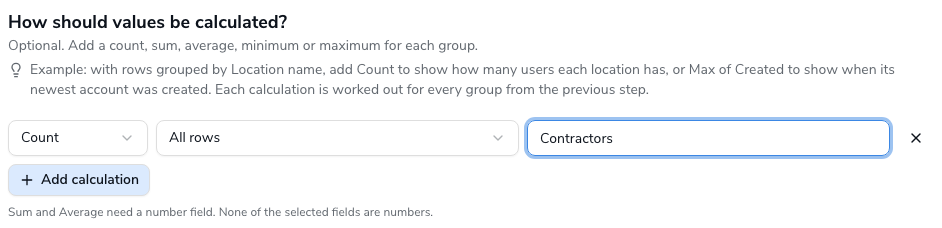
The question is **How should values be calculated?** and the step is optional. The step opens with one calculation, *Count of all rows*; **Add calculation** adds a row and **Remove calculation** takes one away.
| Field | Description |
| ------------------ | ------------------------------------------------------------------------------------------- |
| Calculation | Count, Sum, Average, Min or Max. |
| Field | The field the calculation reads. For Count only, **All rows** counts the rows of the group. |
| Show as (optional) | The column heading of the result. |
### Which calculation a field allows
| Field type | Calculations |
| ------------------------- | ----------------------------- |
| Number | Count, Sum, Average, Min, Max |
| Yes/No | Count |
| Text, date, date and time | Count, Min, Max |
If no ticked field is a number, the step says *Sum and Average need a number field*. A calculation counts as complete when it has a calculation and a field; **Next** waits for every row to be complete.
For the example, Dana adds one calculation: **Count** of **All rows**, shown as `Contractors`, which gives the number of contractors holding each role.
## Step 7: Schedule
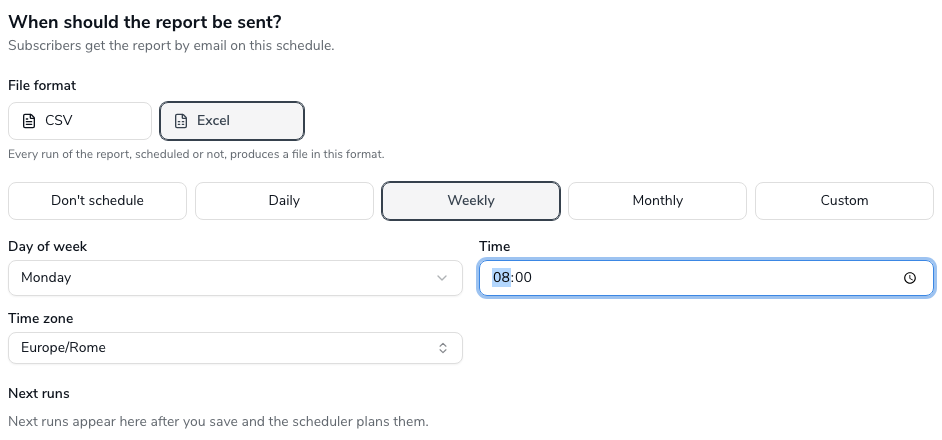
The question is **When should the report be sent?** The step sets two things.
### File format
**CSV** or **Excel**; Excel is preselected. Every run of the report, scheduled or started with **Run**, produces a file in this format. The **Export CSV** and **Export Excel** actions on the Reports list are the way to get the other format once without changing the report. The format can be changed later on the designer's [Naming tab](/administration-guide/reports/design-a-report.md#designer-naming-file-type).
### When it runs
| Field | Description |
| --------------- | -------------------------------------------------------------------------------------------------------------------------------------- |
| Frequency | **Don't schedule**, **Daily**, **Weekly**, **Monthly** or **Custom**. |
| Day of week | Monday to Sunday; Weekly only. |
| Day of month | 1 to 28, or **Last day**; Monthly only. |
| Cron expression | Custom only. Six fields: second, minute, hour, day of month, month, day of week. The default is `0 0 6 * * MON-FRI`. |
| Time | Hour and minute; 08:00 by default. Not shown for Custom. |
| Time zone | An IANA (Internet Assigned Numbers Authority) zone name, searched in a list; your browser's zone by default, UTC when that is unknown. |
Under the fields, **Next runs** shows what the server makes of the schedule. Here, before the report exists, it reads *Next runs appear here after you save and the scheduler plans them*, and its only job is to validate the cron expression and time; a server error there disables **Next**. Every field is explained on [Schedule and deliver a report](/administration-guide/reports/schedule-and-deliver.md).
If a condition on step 4 uses **Ask when running** and still has no number of days, or the chosen view has a required parameter without a default, the step shows *This report asks for … when it runs. A scheduled run cannot ask for a value, so such a report cannot be scheduled yet. Choose "Don't schedule" to continue*. **Next** is disabled until you do one of the two.
For the example, Dana chooses **Excel**, **Weekly**, **Monday**, **08:00** and **Europe/Rome**.
## Step 8: Delivery
The question is **How should this report be delivered?** and the step is optional. The file can be e-mailed to subscribers, uploaded to SFTP servers, or both. Only a scheduled run is delivered, so with **Don't schedule** on step 7 the form is disabled and the step says *Choose a schedule first*.
**E-mail.** Subscribers are the people who receive the file by e-mail. They exist only for this method; an SFTP upload has no recipients, only a location.
| Control | Description |
| --------------------------------------------- | ------------------------------------------------------------------------------------------------------------------------------------------------------------- |
| Email | Turns e-mail delivery on. Off by default. |
| Recipients | OpenIAM groups and users, searched in two pickers that show 20 matches each, shown as chips. A group is expanded to its active members when the mail is sent. |
| Or enter email addresses, separated by commas | Addresses outside OpenIAM. They receive the attachment only; a download link always requires signing in. |
| Attach the file | On by default. A file up to 10 MB is attached; a larger one is sent as a sign-in link to the Download center. |
With **Email** on, at least one group, user or address is required, and every address must be well formed; duplicates are dropped.
**SFTP.** The file is uploaded to a server instead of being sent to anyone.
| Control | Description |
| --------------------- | --------------------------------------------------------------------------------------------------------------- |
| Upload to SFTP | Turns SFTP delivery on. Off by default. |
| Add a delivery target | The servers to upload to, at most 10, chosen from the active delivery targets a super administrator has set up. |
| Subfolder | Optional, per target: a folder under the target's own directory, for example `finance/monthly`. |
With **Upload to SFTP** on, at least one target is required. A file with the same name on the server is overwritten.
Files are always available in the Download center whatever you choose here. Both methods are described on [Schedule and deliver a report](/administration-guide/reports/schedule-and-deliver.md#delivery).
For the example, Dana turns **Email** on, types `compliance@example.com`, the compliance team's shared mailbox, as an external address, and leaves the attachment on. A team that exists as an OpenIAM group would be picked under **Search subscriber groups** instead.
## Step 9: Retention
The question is **How long should report files be kept?** One field, **Retention in days**, starts at the installation default of 365 and accepts a whole number of 1 or more; anything else shows *Enter at least 1 day*. Each run creates a new file, kept for that many days, after which the nightly purge removes it. Under the field:
* **Keep files forever (never deleted)** — tick it and the report's files get no expiry date at all; the days field no longer applies.
* *Files containing personal data are kept for at most 7 days*, whatever you enter. A file counts as containing personal data when one of its columns reads a field marked with a permission, or when the report reads an SQL data source. See [the personal data rule](/administration-guide/reports/run-and-download.md#retention-pii).
A single file you need to keep longer than the report's rule can be pinned in the Download center; see [Keep a file](/administration-guide/reports/run-and-download.md#retention-keep).
Dana types 30: a weekly report does not need a year of files.
## Step 10: Review
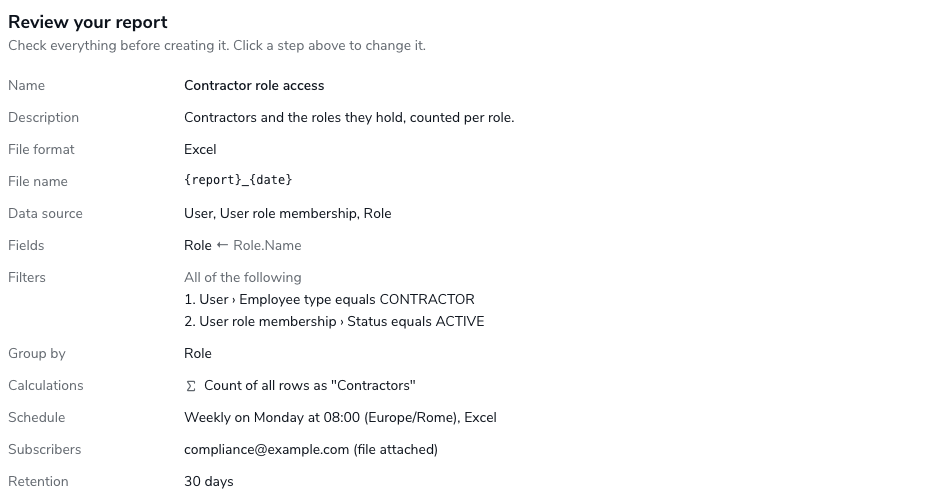
\*\*Review your report\*\* lists every choice in one table: Name, Description, File format, File name, Data source, Fields, Filters (\*All of the following\*, \*Any of the following\*, \*Custom logic: …\* or \*Defined on the view\*), Group by, Calculations (\`Count of all rows as "Contractors"\`), Schedule, Delivery (the e-mail recipients with \*file attached\* or \*sign-in link\*, and the SFTP targets the file \*Uploads to\*) and Retention. Click a step in the stepper to change something.
Choose **Create report**. The button reads *Creating…* while the server validates the whole definition, creates the report and, if you scheduled it, saves the schedule and its batch task. Then:
* A toast reads *Report "Contractor role access" created* and the report's [details page](/administration-guide/reports/manage-reports.md#details-page) opens.
* If the report was created but the schedule was not, a second toast reads *The report was created, but its schedule was not saved. Open the report and set the schedule again*. The report exists; open **Edit schedule** on its details page.
* If the definition is rejected, the step shows *The report could not be created. Fix the problems below and try again* with one line per problem. The codes are listed in [Validation codes](/administration-guide/reports/filters-and-parameters.md#filter-validation-codes).
## Verification
* **Reports → My reports** lists the report with *Never run* under Last run and, if scheduled, the schedule summary (`Weekly on Monday at 08:00 Europe/Rome`).
* On the details page, the **Preview** card shows the first rows: for the example, one row per role with the number of contractors. See [Preview](/administration-guide/reports/run-and-download.md#preview).
* If scheduled, the **Runs** card shows **Next run** once the scheduler has planned it, which takes up to five minutes; see [The first fire](/administration-guide/reports/schedule-and-deliver.md#schedule-first-fire).
## When it goes wrong
| Symptom | Likely cause |
| ---------------------------------------------------------------------------------------------- | -------------------------------------------------------------------------------------------------------------------------------------------------------------- |
| **Next** is disabled on step 1. | The name is blank, or the file name pattern has an unknown placeholder, an unmatched brace or more than 200 characters. The error shows under the field. |
| Every entity but the first is grey on step 2. | The main entity has no relationships, or the others live on another backend or database. Hover the reason; pick a different main entity or build a view. |
| An entity shows a lock. | You lack its data permission. **Request access** opens the SelfService request; until it is granted the entity cannot be used. |
| *No custom views found* on step 2. | Nobody has created a view yet. Build one from the Data Catalog, or use entities. |
| **Next** is disabled on step 4. | The custom logic expression does not use every condition, mixes AND and OR without parentheses, or an **Ask when running** condition has no number of days. |
| A field appears under *Not grouped yet*. | The report groups or summarises, and that field is neither a level nor a calculation. Group by it, count it, or untick it. |
| Step 7 says the report asks for a value when it runs. | A condition or a view parameter needs a value at run time and has no default. Type the days on step 4, or choose **Don't schedule**. |
| **Next** is disabled on step 7 with a message under Next runs. | The server rejected the cron expression or time. The cron needs six fields. |
| **Next** is disabled on step 8. | **Email** is on with no recipient, or an address is malformed. |
| *The report was created, but its schedule was not saved.* | The report service refused the schedule, for instance because a required parameter has no value. Open the report, fix the cause and use **Edit schedule**. |
| *The report could not be created* with a code such as `NOT_GROUPED` or `OPERATOR_NOT_ALLOWED`. | The server's validator found what the wizard did not. See [Validation codes](/administration-guide/reports/filters-and-parameters.md#filter-validation-codes). |
## Related
* [Report builder overview](/administration-guide/reports/overview.md) — the vocabulary and the rules every report obeys
* [Browse the Data Catalog](/administration-guide/reports/data-catalog.md) — find the entity to start from
* [Filters and parameters](/administration-guide/reports/filters-and-parameters.md) — everything step 4 can express
* [Name the output files](/administration-guide/reports/output-file-names.md) — the pattern on step 1
* [Design a report](/administration-guide/reports/design-a-report.md) — change the report after it exists; calculated fields, sort, totals
* [Schedule and deliver a report](/administration-guide/reports/schedule-and-deliver.md) — steps 7 and 8 in full
* [Run a report and download the file](/administration-guide/reports/run-and-download.md) — Run, Preview, Run history, retention
---
# Agent Instructions
This documentation is published with GitBook. GitBook is the documentation platform designed so that both humans and AI agents can read, navigate, and reason over technical content effectively. Learn more at gitbook.com.
## Querying This Documentation
If you need additional information that is not directly available in this page, you can query the documentation by asking a question.
Perform an HTTP GET request on the following URL with the `ask` and `goal` query parameters:
```
GET https://docs.openiam.com/administration-guide/reports/create-a-report.md?ask=&goal=
```
`ask` is the immediate question: it should be specific, self-contained, and written in natural language.
`goal` is what the user is ultimately trying to achieve, the reason they need the answer. Sharing it helps GitBook give you a better, more relevant answer. A goal is most helpful when it describes the outcome the user wants rather than restating the question. For example, with `ask=how do I create an API token`, a goal like `automate deployments from our CI pipeline` lets GitBook tailor the answer to that use case.
The response will contain a direct answer to the question and relevant excerpts and sources from the documentation.
Use this mechanism when the answer is not explicitly present in the current page, you need clarification or additional context, or you want to retrieve related documentation sections.