> For the complete documentation index, see [llms.txt](https://docs.openiam.com/llms.txt). Markdown versions of documentation pages are available by appending `.md` to page URLs; this page is available as [Markdown](https://docs.openiam.com/administration-guide/nhi/inventory.md).
# Browse the inventory
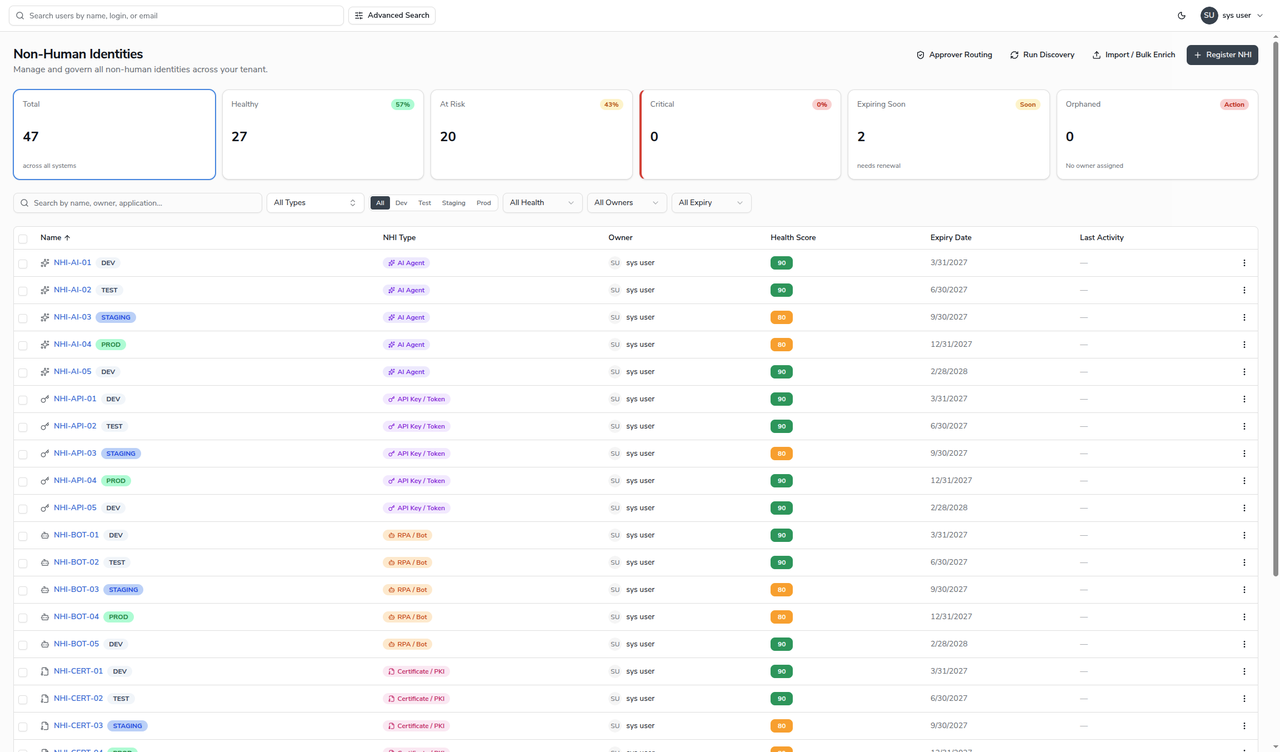
Browse, search and filter every non-human identity in the tenant from one server-paged table, and read the health and expiry summary at the top.
## What this is, and when you need it
The **Inventory** is the landing page for the Non-Human Identities module and the place you start almost every task: it lists every non-human identity (NHI) in the tenant, summarizes their health and expiry at the top, and links through to each record's detail and edit pages. Use it to find an identity, to take stock of how many you hold and how healthy they are, or as the jump-off point for registering a new one.
This page is about *finding and reading* the inventory. To create an identity, see [Register a non-human identity](/administration-guide/nhi/register-an-nhi.md); to change one, open it and see [Lifecycle and status](/administration-guide/nhi/lifecycle.md).
Reach it at **Webconsole → Non-Human Identities → Inventory** (`/webconsole-v2/nhi/inventory`).
## At a glance
The summary cards across the top count the whole inventory and double as filters — choose one to narrow the table to just those records:
| Card | What it counts |
| ------------- | ---------------------------------------------------------- |
| Total | Every non-human identity across all systems. |
| Healthy | Health score 85 or above. |
| At Risk | Health score 60–84. |
| Critical | Health score below 60. |
| Expiring Soon | Active identities whose expiry date is near. |
| Orphaned | Identities with no owner assigned — the ones to fix first. |
The table below carries these columns:
| Column | What it shows |
| ------------- | ------------------------------------------------------------------------- |
| Name | The identity's name and its environment badge (Dev, Test, Staging, Prod). |
| NHI Type | One of the eight types, with an icon. |
| Owner | The accountable human, or a blank when the identity is orphaned. |
| Health Score | The 0–100 score, colored by band. |
| Expiry Date | When the identity expires. |
| Last Activity | When it was last used, where usage is recorded. |
## Find an identity
{% stepper %}
{% step %}
Type into the **Search by name, owner, application…** box to match on name or owner. The table re-queries the server as you type — the list is paged on the server, so the count and paging reflect the whole tenant, not just the current page.
{% endstep %}
{% step %}
Narrow by **NHI Type**, by environment (the **All / Dev / Test / Staging / Prod** buttons), by **Health**, by **Owner**, or by **Expiry** using the filter row. Filters combine, so you can ask for, say, every Prod API key that is At Risk.
{% endstep %}
{% step %}
Choose a row to open the identity's **detail** page — its purpose, ownership, lifecycle dates, health breakdown and audit trail. From there, **Edit** opens the form.
{% endstep %}
{% endstepper %}
{% hint style="info" %}
Three buttons above the table start other tasks rather than filter the list: **Register NHI** opens a blank [registration form](/administration-guide/nhi/register-an-nhi.md), and **Approver Routing** opens the [approver-routing admin screen](/administration-guide/nhi/approver-routing.md). There is no permanent menu item for approver routing — that button is the way in.
{% endhint %}
## When it goes wrong
| Symptom | Likely cause |
| ------------------------------------------------------------------------- | --------------------------------------------------------------------------------------------------------------------------------------------------------------------- |
| The page shows a 502 or fails to load, while other Webconsole pages work. | The redesigned NHI screens are served by the v2 single-page app; if its dev server or upstream is down, the route returns 502. Confirm the v2 bundle is being served. |
| An identity you expect is missing. | A filter or the search box is still applied — clear them. A newly created Draft appears only after its save completes. |
| The Owner column is blank for a row. | The identity is orphaned. Open it and assign an owner; an orphan cannot be activated. |
## Related
* [Register a non-human identity](/administration-guide/nhi/register-an-nhi.md) — create a new record.
* [Health and governance](/administration-guide/nhi/governance.md) — what the health score and the summary cards mean.
* [Access policies for NHIs](/administration-guide/nhi/access-policies.md) — why some actions are hidden for some administrators.
---
# Agent Instructions
This documentation is published with GitBook. GitBook is the documentation platform designed so that both humans and AI agents can read, navigate, and reason over technical content effectively. Learn more at gitbook.com.
## Querying This Documentation
If you need additional information that is not directly available in this page, you can query the documentation by asking a question.
Perform an HTTP GET request on the following URL with the `ask` and `goal` query parameters:
```
GET https://docs.openiam.com/administration-guide/nhi/inventory.md?ask=&goal=
```
`ask` is the immediate question: it should be specific, self-contained, and written in natural language.
`goal` is what the user is ultimately trying to achieve, the reason they need the answer. Sharing it helps GitBook give you a better, more relevant answer. A goal is most helpful when it describes the outcome the user wants rather than restating the question. For example, with `ask=how do I create an API token`, a goal like `automate deployments from our CI pipeline` lets GitBook tailor the answer to that use case.
The response will contain a direct answer to the question and relevant excerpts and sources from the documentation.
Use this mechanism when the answer is not explicitly present in the current page, you need clarification or additional context, or you want to retrieve related documentation sections.