> For the complete documentation index, see [llms.txt](https://docs.openiam.com/llms.txt). Markdown versions of documentation pages are available by appending `.md` to page URLs; this page is available as [Markdown](https://docs.openiam.com/administration-guide/caddie/the-caddie-panel.md).
# The Caddie panel
For reviewers — the Caddie — Access Review Assistant button and when it appears, the panel and its header, the User information and Entitlement information blocks, how blocks load, and what the panel
This page is for the manager or application owner who has been asked to review access and has just noticed the sparkles icon of Caddie — Access Review Assistant beside the certify and revoke toggle. It describes the button, the panel it opens, and the two blocks that describe the person and the entitlement. The other five blocks each have a page of their own. It contains no settings; those belong to your administrator, on [Enable Caddie](/administration-guide/caddie/enable-caddie.md).
**On this page**
* [The Caddie button](#panel-button)
* [The panel](#panel-sheet) · [The header](#panel-header)
* [User information](#block-user-information)
* [Entitlement information](#block-entitlement-information)
* [How blocks load](#panel-loading) · [Who can open the blocks](#panel-access)
* [What the panel never does](#panel-never)
## The Caddie button
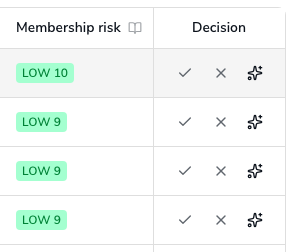
Open a campaign and open a person, to see their entitlements, or an entitlement, to see its holders. On both of those tables, every row you still have to decide ends with the **Decision** column: the certify and revoke toggle, and after it a small **sparkles icon**. Hover it and the tooltip reads *Open Caddie — Access Review Assistant for this item*.
Caddie is a decision aid, so the button is there exactly where a decision is still open, and nowhere else:
| Row | Button |
| -------------------------------------------------------------------------------- | ----------------------------------------------------------------------------------------------------------------- |
| Undecided at your step | Shown |
| Pre-approved by the campaign's automation rule, still carrying the **Auto** chip | Shown, because you may still overturn it |
| Already submitted at your step | Gone |
| Waiting for an earlier reviewer's step to finish | Never shown |
| Any row in the **UAR Manager View** | Never shown. A campaign manager observes and delegates; the manager's screen has neither the button nor the panel |
The button is offered in both views of a table: **List**, and **Focus**, the grouped view described on [Reading risk on the reviewer screen](/administration-guide/risk/reviewer-experience.md#reviewer-priority-queue).
If you see no sparkles anywhere in a campaign, the campaign was launched without Caddie. Nothing is wrong with your account.
## The panel
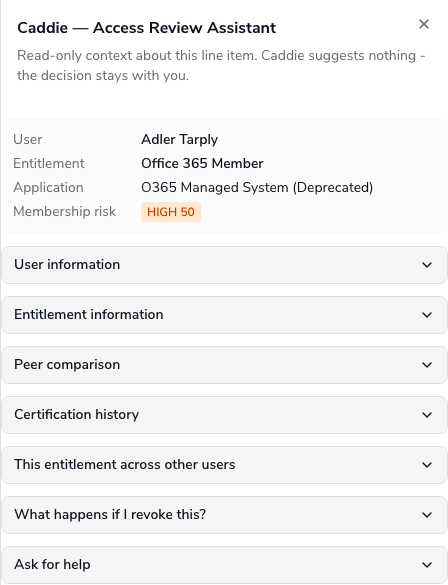
Click the button and a panel slides in from the right, titled **Caddie — Access Review Assistant** and subtitled *Read-only context about this line item. Caddie suggests nothing - the decision stays with you.* Beneath a short header sit seven collapsed blocks, in a fixed order.
* **One panel per table.** Clicking the button on another row switches the panel to that row and collapses every block again. Nothing you expanded carries over, on purpose: the next row deserves a fresh look.
* **Closing it**: the **×** in the corner, **Escape**, or a click outside the panel. Leaving the table with **Back** or a breadcrumb closes it too, so the previous row's panel never reappears on the next screen.
* **It remembers nothing.** The panel keeps no state between rows or visits. What it does keep, for about a minute, is the data a block fetched, so reopening the same row is instant.
## The header
The header repeats what the row already says, so that you never lose track of which line the panel is about while scrolling the blocks:
| Line | Shows |
| ------------------- | ------------------------------------------------------------------------------------------ |
| **User** | The reviewed person's display name |
| **Entitlement** | The role or group under review |
| **Application** | The managed system the entitlement belongs to. Omitted when it belongs to none |
| **Membership risk** | The same pill as the row's Membership risk column. Shown only in campaigns that score risk |
The pill is explained on [Reading risk on the reviewer screen](/administration-guide/risk/reviewer-experience.md#reviewer-membership-risk-column). Clicking it in the panel does the same as clicking it in the row.
## User information
The first block answers *who is this person?* It shows the reviewed user rendered through the campaign's **user details template**: the same rows, in the same order, as the **user details** dialog that opens from the person's name. Out of the box that is name, title, employee type, user type, status and account status, login, email address, phone, tenure with the organization, organizations, manager, location, employee ID and previous position. Your administrator may have chosen a different template; [Reviewer details templates](/administration-guide/caddie/reviewer-details-templates.md) lists the shipped fields and how they are changed.
How values read:
| Kind of field | Reads as |
| -------------------- | ---------------------------------------------------------------------------------------------------------------- |
| Plain text | The value. Several values become a bulleted list; no value shows a dash |
| A date | A short date, *Jul 16, 2026* |
| Tenure | *With the organization since {date} ({n} years, {m} months)*, or the date alone when the span cannot be computed |
| A person or group | The name; a group is marked **(group)** |
| An approval chain | One line per level: *Level 1*, the approver's name and how they came to approve |
| An application owner | The owner's name, or *This application has no owner* |
| A list | Bullets, then *and {n} more* when the list was cut |
Rows with no value for this person are left out entirely, so a short block means little is recorded, not that the block is broken.
For Tom Becker the block reads: employee type Contractor, organization Engineering, *With the organization since Jul 25, 2026 (0 years, 1 months)*, manager: you. That is most of the story already.
## Entitlement information
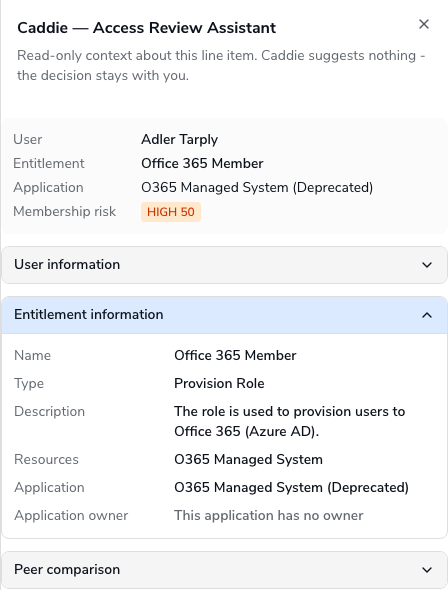
The second block answers *what is this thing I am approving?* It shows the reviewed role or group through the campaign's **role details template** or **group details template**: the same rows as the **entitlement details** dialog that opens from the entitlement's name. Out of the box that is name, type, description, created date and creator, owner, administrator, approvers, the first ten resources it grants, the application it belongs to, the application's owner and its risk classification.
Two rows are worth a habit. **Description** is what the entitlement's owner says it does; if it is empty, the owner has not said, and that is itself a finding worth a note. **Resources** is what it actually grants, and [What happens if I revoke this?](/administration-guide/caddie/revocation-impact.md) tells you which of those the person would really lose.
For `Payments-Admin`: description *Full administrative access to the payments engine, including payment release*; owner Scott Nelson; application Payments; application owner Scott Nelson; risk classification Critical.
## How blocks load
Every block starts collapsed, and **nothing is fetched until you expand one**. Opening the panel sends no request; expanding a block sends one, for that block only. This is why the panel opens instantly on a table of 300 rows and why nobody is looked up because they happen to be on screen.
While a block loads it reads *Loading...*. A block that could not load reads *This information could not be loaded.* with a **Retry** button. A block whose template has no field with a value for this item reads *Nothing to show for this item.* If either information block reads *No details template is configured for this campaign. Ask an administrator to restore the default template.*, tell your administrator; the fix is on [Reviewer details templates](/administration-guide/caddie/reviewer-details-templates.md#templates-missing).
Expanding a block again within about a minute, or opening the same person or entitlement from a details dialog shortly afterwards, reuses what was already fetched.
## Who can open the blocks
The blocks follow the same rule as the details dialogs. They load for campaign administrators, and for reviewers who review, or have already reviewed, at least one item of that user or entitlement in this campaign. Anyone else is refused, and the block shows the error state. The panel therefore never shows you anything about a person or an entitlement you were not already entitled to see.
## What the panel never does
It does not recommend a decision, and it cannot certify, revoke, delegate or comment; those stay on the row and in your decision cart. Expanding blocks changes nothing about the item, the campaign or its audit trail. The one block that writes anything is [Ask for help](/administration-guide/caddie/ask-for-help.md), and only when you choose **Send**.
## Related
* [Certification history](/administration-guide/caddie/certification-history.md) — the next two blocks: what was decided before
* [Peer comparison](/administration-guide/caddie/peer-comparison.md) — whether people like this one hold the access
* [What happens if I revoke this?](/administration-guide/caddie/revocation-impact.md) — the consequences, before you decide
* [Ask for help](/administration-guide/caddie/ask-for-help.md) — when none of it settles the question
* [Access reviews](/end-user-guide-for-selfservice/access-reviews.md) — the rest of your review, in the SelfService guide
*Applies to OpenIAM 2026.9.2. Last reviewed 23 September 2026.*
---
# Agent Instructions
This documentation is published with GitBook. GitBook is the documentation platform designed so that both humans and AI agents can read, navigate, and reason over technical content effectively. Learn more at gitbook.com.
## Querying This Documentation
If you need additional information that is not directly available in this page, you can query the documentation by asking a question.
Perform an HTTP GET request on the following URL with the `ask` and `goal` query parameters:
```
GET https://docs.openiam.com/administration-guide/caddie/the-caddie-panel.md?ask=&goal=
```
`ask` is the immediate question: it should be specific, self-contained, and written in natural language.
`goal` is what the user is ultimately trying to achieve, the reason they need the answer. Sharing it helps GitBook give you a better, more relevant answer. A goal is most helpful when it describes the outcome the user wants rather than restating the question. For example, with `ask=how do I create an API token`, a goal like `automate deployments from our CI pipeline` lets GitBook tailor the answer to that use case.
The response will contain a direct answer to the question and relevant excerpts and sources from the documentation.
Use this mechanism when the answer is not explicitly present in the current page, you need clarification or additional context, or you want to retrieve related documentation sections.