> For the complete documentation index, see [llms.txt](https://docs.openiam.com/llms.txt). Markdown versions of documentation pages are available by appending `.md` to page URLs; this page is available as [Markdown](https://docs.openiam.com/administration-guide/access/resources-and-organizations/import-organizations-from-csv.md).
# Import an organization hierarchy from CSV
Load a whole organization hierarchy from one CSV file using the shipped CSV ORG Example configuration, including the PARENT column the sample header leaves out.
## What this is, and when you need it
You do not have to create organizations one screen at a time. OpenIAM ships a synchronization configuration, **CSV ORG Example**, whose only job is to read a CSV file and create one organization per row. Use it whenever the structure comes from somewhere else — an HR extract, a cost-centre list, a spreadsheet somebody maintains. Roles, groups and memberships load separately — see [Import roles, groups, organizations and entitlement memberships](/administration-guide/lifecycle/synchronize-and-import-data/import-roles-groups-and-memberships.md).
## At a glance
| | |
| ------------------------ | --------------------------------------------------------------------------------------------------------------------------------------------------------- |
| **You will end up with** | Every organization in the file present in OpenIAM with the right type, and — after a second run — nested under its parent |
| **Where** | **Provisioning → Synchronization → CSV ORG Example**, `/webconsole/synchronizations` |
| **You need first** | A CSV with the ten column names below; every `ORG_TYPE_ID` value already existing as an organization type; a non-production environment for the first run |
| **Takes** | 20 minutes for a small file; budget an hour the first time, because you will run it twice |
| **Reversible** | No — there is no bulk undo. A wrong file leaves organizations you delete one at a time, and affiliations created against them go with them |
## Before you begin
* Every `ORG_TYPE_ID` value must already be a row in `ORGANIZATION_TYPE`. Four ship, upper-case: `ORGANIZATION`, `DEPARTMENT`, `DIVISION`, `SUBSIDIARY`. Add your own at `/webconsole/organizationTypeEdit`.
* Every parent-child pair must be one `ORG_TYPE_VALID_MEMBERSHIP` permits — see [The organization model](/administration-guide/access/resources-and-organizations.md#the-organization-model).
## Load the file
{% stepper %}
{% step %}
### Build the file with ten columns, not nine
The shipped sample header carries nine columns. The transformation script selected on the configuration reads a **tenth**, `PARENT`, which the sample header omits — add it, because without it the import produces a flat list.
| Column | Required | What it sets |
| --------------------- | -------- | ---------------------------------------------------------------------------------------------------------------------------------------------------------------------------------------------------------- |
| `NAME` | Yes | The organization's name. It is the field the import matches on, the value `PARENT` resolves against, and the value business rules and reports resolve organizations by later, so make it unique and stable |
| `DESCRIPTION` | No | Free text |
| `DOMAIN_NAME` | No | Carried for your own business purposes |
| `LDAP_STR` | No | Carried for your own business purposes |
| `INTERNAL_COMPANY_ID` | No | Your own internal identifier or cost code |
| `ORG_TYPE_ID` | Yes | The organization's type. Must name a real `ORGANIZATION_TYPE` row |
| `ABBREVIATION` | No | An abbreviation, if the organization has one |
| `SYMBOL` | No | A symbol, if the organization has one |
| `ALIAS` | No | Carried for your own business purposes |
| `PARENT` | No | The **name** of the parent organization. Read by the shipped transformation script; not in the sample header |
Quote any value containing a comma. This is the shipped sample's own shape, with `PARENT` added:
{% code overflow="wrap" %}
```
NAME,DESCRIPTION,DOMAIN_NAME,LDAP_STR,INTERNAL_COMPANY_ID,ORG_TYPE_ID,ABBREVIATION,SYMBOL,ALIAS,PARENT
Test org 1,OpenIAM Test org,openiam.com,"ou=openiam,dc=local,dc=test",OIAM_0001,ORGANIZATION,OIAM,O,OpenIAM,
Test div 3,OpenIAM Test division,us.openiam.com,"ou=us,ou=openiam,dc=local,dc=test",OIAM_0003,DIVISION,UOIAM,U,American Employee,Test org 1
Test dep 2,OpenIAM Test department,dev.us.openiam.com,"cn=Development,ou=us,ou=openiam,dc=local,dc=test",OIAM_0002,DEPARTMENT,DUOIAM,D,American Developers,Test div 3
```
{% endcode %}
Order the rows roots first, then each level below it. Start with two or three rows on a non-production environment, not the whole structure.
{% endstep %}
{% step %}
### Open CSV ORG Example and attach the file
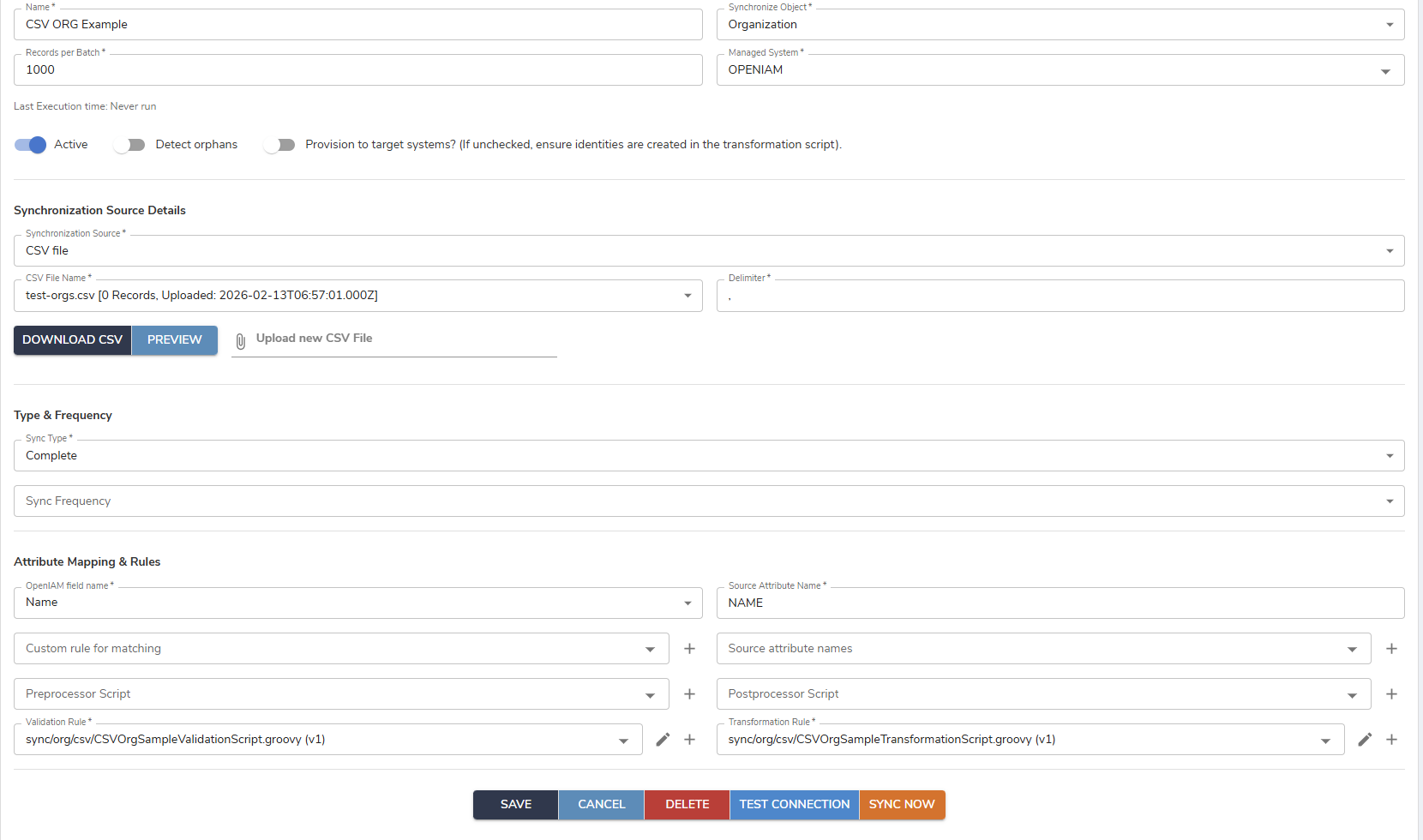
**Provisioning → Synchronization**, open **CSV ORG Example**. Its **Synchronization Source** is **CSV file**, its **Synchronize Object** is **Organization**, its **Sync Type** is `FULL`, and its **Transformation Rule** is already set to the shipped organization transformation script — leave all four alone.
Use **Upload new CSV File** to add your file, then select it in the **CSV File Name** drop-down, which lists each uploaded file with its record count and upload date. **Preview** and **Download CSV** let you confirm you selected the file you meant.
Set **Delimiter** to the character your file actually uses. It defaults to `,` and is required for a CSV source; a file saved as semicolon-separated by a European spreadsheet will otherwise load as one column.
{% endstep %}
{% step %}
### Run it, and read the report rather than the screen
Use **Sync now**. Attaching the file records audit action `SYNCHRONIZATION_CSV_FILE_ATTACHED`; each created organization records `IMPORT_ORGANIZATION`; the run itself records the `SYNCHRONIZATION` tree.
Count the `IMPORT_ORGANIZATION` events against the number of rows in the file. A row the transformation rejected is a warning in the log, not a failed run, so a run that reports success can still have created fewer organizations than you supplied.
{% endstep %}
{% step %}
### Run the same file a second time to build the tree
The parent link is made by looking up **both** the parent and the child by name. On the run that creates an organization, the child does not exist yet at the moment the script looks for it, so no parent link is made. Running the same file again — with the organizations now present, matched on `NAME` — is what attaches each child to its parent.
Confirm this on your test environment before you rely on it: run the file twice, then reopen a child organization and check its parent. If your release links on the first pass, the second run is harmless — matching is on `NAME`, so it updates rather than duplicates.
{% endstep %}
{% step %}
### Verify the result, not the log
Reopen a sample at `/webconsole/organizations`. Confirm the type on each one, confirm the nesting is a pair `ORG_TYPE_VALID_MEMBERSHIP` permits, and — because affiliation is transitive by default — affiliate one test user to a leaf organization and check which ancestors appear on the user. See [Automatic hierarchy assignment](/administration-guide/access/resources-and-organizations.md#automatic-hierarchy-assignment-the-shipped-default-is-true).
{% endstep %}
{% endstepper %}
## Verification
| What to check | Where |
| ---------------------------------- | --------------------------------------------------------------------------------------------- |
| The file was attached | Audit action `SYNCHRONIZATION_CSV_FILE_ATTACHED` |
| Every row produced an organization | One `IMPORT_ORGANIZATION` per created organization, counted against the rows in the file |
| The types are right | `/webconsole/organizations`, then open a sample; the type is on the organization's own screen |
| The tree is right | The parent on a sample child organization, after the second run |
| Affiliation behaves as expected | One test user affiliated to a leaf, then that user's **Organizations** tab |
## When it goes wrong
| Symptom | Cause | Fix |
| ------------------------------------------------------------ | --------------------------------------------------------------------------------------------------------------------- | ---------------------------------------------------------------------------------------------------------------------------------------------------------------------- |
| The import created nothing, or skipped rows | The file's column names do not match what the transformation script reads | The ten column names above are the contract; they are case-sensitive |
| The whole file loaded as a single column | **Delimiter** does not match the file | Set **Delimiter** to the file's real separator and re-run |
| Organizations exist but the tree is flat | No `PARENT` column, or only one run | Add `PARENT` holding the parent's name, then run the file a second time |
| An imported organization has no usable type | `ORG_TYPE_ID` does not match a row in `ORGANIZATION_TYPE` | The four shipped IDs are upper-case; add your own type first at `/webconsole/organizationTypeEdit` |
| A parent link did not save although both organizations exist | The pair is not one `ORG_TYPE_VALID_MEMBERSHIP` permits | Add the containment pair at `/webconsole/organizationTypeMembership`, or change one of the two types |
| Users appear in organizations nobody assigned them to | `org.openiam.automatic.organization.hierarchy.assignment.enabled` ships `true`, so an affiliation adds every ancestor | Expected; see [Automatic hierarchy assignment](/administration-guide/access/resources-and-organizations.md#automatic-hierarchy-assignment-the-shipped-default-is-true) |
{% hint style="warning" %}
**Do not edit the shipped example in place if you have to change the script.** If your file needs a column the transformation script does not read, copy the script into your own path in **Groovy Manager**, change it there, and select your copy in **Transformation Rule** on a configuration of your own. Editing **CSV ORG Example** itself means the next person who opens it gets your file format.
{% endhint %}
## Roll it back
There is no undo for this import. Delete the organizations you did not want, one at a time, from `/webconsole/organizations`; each records `DELETE_ORG`. Do it before anyone is affiliated, because removing an affiliation removes the ancestor and descendant affiliations along with it. That is the whole argument for running the first version of the file against a non-production environment.
## Related
* [Resources and organizations](/administration-guide/access/resources-and-organizations.md) — the organization types, the legal containment pairs and the seven organization properties
* [Import roles, groups, organizations and entitlement memberships](/administration-guide/lifecycle/synchronize-and-import-data/import-roles-groups-and-memberships.md) — the order the entitlement and membership imports have to run in
* [Set up a synchronization](/administration-guide/lifecycle/synchronize-and-import-data.md) — the general configuration procedure
*Applies to OpenIAM 2026.8.1. Last reviewed 7 August 2026.*
---
# Agent Instructions
This documentation is published with GitBook. GitBook is the documentation platform designed so that both humans and AI agents can read, navigate, and reason over technical content effectively. Learn more at gitbook.com.
## Querying This Documentation
If you need additional information that is not directly available in this page, you can query the documentation by asking a question.
Perform an HTTP GET request on the following URL with the `ask` and `goal` query parameters:
```
GET https://docs.openiam.com/administration-guide/access/resources-and-organizations/import-organizations-from-csv.md?ask=&goal=
```
`ask` is the immediate question: it should be specific, self-contained, and written in natural language.
`goal` is what the user is ultimately trying to achieve, the reason they need the answer. Sharing it helps GitBook give you a better, more relevant answer. A goal is most helpful when it describes the outcome the user wants rather than restating the question. For example, with `ask=how do I create an API token`, a goal like `automate deployments from our CI pipeline` lets GitBook tailor the answer to that use case.
The response will contain a direct answer to the question and relevant excerpts and sources from the documentation.
Use this mechanism when the answer is not explicitly present in the current page, you need clarification or additional context, or you want to retrieve related documentation sections.